When searching for an asset in the Asset Manager, there are multiple ways to find what you are looking for. You can use the Filter Panel to narrow your search and find the perfect asset for the project you are working on. The Asset Manager also has a lot of information stored within an asset that can be used to help you find what you are looking for.
Let’s look at the information the Lytho DAM can store in an asset for better searchability.
TABLE OF CONTENTS
• General
• Info
• Variants
• Manage
• Versions
• Tags
• Planning
• Watermark, Block download, For use in publications only
• For use in publications only
• Meta
• Metadata
• Content
• Usage
Asset Preview
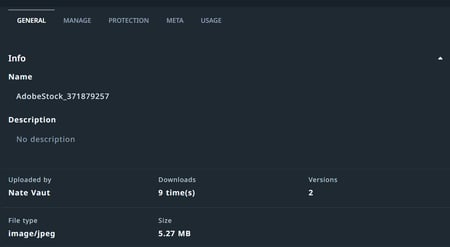
Click on an image to open the Asset Preview Window. Here you will find information that has been brought in from the asset when it was uploaded to the Asset Manager. This includes Name of the asset, Description, Filename, File Type, Size, Modified and Uploaded by.

All details
Click on All details on the bottom right-hand corner of the Asset Preview Window.
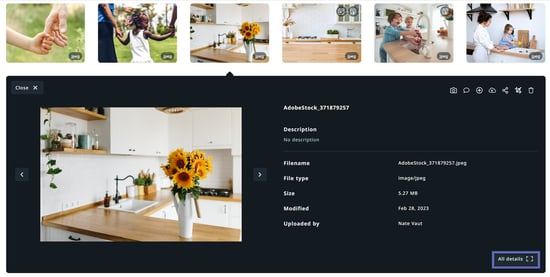
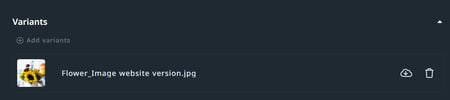
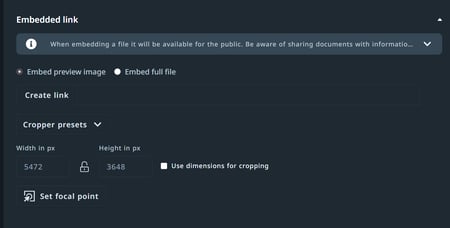
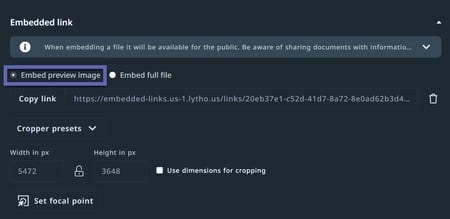
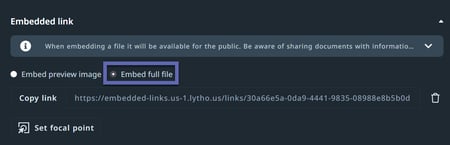
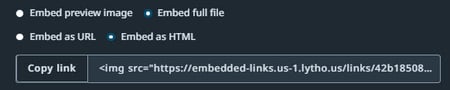
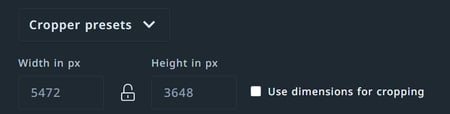
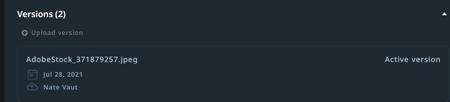
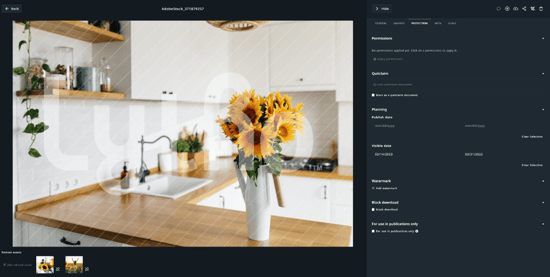
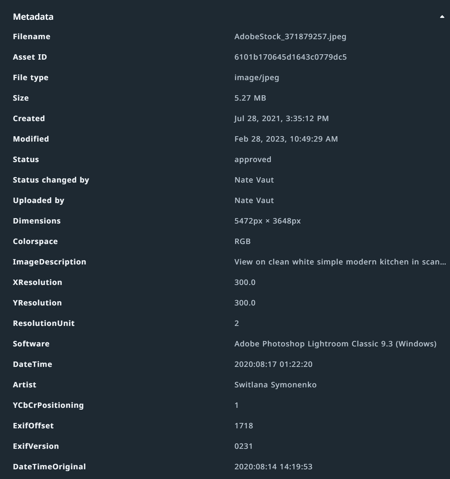
This allows a user to dig deeper into an asset. Admin users can use this section to create an embedded URL, create links between related assets, manage variants and versions, and more! Stakeholders can use this view to download variants, view previous versions, and see the asset's metadata.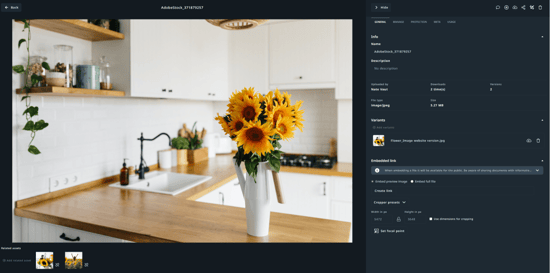
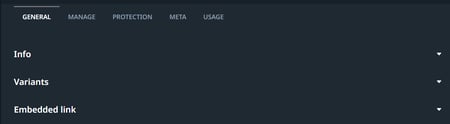
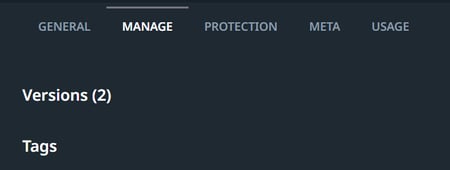
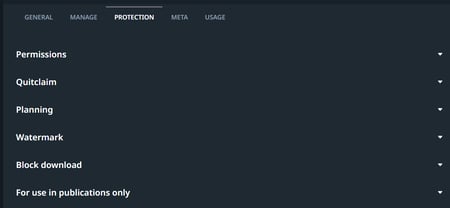
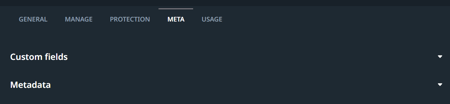
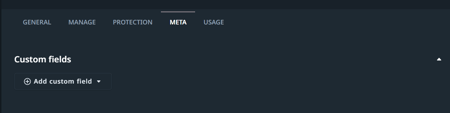
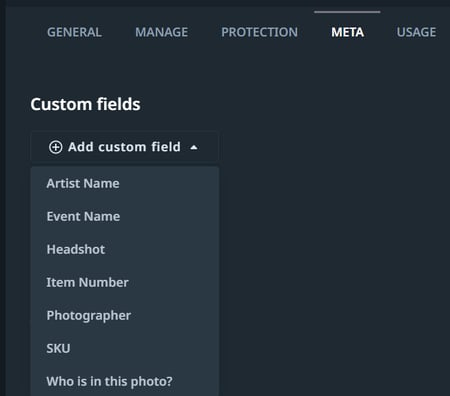
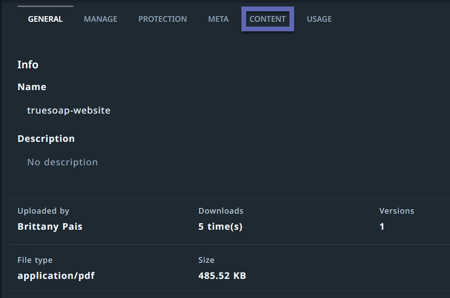
There are five sections across the top of this window you can navigate through. General, Manage, Protection, Meta, Usage.

General
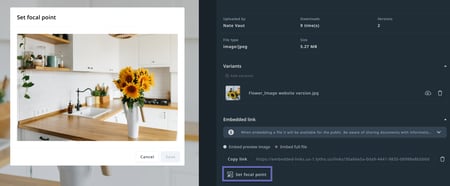
Under the General tab you will find three sections: Info, Variants and Embedded Links.