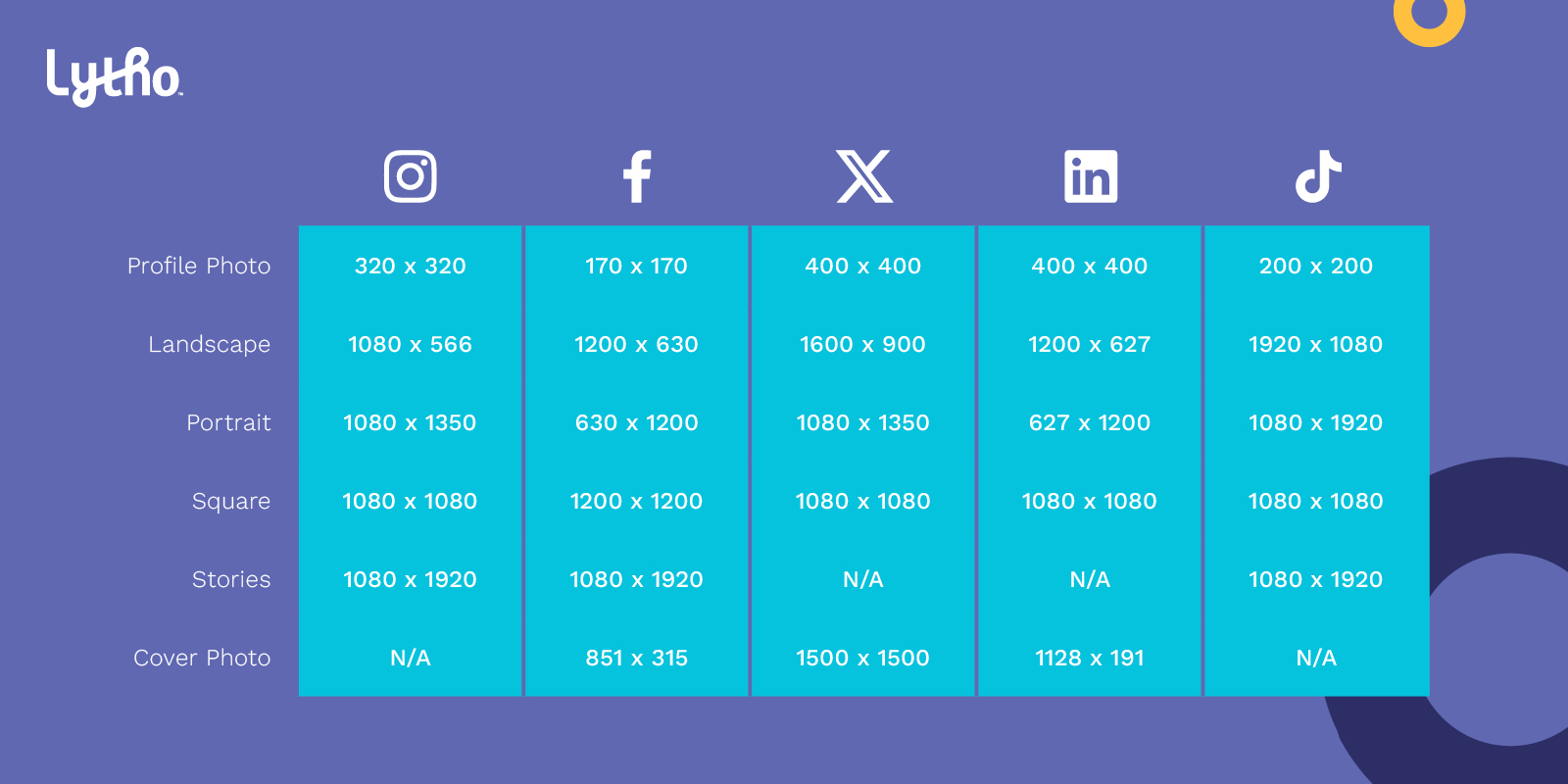
Presets in Lytho DAM allow you to provide your users with set options for downloading, creating, cropping, and resizing image files (JPEG and PNG), ensuring top quality no matter the use case.
TABLE OF CONTENTS
Download Presets
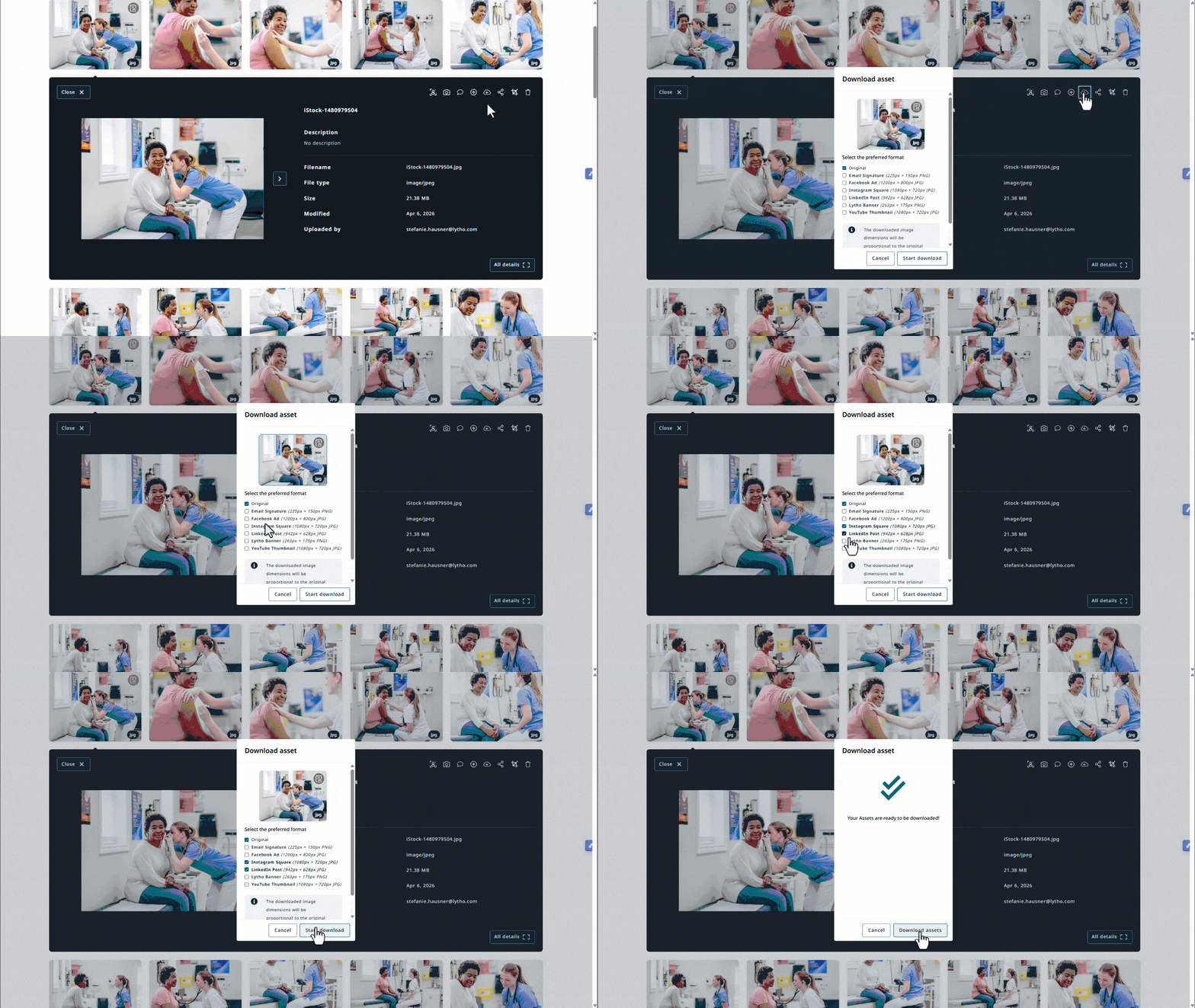
Assets can be downloaded in their original size but Lytho offers a way to define Download Presets for your assets. With these presets a user can download assets in the right dimensions, for the right purposes. When downloading an asset, users can see the dimensions, Dots Per Inch (DPI) and the title of a preset, so they can choose the correct file size.
Navigate to Settings, then select PRESETS to access and manage your Preset settings.
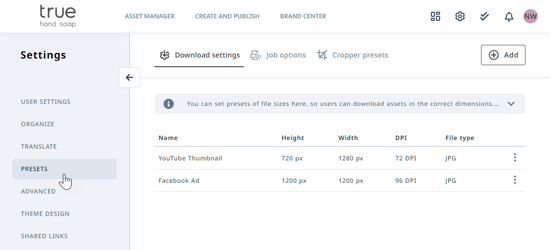
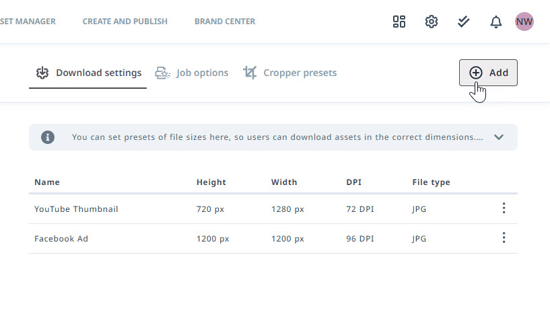
Within the Download settings tab you can create and manage Download Presets. Click the Add button in the top right corner of your screen to create a new Preset.
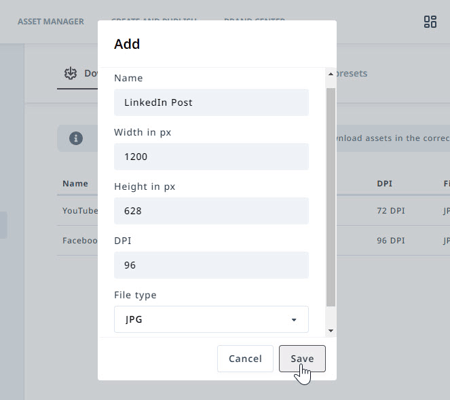
Create a name for your Download Preset, enter the dimensions, and select a file type from the dropdown menu. Click Save when complete.
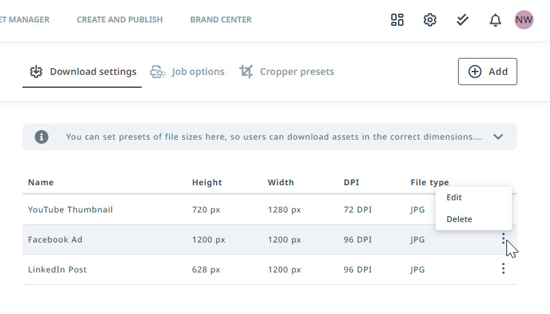
Edit or delete a Download Preset at any time using the actions menu to the right of the appropriate Preset.
When a user selects the Download icon on an image asset, they'll have the ability to select from the created Download Preset options.
Cropper Presets
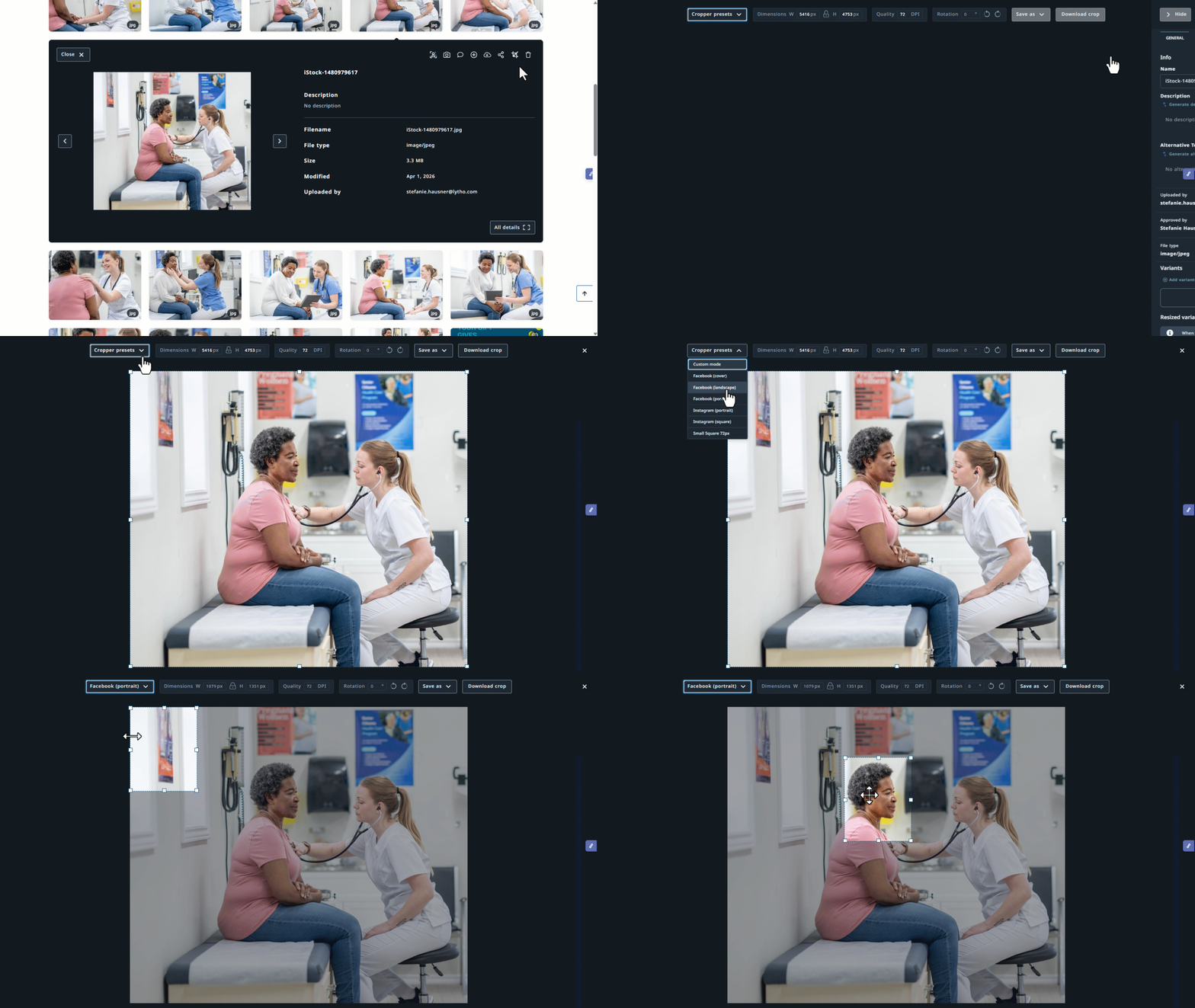
Assets can be cropped to any custom width and height. With Cropper Presets users can select a pre-established width and height from a drop-down list.
To create or adjust Cropper Presets, navigate to Setting, then PRESETS. From there, select the Cropper presets tab.
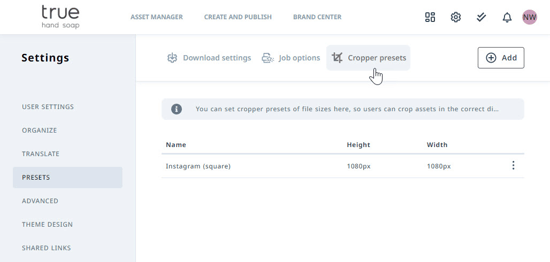
Click the Add button in the top right corner of your screen to create a new Cropper Preset. 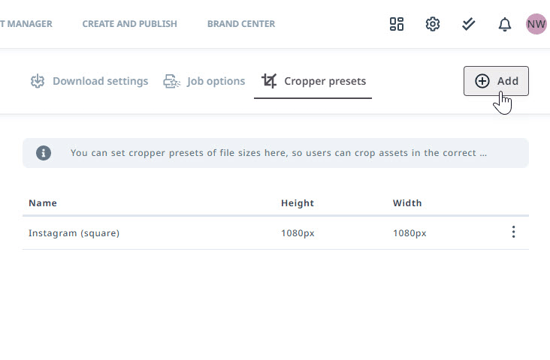
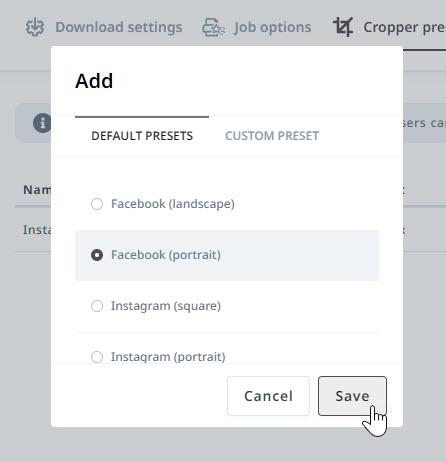
In the DEFAULT PRESETS tab are some common use cases for cropped images. Select the Preset(s) you would like to add and click Save when complete.
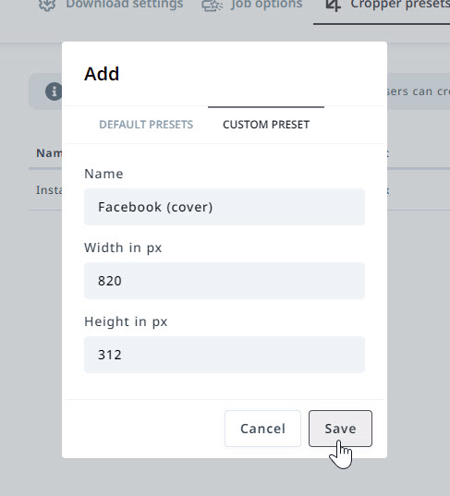
Select the CUSTOM PRESET tab to create your own Preset(s). Enter a name for your Cropper Preset and the dimensions. Click Save when complete.
Edit or delete a Cropper Preset at any time using the actions menu to the right of the appropriate Preset.
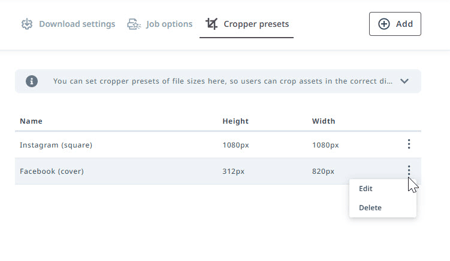
Your end users will see these options in the Cropper presets dropdown menu and have the ability to easily download these specific dimensions.