Permissions in conjunction with User Groups allow administrators restrict access to specific content and give a group of users access to assets, brand guides, and templates in a quick and easy way.
TABLE OF CONTENTS
• What are Permissions & User Groups?
What are Permissions & User Groups?
Permissions are labels that allow the publisher of an asset to limit who can see that asset. Permissions are optional and can be assigned to individuals and/or User Groups. It is important to give each permission a short and self-contained label so the authorized user knows which users can or cannot view the asset when adding specific permissions. Individuals and user groups can be assigned multiple permissions.
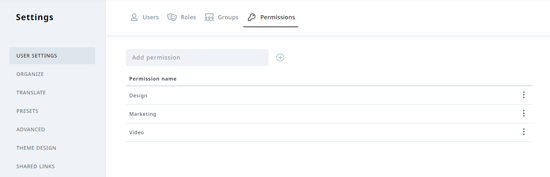
User Groups are groups of users that have some type of association with one another (department, team, etc) and need to have the same level of access to assets in the Lytho asset manager. User groups can be assigned multiple permissions at once depending on the level of accessibility needed. This is done by applying permission labels to a group. Groups are also used in asset approval and helps determine who approves assets from the Waiting Room into the DAM.
Creating Permissions
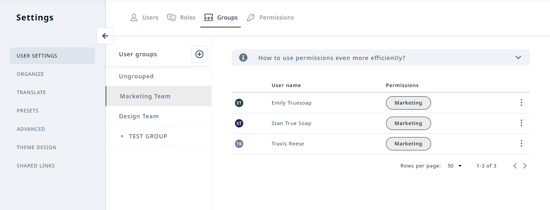
Navigate to User Settings and select Permissions towards the top of your view to access your permissions. Creating permissions is permission based. If you do not see this option in your account, reach out to your Lytho DAM administrator.
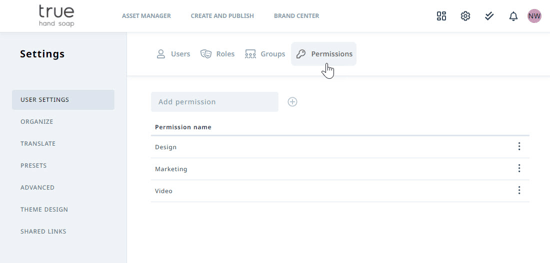
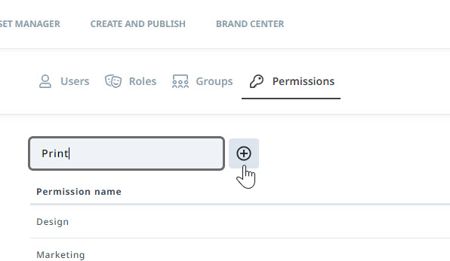
Type the permission name into the Add Permission text box and click the Plus icon to create. It is important to give each permission a short and self-contained label so the authorized user knows which users can or cannot view the asset when adding specific permissions. Individuals and user groups can be assigned multiple permissions.
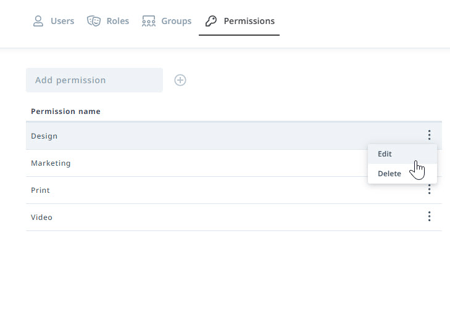
At any time you can edit the name of a permission. Click the actions menu to the right of the permission and select Edit.
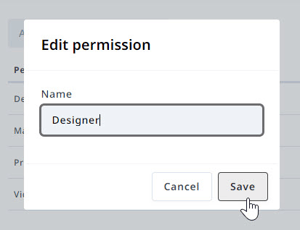
Update the permission name and select Save when complete.
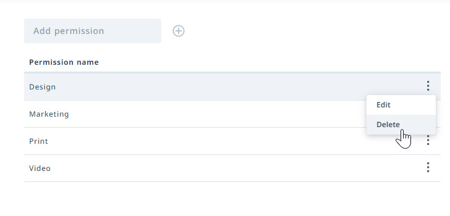
To delete a permission, click the actions menu to the right of the appropriate permission and select Delete.
Creating User Groups
Navigate to User Settings and select Groups towards the top of your view to access your User Groups.
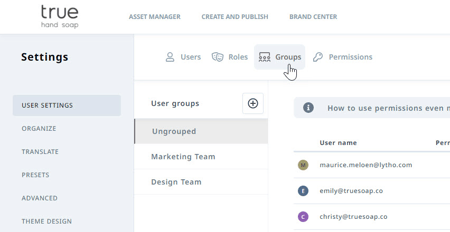
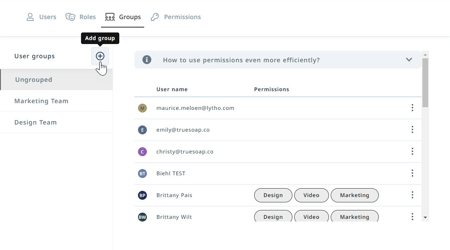
Select the Plus icon to the right of User Groups to create a new group.
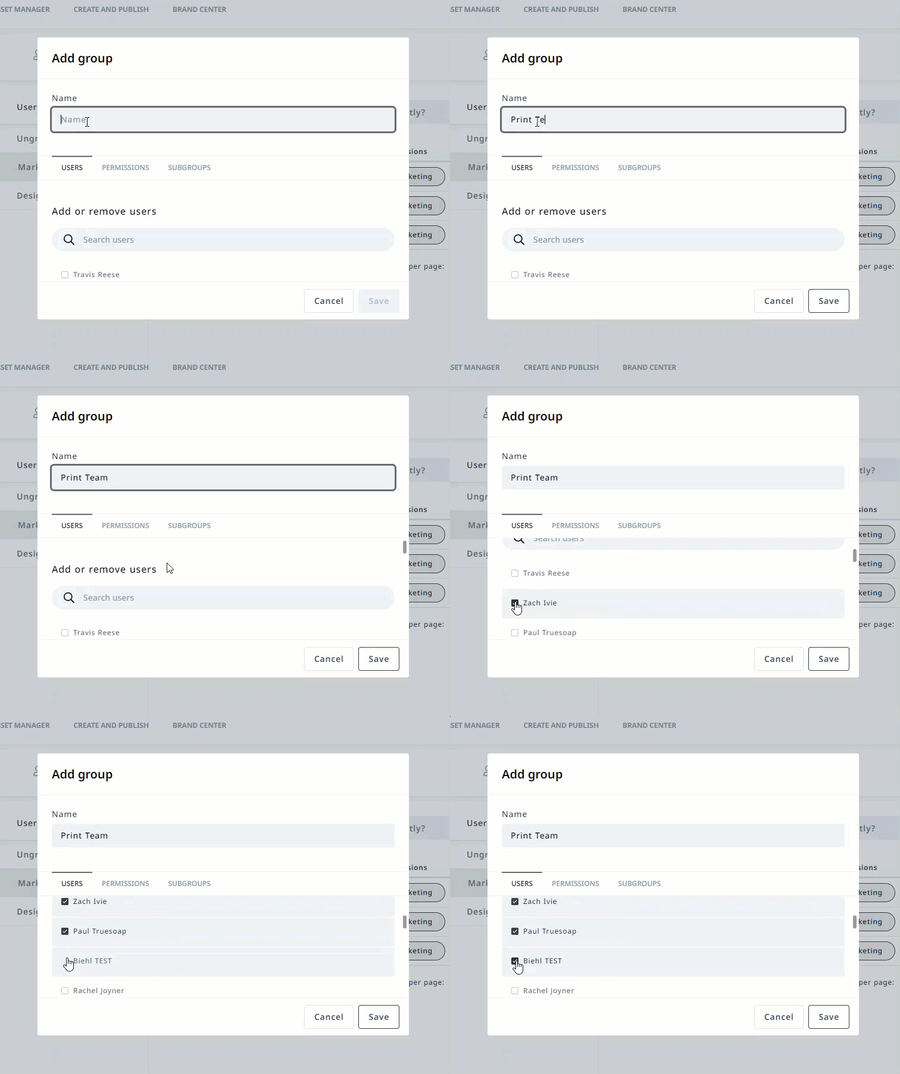
Create a name for your group and begin adding users by selecting the box to the left of each appropriate user.
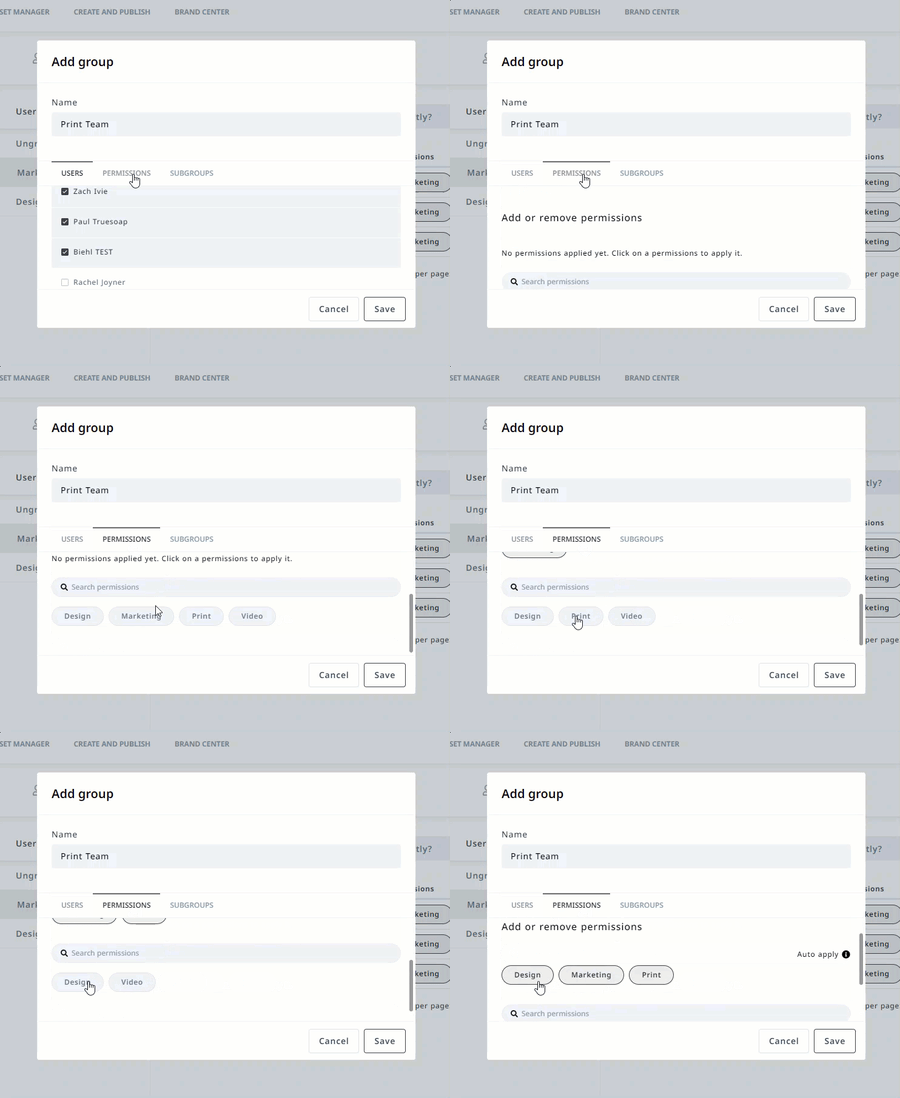
Click over to the PERMISSIONS tab and select from the available permissions. Select Save when complete.
Managing User Groups
User groups that have been created in your account will be listed below User Groups. Any user who is not designated to a specific group will be in Ungrouped. While Ungrouped will remain at the top of your group list, you have the ability to re-organize the order of your created groups. Hover over the left side of a group to drag and drop into the preferred order.
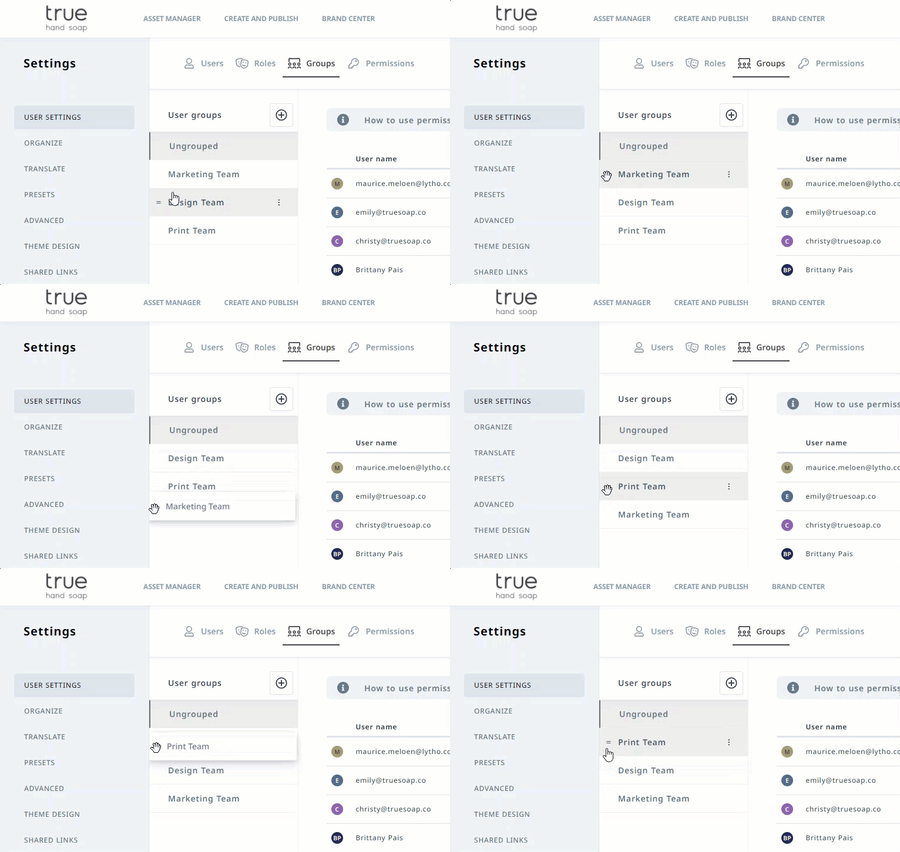
Click the actions menu to the right of a group to Edit or Delete a user group. 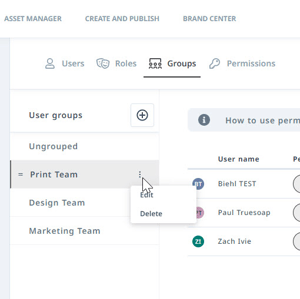
Quickly view which permissions your users have been assigned with the permission badges to the right of each user. Permissions that are automatically applied will show an A icon. Use the actions menu to the far right of a user to edit permissions, move to another group, or remove from a group.
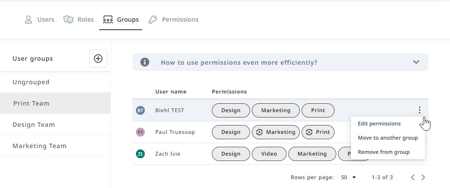
Within Groups you have the ability to auto-apply permissions to users and user groups. This will automatically add permission to newly uploaded assets or newly created publications uploaded by that user or group.
Auto Apply Permissions
Auto-apply permissions to a specific user by hovering over the appropriate permission badge in your user list and selecting the badge when the icon and Add auto apply message appears. To remove, hover again and select to remove.
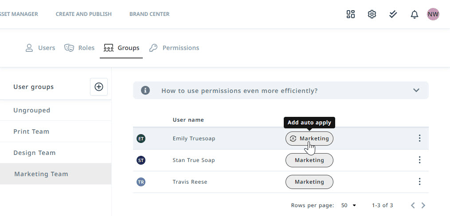
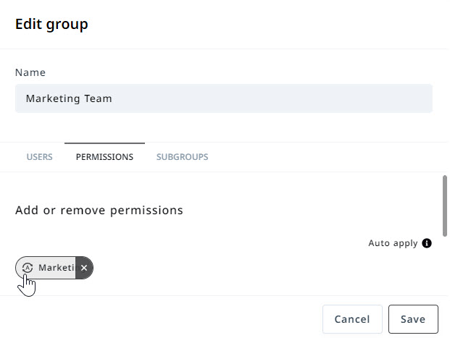
Auto-apply permissions to an entire user group when creating or editing a group. Navigate to the PERMISSIONS tab and hover over the appropriate permission. Click the left side of the permission badge where the A icon appears to auto-apply. Select Save when complete.