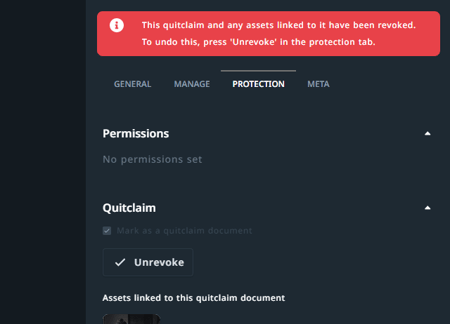
Use Quitclaims to manage publication agreements for individuals releasing their image to appear in photographs and other media. This feature is especially useful for highly regulated organizations and educational institutions maintaining processes around GDPR compliance and privacy concerns.
TABLE OF CONTENTS
• Linking a Quitclaim Document to an Asset
• Revoking a Quitclaim Document
Create a Quitclaim Document
You can upload agreements and mark them as quitclaim documents to be attached to the relevant assets. Once your agreement has been uploaded to Lytho DAM, navigate to the PROTECTION tab of your asset details and click the check box Mark as a quitclaim document. This can also be configured when selecting multiple assets at once.
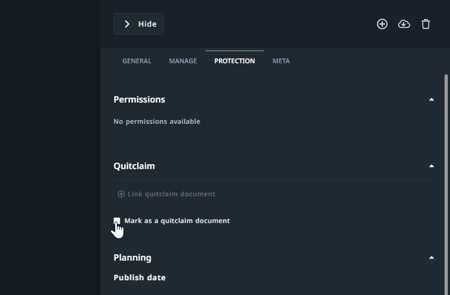
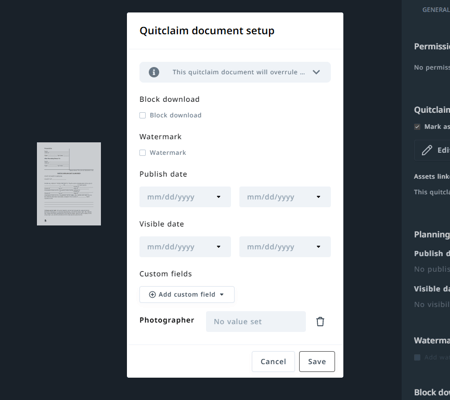
You have a few options setting up your quitclaim document:
• Check Block download to remove the ability to download the quitclaim. This will also remove the option to set a Publish date.
• Check Watermark to add the Lytho watermark to your document.
• Publish date allows you to set the time frame in which the document can be downloaded.
• Visible date allows you to set a time frame in which the document will be invisible to users (unless they have the role to see invisible assets).
• Select Add custom field to add any of your custom fields to the document.
Select Save to confirm your selections. You'll now be able to link your document as a quitclaim document to assets and publications.
Linking a Quitclaim Document to an Asset
Navigate to the PROTECTION tab in your asset details and select Link quitclaim document. This can also be done when selecting multiple assets at once.
To help your team stay ahead of expiring rights, users with the "Edit copyright settings of assets" permission will receive a notification 7 days before a linked asset's Publish or Visible end date. This gives your team time to renew the quitclaim or replace the asset before its usage rights expire.
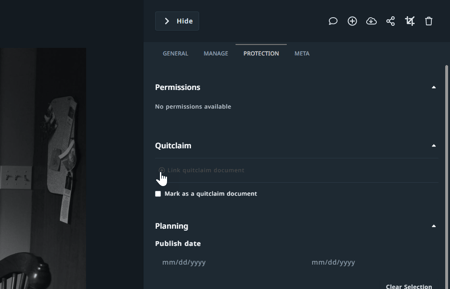
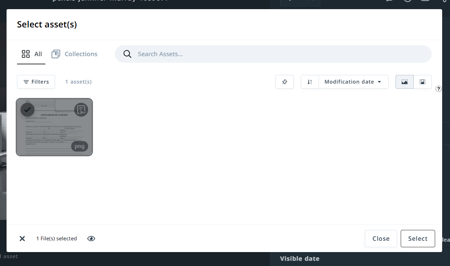
You'll be able to search through any quitclaim documents that you have permission to see. If you do not see the document you need, ensure the document has been has been marked as a quitclaim document. Select the appropriate asset and click Select to confirm.
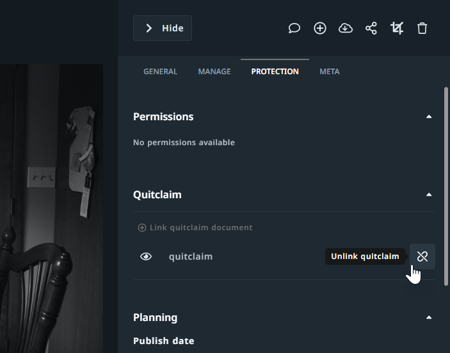
At any time you can remove a quitclaim document by clicking the Unlink icon to the far right of the Quitclaim section.
Revoking a Quitclaim Document
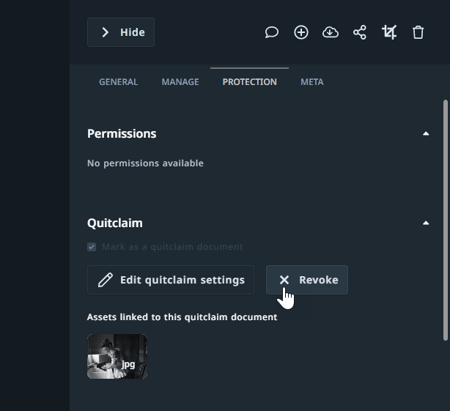
When a quitclaim is no longer valid you have the ability to revoke access, ensuring the assets are no longer used and any embedded or share links expire. Navigate to the quitclaim document and click Revoke within the PROTECTION tab.
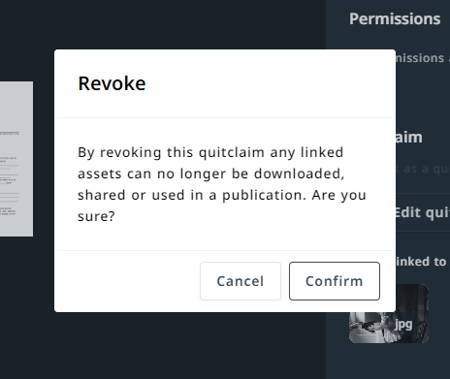
Select Confirm to remove access.
You have the ability to reinstate your quitclaim document at any time by selecting Unrevoke, granting access to any linked assets.