Custom Fields in Lytho DAM enable you to add fields to your asset's meta data that are unique to your process and organization.
TABLE OF CONTENTS
• Managing Custom Fields in Single Assets
• Adding Custom Fields to Assets in Bulk
Creating Custom Fields
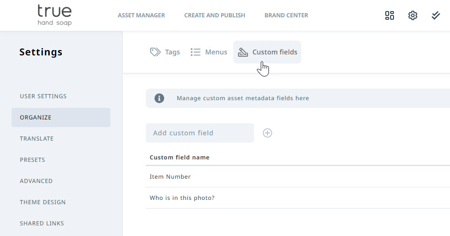
Navigate to ORGANIZE in your settings and select Custom fields to access your custom fields.
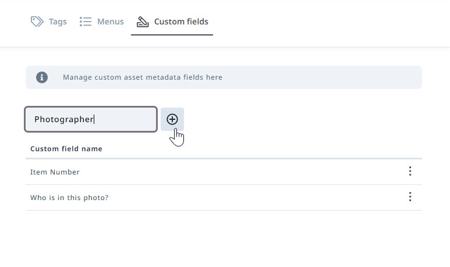
Enter a name for your custom field in the text box and select the plus icon to create.
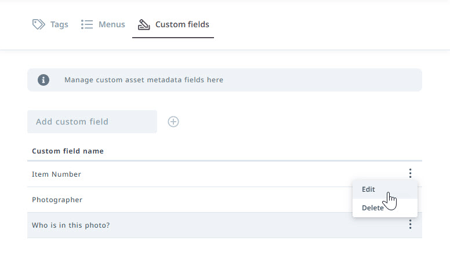
At any time, edit the name of a custom field by clicking the actions menu to the right and select Edit.
Managing Custom Fields in Single Assets
Add custom fields to a single asset in the META tab in asset details.
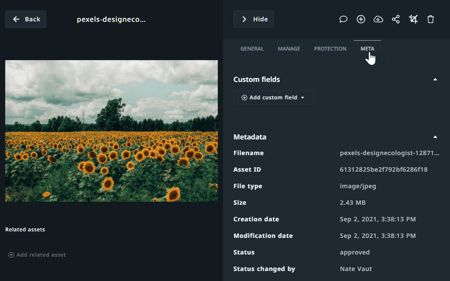
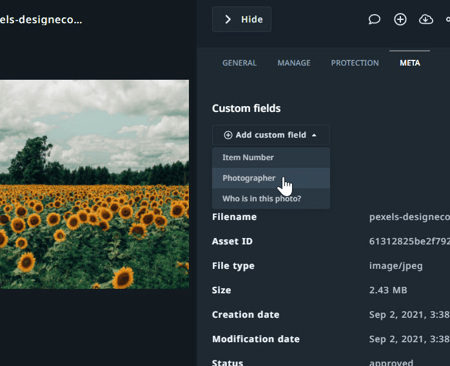
Select Add custom field and choose from the available options.
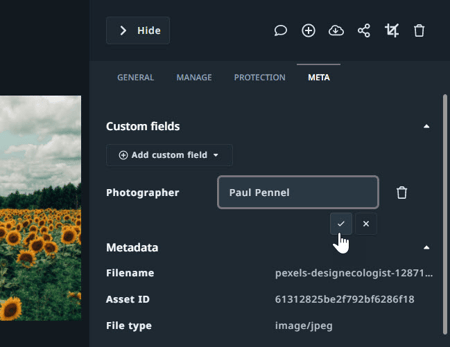
Enter a value in the text box to the right of your custom field and click the checkmark to save. At any time you can edit the value for your custom field by clicking into the value. Click the X to remove the value.
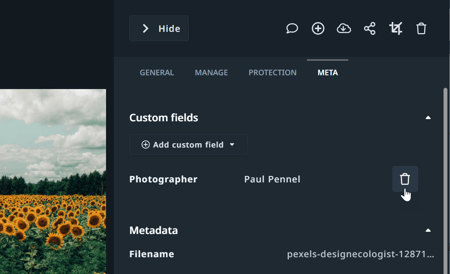
To completely remove a custom field from an asset, click the trash icon to the right.
Adding Custom Fields to Assets in Bulk
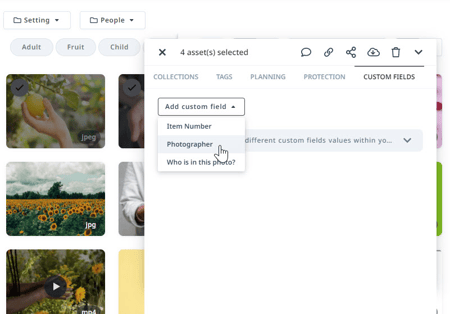
When selecting multiple assets click the CUSTOM FIELDS tab and select from the Add custom field dropdown menu.
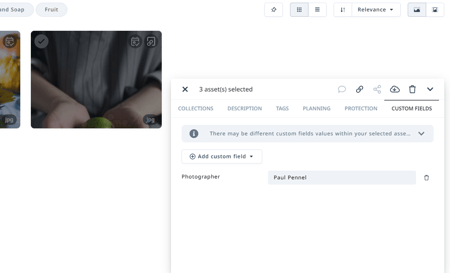
Enter a value for your custom field and hit Enter or click out of the text box to save.
Searching by Custom Fields
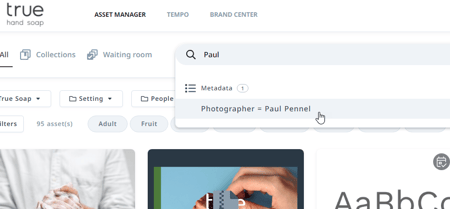
Using the Search Bar within the Asset Manager, you can search for assets containing specific Custom Field values. Stored in the metadata section of an asset, searching by all or a part of the Custom Field value will result in a metadata suggestion. Clicking on the suggested result will limit the search to assets that have the suggested Custom Field value.