Skip to content
English - United States
  • There are no suggestions because the search field is empty.

Navigating the DAM

Search, download, and share assets with just a few clicks all within Lytho's Asset Manager.


TABLE OF CONTENTS

• Using the search bar

• Using AI search

• Using the suggested tags

• Using the tag menus

• Searching without Tags

• Using the filter panel

• Asset Preview & Action Buttons

• Multi-Selecting Assets


Features described in this article are not included in all subscription plans. Interested in expanding your feature set? Contact the Lytho Support Team for further assistance.

 

Using the search bar

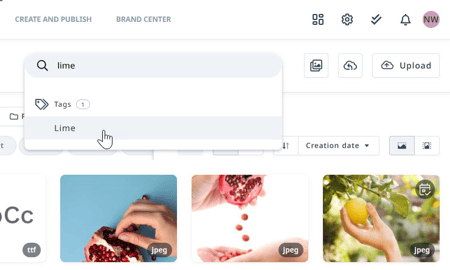
Locate assets by typing your search suggestion in the search bar. Any related tags in the system will automatically populate. By clicking the tag, the Asset Manager automatically gives you a new view with all the assets that have that specific tag attached to them.

Using the search bar


If no tag is suggested, your search can still be valuable, as the search bar will also search based on custom fields, filename, metadata, content in a document (such as word/pdf), and more.


Using AI search

Locate assets using Artificial Intelligence (AI) by turning on AI Search in your search bar and typing a keyword. Lytho's advanced AI search will present on-demand content based on the asset itself, not asset tags or custom fields. 

Turning on AI Search


To return to standard search, select the magnifying glass in the search bar. 

Turning off AI Search


Using the suggested tags

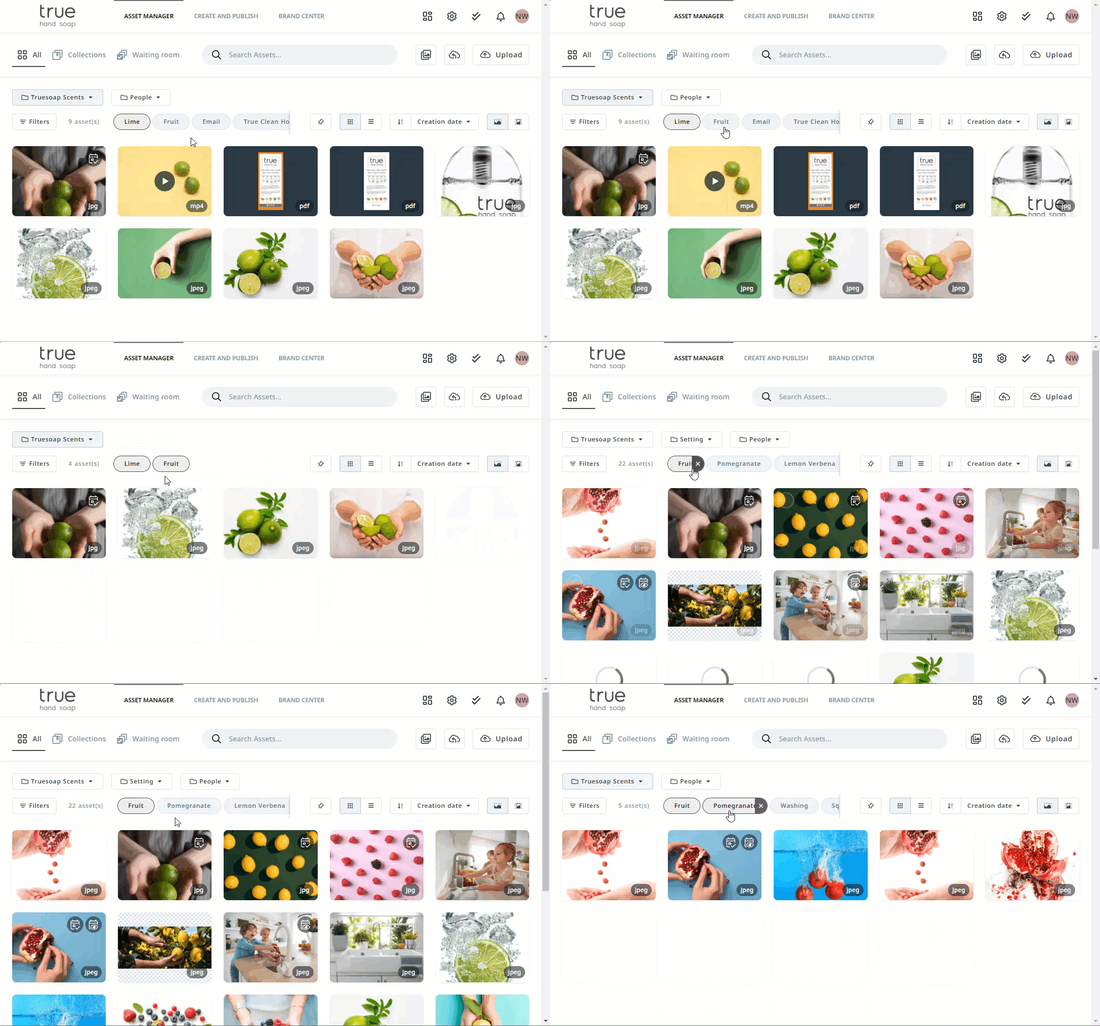
Once you select a tag, it is highlighted in your Primary Brand Color. Suggested tags that are not yet selected for the search, are still in grey. By clicking on an extra tag that is not selected, you can further narrow down your search. By clicking on the x button of an already selected tag, you can remove the tag filter and broaden up your search.

Using the suggested tags


Using the tag menus

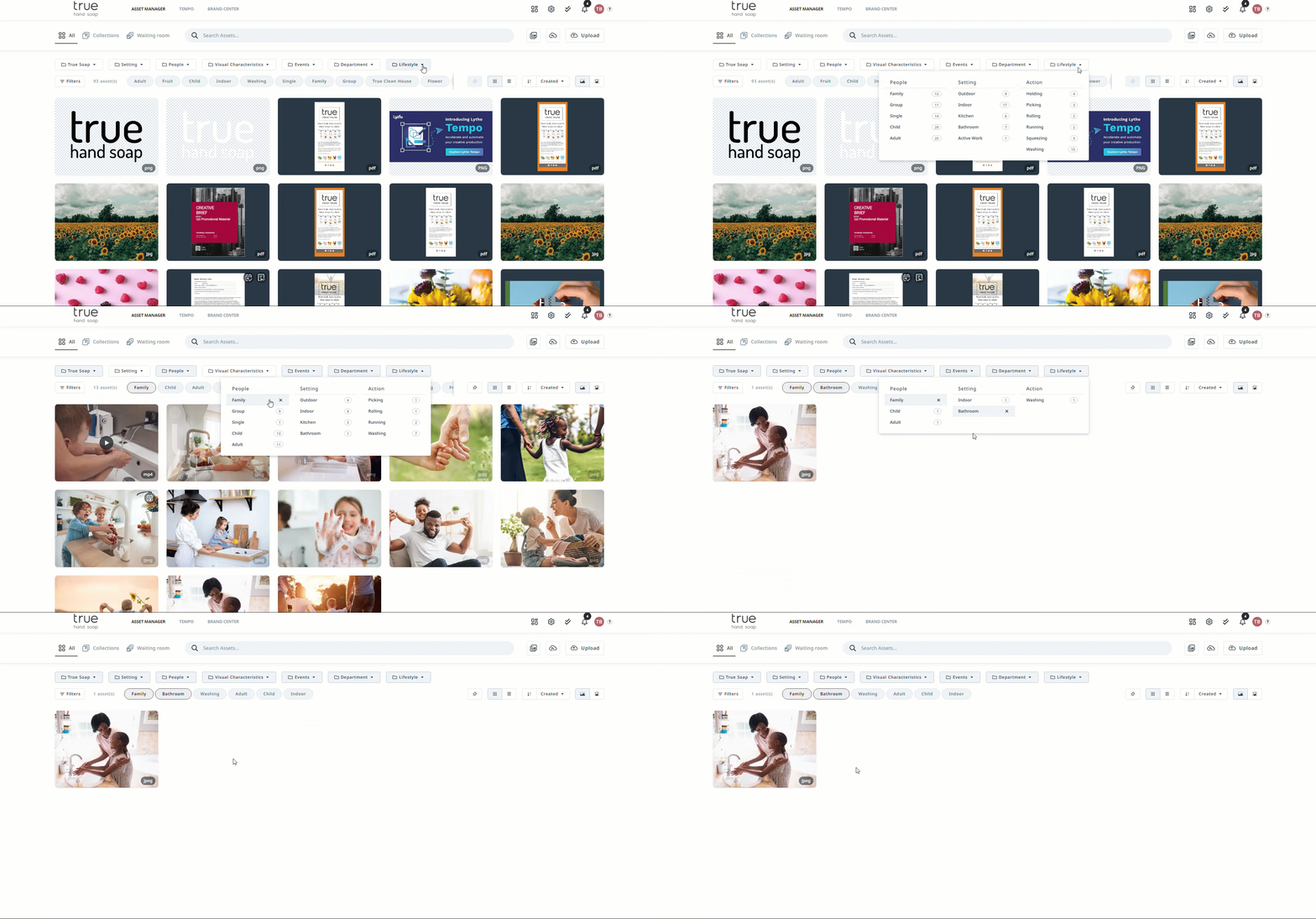
Use organized lists, or menus, to see all of the tags related to a single idea. Examples are: department, business area, or even regional-specific tag groups. Admins can create tag menus to display tag groups in a visual list that will allow users to narrow down their search results while seeing the results in real time.

Using the tag menus


Searching without Tags

Sometimes it is beneficial to type search terms directly within the search bar without selecting one of the suggested tag results. We refer to this as a fuzzy search, which searches for text that matches a term closely instead of exactly. Fuzzy searches help you find relevant results even when the search terms are incomplete.


It is important to understand that the search bar will match your query to assets based on their filenames, file description, tags, custom fields, permissions, metadata, and content within a document. This is beneficial when your users only remember a small part of the asset they're looking for.


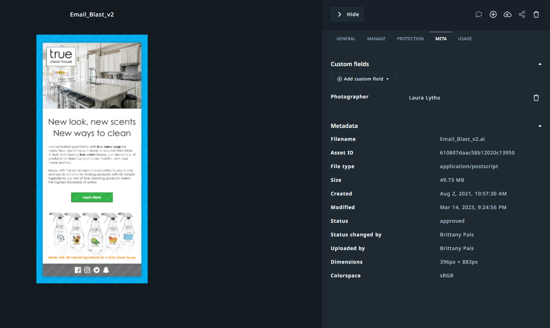
Metadata includes the data tied to the asset as well as Custom Fields defined in the DAM. Custom fields are manually entered, whereas metadata is automatically brought in when uploading the asset through the Asset Manager. See more about custom fields here.

All details view


Caution should be used when utilizing the text-entry search because the DAM will yield all results based on the text query. For example, if the user searches for a unique SKU number like "12345", every asset that includes any of those numbers in their metadata or content would also be displayed.


Using the filter panel

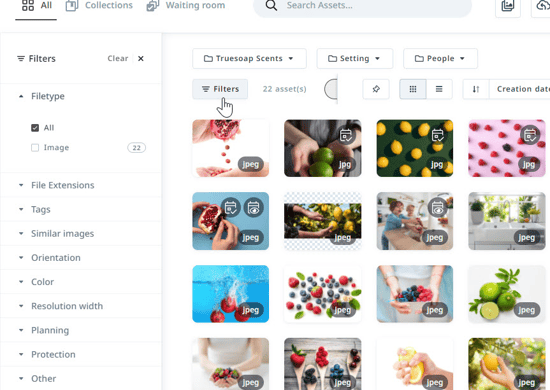
On the left side of your screen, select Filters to open up a filter panel to help narrow down your search with advanced settings. 

filter panel


Asset Preview & Action Buttons

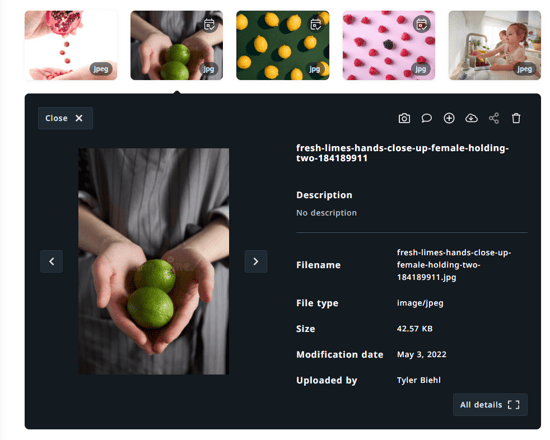
Click on an image to view a preview of that asset. In the right bottom corner, you can click “all detail” to get more details of the asset, such as General info, versions/variants, tags, planning, protection, and metadata.

Asset Preview


In the right upper corner you can find all actions you can execute on an asset. The actions you are able to take will be based on role and permissions.

Action Buttons


• The Camera icon allows you to find a similar image with 'artificial intelligence' (based on the visual aspect of the asset). This action button will show you an overview with similar images based on the visual aspect of the image. Artificial intelligence is used to search throughout the whole asset manager and show you the images that in some way look like the image you selected.

• The Message icon allows you to send a message about an asset to other users. You can select if the message should be sent to an individual user or a group of users.

• The Plus icon allows you to add an asset to an existing collection. 

• The Download icon allows you to download the asset to your local files.

• The Share icon allows you to share the asset outside of the system. 

• The Crop icon allows you to crop the image within Lytho. Set your desired dimensions or cut out what you like the best visually.

• The Trash icon allows you to delete an asset. Deleted assets can be restored within 30 days in Settings. 


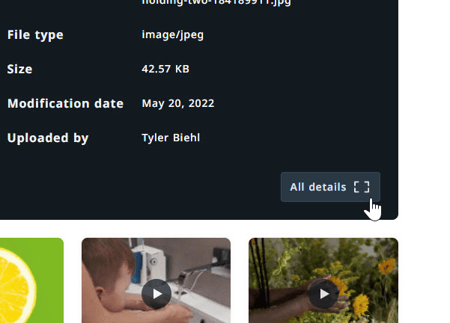
In the right bottom corner, click All details to view more details of the asset, such as General info, versions/variants, tags, planning, protection, and metadata.

All details button


Multi Selecting Assets

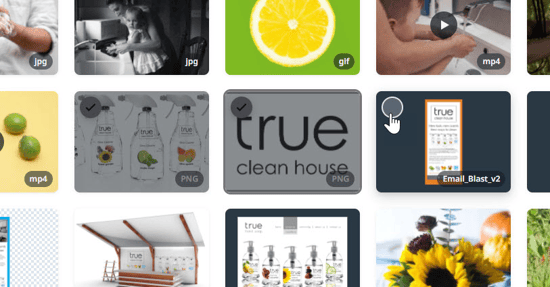
Lytho DAM allows you to select multiple assets at a time to view and take action. Select multiple assets by clicking the checkboxes in the right hand corner of the appropriate asset.

Selecting Assets


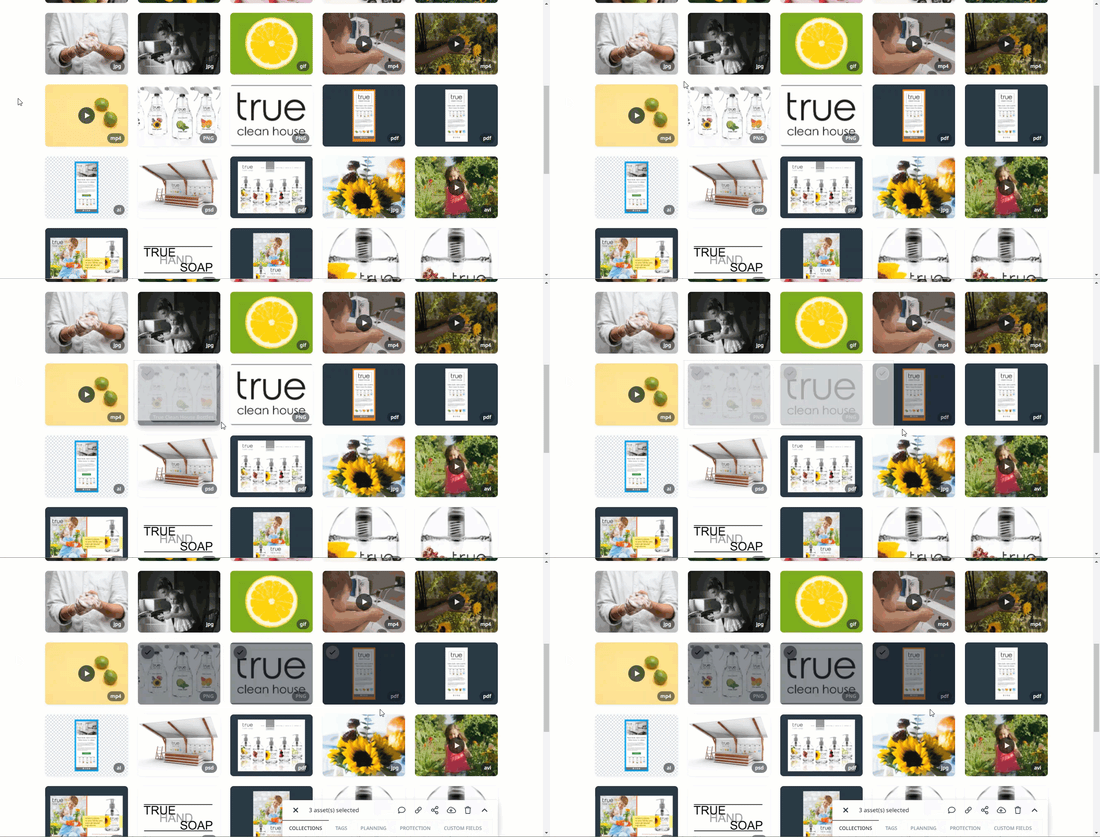
You also have the ability to select multiple assets at a time by clicking and dragging the selector box over the appropriate assets. 

Multi Selecting Assets


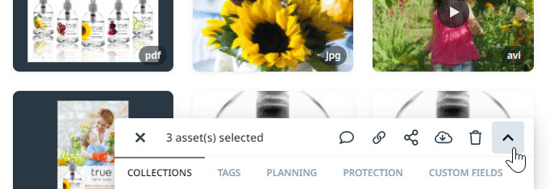
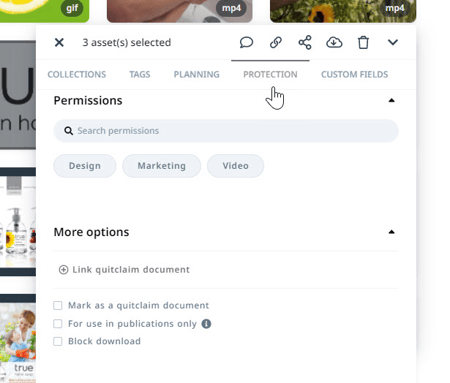
When multiple assets are selected, a batch edit bar appears in the bottom right corner. In the top left of the batch edit bar, you can see how many assets you have selected at that moment. If you would like to de-select this set of assets, click the x-button in the left upper corner.  To improve your view, you can expand or shrink the batch edit bar with the arrow button in the right upper corner.

Multi Selecting Assets


The batch edit bar shows a few actions that you can take with this set of assets. Depending on your user role and assigned rules within the platform, the action buttons on the batch edit bar might be limited.


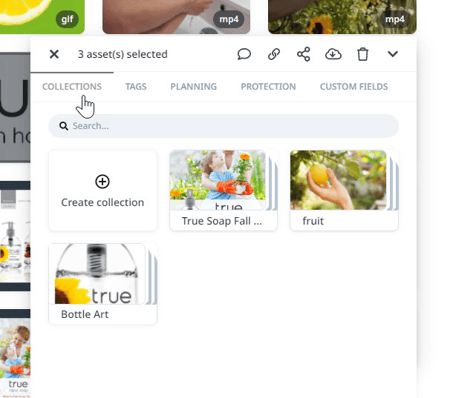
COLLECTIONS gives you the ability to put a selection of assets in a collection. You can choose to create a new collection for your current selection of assets, or you can add them to an already existing collection.

Collections tab


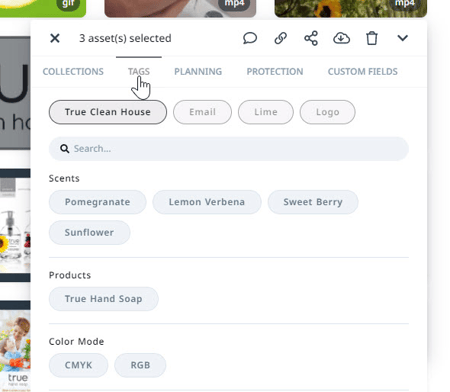
TAGS shows the tags that are linked to all four selected assets, then the tags that are also linked to one or some of the selected assets but not linked to all four selected assets, and finally all other tags in the system that are not linked to any of these four selected assets but which you could add.

Tags tab


You can use the scrollbar to scroll down and find more tags, or you can use the search bar if there is a specific tag that you’re searching for. You can also remove the link between a tag and an asset by using the x-button on the highlighted tags.


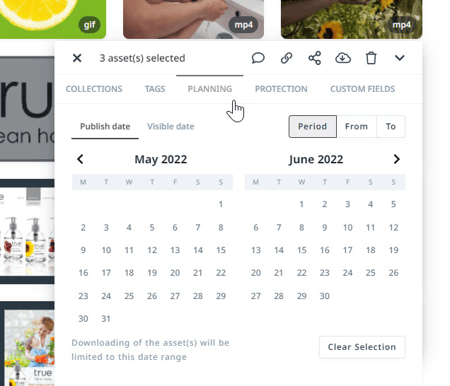
PLANNING allows you to set a date or date range that your asset is allowed to be published or made visible in the Asset Manager. Adding a Publish date to your asset will allow an asset to only be shared or downloaded during that date range. Adding a Visible date to your asset will hide the asset from being viewed while outside of the set date. Leaving the date fields blank will allow it to remain accessible with no time limitation.

Planning tab


PROTECTION allows you to set permissions for the group of assets and limit who is able to view and/or take specific actions on the assets.

Protection tab


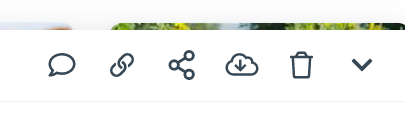
Within the batch edit bar you will also see the option to send a message, share, download, and delete the selected assets.  Edit bar