Save your favorite filters in Requests, Campaigns, Projects, Tasks, Proofs, Calendars, and Workload to return to when needed!
TABLE OF CONTENTS
• My Views
My Views
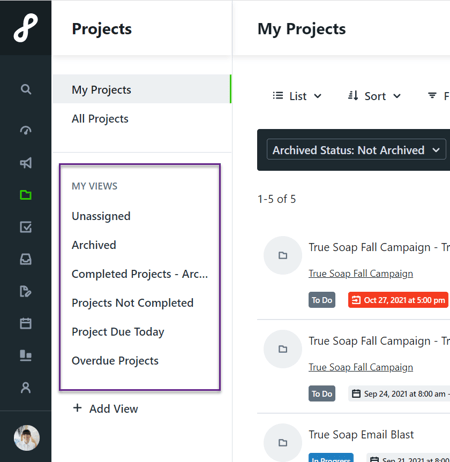
Views you have created will be saved within each respective workspace on the left side of your screen below MY VIEWS. These views are shareable with other Team Members and Stakeholders using the Share Custom View option.
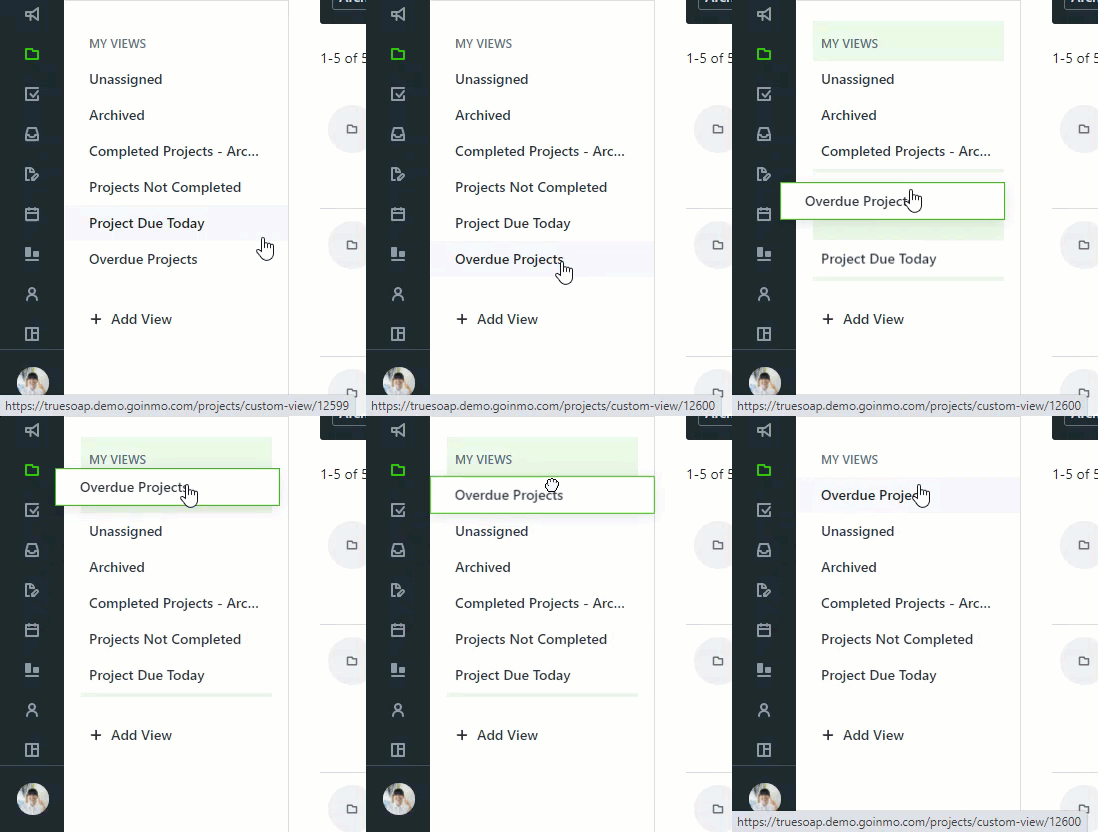
Drag and drop functionality allows you to re-order your views as desired.
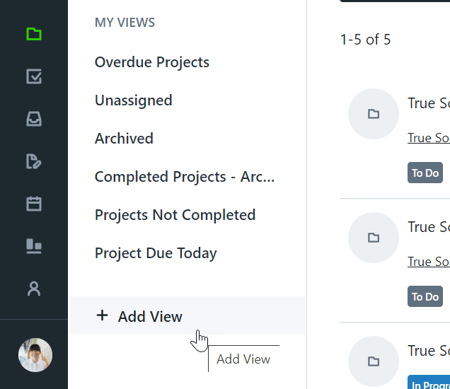
Create as many views as needed by clicking + Add View at the bottom of your views list.
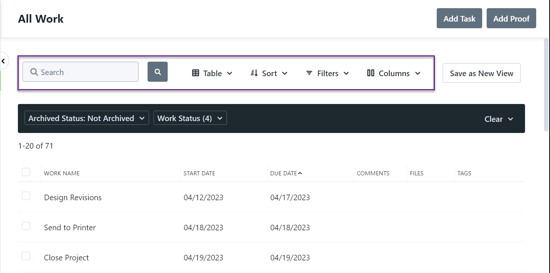
Search, Sort, Filter, Column, and View type options are are located in dropdown menus at the top of your view. The options available are dependent on the workspace and view type. The Search bar allows you to search based on the Work Name column. View types include List, Table, Calendar, Kanban and Gantt.
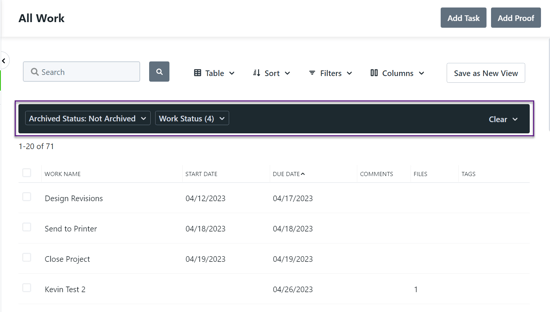
Filters currently applied will show inside the filter bar. Deselect a filter to remove from the view. Select Clear on the far right to remove all filters.
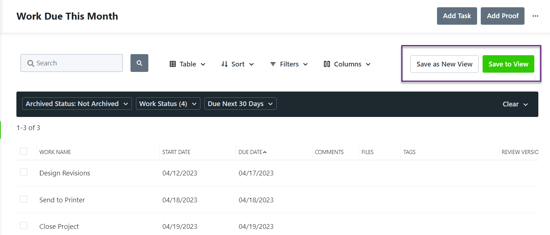
When making changes to your view select Save to View to save your preferences or Save as New View to create a new saved view with the current preferences.
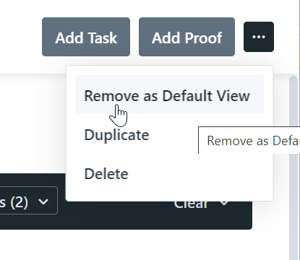
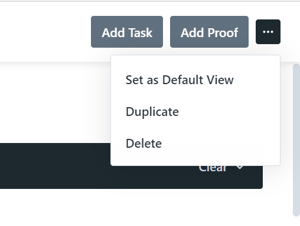
The ellipses menu in the top right corner allows you to duplicate your view or delete if no longer needed. You also have the option to set the current view as your Default View for the current workspace.
Default Views
Have a favorite saved view that you return to on a daily basis? Lytho Workflow gives you the ability to set a saved view as the default view for individual workspaces.
Navigate to your desired view and click the actions menu in the top right corner of your screen. Select Set as Default View to set. Now when you return to the workspace your preferred view will automatically show.
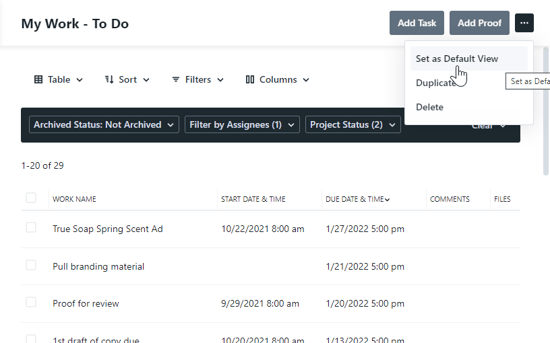
If you wish to set a new view as your default or remove the default view all together, select Remove as Default View from the same menu.