
Create more empowering views of Campaigns, Projects, Tasks, Proofs, and Requests. Table views provide a comprehensive dashboard including the columns and filters you need to see all important information at a glance.
TABLE OF CONTENTS
Viewing by Table
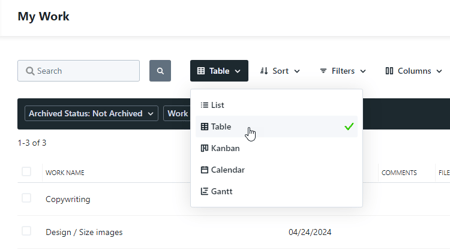
Navigate to your desired workspace and click List at the top of your view. Select Table from the dropdown menu.
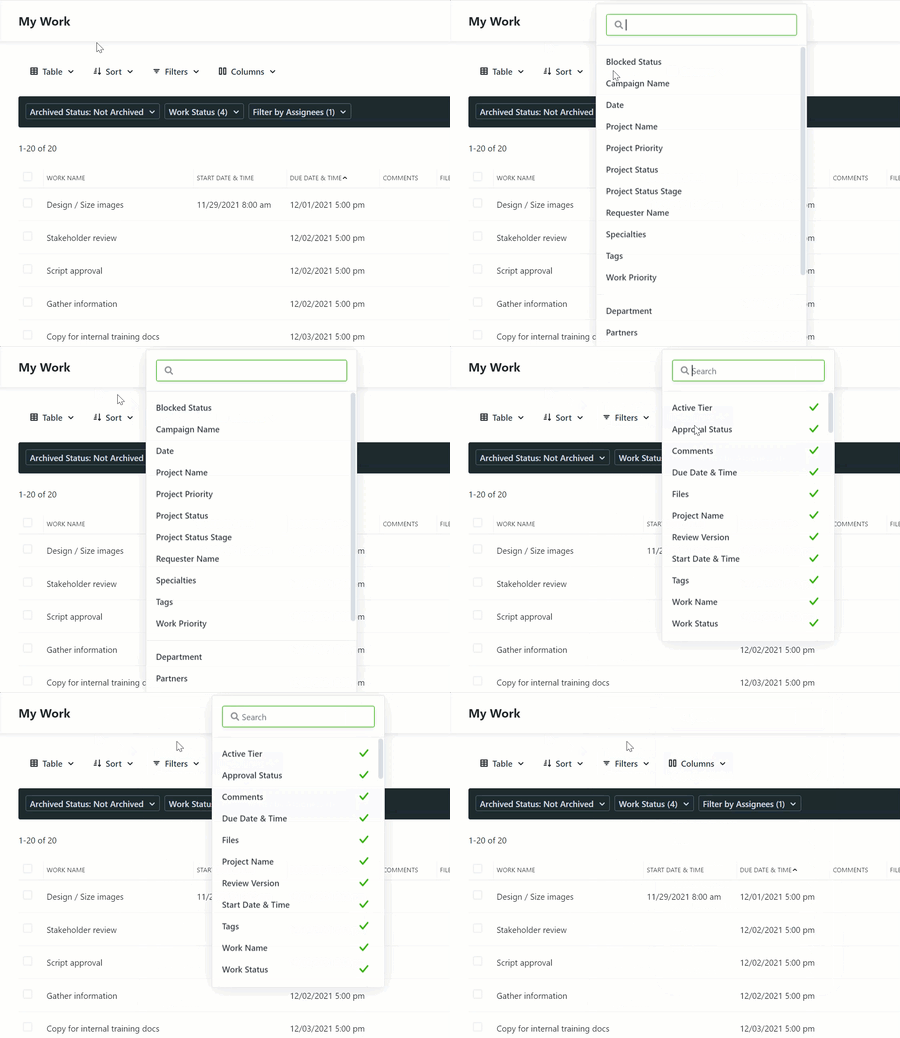
Customize your view by applying appropriate Filters and selecting desired Columns (i.e. team members, tags, custom fields, etc.).
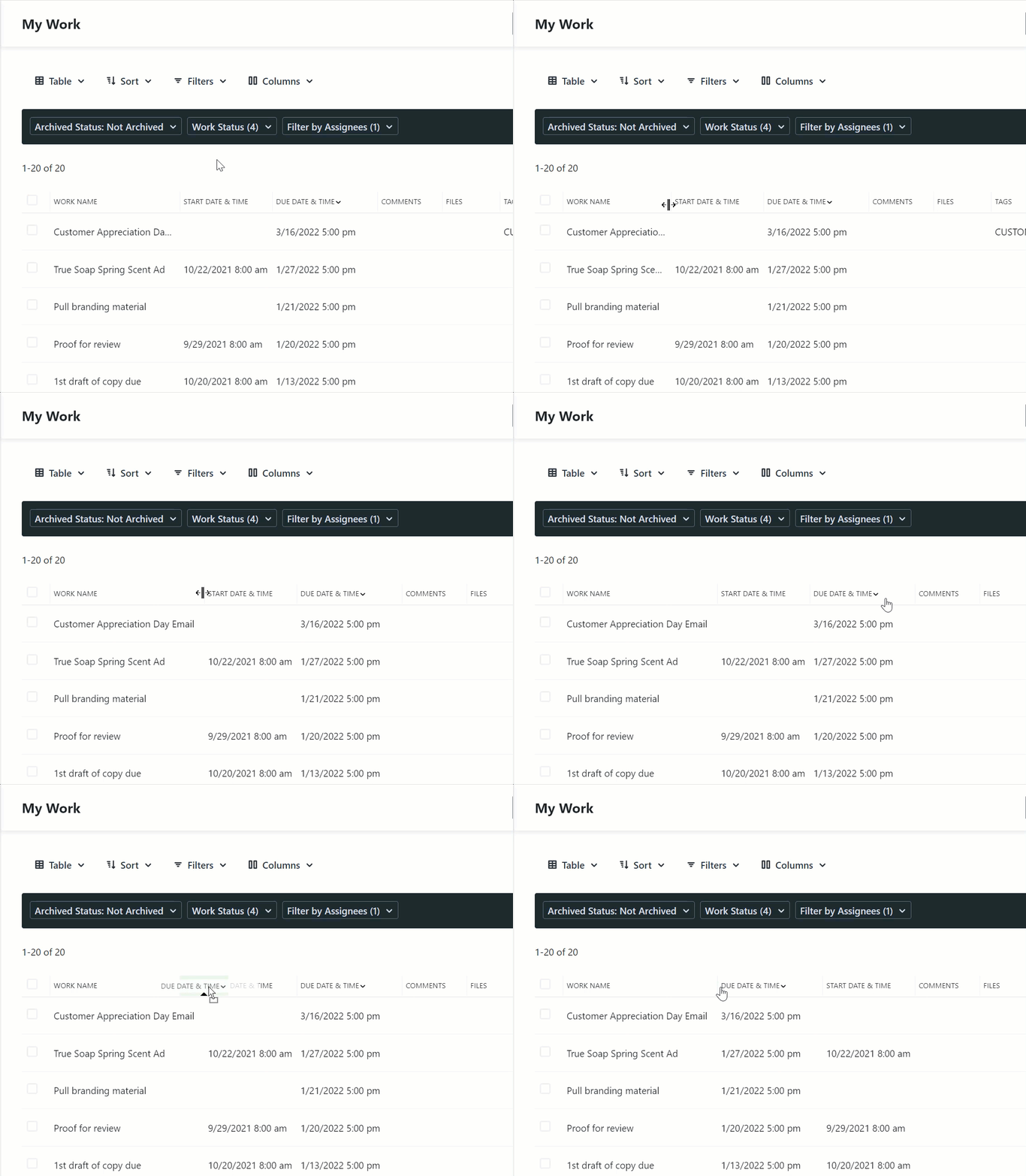
Sort, resize, and reorder your data by dragging and dropping selected columns. Additionally, select data (i.e. the name of your Projects, Tasks, Proofs or Requests) are hyperlinked to quickly and easily take you directly to each individual item.
Saving Table Views
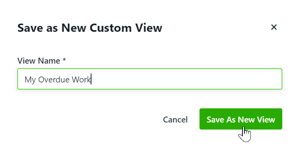
When adding preferences to a view, select Save as New View in the top right corner to save these preferences as a custom view that you can return to.
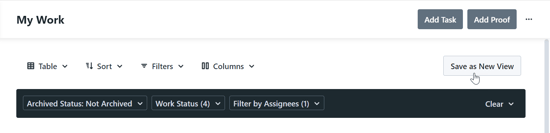
Enter a name for your view and select Save As New View.
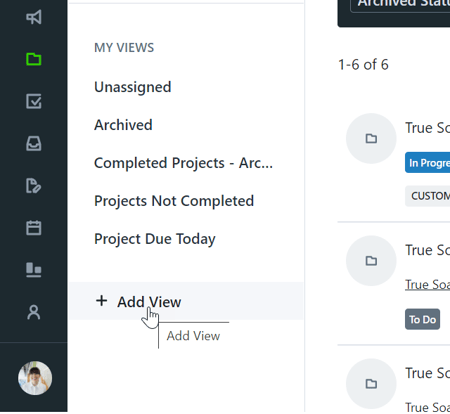
Create a new view from scratch by selecting + Add View below MY VIEWS.
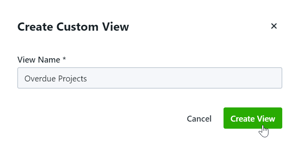
Enter a name for your view and select Create View.
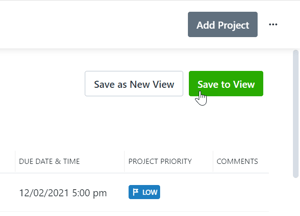
Add your desired filters and columns and be sure to select Save to View to save your preferences.
Bulk Actions in Table Views
Take a look at our Bulk Actions page for available options and how to guides!