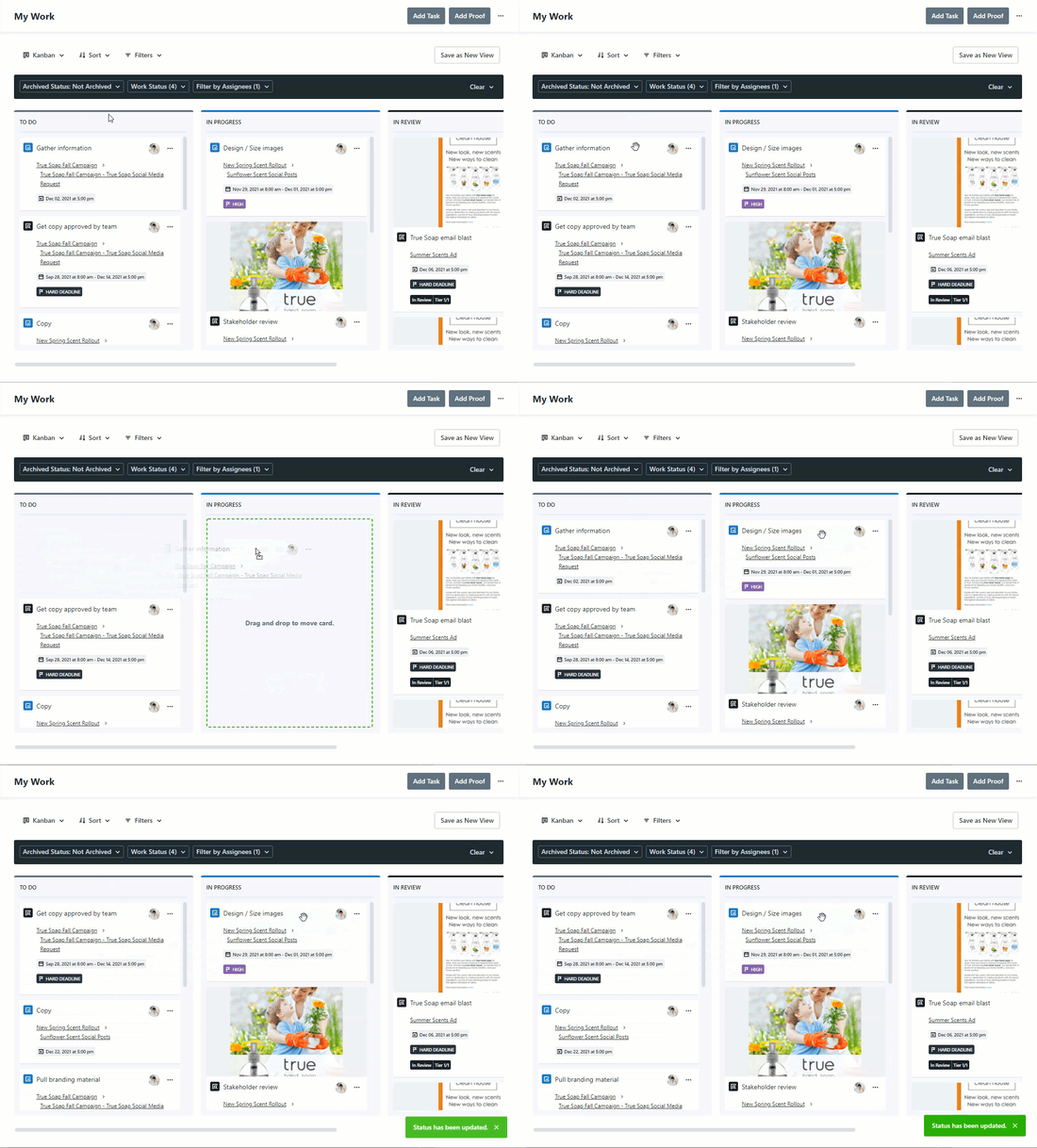
Kanban is a dynamic new way to visualize your team’s work. Within the Kanban view you can see cards for each Task and Proof organized by status and save custom filter sets to quickly see important information at a glance.
TABLE OF CONTENTS
• Moving Work Items in Kanban View
Viewing Work with Kanban
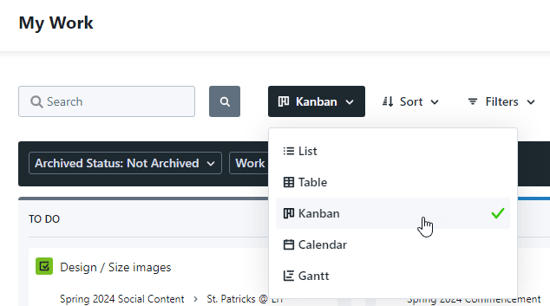
Kanban view is available only in your Work workspace. Navigate to any view in Work and click the view dropdown menu to select Kanban.
Work items in the Kanban custom view are placed in columns according to their current status, so you have an easy at-a-glance view of how they're progressing. If Proofs are included in your view, you'll also see a thumbnail of the first asset uploaded to the current version for instant recognition.
Use the horizontal scroll bar so you can see all your work status columns.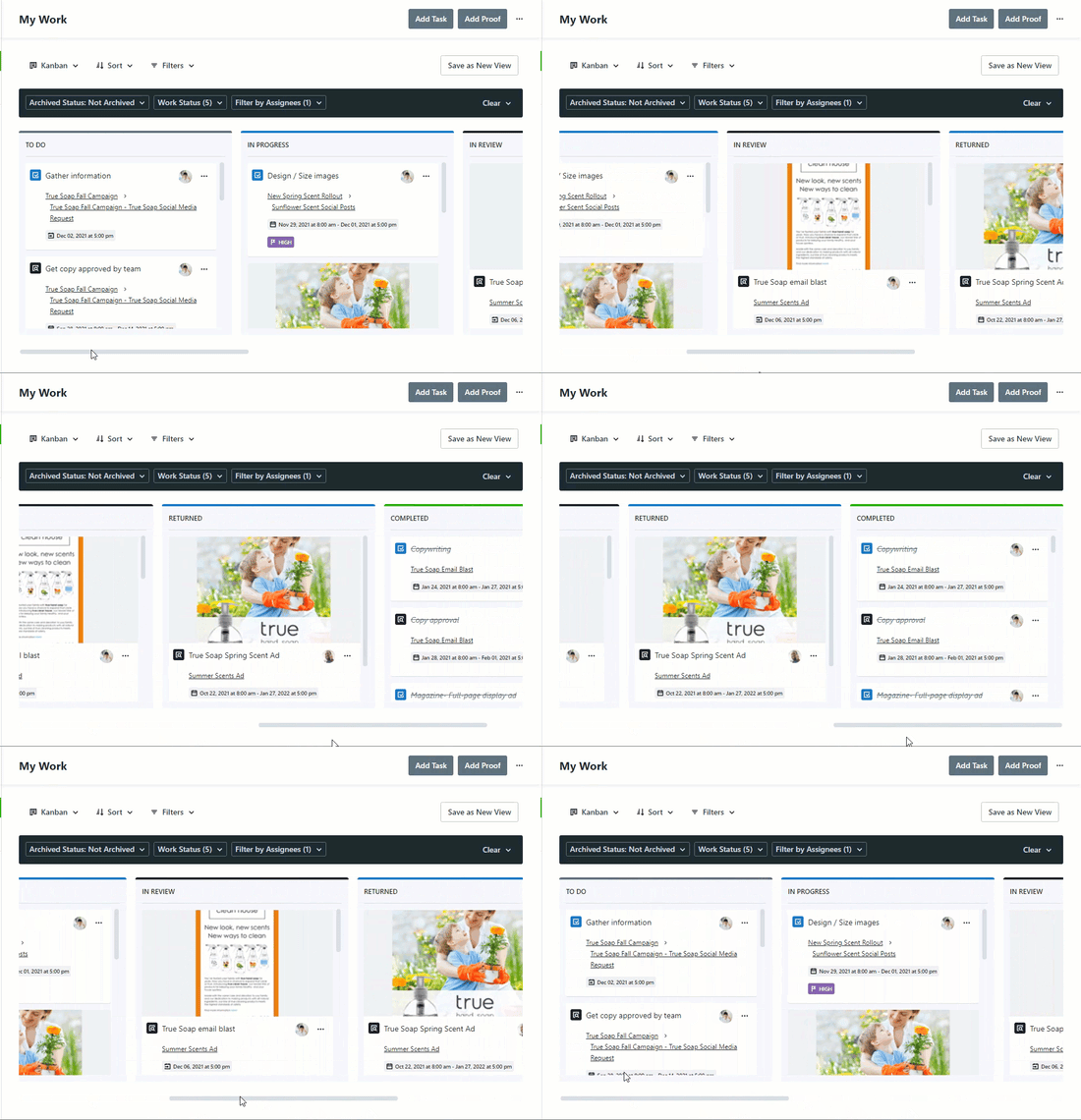
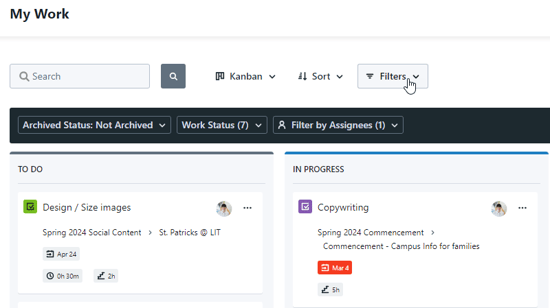
Filter and sort your Kanban view by selecting the dropdown menus located at the top of your workspace.
Saving Kanban Views
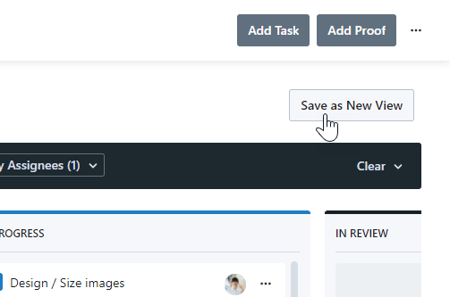
When adding preferences to a view, select Save as New View in the top right corner to save these preferences as a custom view that you can return to.
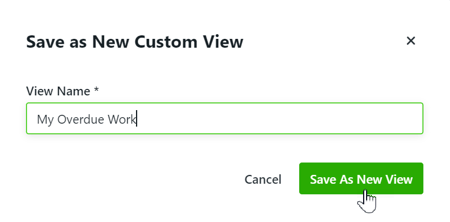
Create a name for your view and select Save As New View.
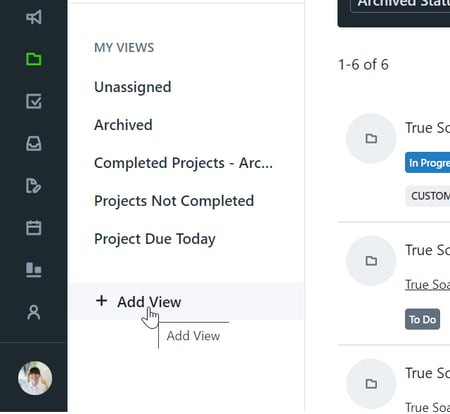
Create a new view from scratch by selecting + Add View below MY VIEWS.
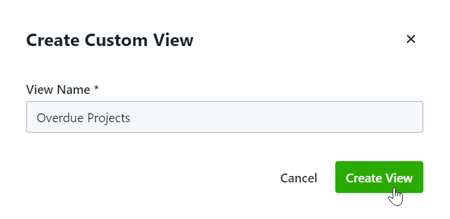
Enter a name for your view and select Create View. Add your desired filters and columns and be sure to select Save to View to save your preferences.
Moving Work Items in Kanban View
As your work progresses from "To Do" to "Completed," you can use the Kanban custom views to easily change work statuses. Drag and drop work items from one column to the next to immediately update their statuses.