Skip to content
English - United States
  • There are no suggestions because the search field is empty.

List Views

List views in Lytho Workflow are a great way to view and take action on your Campaigns, Projects, Tasks, Proofs, and Requests.


TABLE OF CONTENTS

• Viewing by List

• Sorting List Views

• Filtering List Views

• Saving List Views


Viewing by List

Unless you have set up an alternative default view, your workspaces will show in List view by default. 


Update any Table or Kanban view to a List view by clicking the the dropdown menu next to Sort and select List. 
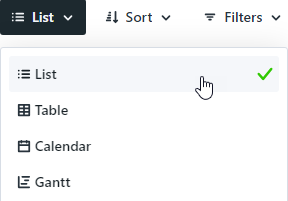
Sort dropdown


List views show critical information at-a-glance related to each item. In the example below of a Task, a badge is displayed for the work status, start and due date, priority, tracked time, level of effort, and tags applied. 

List view example


When applicable, the Project and/or Campaign name will show just above the badges and selecting these will take you directly to the Project or Campaign. 

List view example


View assigned members in the right corner and click the plus icon to quickly assign or un-assign members and specialties. 

List view example


The actions menu to the far right enables you to perform actions applicable to the work space, user permissions. and account settings configured for the account. 
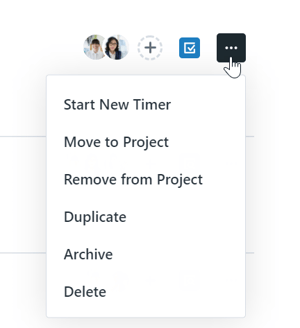
overflow menu


Sorting List Views

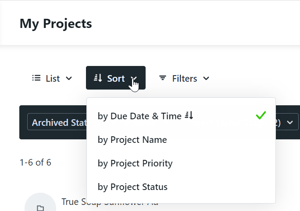
If you haven't set an alternative default view, your view will be sorted by Due Date & Time in ascending order. Click Sort to select from a dropdown of options. The example below is for a Projects list view and the options available will relate to the workspace you are in. 

sort dropdown


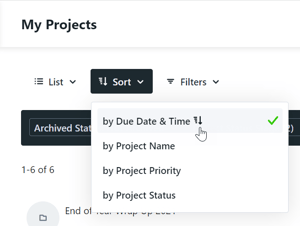
Selecting an option will show items in ascending order. Select the same option again to show in descending order. 

ascending order option


Filtering List Views

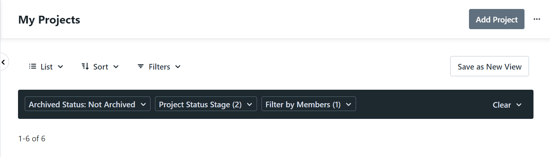
There are a multitude of filters available to help you view exactly what you need to. Filters currently in use will display inside the black box. 

Filtering List Views


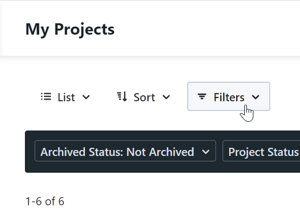
Click Filters to select from the dropdown menu of available filters to add to your view. 

Filtering List Views


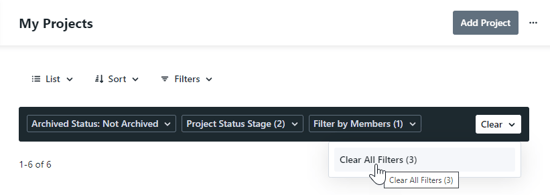
Take a filter off of your view by de-selecting your choices in the individual dropdown menu of the applied filter. You can remove all filters by selecting Clear and confirming your decision. 

clear all filters option


Saving List Views

Save your preferences to return to whenever needed! 


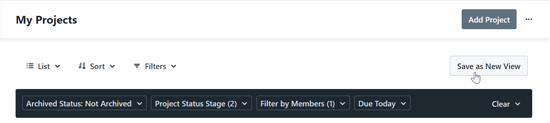
When adding filters to an already created view, select Save as New View towards the top right of your screen. 

save as new view button


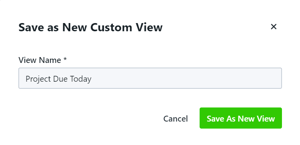
Create a name for your view and click Save As New View

Save As New View button


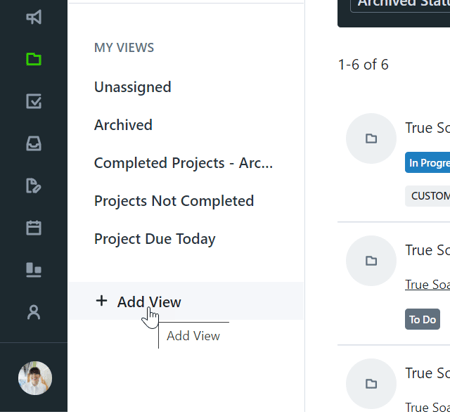
Create a new view from scratch by selecting + Add View below MY VIEWS. 

+ Add View option


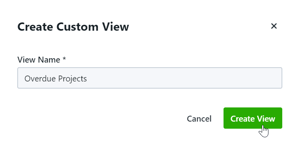
Create a name for your view and select Create View.

create view button


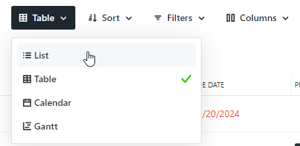
Newly created views will default to Table view. Click Table and select List from the dropdown to create your custom list view. 

sort dropdown


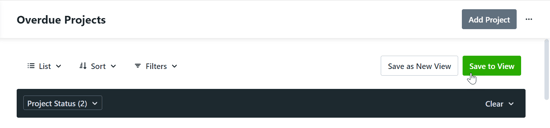
Apply your filters and sort order. Be sure to select Save To View to save your preferences. 

save to view button

Custom Views can be shared by using the share custom view action.