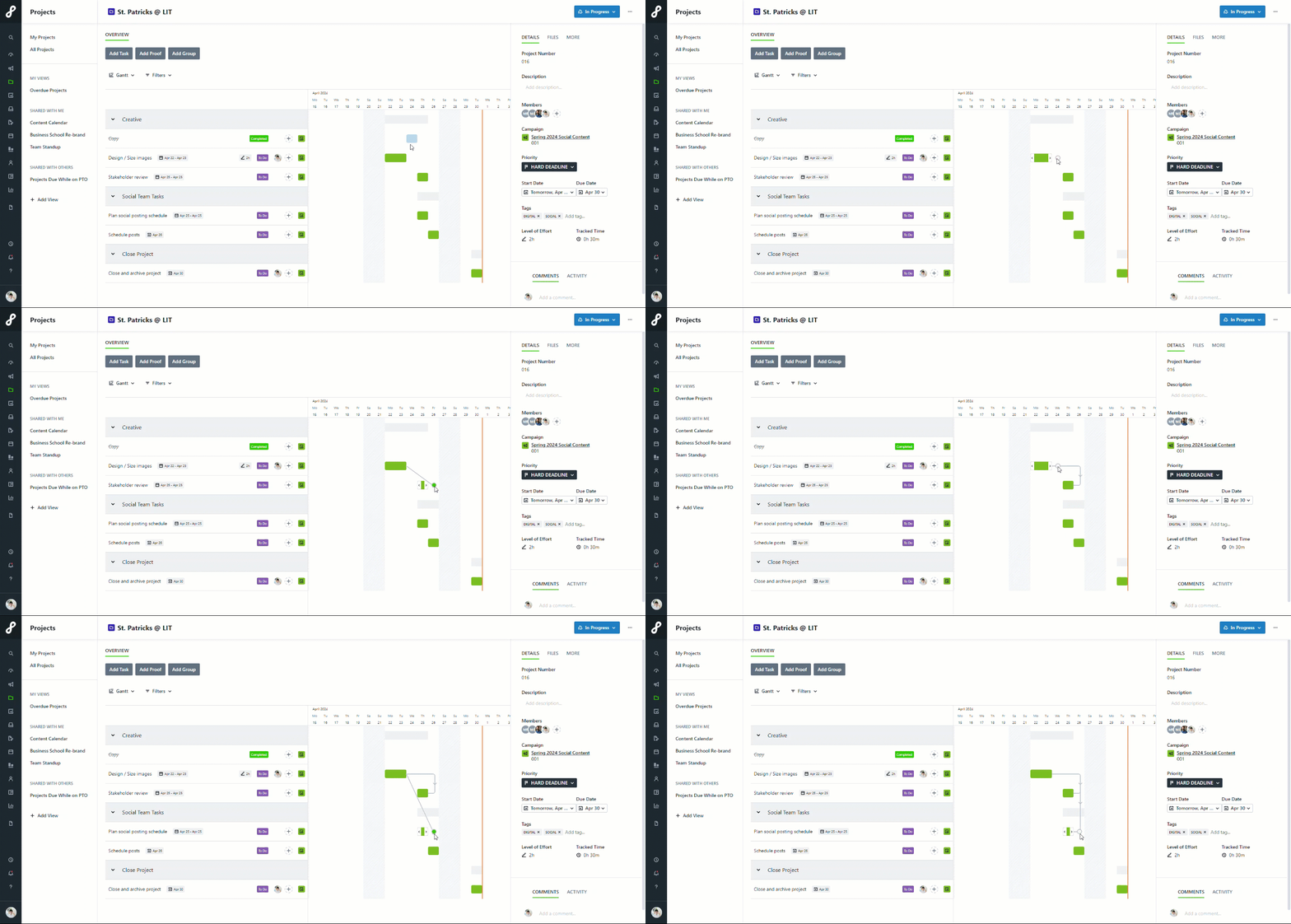
Gantt Views give you a dynamic way to view the timeline and dependencies of your work. Now it is even easier to identify the impact that adjusting the schedule of work will have on the overall timeline so teams can manage their work more efficiently to hit deadlines with stakeholders.
Features described in this article are not included in all subscription plans. Interested in expanding your feature set? Contact the Lytho Support Team for further assistance.
TABLE OF CONTENTS
• Managing Dates and Durations in the Gantt View
• Managing Dependencies in the Project Gantt View
Displaying the Gantt View
In Projects
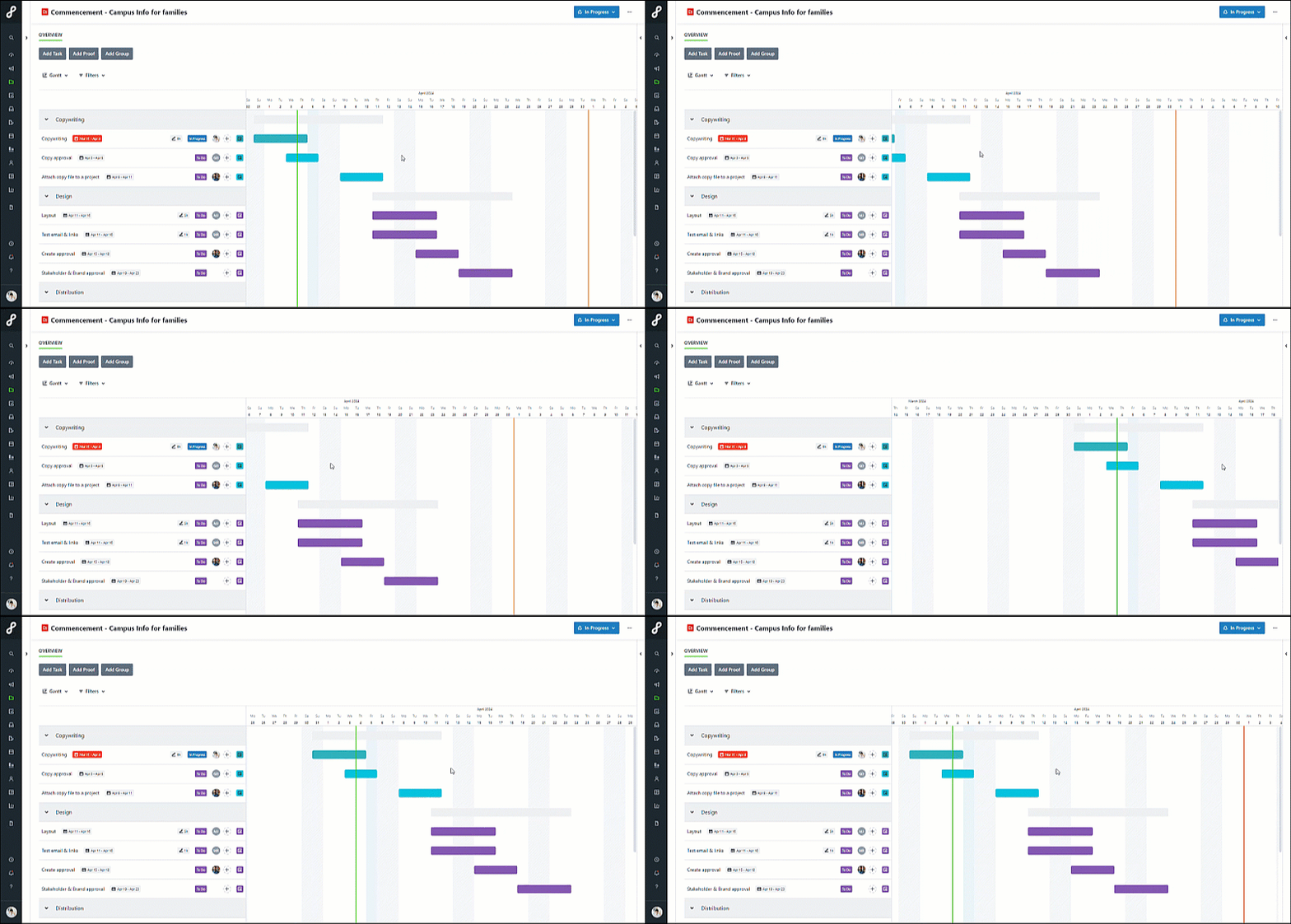
Because Projects each have unique timelines and dependencies, Gantt Views are used on a per-project basis.
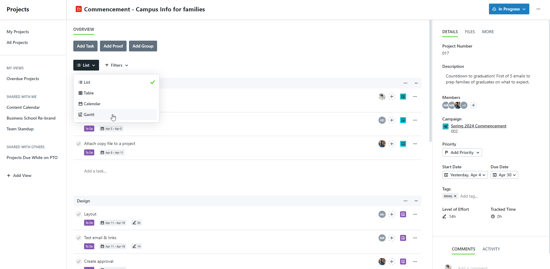
To open your Project's Gantt View, click on the filtered view dropdown underneath the Add Task button and select Gantt from the dropdown menu.
To maximize the Gantt View, hide the DETAILS sidebar on the left and right detail panes by clicking the →| icon along the line near the top. You can also resize the Gantt table by taking the line divider and dragging it left or right.
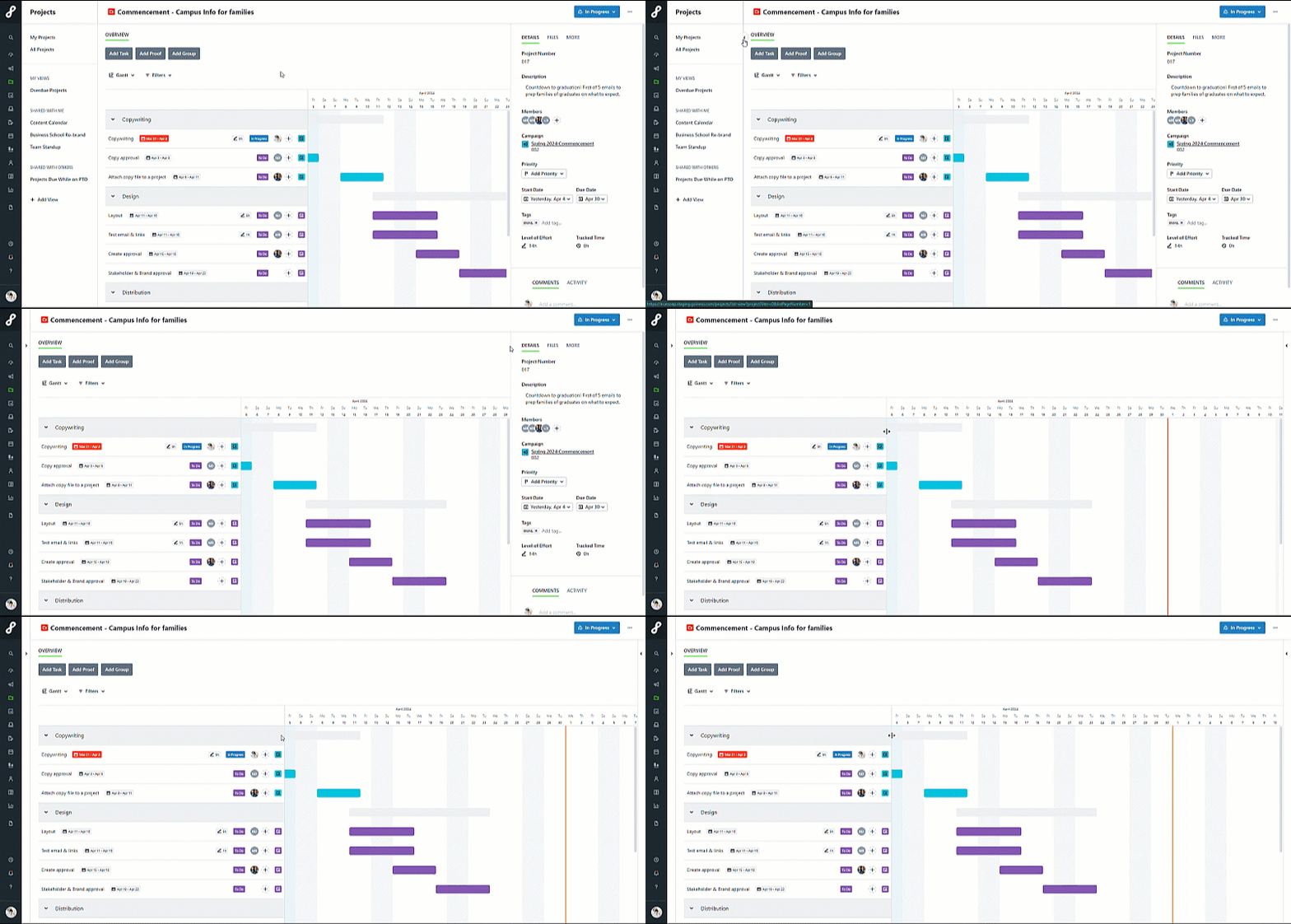
To scroll the view from left to right, click and drag any blank space.
In Custom Views
While working in custom views, use Gantt Views to easily see the timeline for each of your work items! Using the same steps from within a Project, select the filtered view dropdown next to the search box and select Gantt from the dropdown menu. You can access this view on Campaign, Project, and Work custom view pages.
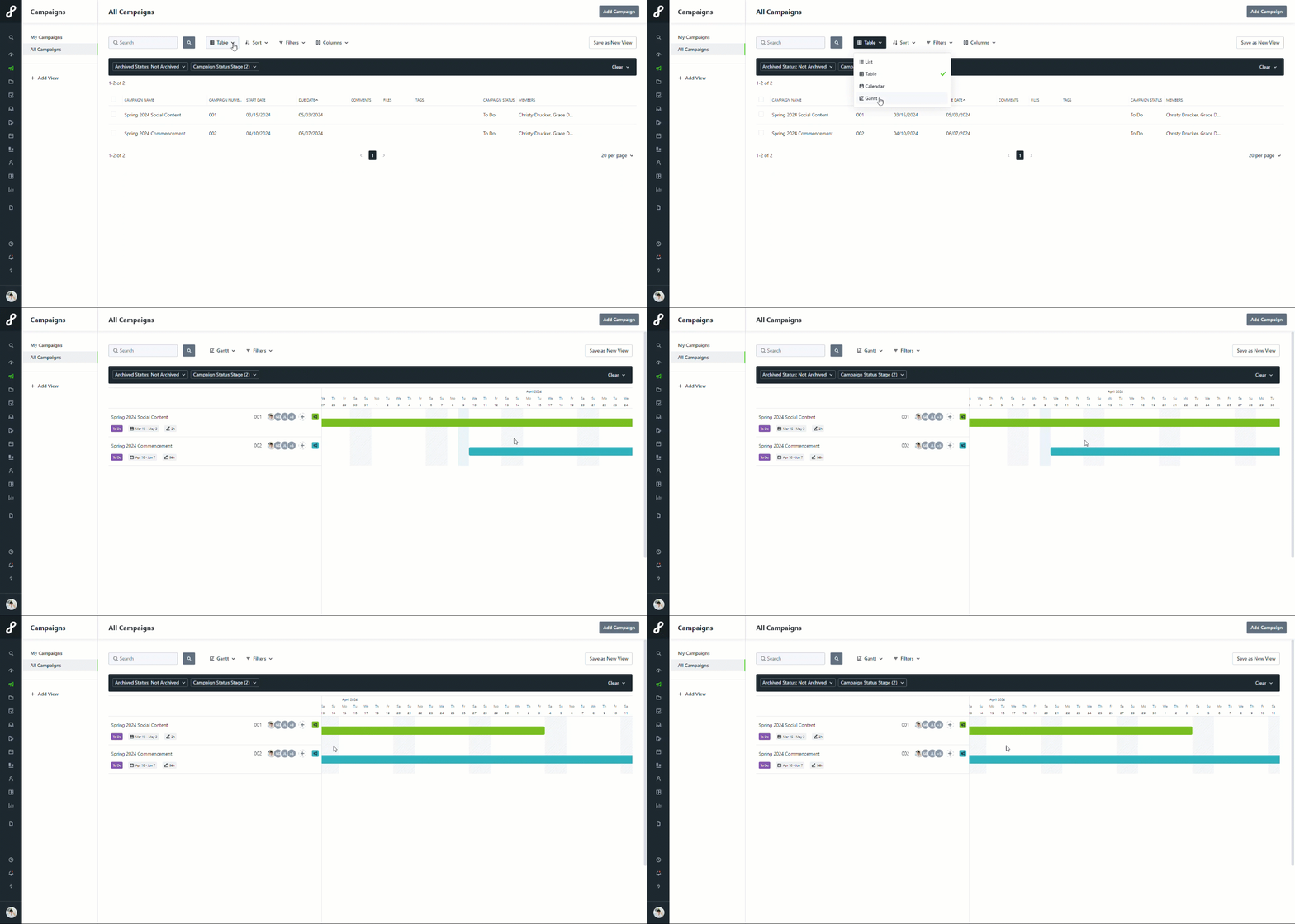
(Campaign Gantt custom view)
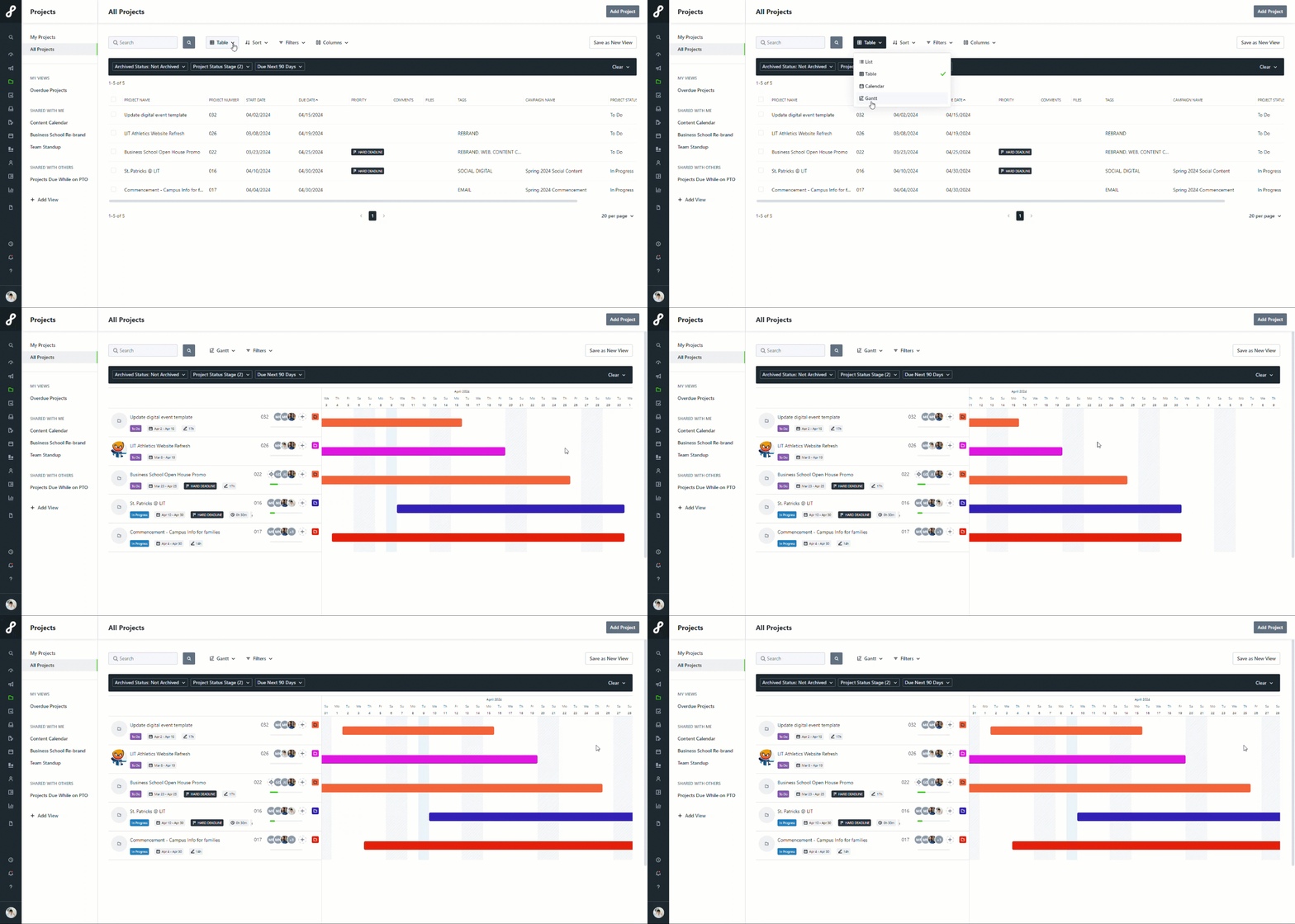
(Project Gantt custom view)
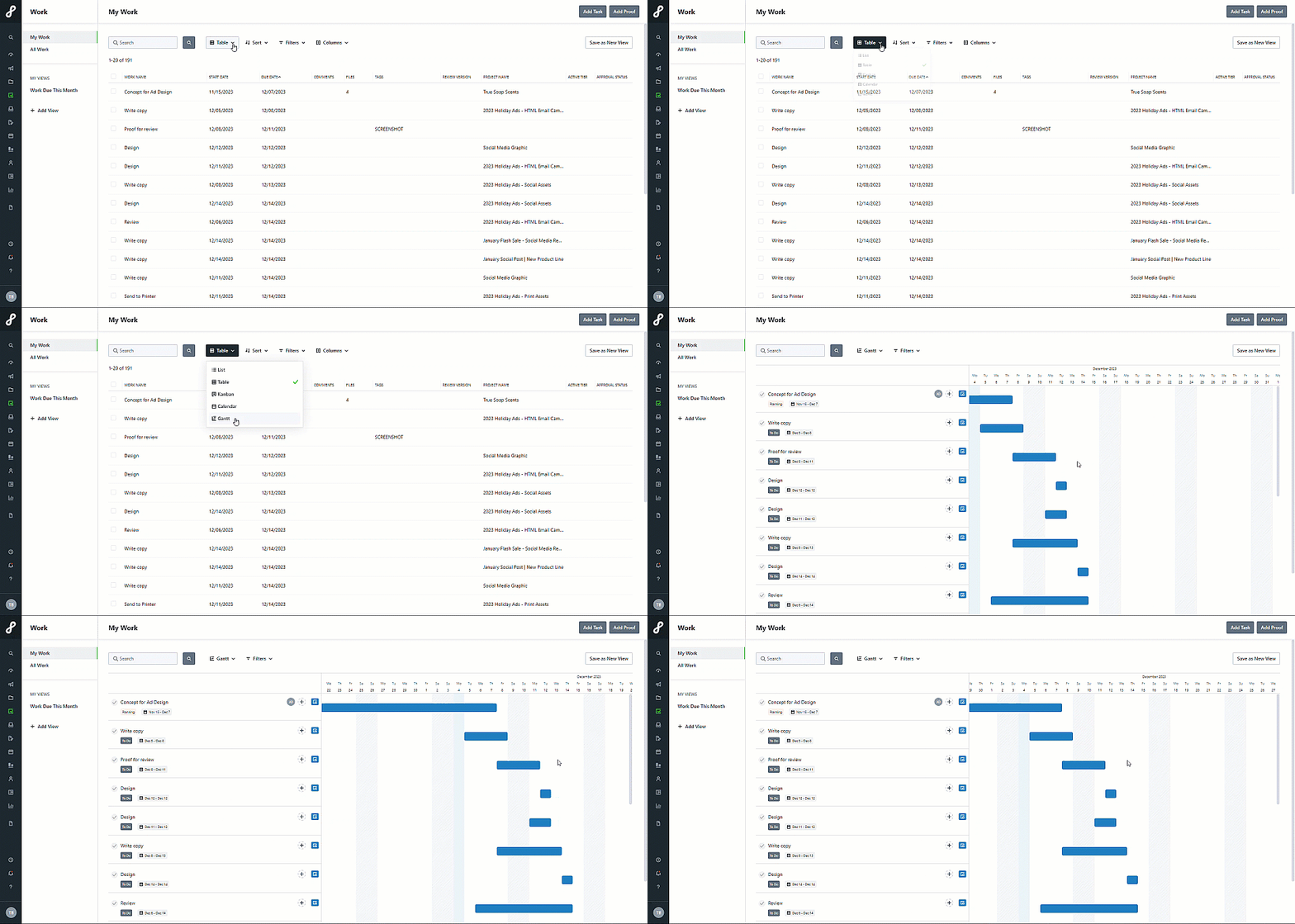
(Work Gantt custom view)
Managing Dates and Durations in the Gantt View
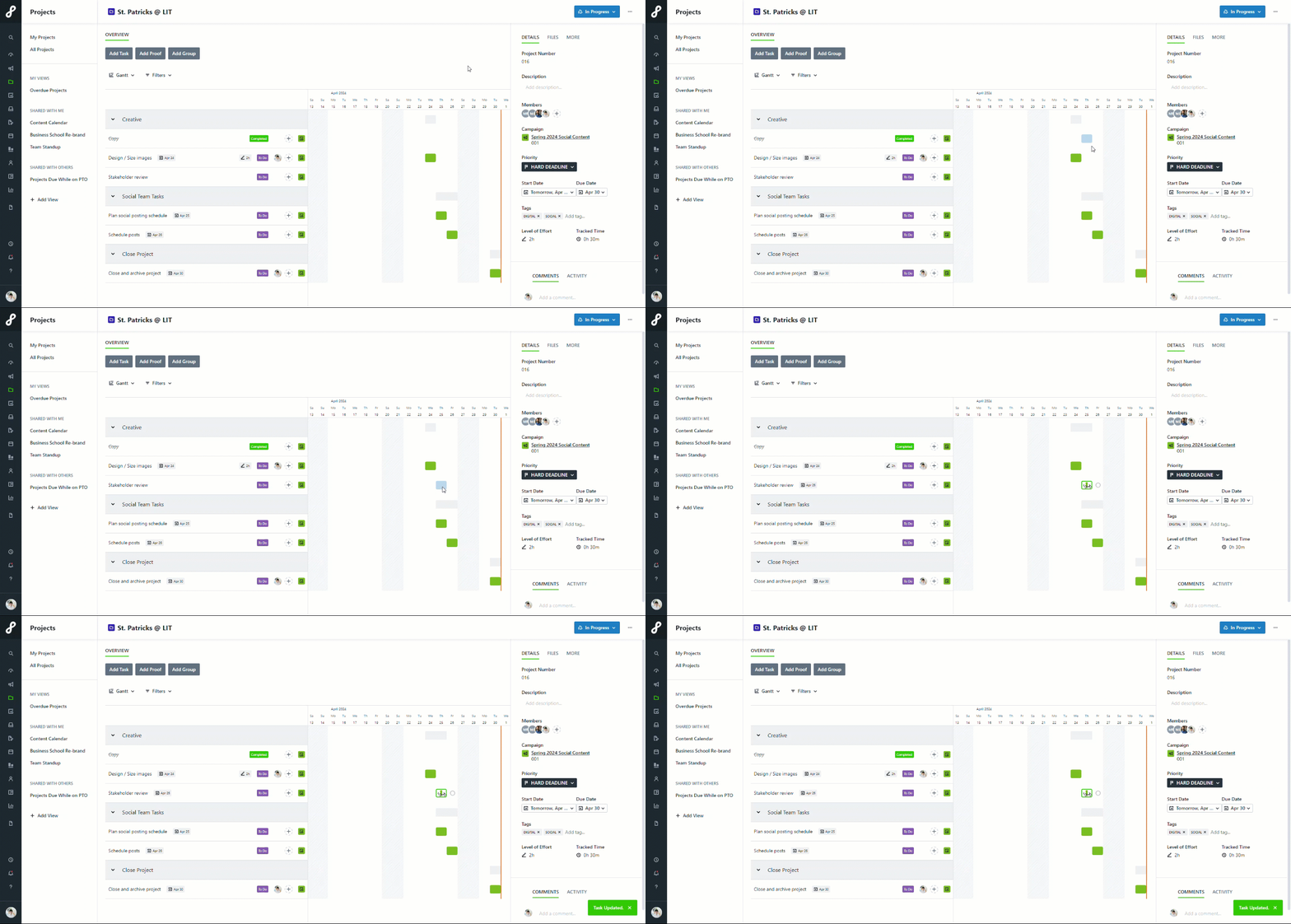
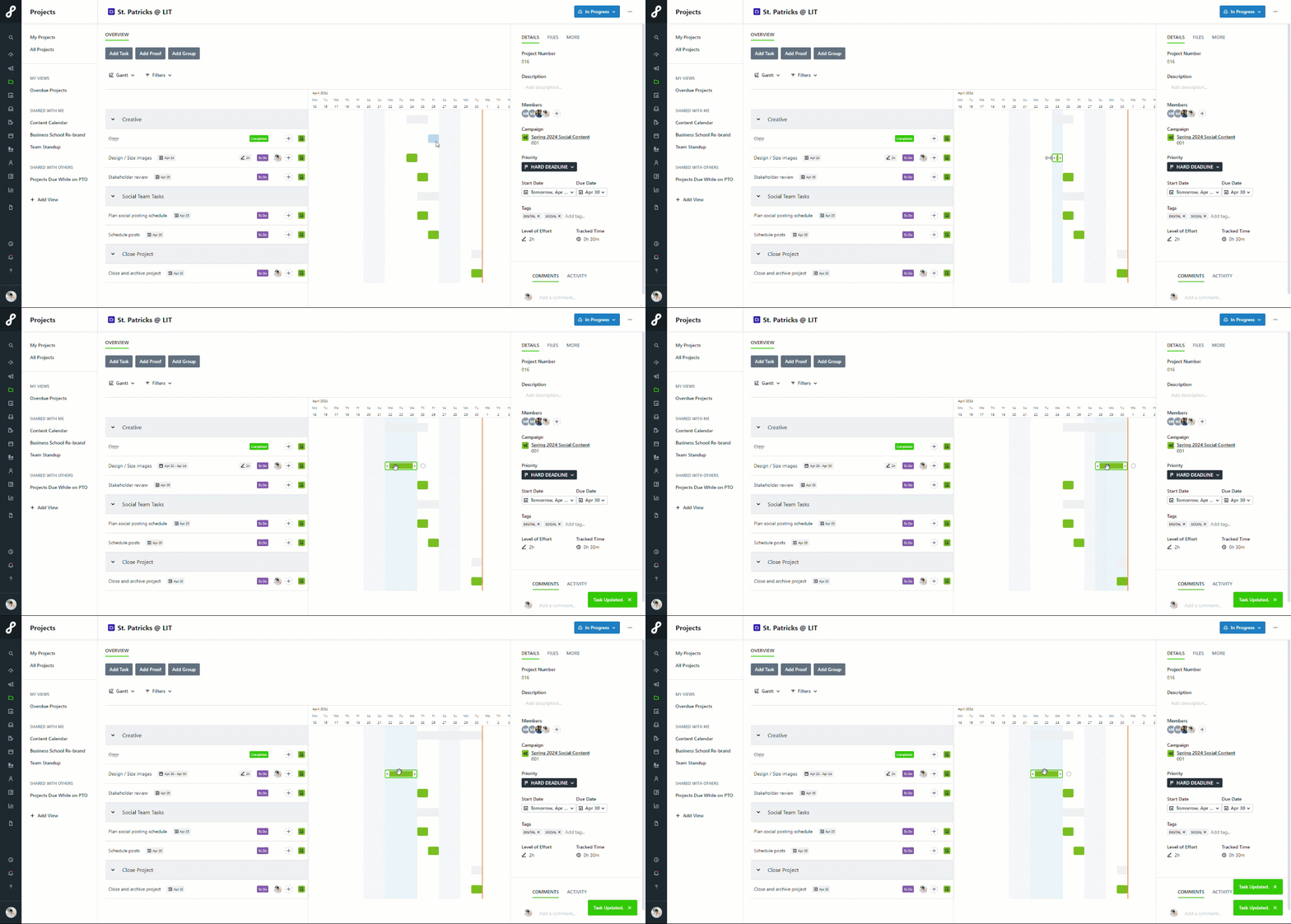
Quickly add a due date to a work item without one by clicking inside the Gantt View to the right of your work item.
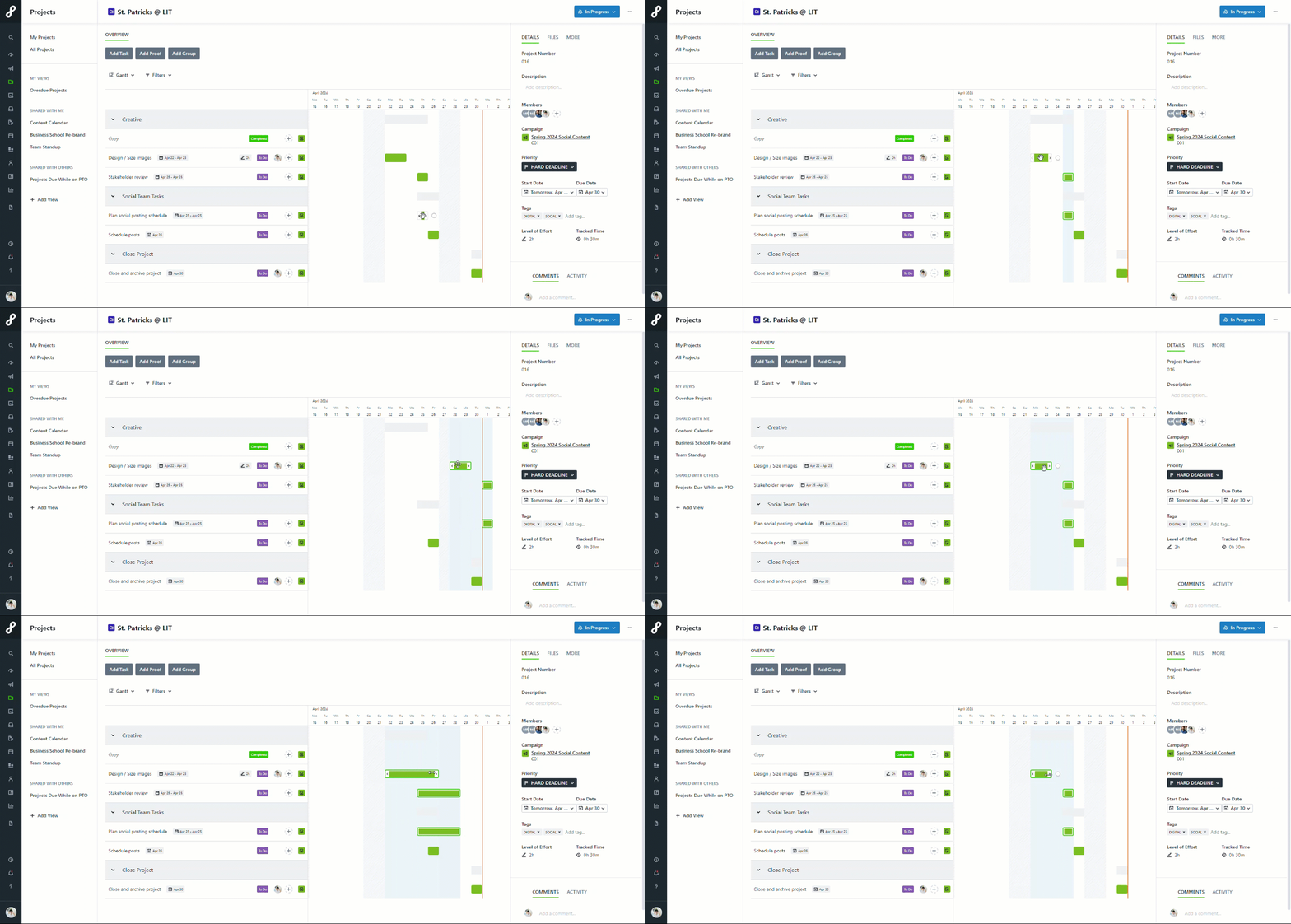
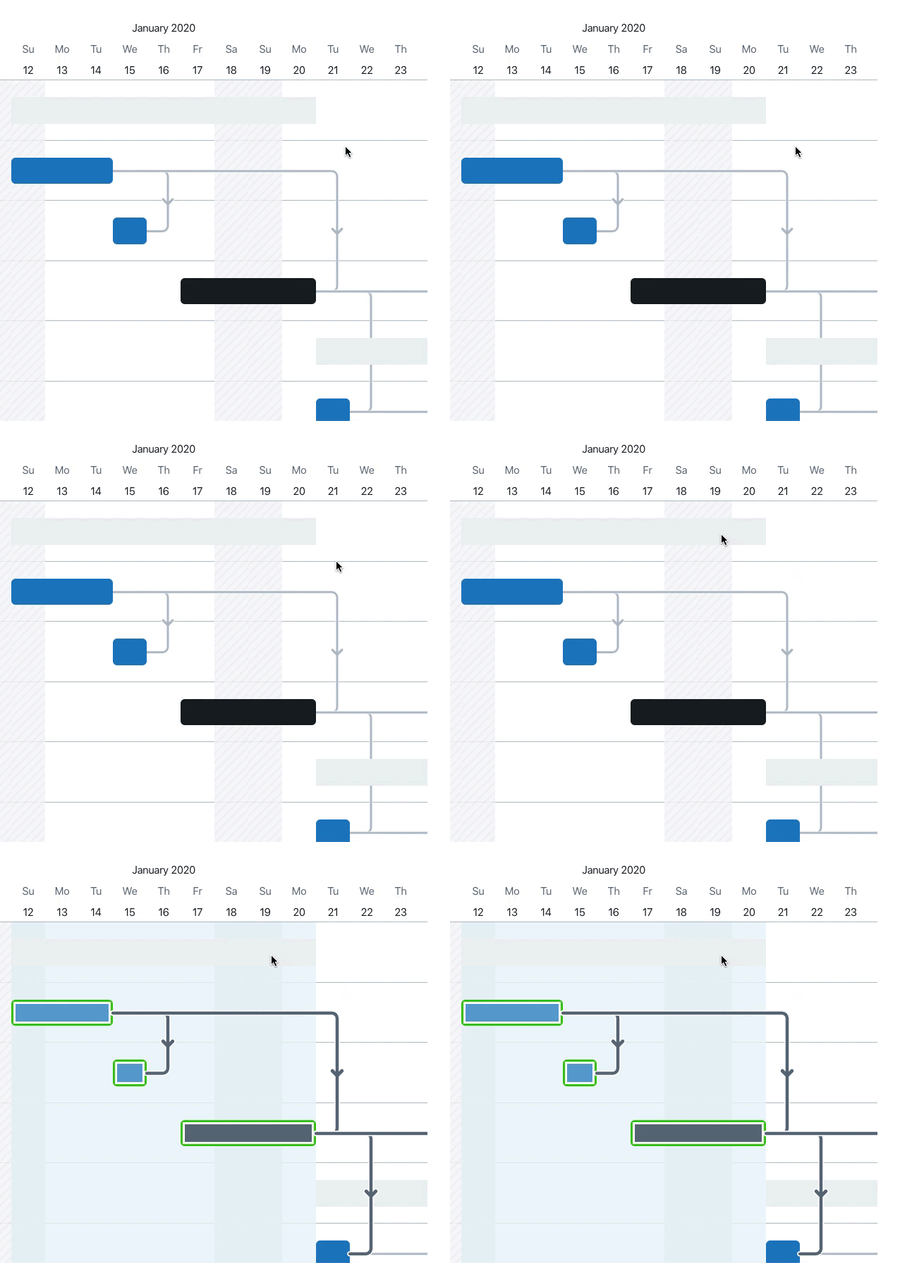
You can also click the gray bar above every work group to automatically select all items in that work group.
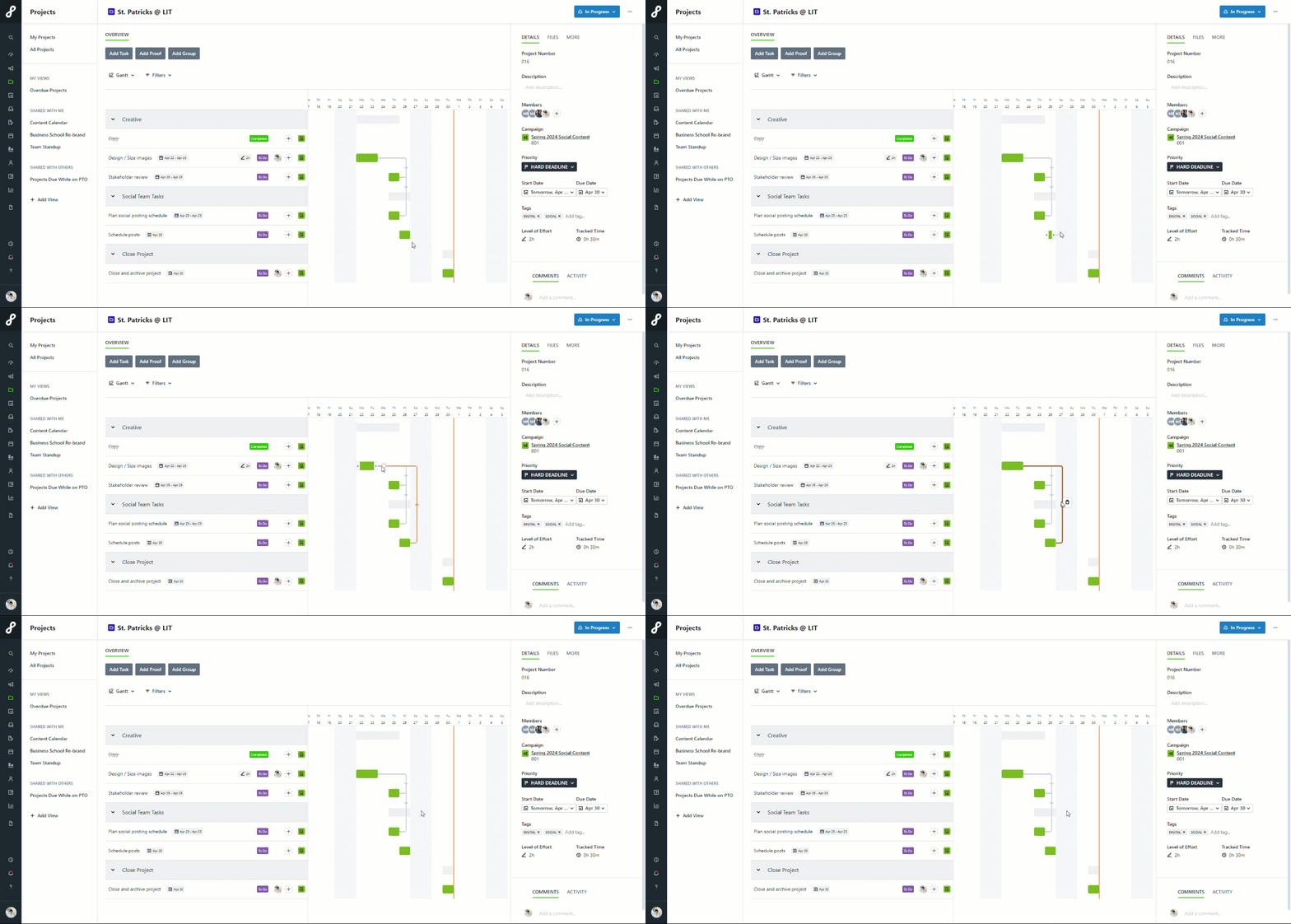
Managing Dependencies in the Project Gantt View
While working in a Project, you can create a dependency between work items, click the white dot to the right of the bar for your blocker, then drag down to the white dot next to the work item it's blocking. You can add multiple dependencies from the same work item.