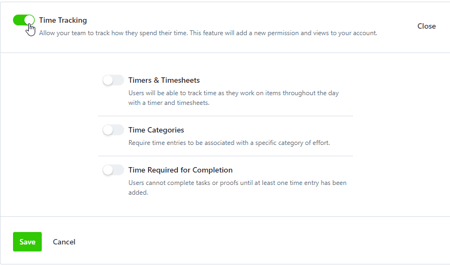
Navigate to the Features sub-navigation in Account Settings to set up your account features. Configure the features that will make a difference for your team by enabling or disabling the toggle to the left of each feature.
Features described in this article are not included in all subscription plans. Interested in expanding your feature set? Contact the Lytho Support Team for further assistance.
TABLE OF CONTENTS
• Collaborate on Returned Proofs
• Copy Request Files to Associated Work
• Require the Completion of...
• Share Calendars with Stakeholders
Auto Numbering
Auto-Numbering* allows you to quickly locate and track your work by automatically generating unique ID numbers on Projects, Campaigns, and Requests.

Automatic Review Reminders
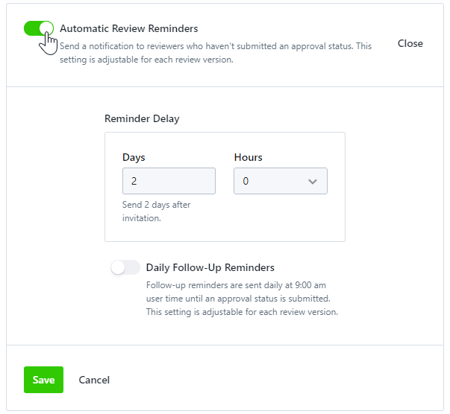
Automatic Review Reminders allow you to automatically send reminders to Reviewers about outstanding Proofs and keep notifying them until they complete their Review.
Change Requests
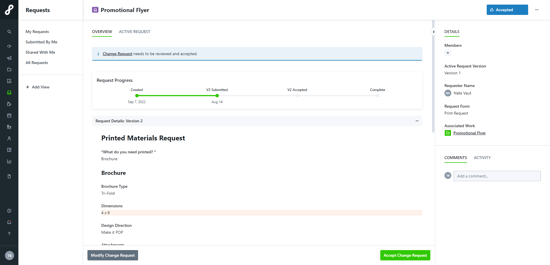
Change Request allow your Requesters to make changes to an already-approved Request. By keeping Change Requests and related communication in one place, you can reduce lost communication and better tailor your processes.

Collaborate on Returned Proofs
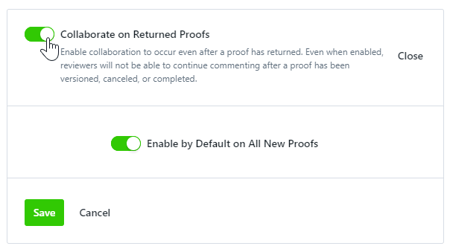
Collaborate on Returned Proofs allows Reviewers to continue collaborating on Reviews even after they have been returned. This is helpful when your team still needs a final answer on a conversation thread or needs to follow up with a clarifying question. Once a Review has been returned, Reviewers can keep commenting, but will not be able to set or update approval statuses or invite others to the Review via @mentioning or the share option. Once enabled, this can also be configured on a per proof basis.
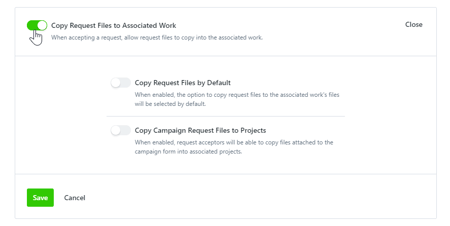
Copy Request Files to Associated Work
Copy Request Files to Associated Work gives request Acceptors the ability to copy files shared in the Request Form directly to the associated Work when accepting a Request, eliminating the need to manually download and upload files.
Custom Text
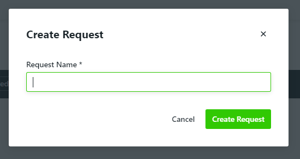
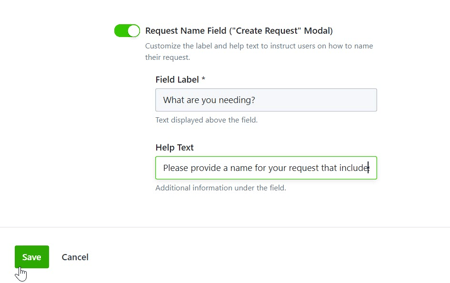
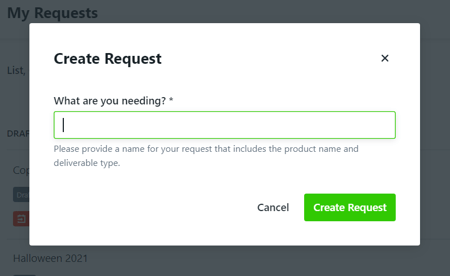
Enabling Custom Text allows you to edit the label and provide helper text in the Create Request modal, ensuring your Requesters are providing the information you need to get started. By default, the Create Request modal label will show Request Name and no helper text is provided.
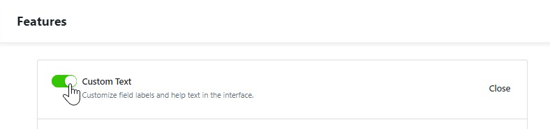
Navigate to Account Settings and toggle on Custom Text in Features.
Toggle on Request Name Field to begin customizing.
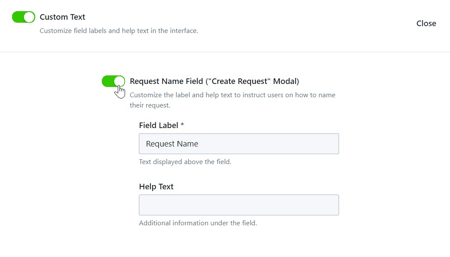
Update the field label and add helper text as desired. Click Save when complete.
Now when creating a new Request, your custom text will show in the Create Request modal.
Request Sharing
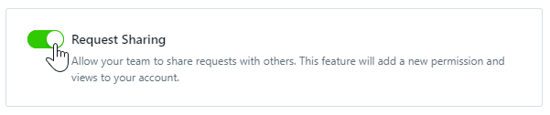
Request Sharing* gives Stakeholders and Team Members the ability to @mention and share the Request with others to answer questions throughout the Project lifecycle, and will ensure visibility and access to final deliverables when the Project is complete.
Requester Insights
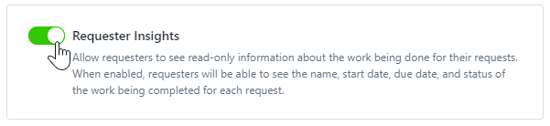
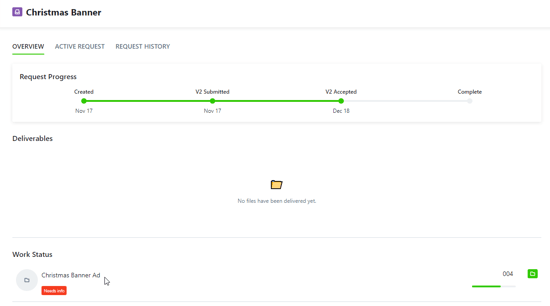
Requester Insights* provides additional context and progress of the work associated on the Request Details page.
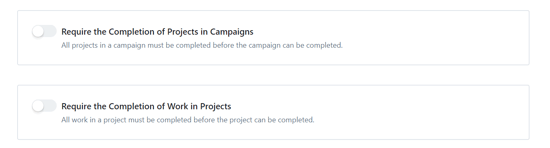
Require the Completion of...
These two features offer the same functionality at two different levels. When one of these features is enabled, you will not be able to closer the higher Work item until all of the lower Works items within it have been completed.
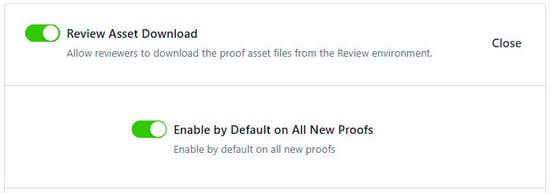
Review Asset Download
Review Asset Download allows Reviewers to download any Proof assets from a Review. This functionality can also be managed on the individual Proof level.
Review Sharing
Review Sharing & Collaboration gives Reviewers the ability to @mention and collaborate with other account members who were not initially invited to the Review. Once enabled, this can also be configured on a per proof basis.