
Auto-Numbering* allows you to quickly locate and track your work by automatically generating unique ID numbers on Projects, Campaigns, and Requests.
Features described in this article are not included in all subscription plans. Interested in expanding your feature set? Contact the Lytho Support Team for further assistance.
TABLE OF CONTENTS
• Using Auto-Numbering Throughout Lytho
• Restarting your Auto-Numbering Sequence
Enabling Auto Numbering
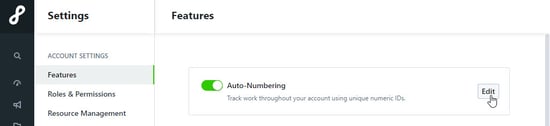
To enable auto-numbering, navigate to Account Settings by selecting your avatar in the bottom of the global navigation bar. From the Account Settings sub-navigation menu, select Features.
Click the green toggle to the right of the Auto-Numbering setting to turn this feature on. When disabled, the toggle will appear grey. You can update these preferences at any time.
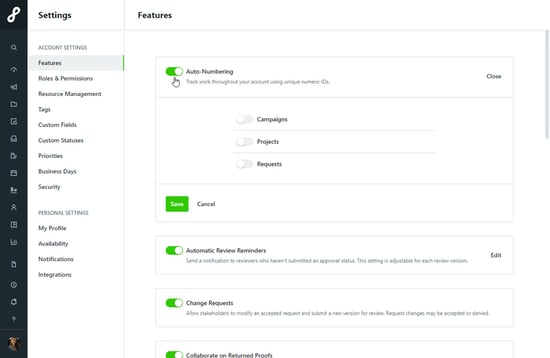
Once selected, you will have the option to turn on auto-numbering for Campaigns, Projects, and Requests. Identify the number you would prefer to Start Numbering From, as well as the Minimum Digits you desire for your auto-numbering settings.
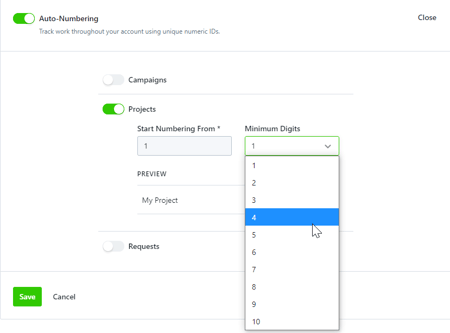
Using Auto Numbering Throughout Lytho
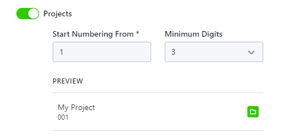
In the example below, Projects will start from the number 1, and will include at minimum 3 digits; therefore, the first Project will be numbered at 001. Projects will start with 2 leading zeroes in this case; however, the moment the project reaches 1000, there will no longer be any leading zeroes and the number continues to increase as normal.
Auto-numbers can be found under ID within the Campaign, Project, and Request Details section.
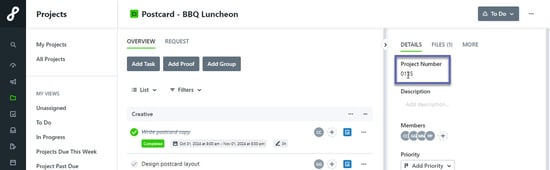
Auto-numbers can also be found to the right of your Campaign, Project, or Request name within your list views.

Restarting your Auto Numbering Sequence
If you would like to restart your sequence you can do so in your Account Settings.
Navigate to Auto-Numbering in your Features sub-navigation and select Edit.
Enter a new value under Start Numbering From to restart your sequence from this number. You also have the ability to update the minimum digits in your sequence.
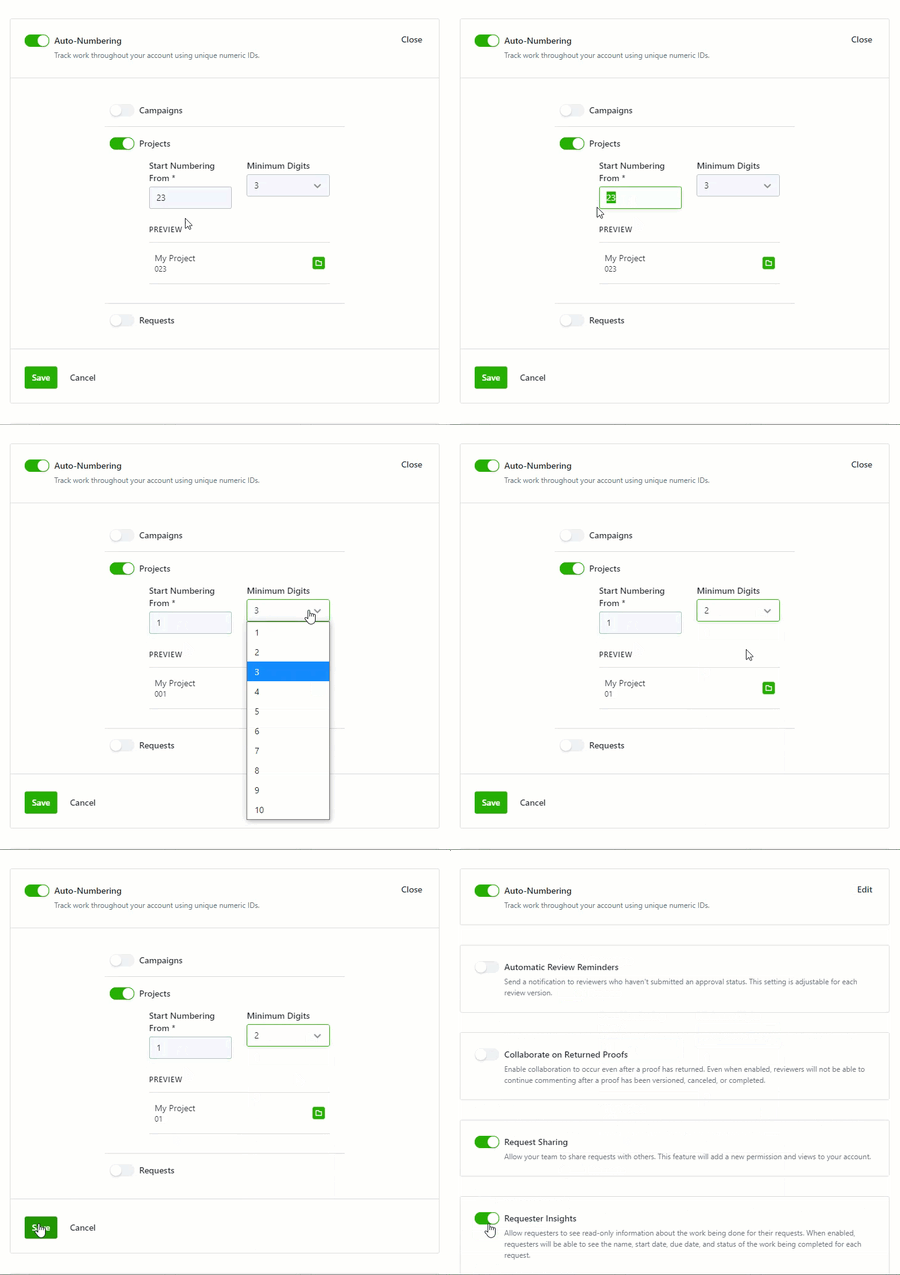
Select Save when complete.