
Add a layer of security to your reviews with Secure Review Submission*. When you enable this electronic signature feature, reviewers will be required to provide a Lytho-generated PIN number to verify their identity when submitting their final approval status. We have designed Lytho Workflow to fulfill the full requirements of FDA 21 CFR Part 11 when paired with your own SOPs, processes, and policies.
Features described in this article are not included in all subscription plans. Interested in expanding your feature set? Contact the Lytho Support Team for further assistance.
TABLE OF CONTENTS
• Setting up Secure Review Submission
• Enabling Secure Review Submission on the Proof
Setting up Secure Review Submission
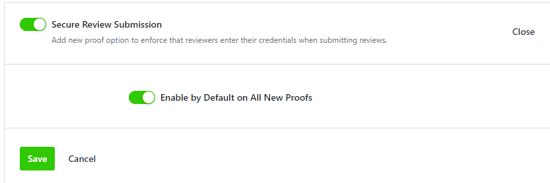
To turn on Secure Review Submission in your account, navigate to Account Settings. On the Features page, scroll down to Secure Review Submission and select the toggle to enable this feature.
Once enabled, you can adjust if this feature is enabled by default for all new Proofs going forward.
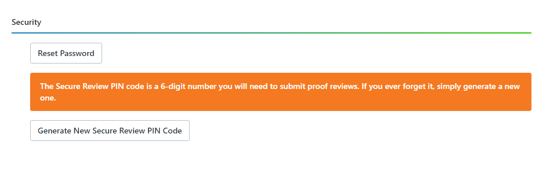
Users will need to generate a 6-digit pin by navigating to their Personal Settings and choosing the My Profile page. In the Security section, select Generate New Secure Review PIN Code. This pin will be requested when they submit feedback on reviews.
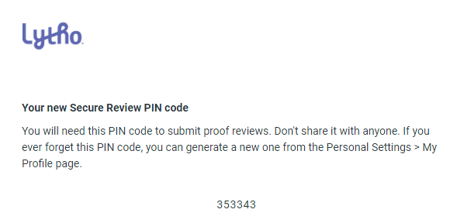
Users will receive their permanent PIN via email.
Enabling Secure Review Submission on the Proof
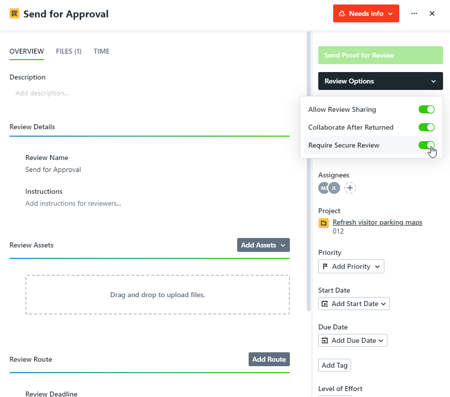
If you toggled the feature setting, your Secure Review Submission settings will be applied to all new Proofs by default, but you can also adjust the settings on every Proof version created. To update the settings for an individual Proof version, navigate to Review Options and disable or enable Require Secure Review to require reviewers to enter their PIN when submitting their reviews. Enabling or disabling this setting will be captured in the Proof's Activity Feed.
Submitting Your Review
When Secure Review Submission is enabled, the review process will be identical to a normal review except during final submission. When submitting their approval, each reviewer will need to enter their PIN Code before clicking SUBMIT MY REVIEW.
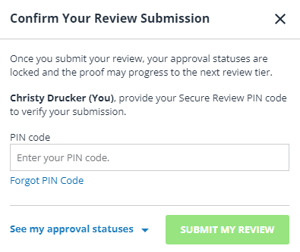
If the reviewer has forgotten or has not yet generated their code via the Personal Settings menu, they can select Forgot PIN Code to have a new PIN code sent to their email.