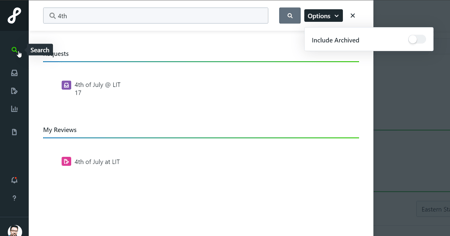
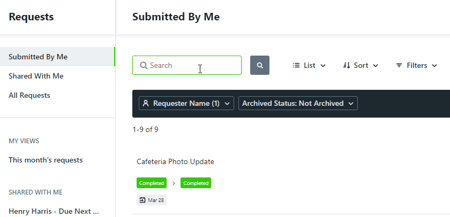
A stakeholder is a user type in Lytho Workflow that can be given permissions to request work, review work, receive final deliverable files, receive custom reports, and collaborate on Requests and reviews. Lytho Workflow keeps a history of all Requests, files, and reviews so you can easily access past work and create new Requests when needed!
Features described in this article are not included in all subscription plans. Interested in expanding your feature set? Contact the Lytho Support Team for further assistance.
TABLE OF CONTENTS
Managing Requests
A Request is a new job or brief that outlines the requirements of a Project or initiative.
My Requests
Submit and manage your Requests from the My Requests tab in Requests. By default, this is the page that opens when you log into your Lytho account.
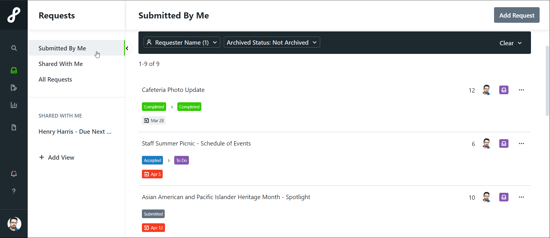
Requests may appear with the following statuses:
• DRAFT - Requests that you have started but not yet submitted
• SUBMITTED - Requests that you have submitted but have not yet been accepted
• DECLINED - Requests that have been submitted and have been declined. These can be resubmitted.
• ACCEPTED - Requests that you have submitted and have been accepted
• COMPLETED - Requests that you have submitted that have been completed
Learn more about creating and managing your Requests:
• How to resubmit a declined Request
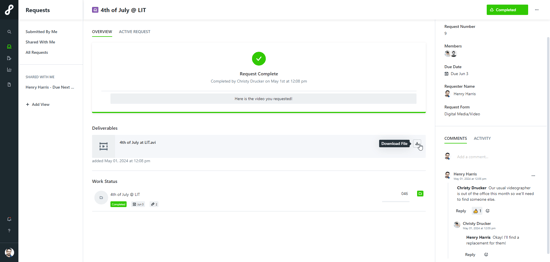
Open a submitted Request to view Request details, keep track of Request progress, and collaborate with your team.
Members include team members responsible for accepting the Request. You can collaborate with members via the COMMENTS box in the bottom right corner. @mention these team members to notify them of Request updates (i.e. @christy). We recommend keeping communication inside of the Request so that all pertinent information is in one place.
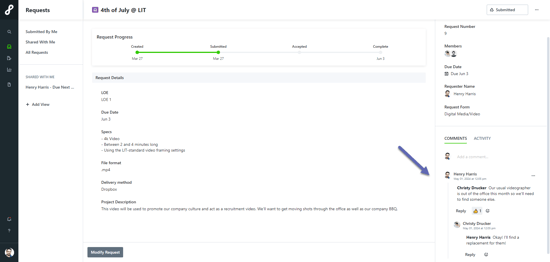
Once work is complete, you will also be able to access your final deliverable from the Request details page. A notification will be sent letting you know your Request has been completed.
Shared Requests
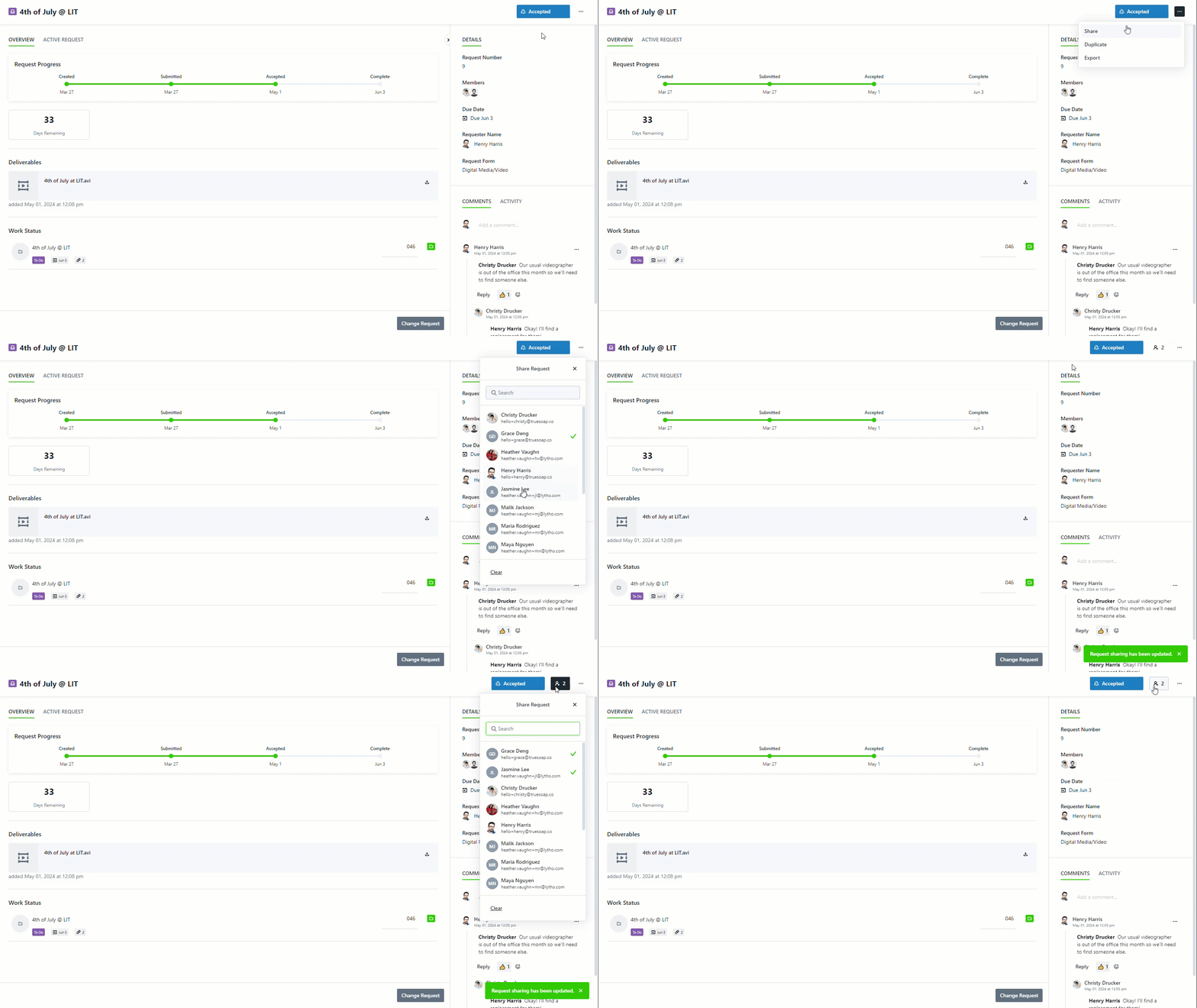
Requests may be shared so that other requesters can monitor progress or collaborate on Requests they did not submit. The ability to share requests will depend on your role's permissions. Contact your Lytho Admin if you do not have the the Share Request option.
From the Options (...) menu in the top-right corner, click Share. Click on the person(s) that you want to share the Request with and click out of the menu. A notification will show up in the bottom-right corner letting you know your Request has been shared. You can confirm who this Request has been shared with by clicking on the Share Request menu in the top-right corner.
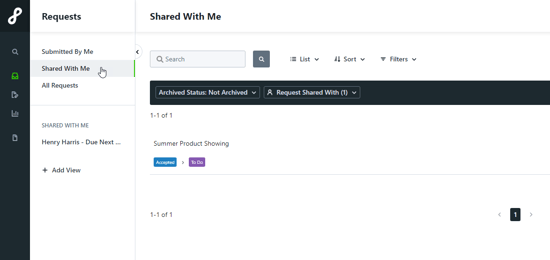
View Requests that have been shared with you in the Shared With Me tab on the inner left navigation bar.
Keeping Up With Requests
Lytho's Request view allows you to set up a Custom View to filter and sort data as well as change the view layout so that you can more easily organize your Request list.
To change between the List View and Table View, select the first dropdown option above the filter bar and select the view you would like. By default, List will be selected.
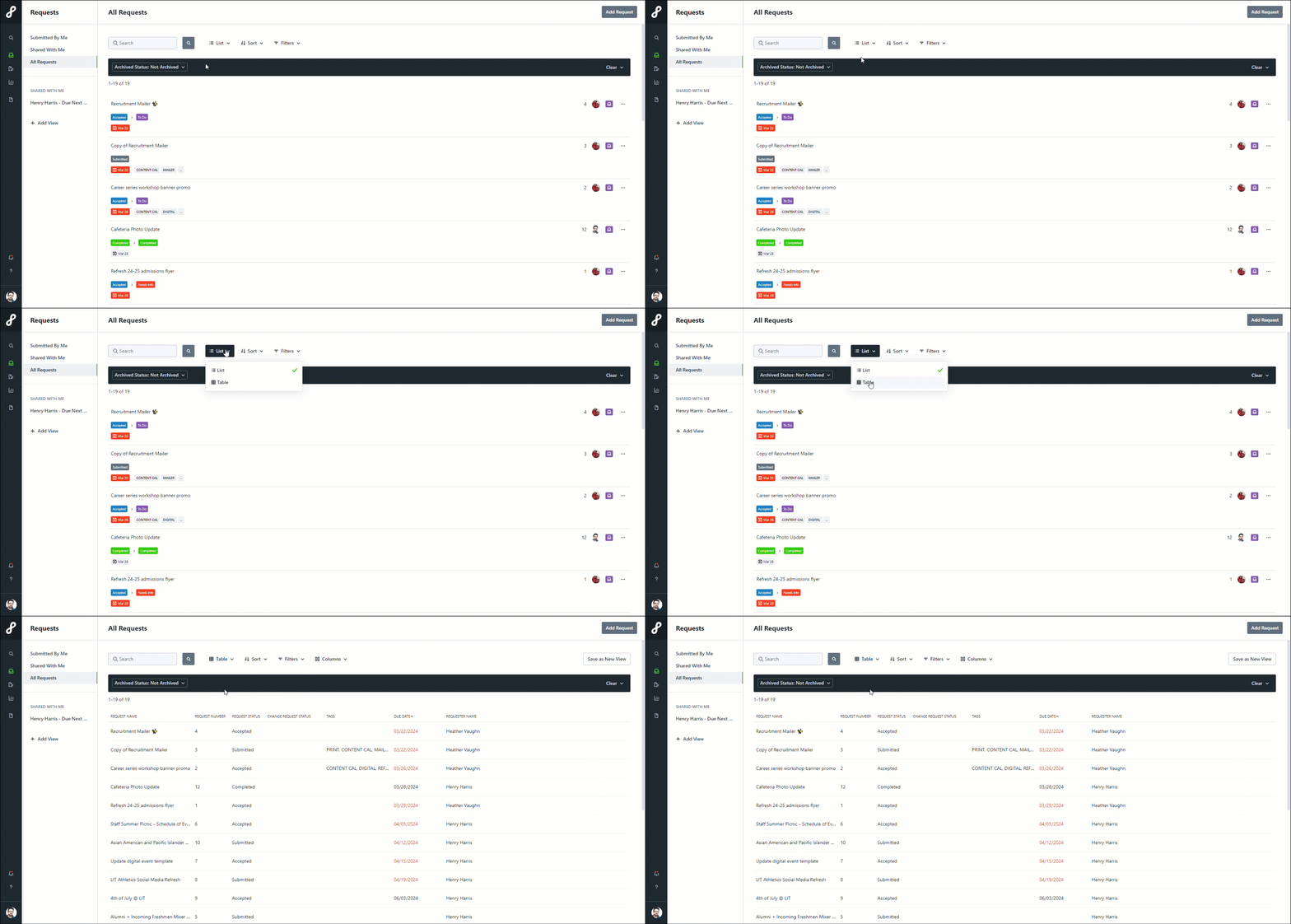
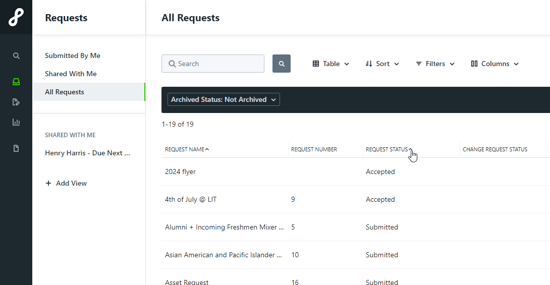
From either view, you can sort your data by Due Date, Request Name, or Request Status. If you are in the Table View, you can sort columns manually by clicking on the column headers. Shift + Click to sort multiple columns. A columns that has been sorted will show the ^ or ⌄ symbol next to the column name.
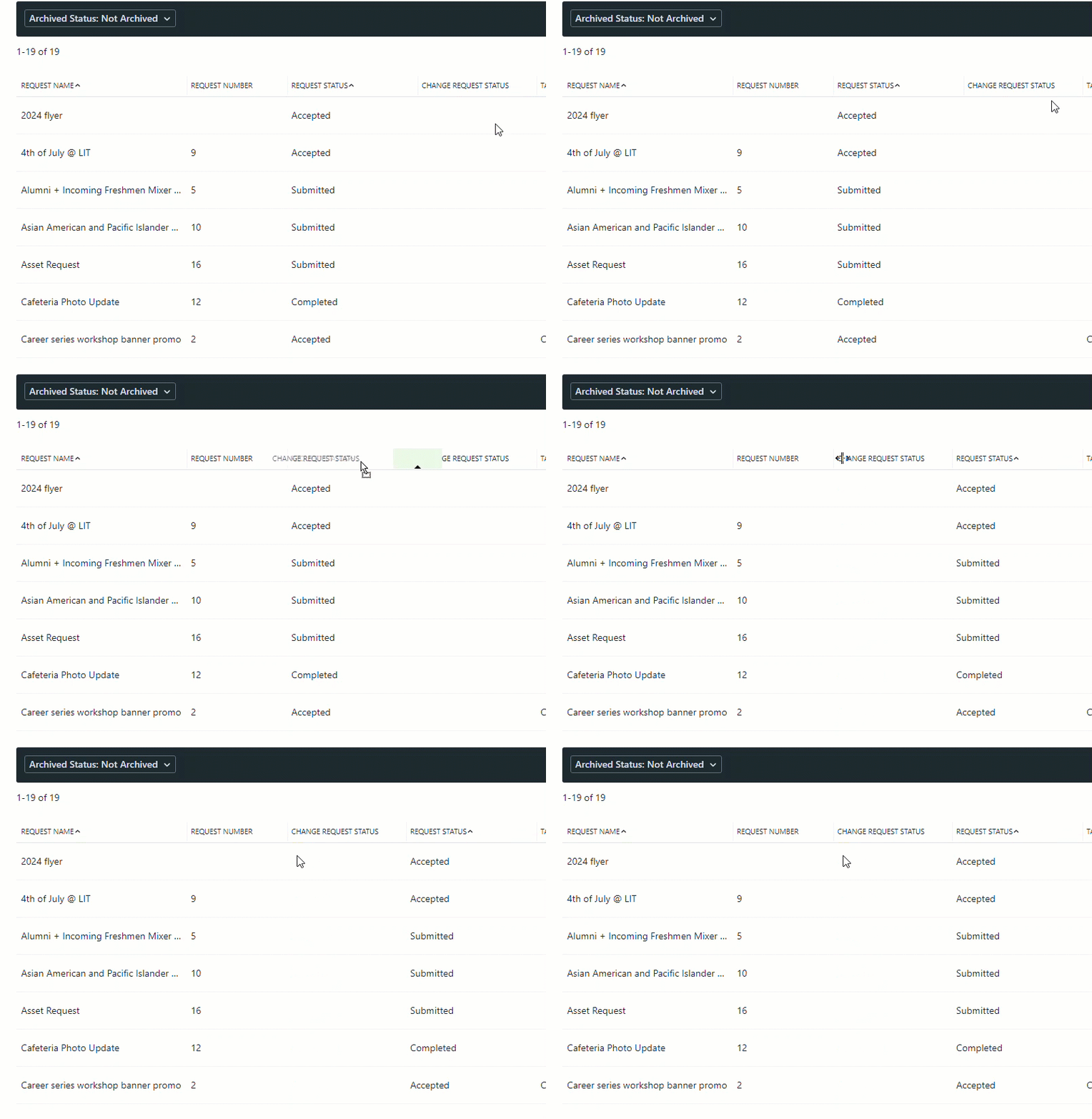
From the Table menu, select which columns you want to see via the Columns menu. You can select as many columns as you want and can rearrange by clicking on the column title and dragging and dropping to a new space.
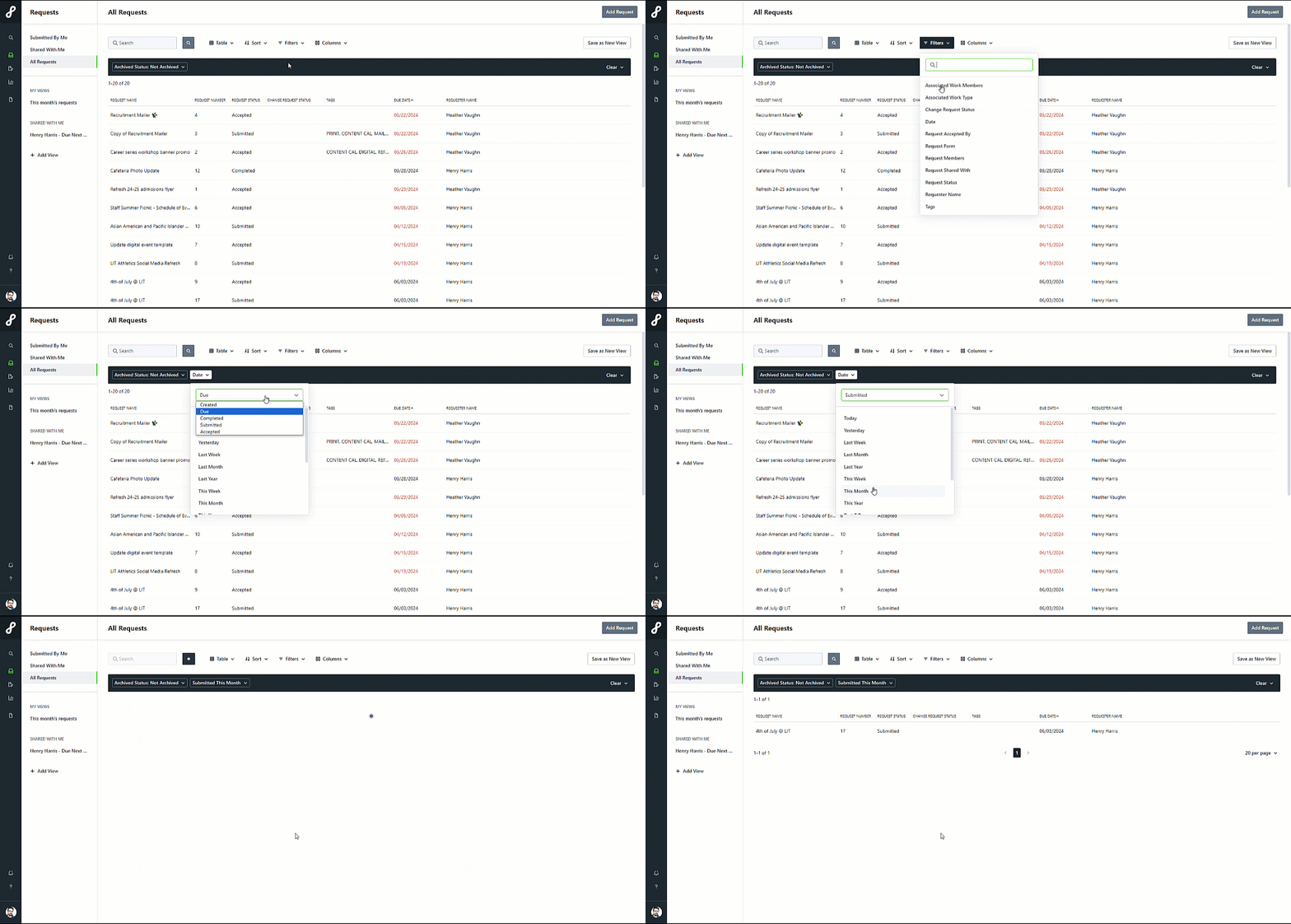
Use the Filters menu to limit the data based on what you're specifically looking for.
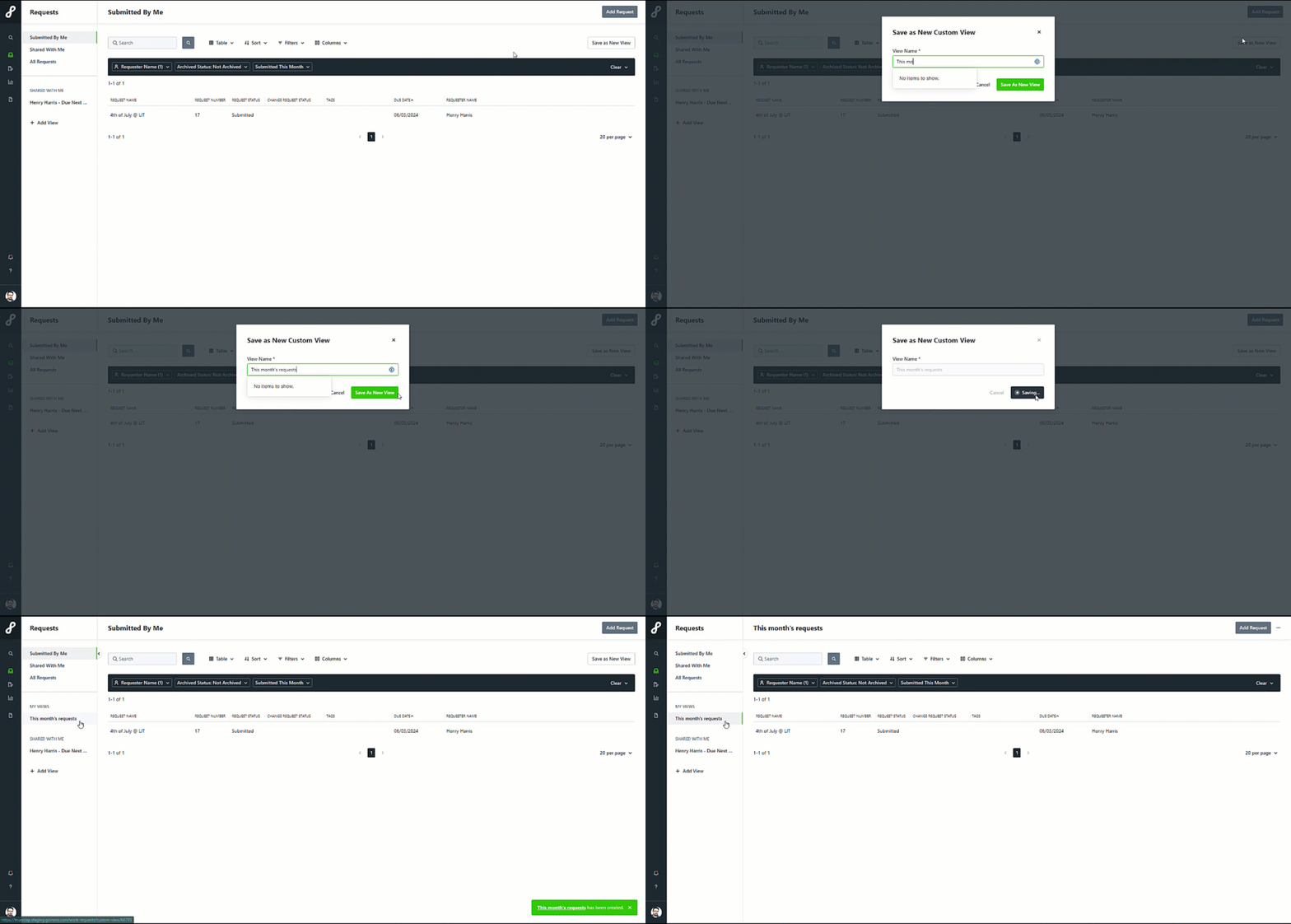
You can save views to be used later by clicking on the Save as New View button above the filter bar on the right side. These views can later be accessed under the My Reviews section of the inner-left navigation bar.
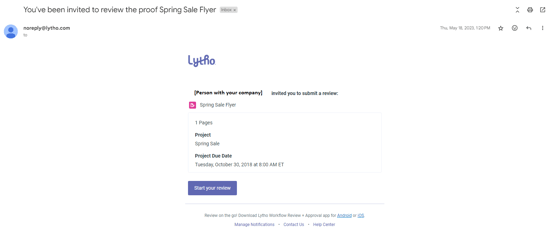
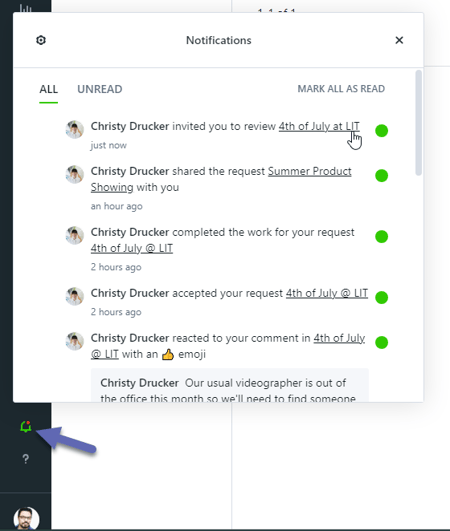 (In-App Notification)
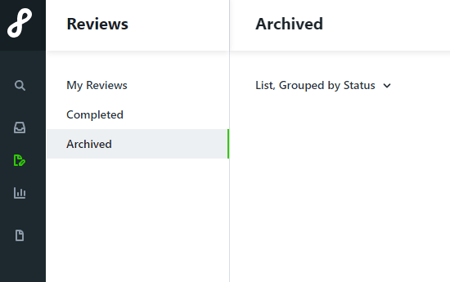
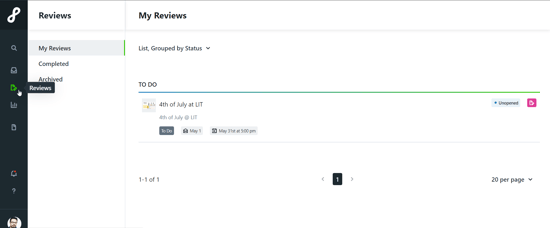 (Reviews Menu in-app)