
Based on your authorizations, you can assign or be assigned tasks within Lytho DAM to review newly added assets or created publications.
A Task will automatically be assigned to all users that are authorized to approve assets when approval is needed. This means that all users with the authorization to approve assets and/or publications will receive a task in their To Do list. However, a Task can be assigned to one specific user. When assigned to a specific user, the Task will still be visible in the To Do list for the other authorized users, but only the assignee will keep the To Do count for this Task.
Viewing and Assigning Tasks
Tasks and can be viewed from your To Do list in the navigation bar and a badge will show the number of Tasks needing attention.
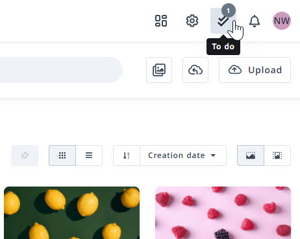
Clicking a Task within the list will bring you directly to the appropriate module where the Task can be completed.
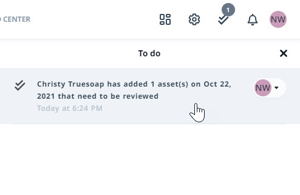
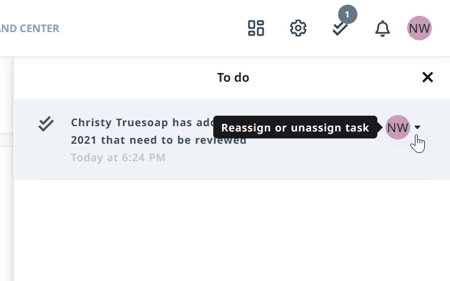
Assign and reassign Tasks directly from the To Do list by clicking the carat to the right of the avatar and selecting a user. Tasks can also be viewed, assigned, and completed within the Waiting Room and Publication pages.
Task Types
The following actions trigger an in-app Tasks for users. If not viewed within the defined time frame, an email notification will go out to the user. The system default time frame is two hours. Manage these preferences within the Communications section of your Profile Details.
|
Task |
When it fires |
Who receives it |
|
Asset(s) have been submitted for Approval |
An uploader without their own approval rights adds assets to the waiting room |
Approvers — routed by group (see “How asset-approval notifications route” below) |
|
Asset has been requested for download |
A user requests download access to an asset with an expired publication date |
Those with “Edit copyright settings of assets” rule |
|
Publication has been sent for review |
A requested publication enters the review/approval step |
The designated publication reviewer / approver |