Click the avatar found in the top right corner of your navigation menu and select Account to access your profile.
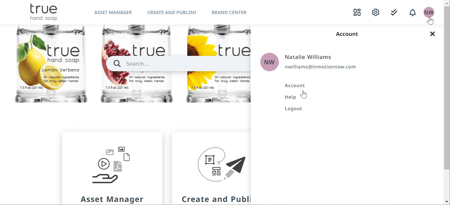
TABLE OF CONTENTS
• Password
• Language
Profile Details
From the PROFILE sub navigation in settings you can update your avatar, name, contact information, and request a new password.
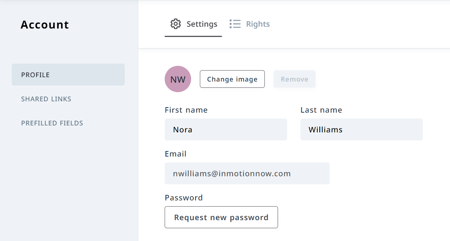
Select Change Image next to your avatar to open your local files and choose a new image to display. Select Remove to delete an uploaded image.
Password
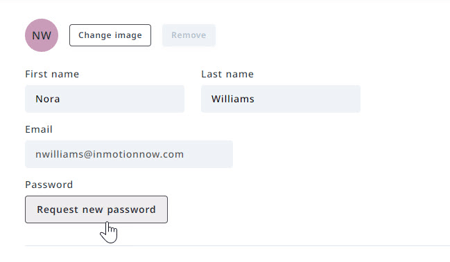
From your profile details, update your password by clicking Request new password below Password.
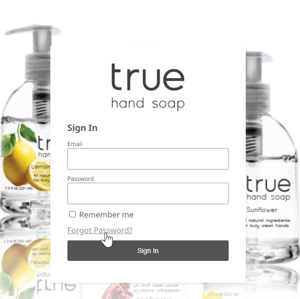
If you have forgotten your password, you can request a new password from the login page by selecting Forgot Password? below the input fields.
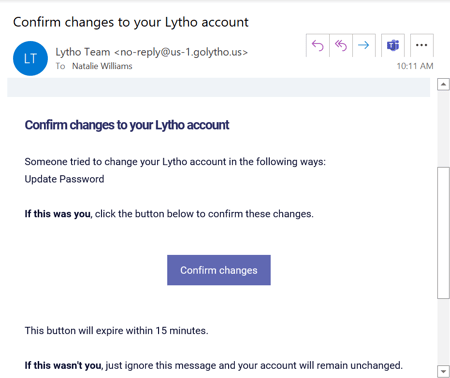
You will receive an email notification, click Confirm changes to continue
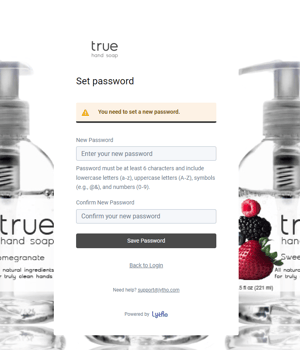
You will be brought to the login page to update your password and confirm.
Language
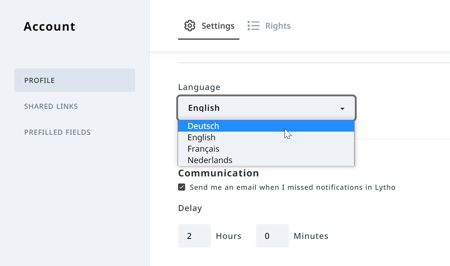
Navigate to the Language section of your profile details to manage your language settings. Select from the dropdown menu to update.
Communication
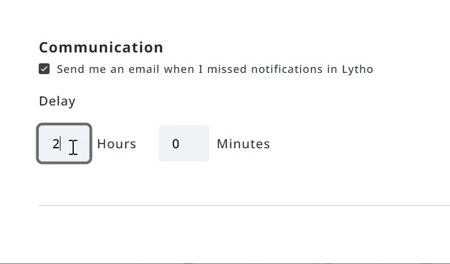
Navigate to the communication section of your profile details to determine how often you receive email notifications.
Selecting Send me an email when I missed notifications in Lytho allows the system to send you an email when a notification has not been viewed in the system. When unchecked, the system will not send email notifications.
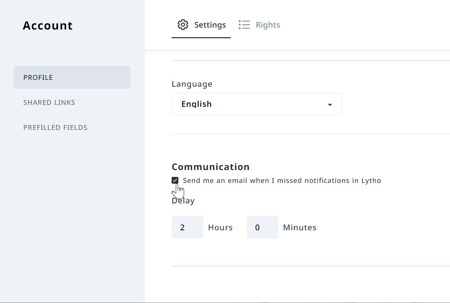
Delay determines the amount of time a notification goes un-viewed before the system will send an email. For example, If the delay is set to 0 hours and 0 minutes, the system will send an email notification as soon as the notification comes in. If the delay is set to 2 hours, then you will only receive an email if the notification goes unviewed for 2 hours.