TABLE OF CONTENTS
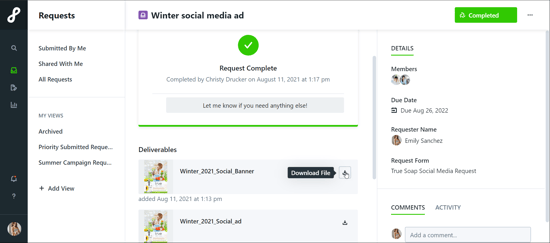
• Accessing a Deliverable from a Completed Request
Creating a Request
To begin a new Request, select the Requests icon from the global navigation menu. Click Add Request in the top right-hand corner of the screen.
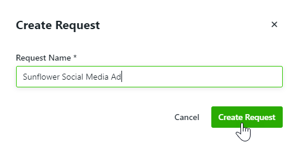
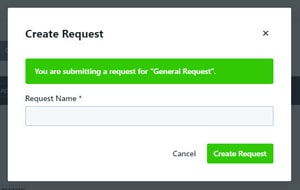
Enter a name for your Request and select Create Request.
Depending on your permissions, you may have multiple Request forms to choose from. Each form will dictate the fields and information required in order to submit your Request. Choose the form most applicable to your Request. If you do not see a form as expected, contact your account administrator.
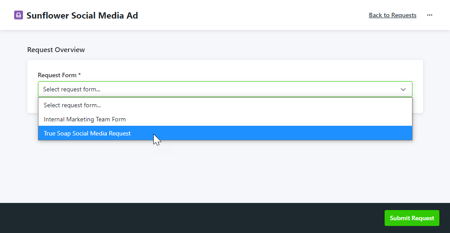
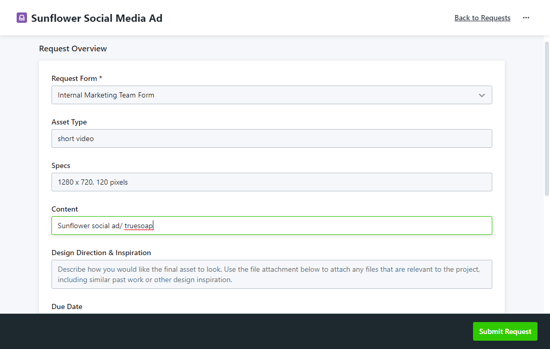
Once selected, the form will populate. Complete the Request form in detail and be sure to fill out any required fields, denoted with an asterisk.
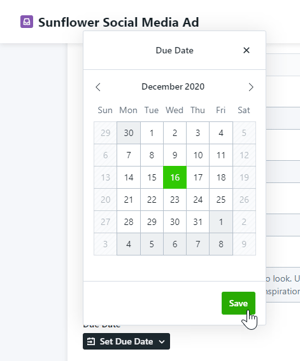
If your Request has the option to select a date, various dates within the calendar may be grey, indicating they cannot be selected due to required lead times for select Requests.
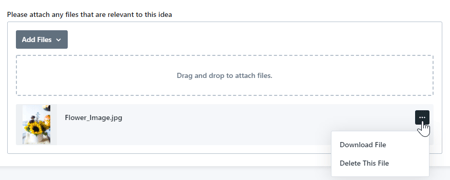
If your form has the ability to add attachments to your Request, you can drag and drop files from your computer into the available field. If you would like to browse your computer file menu instead, start by clicking on the drag and drop field.
To remove or download Request attachments, click the actions menu to the right of the relevant file.
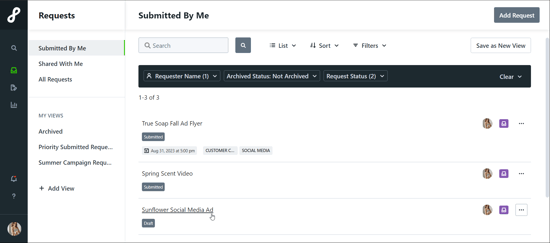
Your Request data is automatically saved as you fill out the form. Any forms that are not yet submitted will appear in Draft status.
Click Submit Request to finalize your submission.
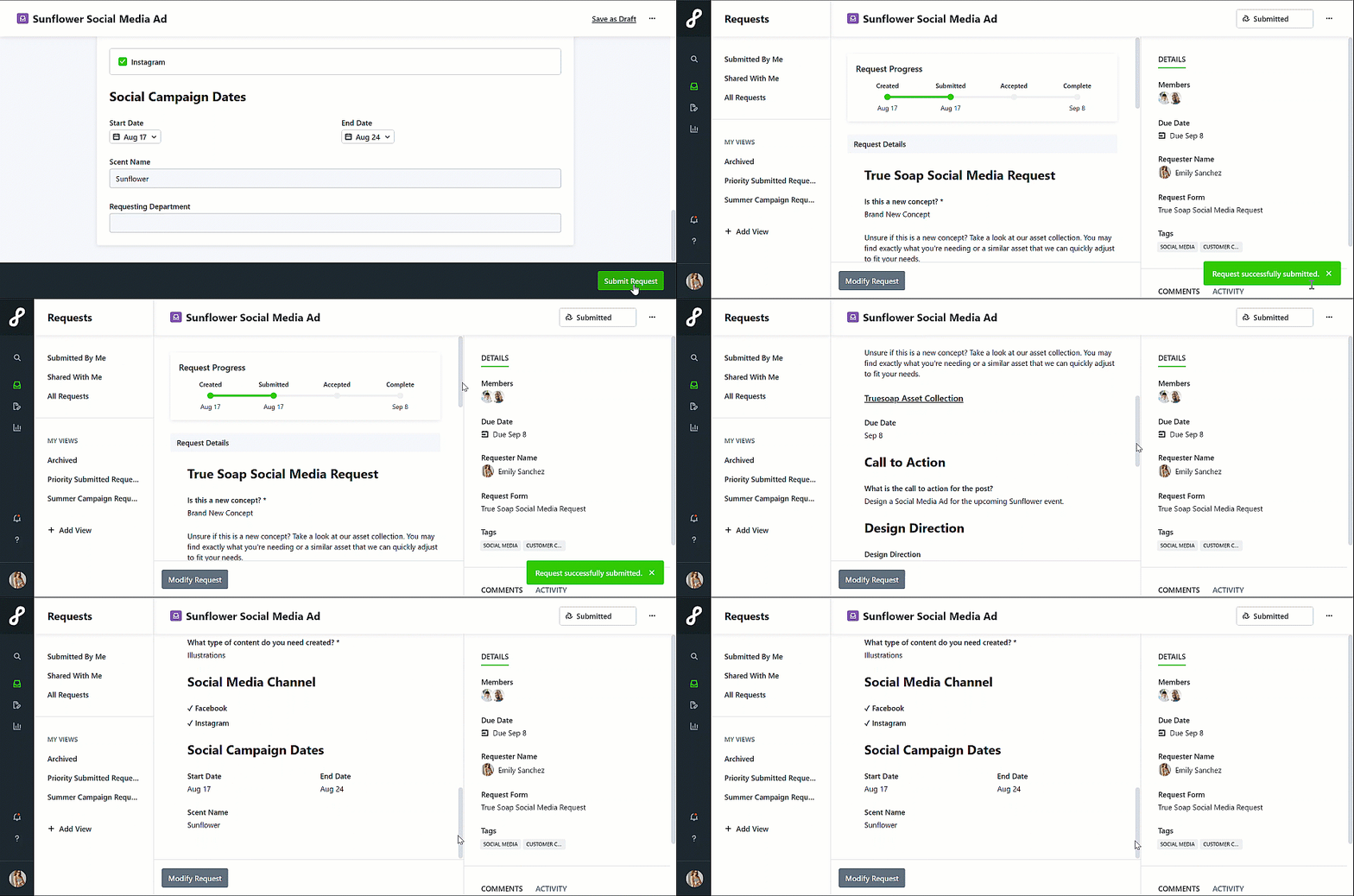
Once you have submitted your Request, you will see the Request Details, where you can view the status of the Request, modify the Request, and collaborate with relevant team members.
Duplicating a Request
Duplicating Requests is a great way to cut down on repetitive work if you are requesting similar deliverables.
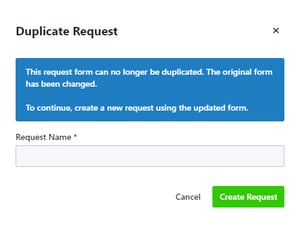
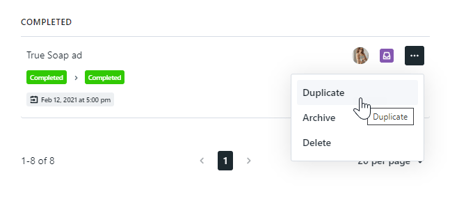
From your Requests list view, click the actions menu to the right of the Request you would like to duplicate and select Duplicate.
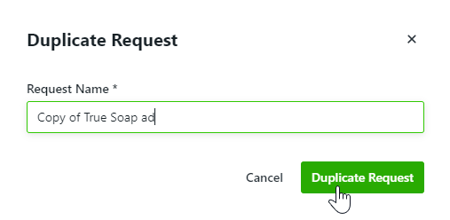
You will be prompted to create a new Request name. Select Duplicate Request when complete.
Your new Request will be located in your Draft section where you can update any information and submit when ready. If the request form has not changed, information entered in the previous request will be duplicated.
Modifying a Request
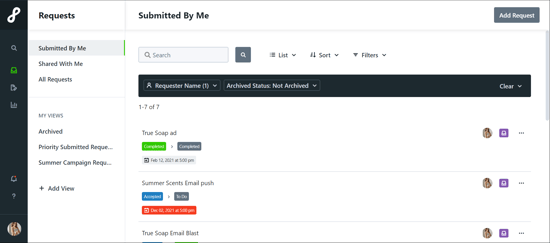
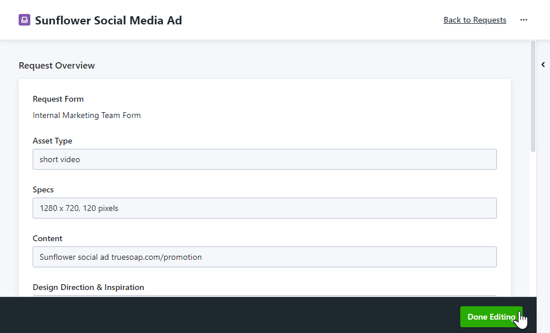
To modify an existing Request, select your Request name from the My Requests list. From the Request details page, click Modify Request near the bottom of the page.
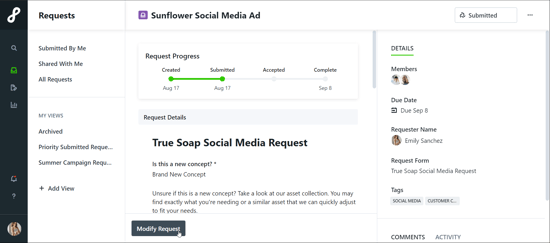
Make any applicable changes to your Request and click Done Editing.
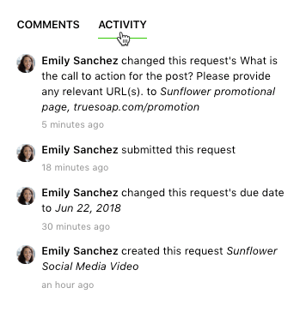
Any edits made to the Request will be captured in the Request activity feed. Select Activity to view any relevant changes.
Deleting a Request
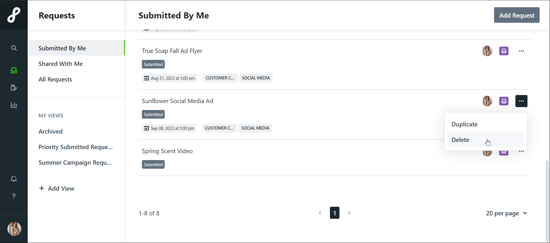
To permanently delete an existing Request, navigate to the My Requests list. Click the action menu to the right-hand side of the Request and select Delete. You can also delete a Request from the action menu found in the top right of the Request details page.
Declined Requests
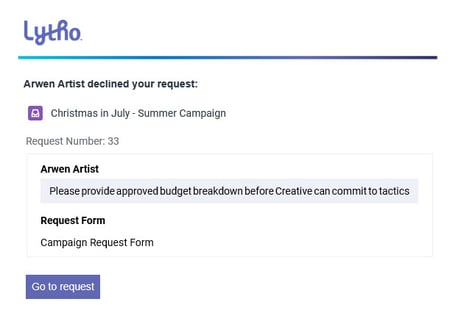
Request acceptors can decline a Request and provide a decline reason. If your Request is declined, you will receive an email and in-app notification, depending on your notification settings, including who declined the Request and the reason provided.
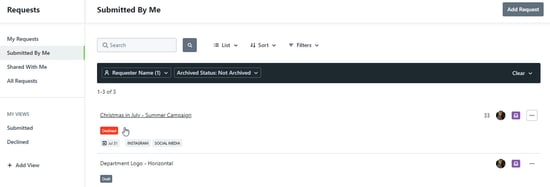
Your declined Request will be listed in your Requests, with a badge indicating it was declined.
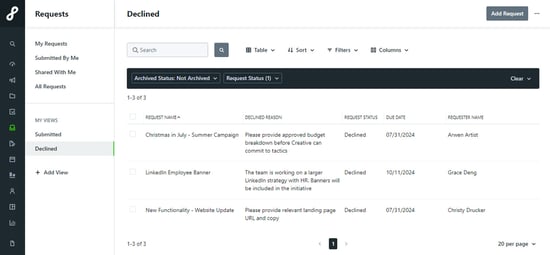
You can also get a holistic view of declined Requests and their declined reason by creating a Request Custom View. Navigate to the Request panel and select Add View. Add a filter for Request Status > Declined and a column for Declined Reason.
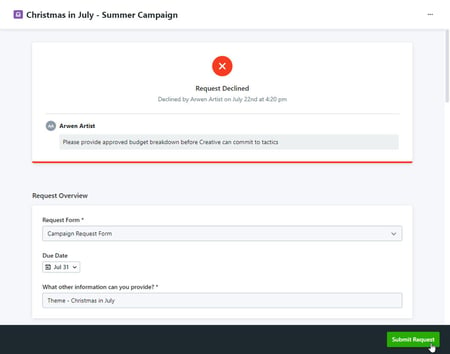
Click into the Request to edit your Request details. Once you have made the appropriate edits, click Submit Request to re-submit the Request back to the Requester.
Request Collaboration
Collaborate with Team Members in the Request by commenting, @mentioning, replying, and attaching files directly in the comment section located in the bottom right of your Request.
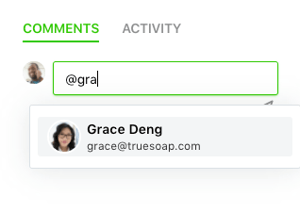
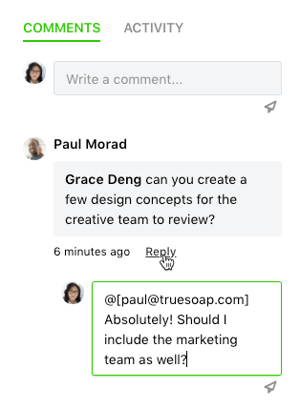
If you would like to @mention another user, begin by typing the "@" symbol and the first name of the person you would like to address. A user list will populate as you begin typing and you can click to select the appropriate user. The user's email address will display while composing the comment, and once posted, your comment will reflect their full name.
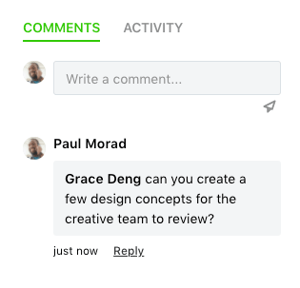
You can reply to any comment by clicking the Reply link below the posted message. This will automatically @mention the user who posted the original comment.
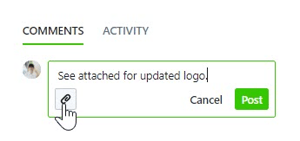
Files can be attached to any comment by clicking the attachment icon in the bottom right corner of the comment window.
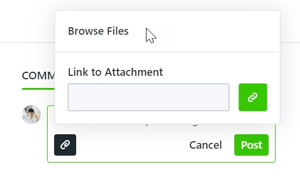
You can select to browse your local files or insert a link to attach. Multiple files can be added to a comment by selecting multiple files at once or clicking the attachments icon to continue adding.
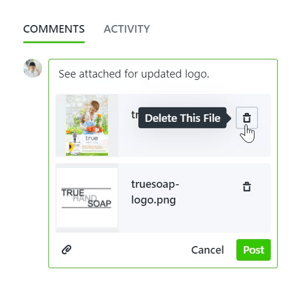
Remove an attachment by selecting the trash icon to the right of the attachment.
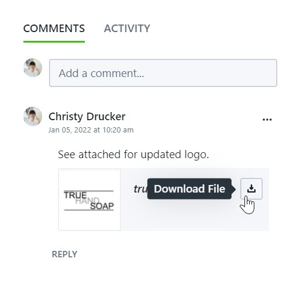
Clicking on the posted attachment will give a preview of the file and an option to download. Files can also be downloaded directly from the comment by clicking the download icon.