Skip to content
English - United States
  • There are no suggestions because the search field is empty.

Submitting a Change Request

You've already submitted your request and it has been accepted, but you now have updates that you need to share with your project team. Use Change Requests to ensure that everyone has the most up-to-date information when working on your request.


Features described in this article are not included in all subscription plans. Interested in expanding your feature set? Contact the Lytho Support Team for further assistance.


TABLE OF CONTENTS

• Creating and Submitting a Change Request

• Notifications

• Reviewing an Accepted Change Request

• Reviewing a Declined Change Request

• Keeping Track of Change Requests


Creating and Submitting a Change Request

After your request has been submitted, you can make changes to this request via the Modify Request button until it has been accepted. Once it is accepted, any additional changes will need to be submitted through a change request. In order to start this process, navigate to your accepted request and select the Change Request button. This will reopen your form allowing you to make your updates.
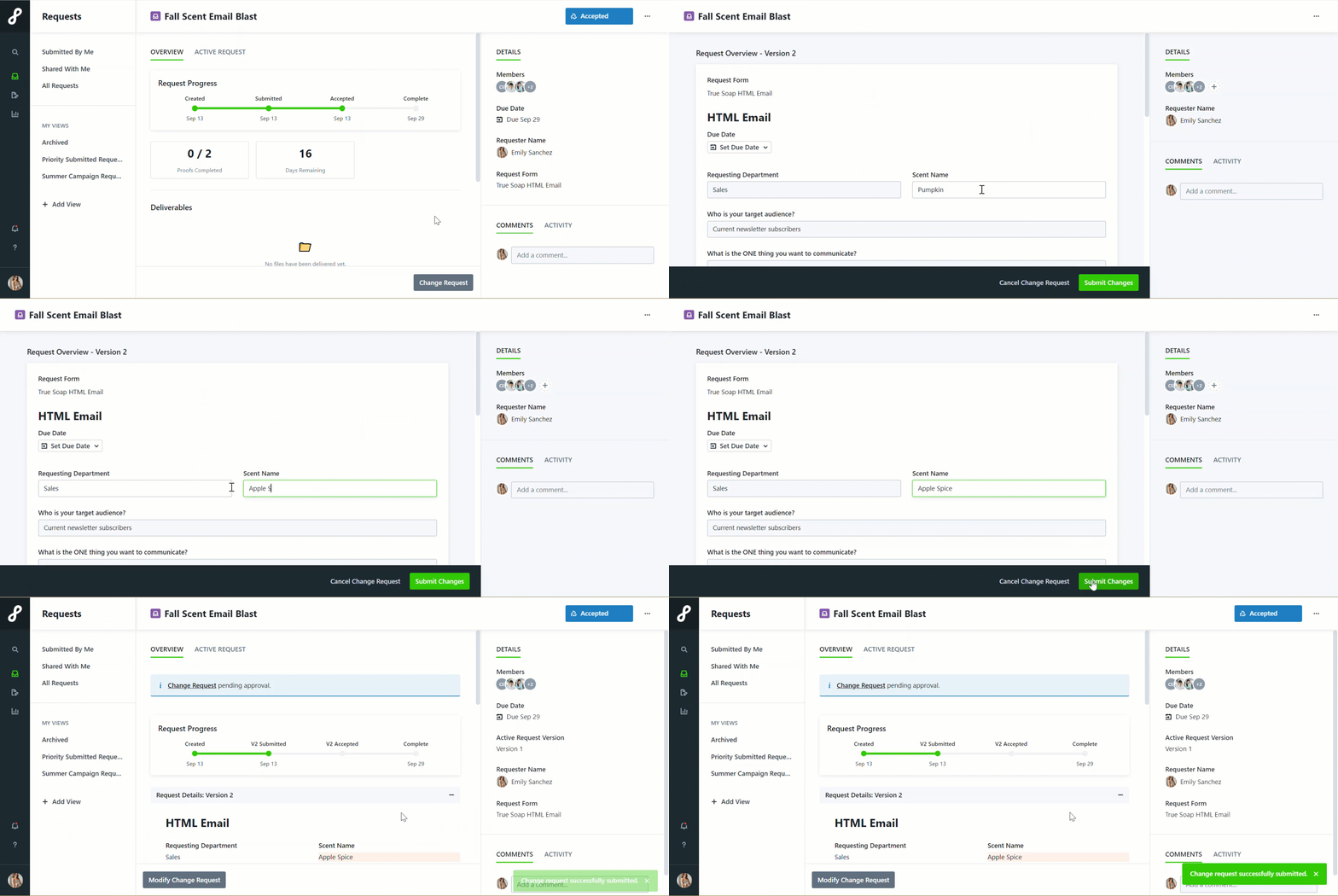
Creating and Submitting a Change Request


Once your change request is submitted, a blue banner will now display over your request reading "Change Request pending approval," letting you know that your change request has successfully gone through. Any changes will be highlighted within the "Request Details Version x" (where x is your version number) section.
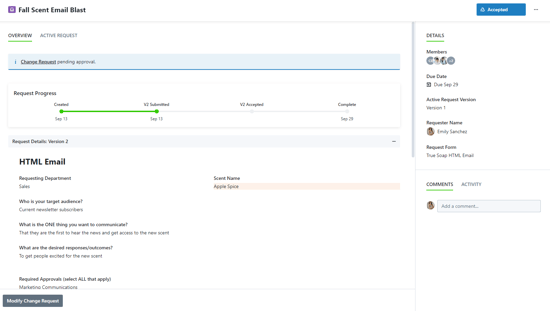
Submitted a Change Request


If you have any additional changes you'd like to submit before your team reviews your request, select either the Change Request link from the blue bar or the Modify Change Request button at the bottom of the page.


Notifications

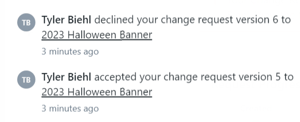
When your Change Request has been accepted or declined, you will receive both an in-app and email notifications depending on your settings.
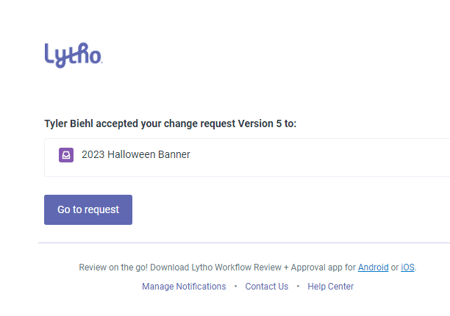
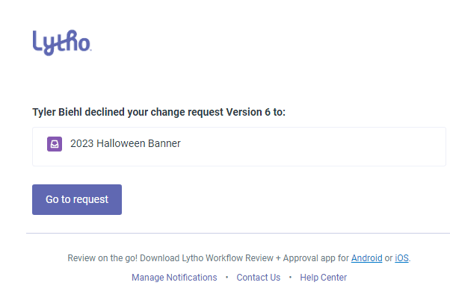
 Change Request notification


 Change Request notification


 Change Request notification


Reviewing an Accepted Change Request

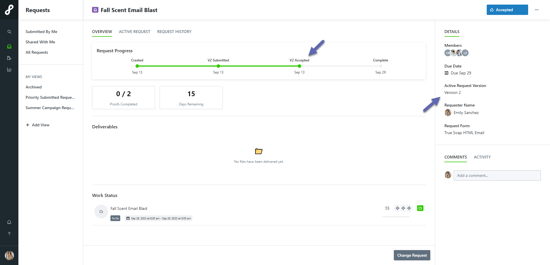
After your change request has been accepted, your request will update to reflect this. On the Overview page, your "Request Progress" timeline and your "Details" panel will update to reflect the current version number. Additionally, a new tab called "Request History" will appear.

Reviewing an Accepted Change Request


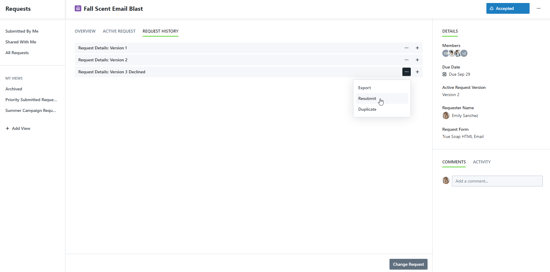
The Request History tab at the top of the page will allow you to review all of the previous versions. From the right-hand side, you can select the plus [+] button to expand a request version or the ellipses [...] button to see the additional options available.


Reviewing a Declined Change Request

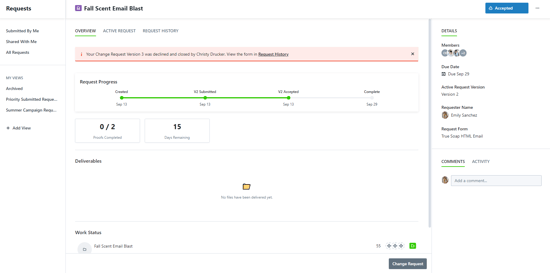
If the project team declines your change request, a red banner across the top of your request will appear reading "Your Change Request Version x was declined and closed by [person]. View the form in Request History." 

Reviewing a Declined Change Request


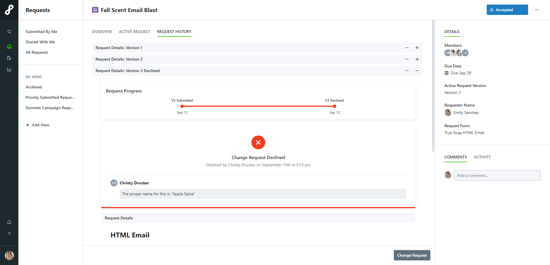
You can see more information on your request by clicking on the Request History tab.

Request History tab


If you were provided feedback and want to try to request the change again, rather than entering a new change request, select the ellipses [...] button to Resubmit the request. This will allow you to adjust your previous version without having to re-enter every change manually.

 Resubmit button


Keeping Track of Change Requests

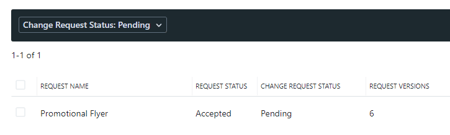
As you receive change requests, you'll want to stay up to date on which items have pending updates and how many revisions a request has gone through. To do this, look for a Change Request - Pending badge if you're on the Request List view or use the Change Request Status and Request Versions columns if you're on the Request Table view or Request Report.

Request Management - List View

(Request Management - List View)


Request Management - Table View(Request Management - Table View)