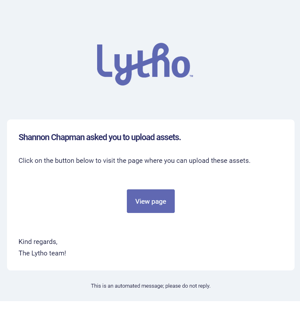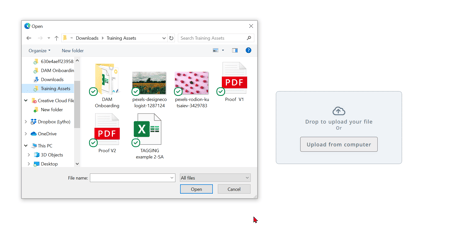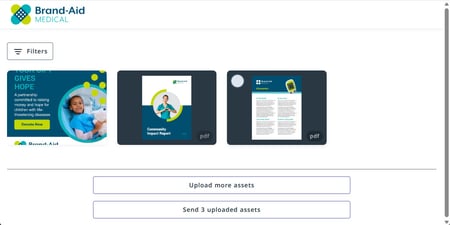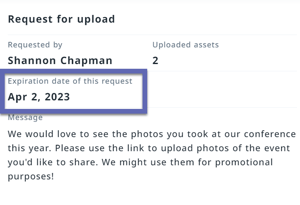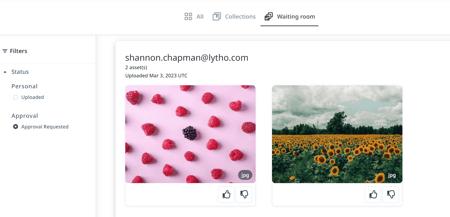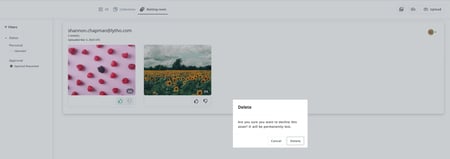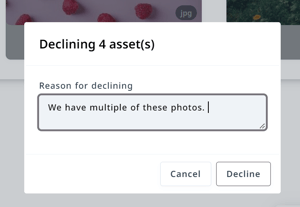
The Request for Upload feature in Lytho DAM is an easy way to ask for assets from users both inside and outside of your organization. This user does not need a Lytho account to send assets to your admin's waiting room for approval.
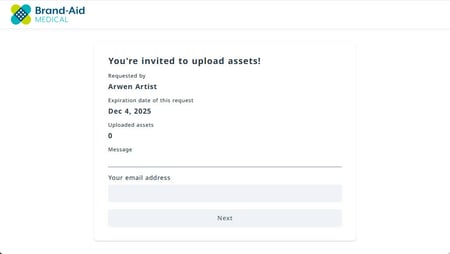
There are many reasons why you might ask someone to send assets to you. Let's take a look at a few scenarios. We'll also see what your users' experience looks like when they receive the Request for Upload invitation.
TABLE OF CONTENTS
• Creating a Request for Upload Link
• Approving Assets from the Request for Upload Link
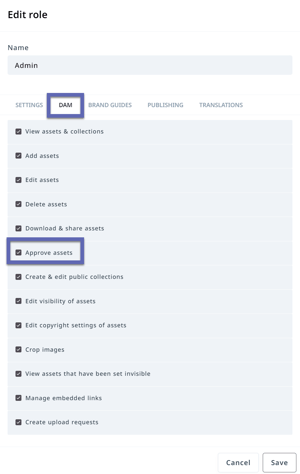
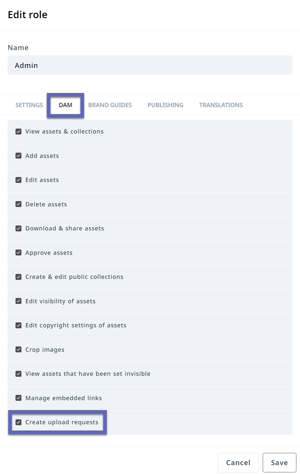
Users with the assigned Rule to add and approve assets to the Asset Manager can create and send a Request for Upload link. The recipients of the link do not have to have DAM access to use the link.
Creating a Request for Upload Link
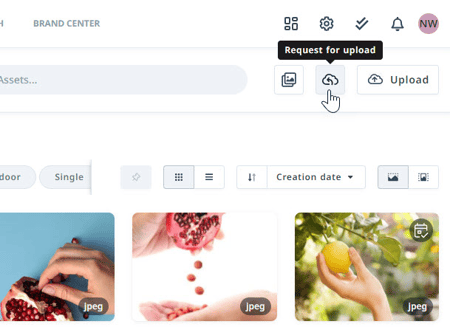
Select the Request for Upload button in the top right corner in the Asset Manager or the Waiting Room to begin creating your request.
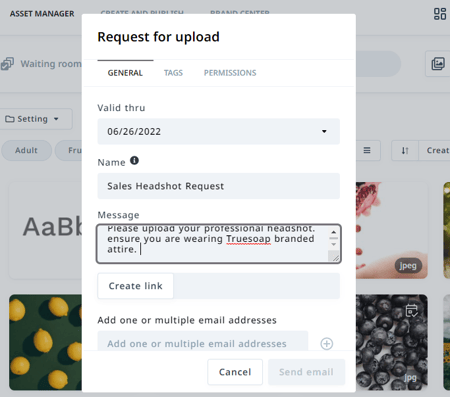
In the GENERAL tab select the date the link will be valid through, a name for your link, and a message for your end users. The name is only displayed internally within your shared links for easy management.
You have the ability to add Tags and Permissions within the additional tabs. This ensures that the assets coming in will have the appropriate tags or permissions applied so that you do not have to apply to each individual asset in the waiting room.
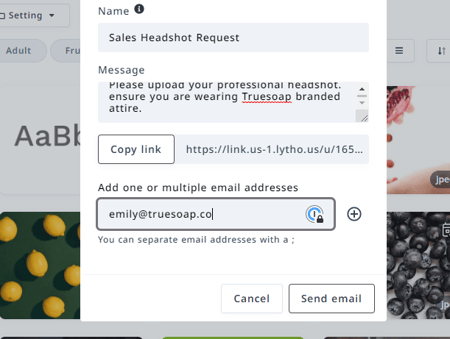
Select Create link to create a link that can be copied and shared with your end users. You also have the option to send an email directly from Lytho DAM. Enter the email address(es) in the email field and click Send email to send.