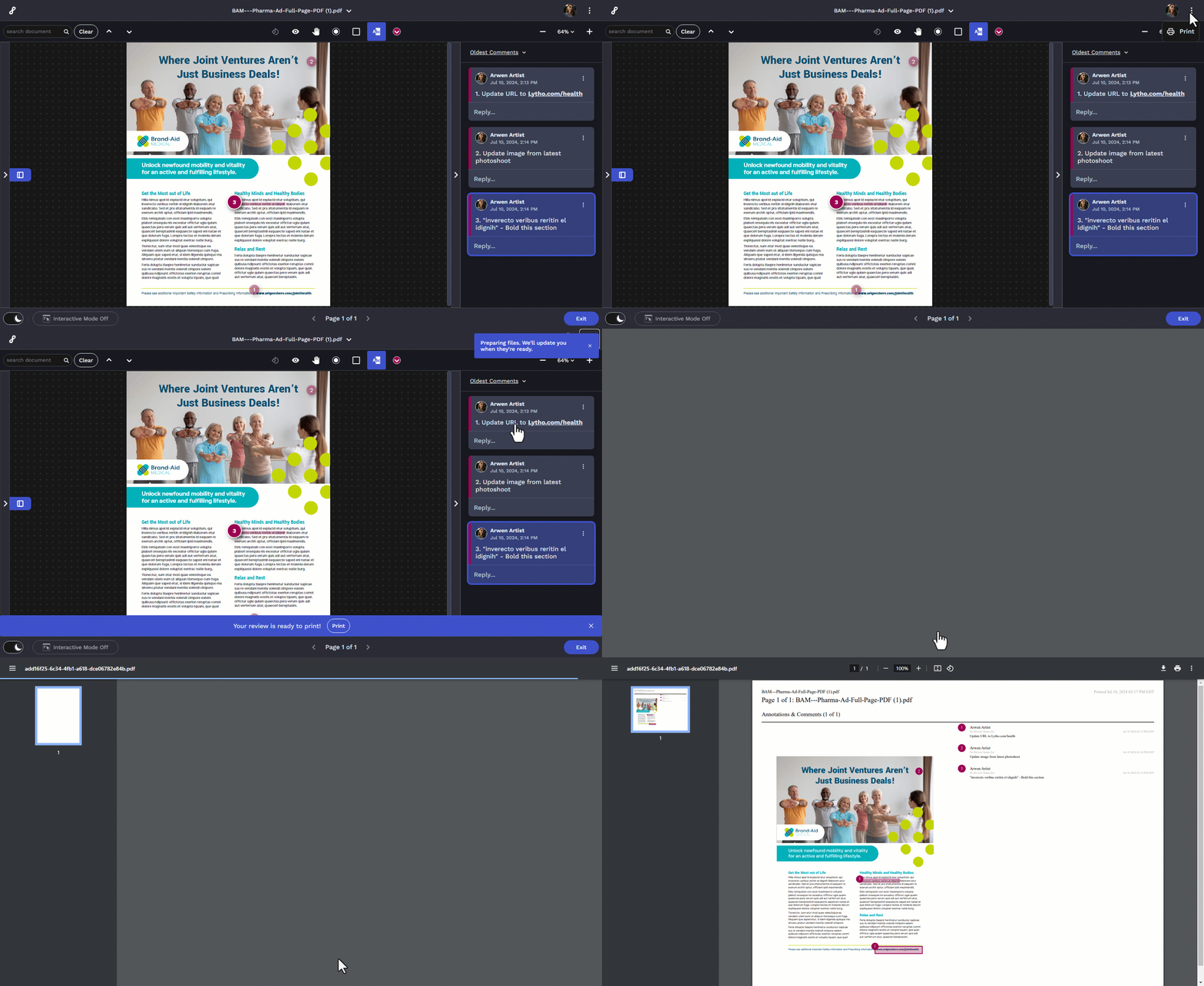
Receiving information via a request can be difficult when there is disconnect between the Requester and the Acceptor. Use Request File Markup to help bridge the gap on your attached files!
Features described in this article are not included in all subscription plans. Interested in expanding your feature set? Contact the Lytho Support Team for further assistance.
TABLE OF CONTENTS
• Accessing Request File Markup
• Printing Annotated Request Files
Accessing Request File Markup
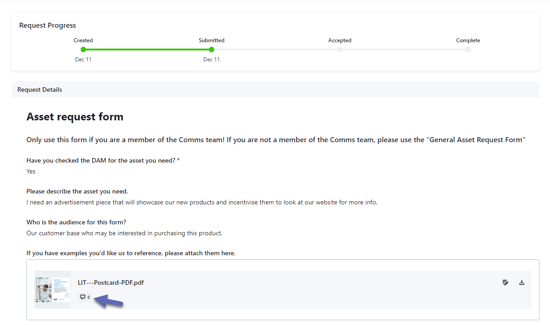
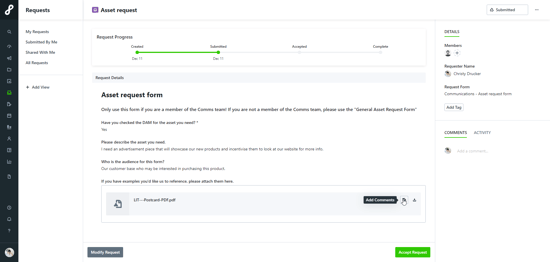
When or after submitting a request with an attached file, each file attached will show within the Request Details section of the request. On the right end of each file are your action buttons "Add Comments" and "Download." Clicking on the Add Comments button will take you into the request file screen.
Using File Markup
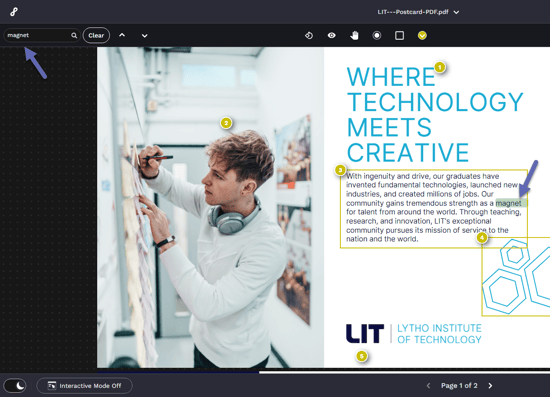
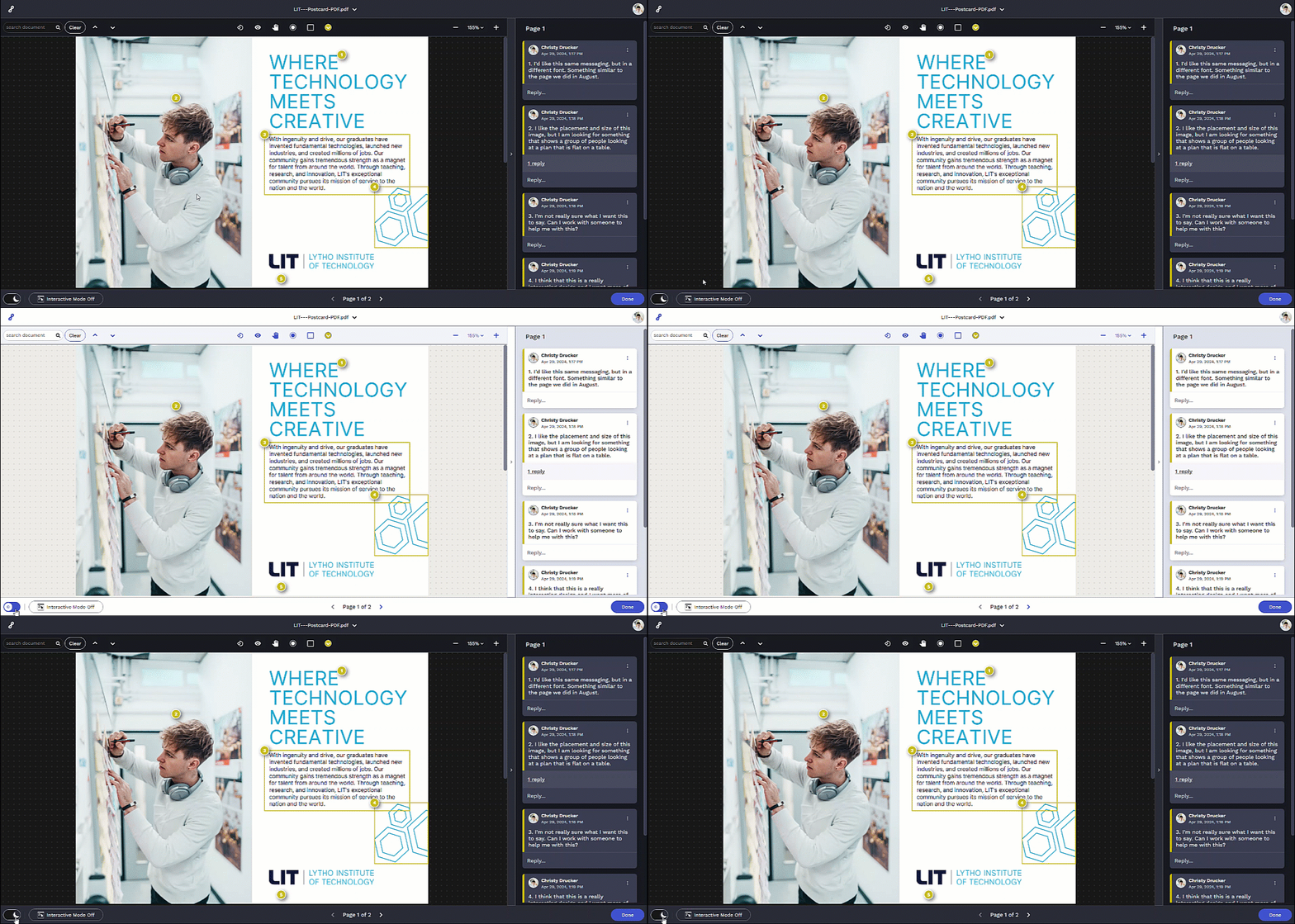
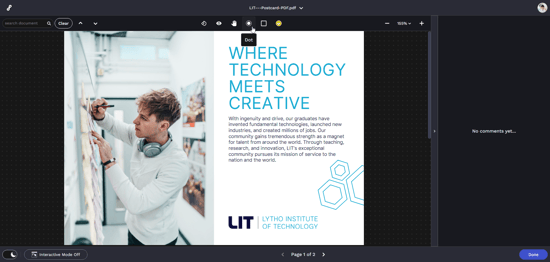
From the center of the upper actions bar, select one of the annotation tools. Once selected, the button will highlight indicating it has been selected.
Click anywhere on the asset to place your annotation. Some annotation types will require you to click and drag.
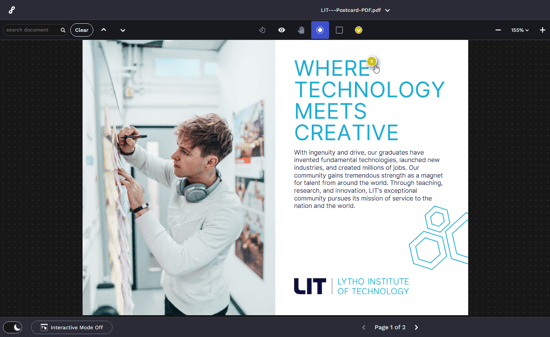
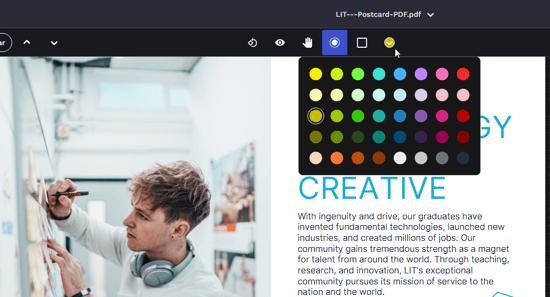
You can adjust your annotation color by selecting the Choose annotation color button to the right of the Dot tool.
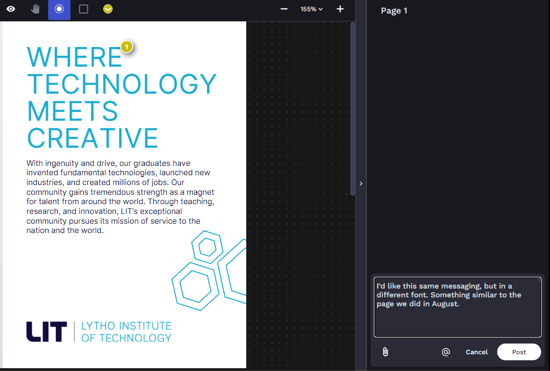
Whenever an annotation is placed, a comment will be required on the right side of the screen. Write your comment and select Post when you are finished. You can also attach up to 12 files to a single comment.
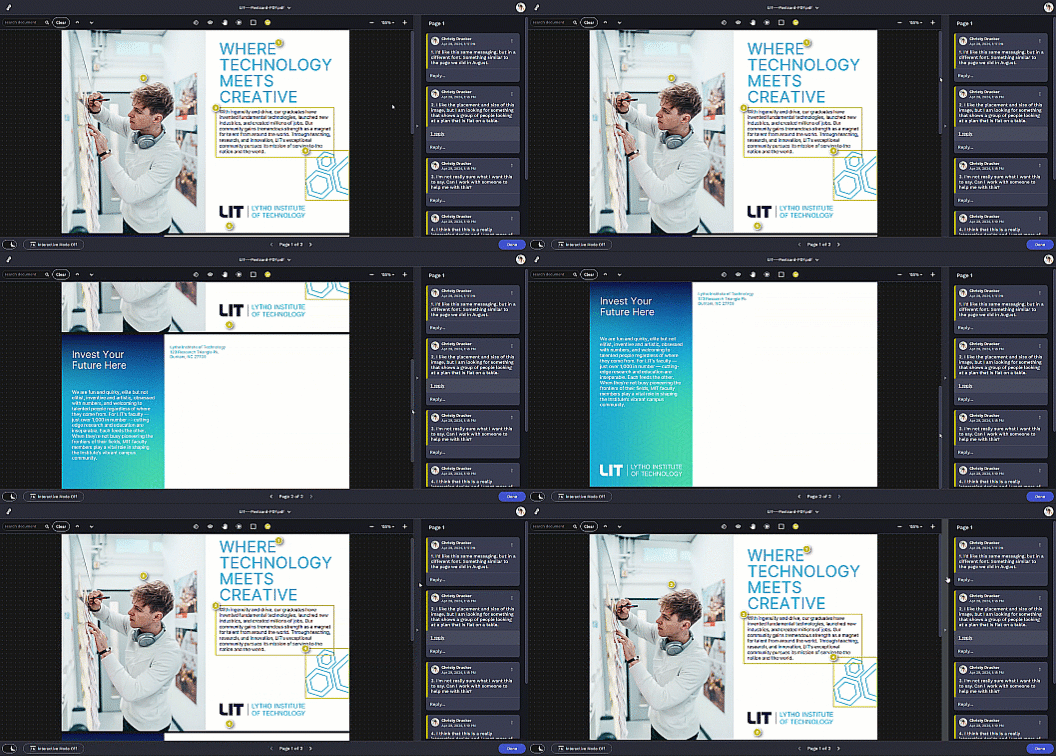
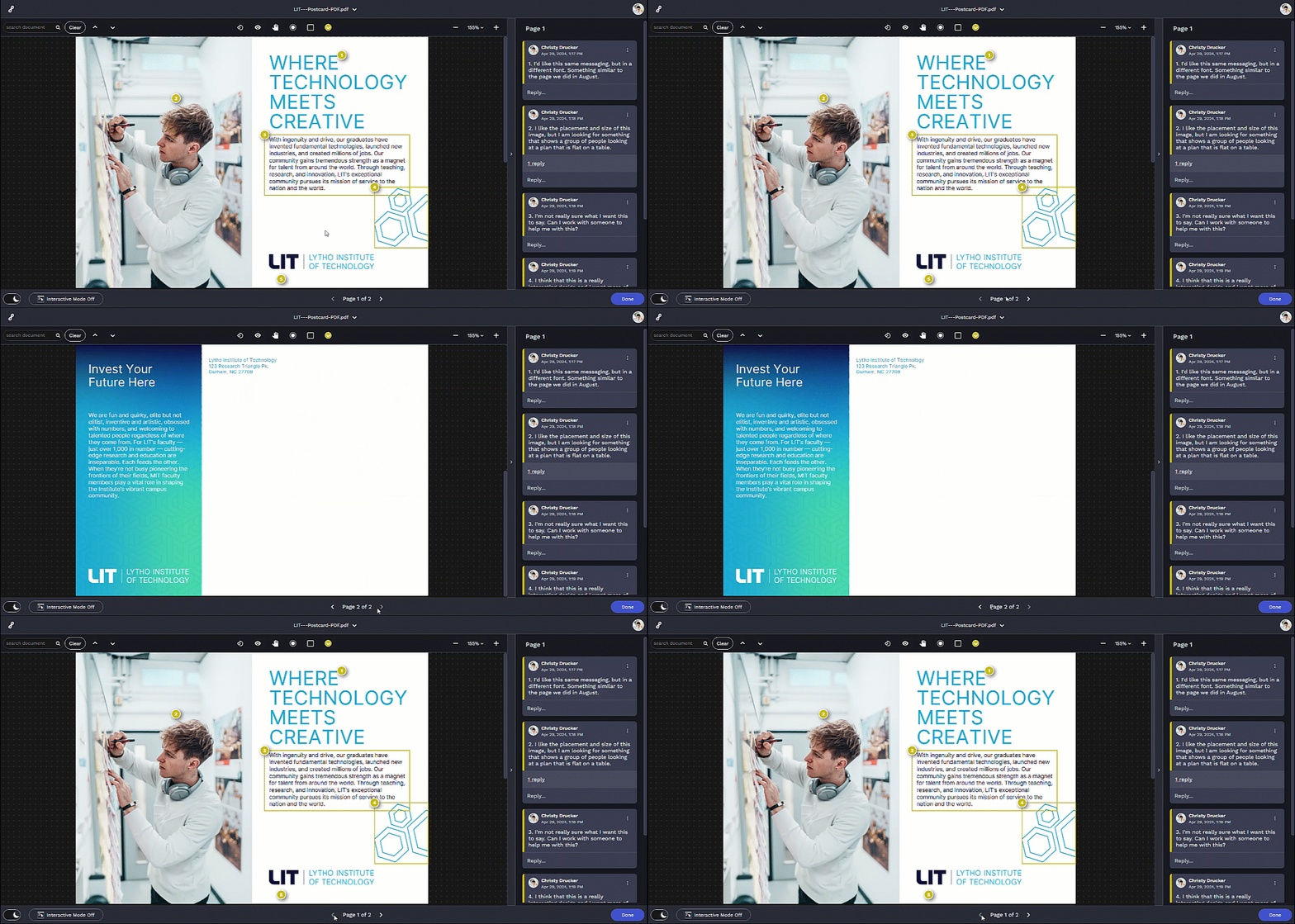
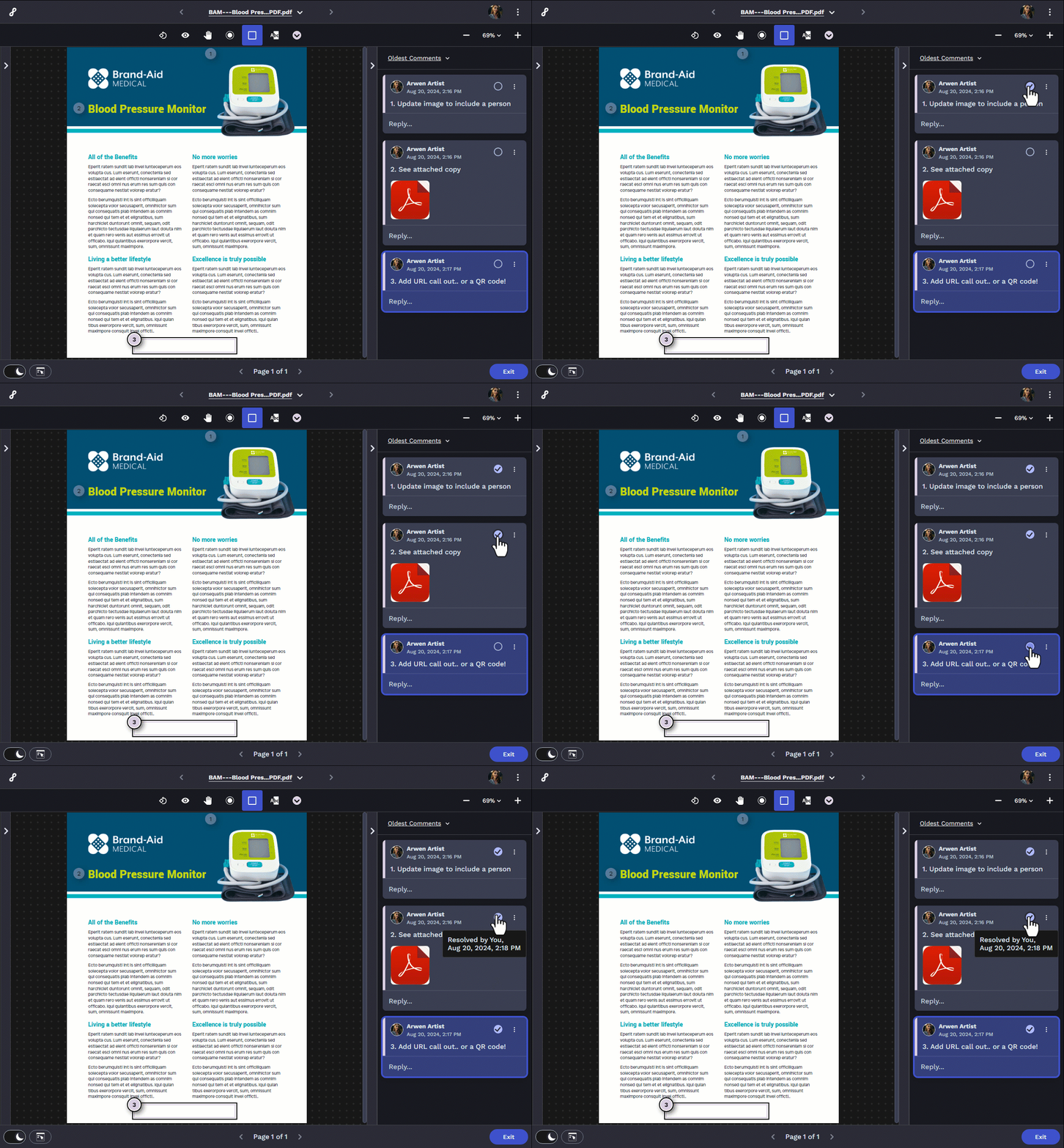
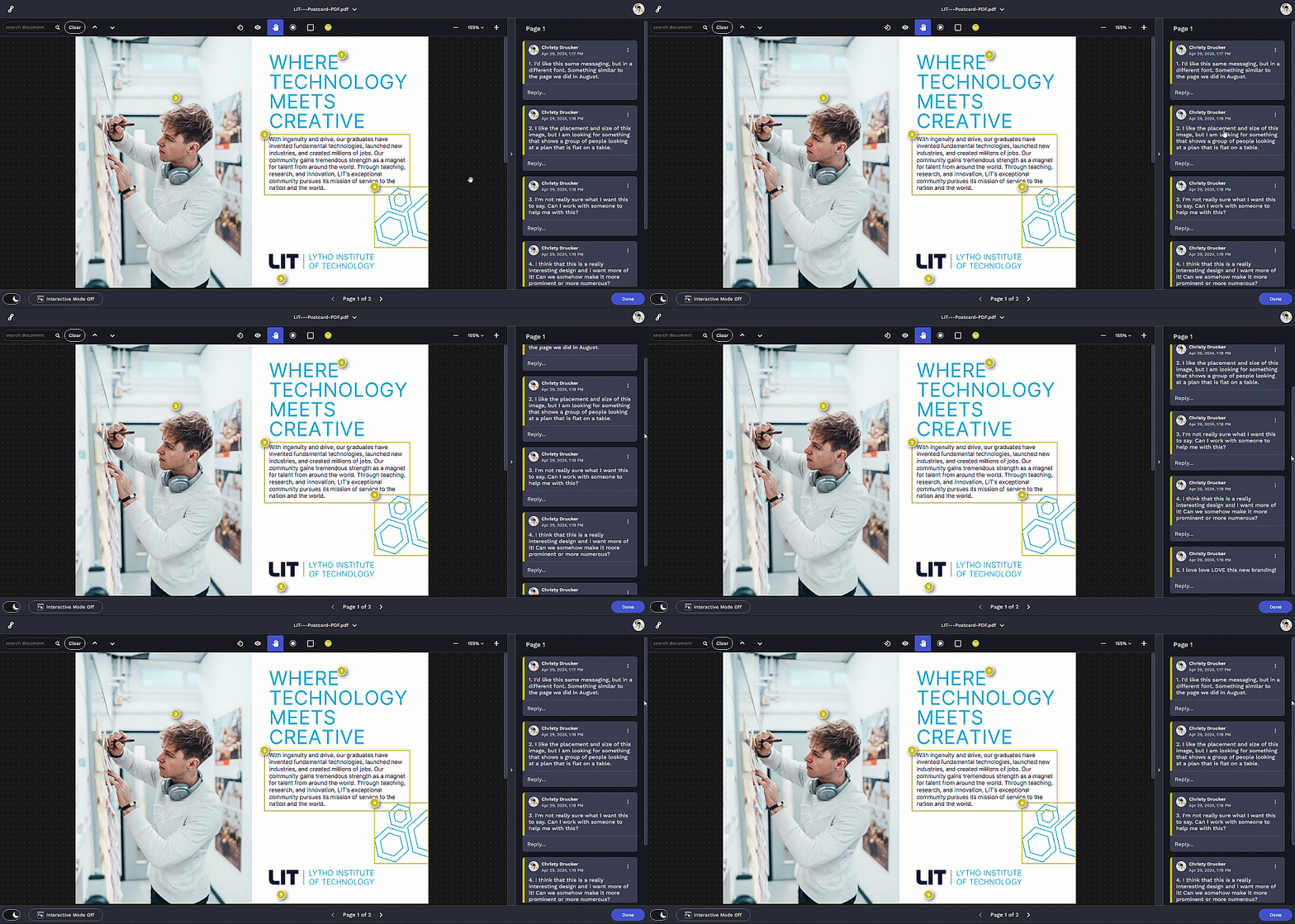
All comments will be stored on the right side of the screen. Use the outer scroll bar to scroll through the comments.
To reply to a comment, select Reply... underneath the comment and type within the text box. You can also attach files by clicking the paperclip icon. Click the Post button when you are ready to submit your reply.
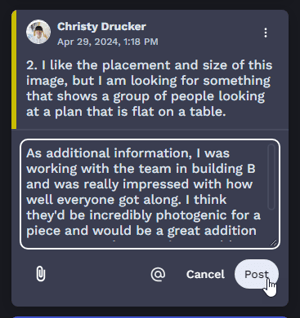
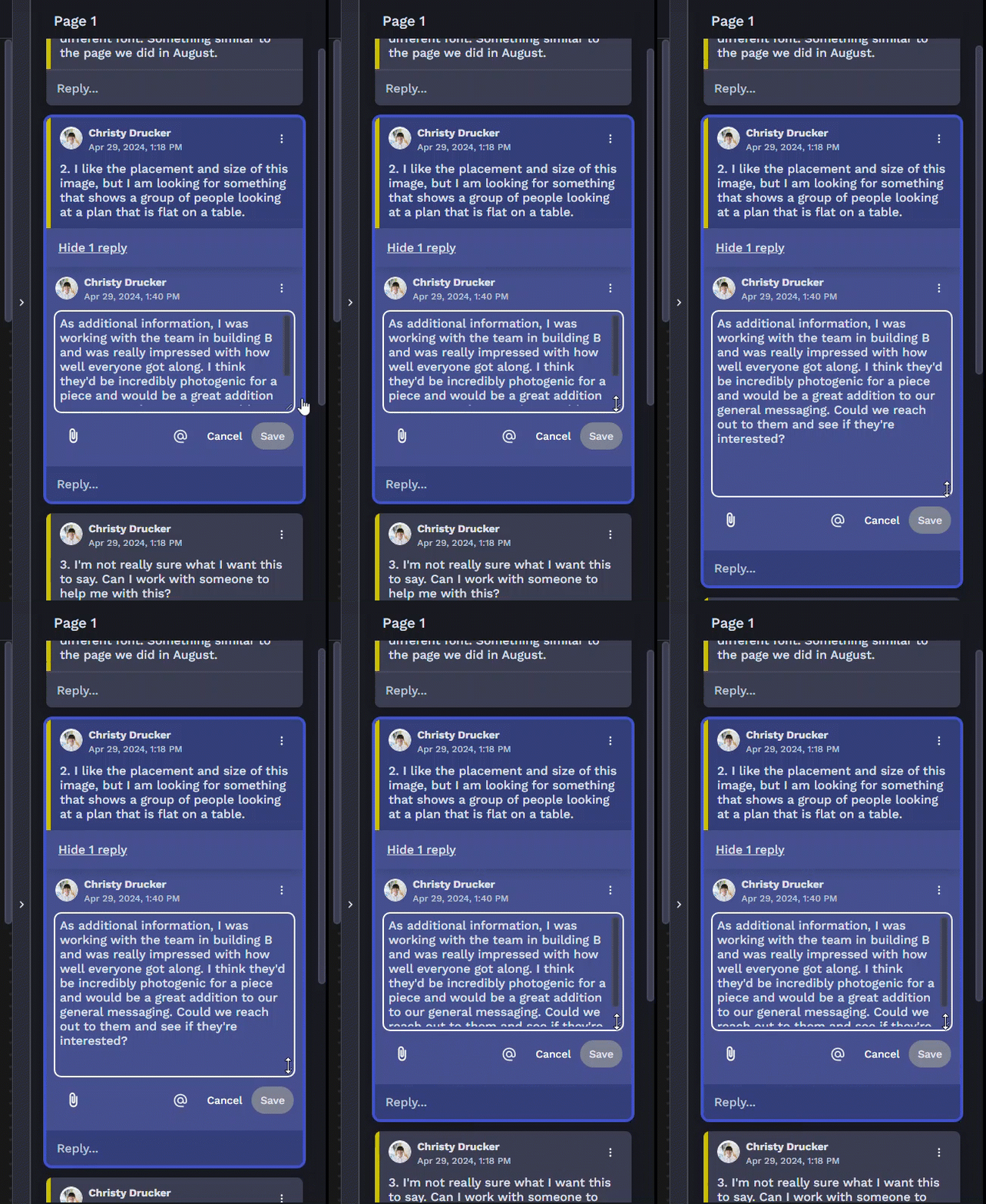
While writing a comment, you can expand the comment box by selecting the bottom right corner and dragging it up or down.
When you are finished marking up the file, select Done in the bottom right corner. From the request page, the number of comments will be displayed on the attached file.