Skip to content
English - United States
  • There are no suggestions because the search field is empty.

Request File Markup

Receiving information via a request can be difficult when there is disconnect between the Requester and the Acceptor. Use Request File Markup to help bridge the gap on your attached files!


Features described in this article are not included in all subscription plans. Interested in expanding your feature set? Contact the Lytho Support Team for further assistance.


TABLE OF CONTENTS

• Accessing Request File Markup

• Using File Markup

• Additional Features

• Text Search

• Continual Scroll

• Light/Dark Mode Toggle

• Interactive Mode

• Designer Checklist

• Printing Annotated Request Files

• Supported File Types


Accessing Request File Markup

When or after submitting a request with an attached file, each file attached will show within the Request Details section of the request. On the right end of each file are your action buttons "Add Comments" and "Download." Clicking on the Add Comments button will take you into the request file screen.
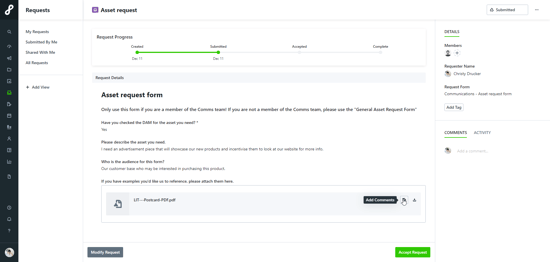
 Add Comments button

Unsupported file types will grey out the "Add Comments" button and instead read "Add Comments not yet supported for this file type."


Using File Markup

From the center of the upper actions bar, select one of the annotation tools. Once selected, the button will highlight indicating it has been selected.
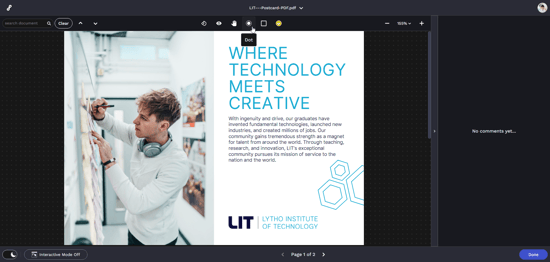
Annotating in request File Markup


Click anywhere on the asset to place your annotation. Some annotation types will require you to click and drag.
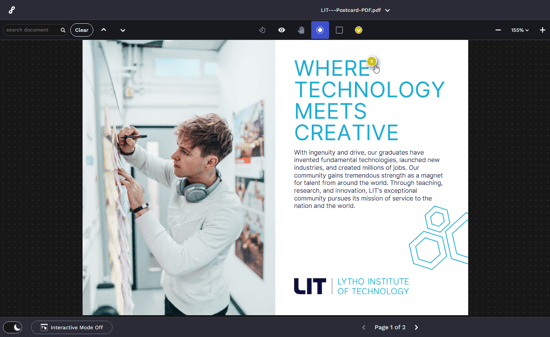
Annotating in request File Markup


You can adjust your annotation color by selecting the Choose annotation color button to the right of the Dot tool.
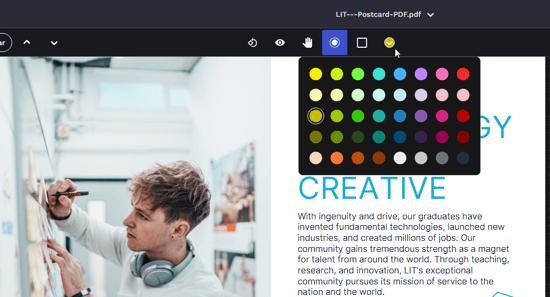
Choose annotation color button


Whenever an annotation is placed, a comment will be required on the right side of the screen. Write your comment and select Post when you are finished. You can also attach up to 12 files to a single comment.
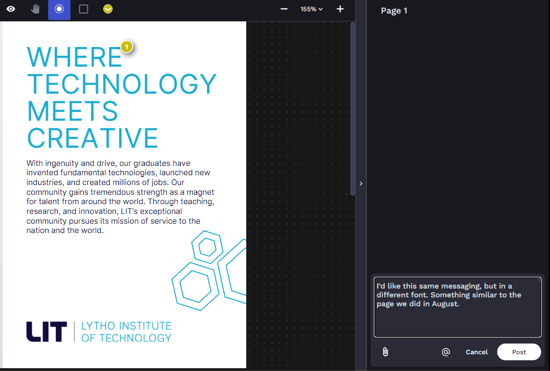
Annotating in request File Markup


All comments will be stored on the right side of the screen. Use the outer scroll bar to scroll through the comments.
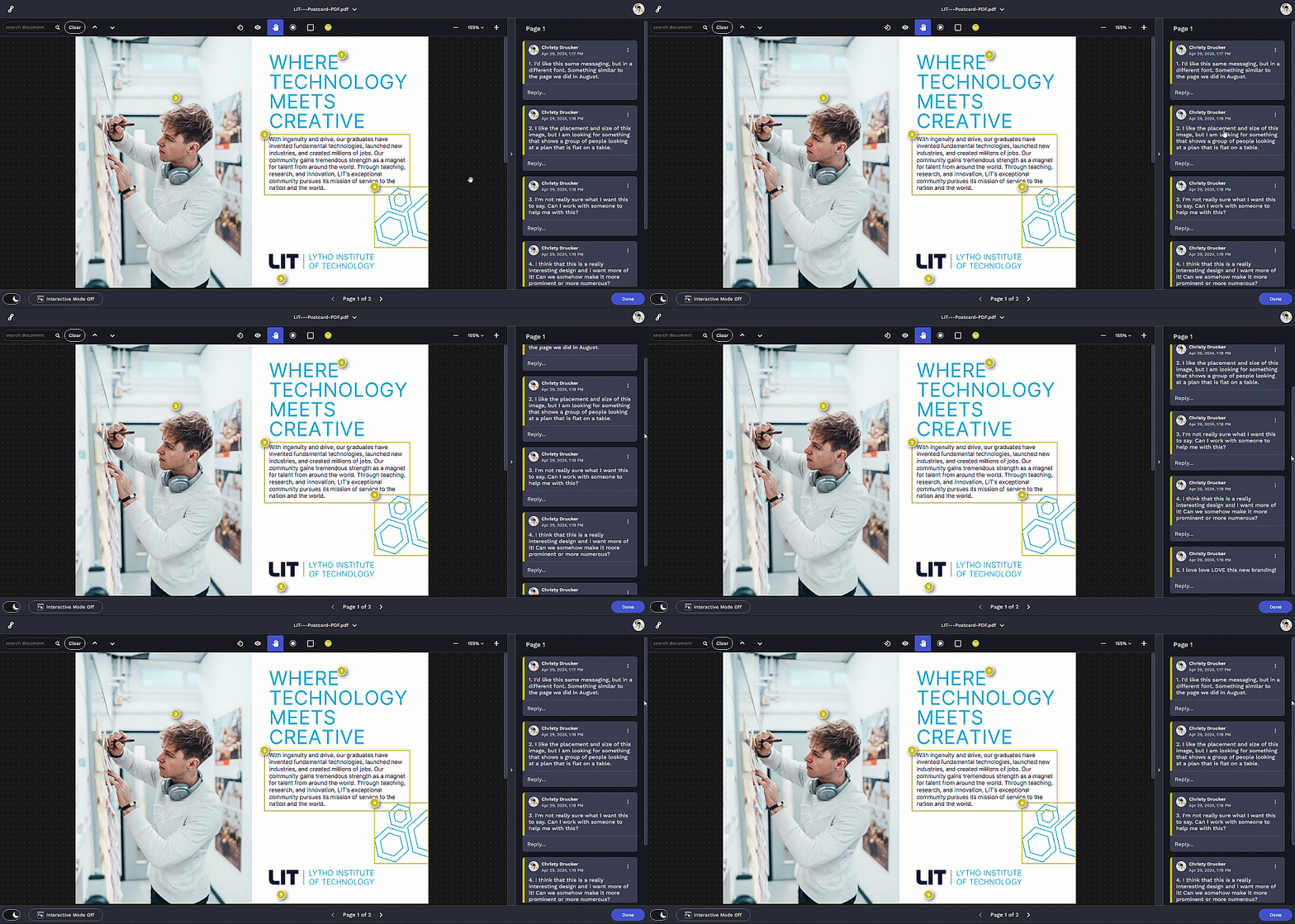
Comments bar


To reply to a comment, select Reply... underneath the comment and type within the text box. You can also attach files by clicking the paperclip icon. Click the Post button when you are ready to submit your reply.
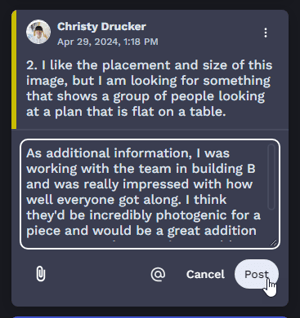
Comment options


While writing a comment, you can expand the comment box by selecting the bottom right corner and dragging it up or down.
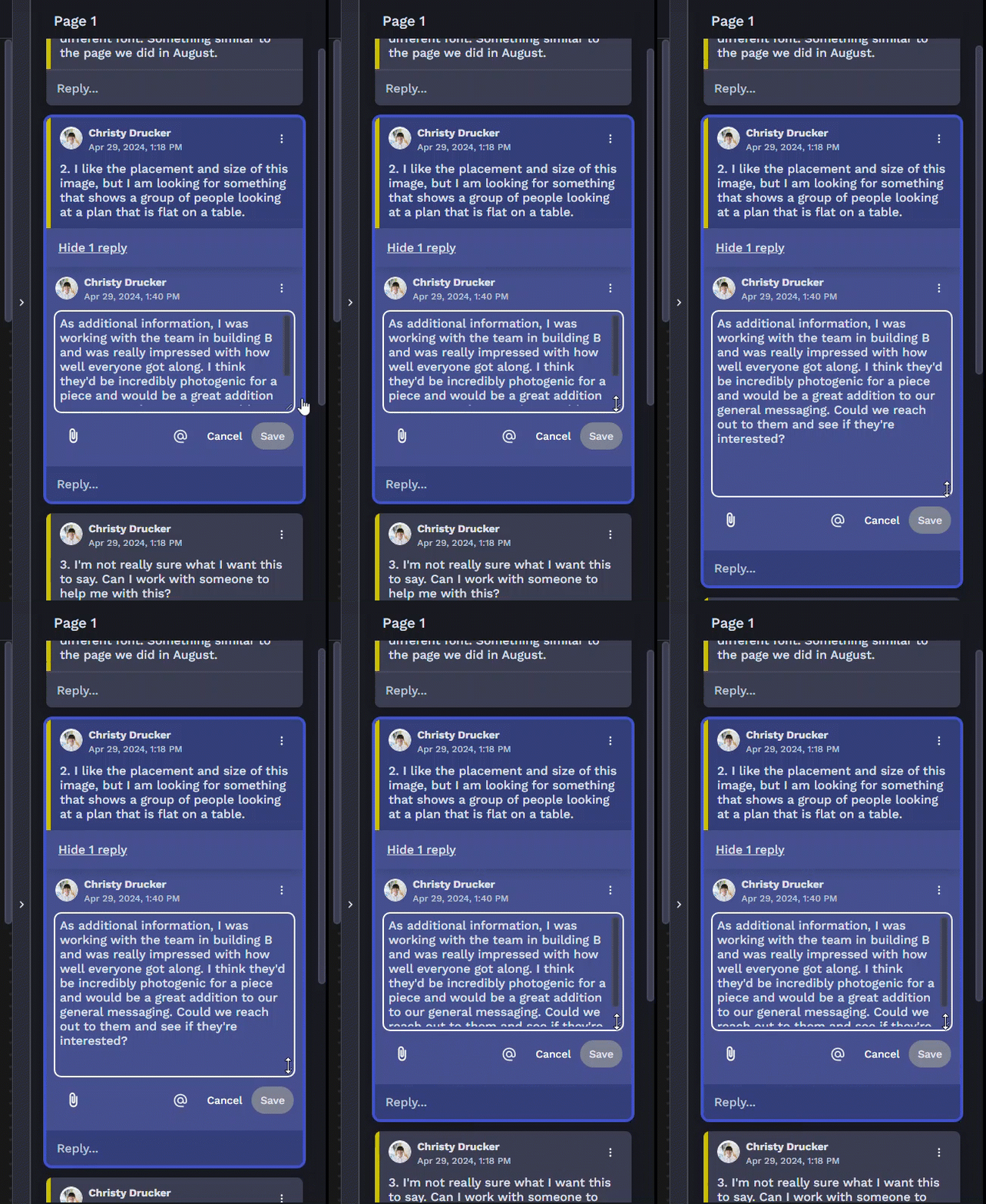
expanding the comment box


When you are finished marking up the file, select Done in the bottom right corner. From the request page, the number of comments will be displayed on the attached file.
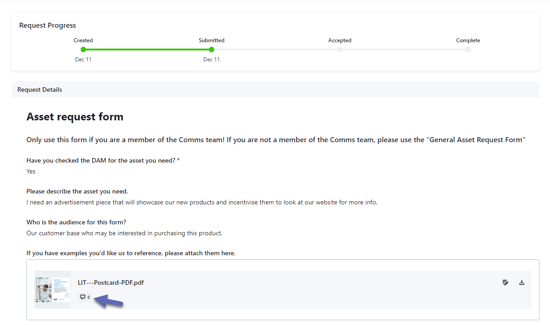
 comments icon


Additional Features

Text Search

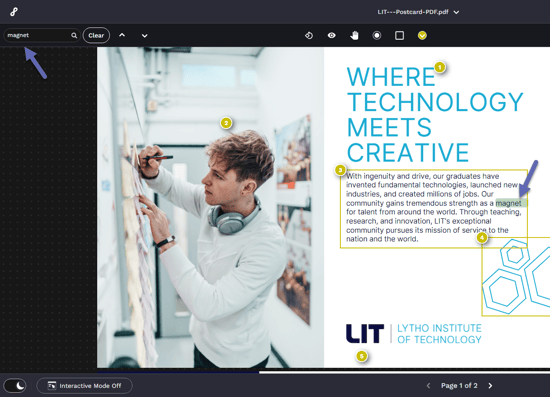
If the file you are marking up has a text layer, such as a PDF or .doc file, in the top left corner you will see a search box. Use this search box to find specific text in your file by clicking the Enter or Return key on your keyboard after typing in your text. When the text you've entered has been found, it will highlight in green. Use the arrows and > next to the search box to move between each of the matching text items found.

Text Search


Continual Scroll

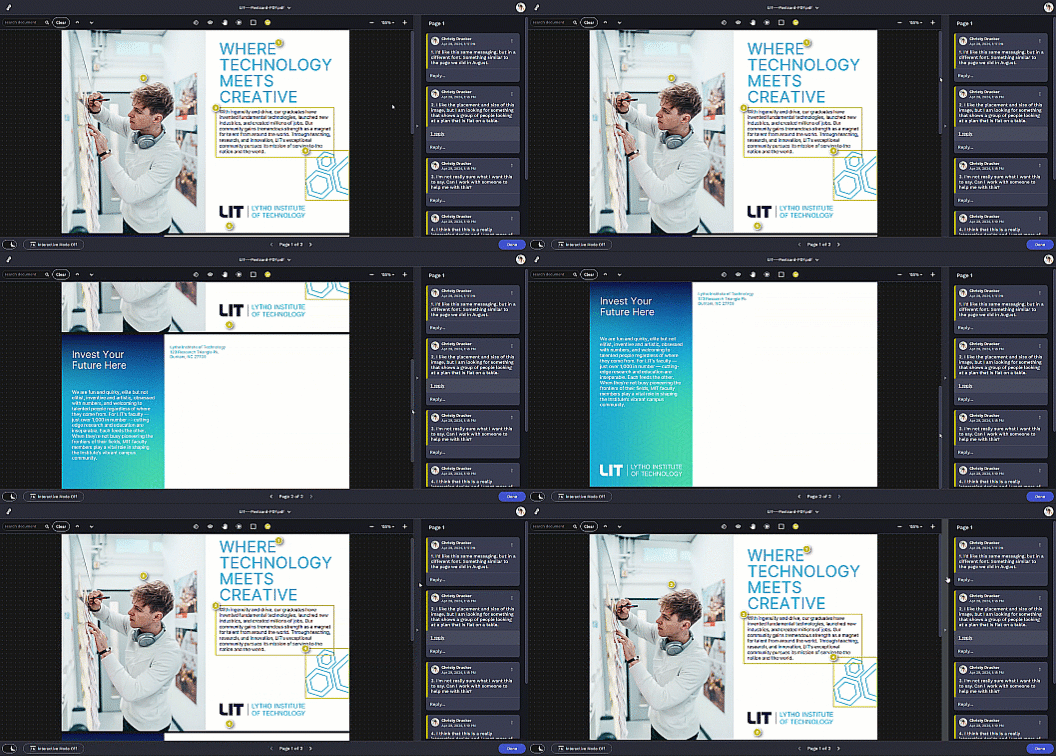
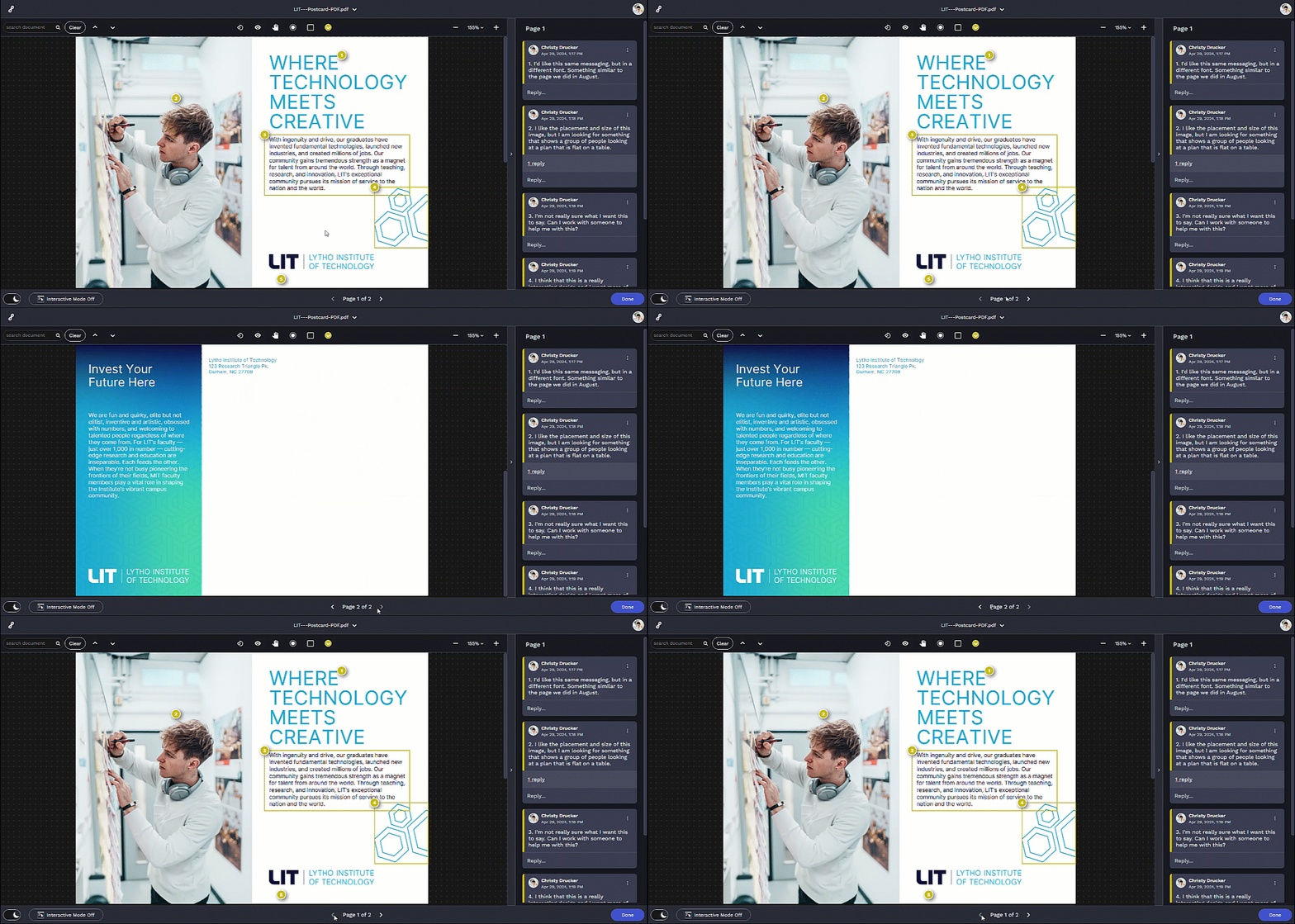
If your document contains multiple pages, you can use the single page navigation for single page navigation or the scroll bar on the canvas (or mouse wheel) to seamlessly scroll pages of an asset

Continual Scroll


scrolling pages


Light/Dark Mode Toggle

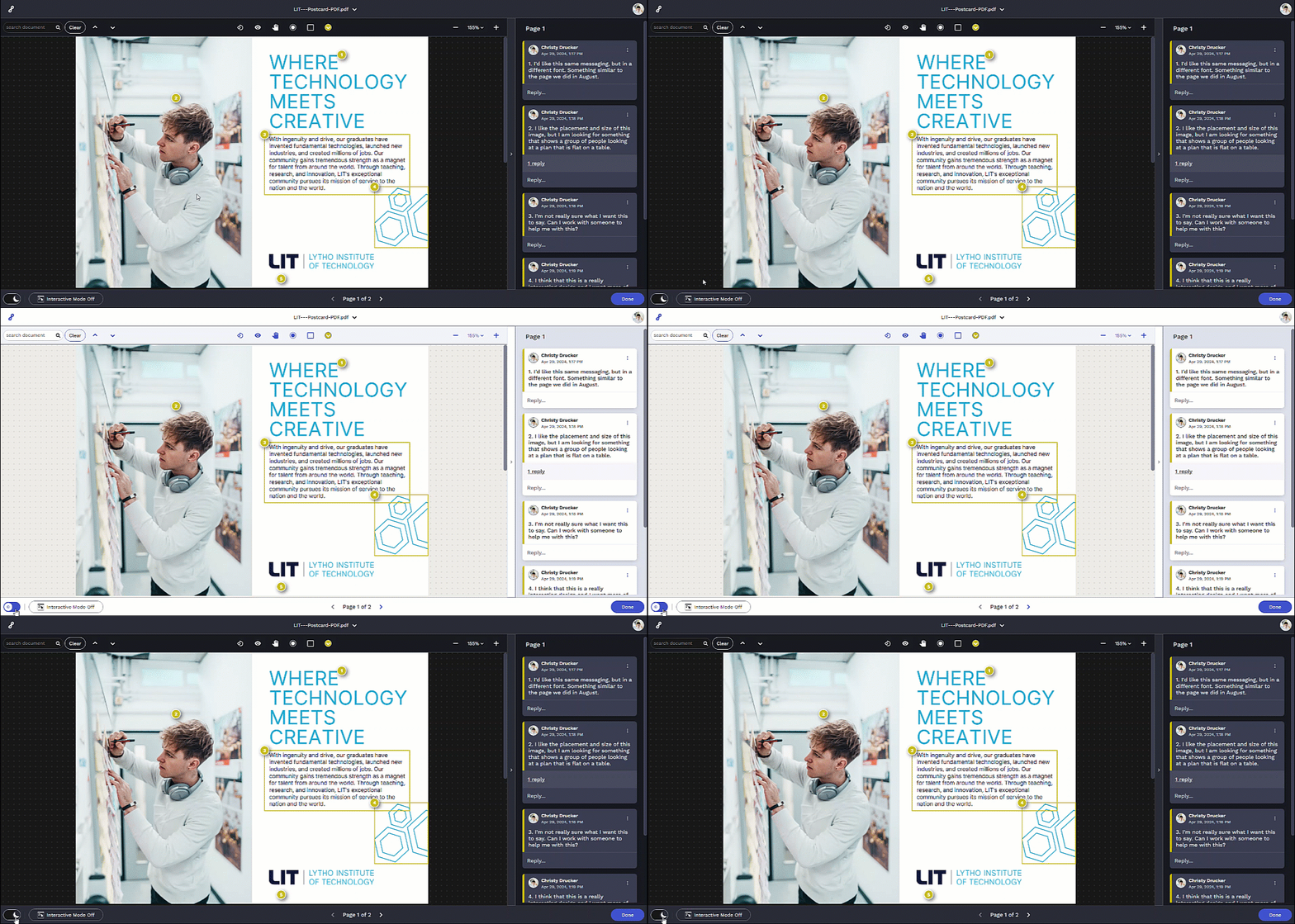
In the bottom left corner of the screen you will find the Light/Dark Mode toggle that allows you to switch between a primarily light or primarily dark color scheme.

Light/Dark Mode Toggle


Interactive Mode

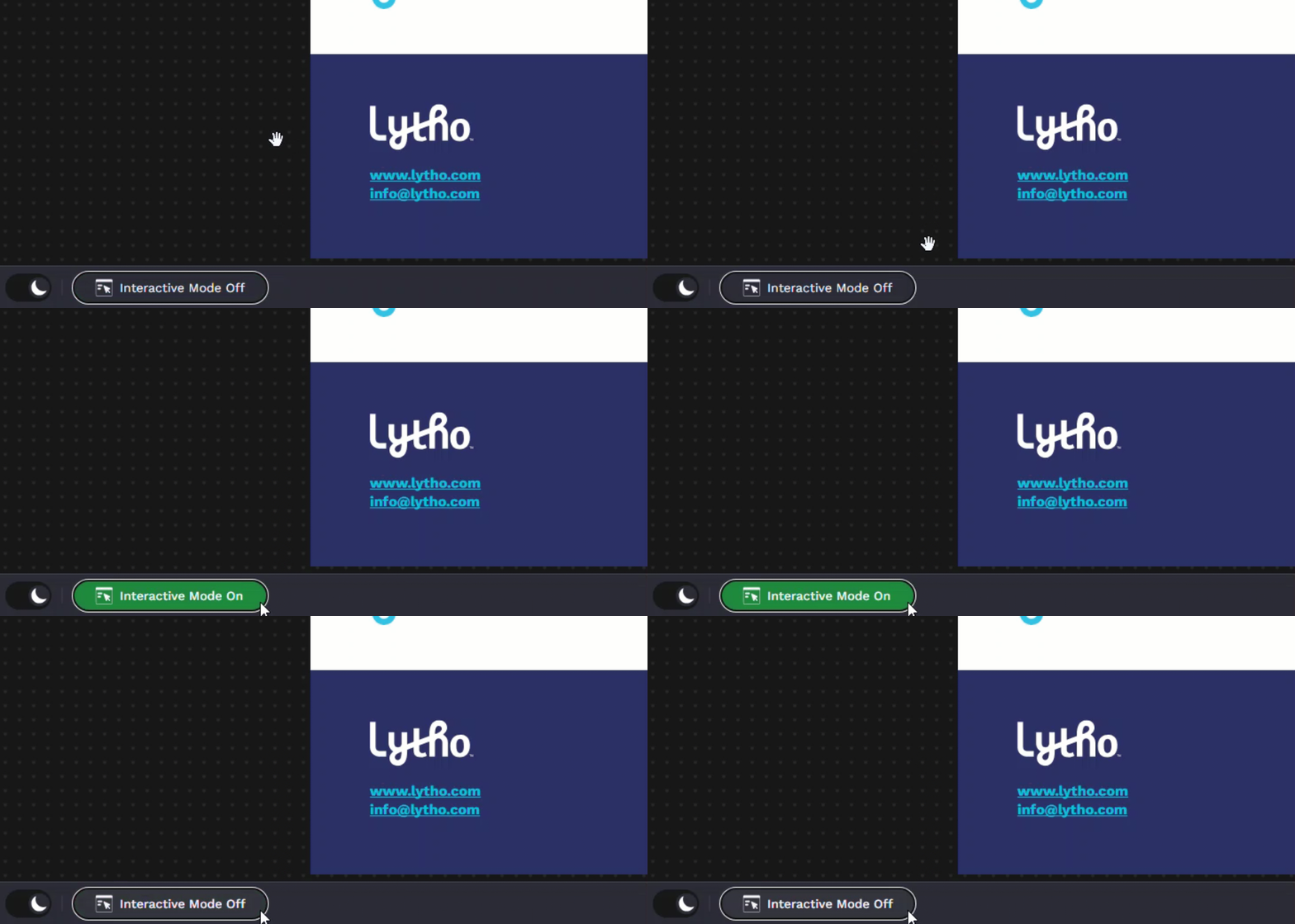
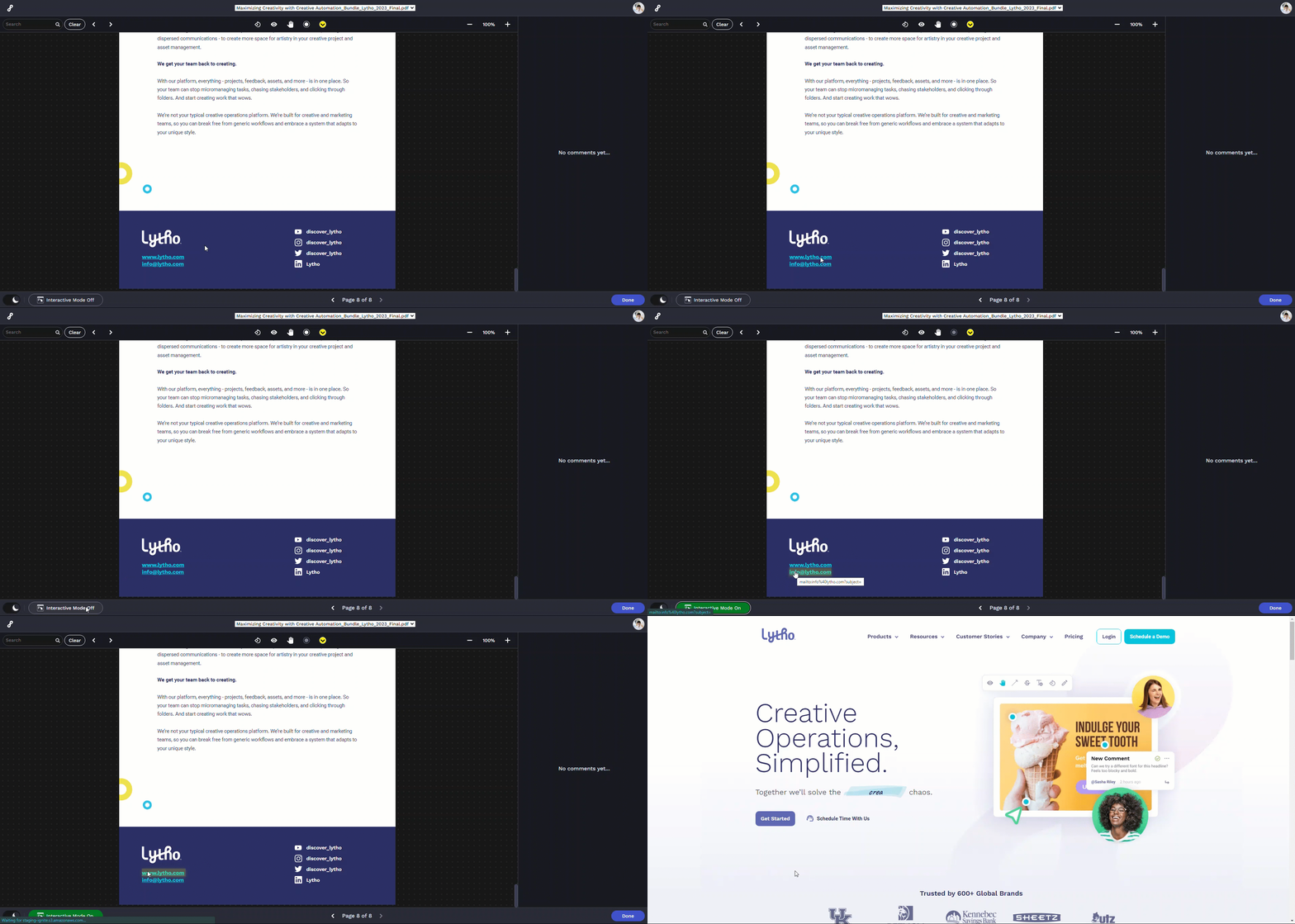
If there are links or editable fields on your document that you would like your users to test or access, they'll be able to use "Interactive Mode" to interact with those links. Found in the bottom left corner of the screen, select the Interactive Mode Off button to toggle it on. When clicked, the button will light up green and read "Interactive Mode On."

Interactive Mode


While Interactive Mode is toggled on, users can click on links to activate them.

Interactive Mode

- While Interactive Mode is activated, users will not be able to add annotations
- Hyperlinks saved to image files (.jpg, .png, .bmp) will not be accessible via Interactive Mode.

Designer Checklist

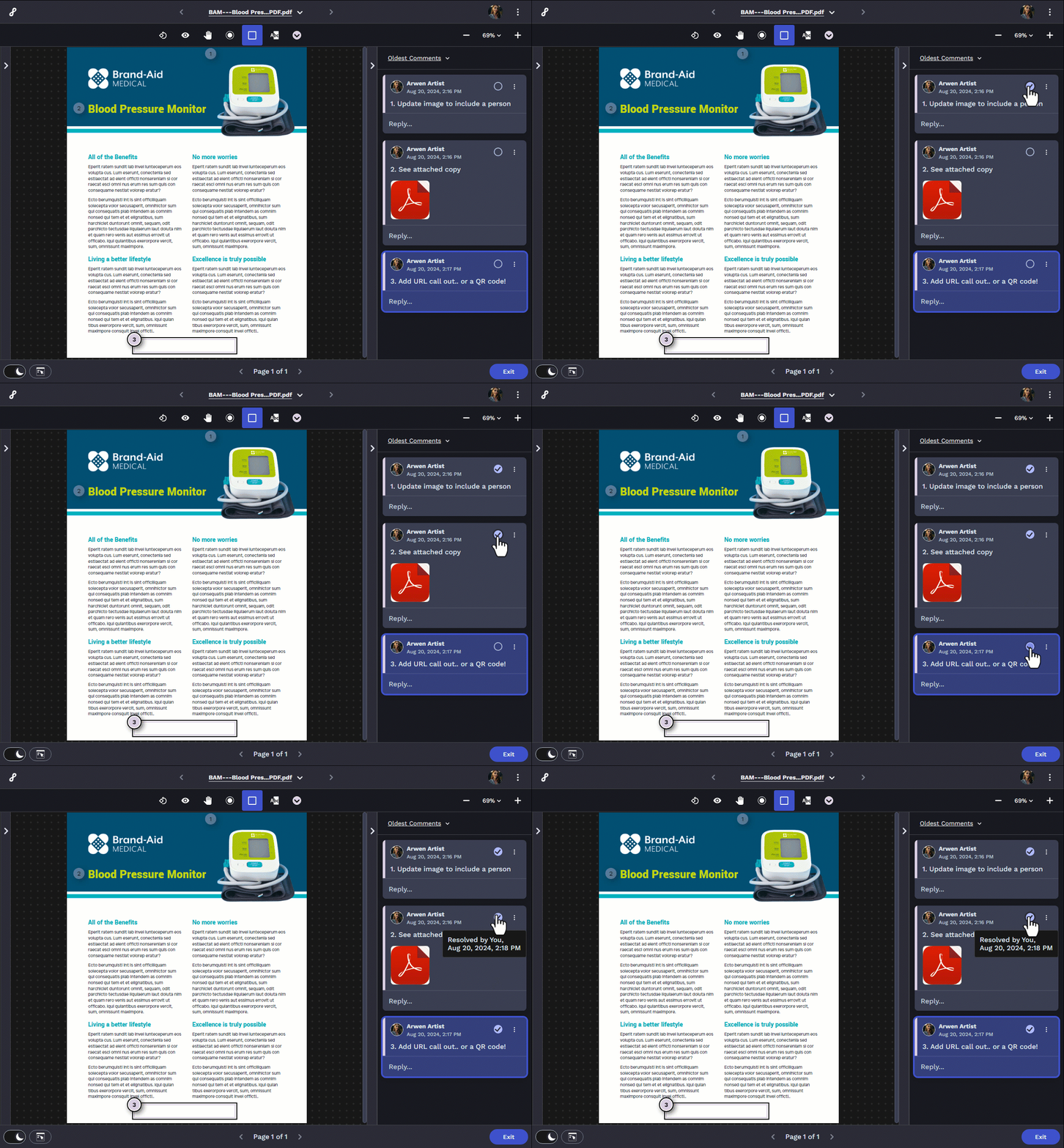
Users with the "Resolve Comments" permission can check off individual comments in Request File Markup to keep track of which have been resolved and which have not. Any time an item is checked off, the corresponding annotation will dim in the comments panel so those outstanding items are more visible.

Designer Checklist

Hovering over each checkbox displays a tooltip with the latest activity of who resolved the comment and when.


Printing Annotated Request Files

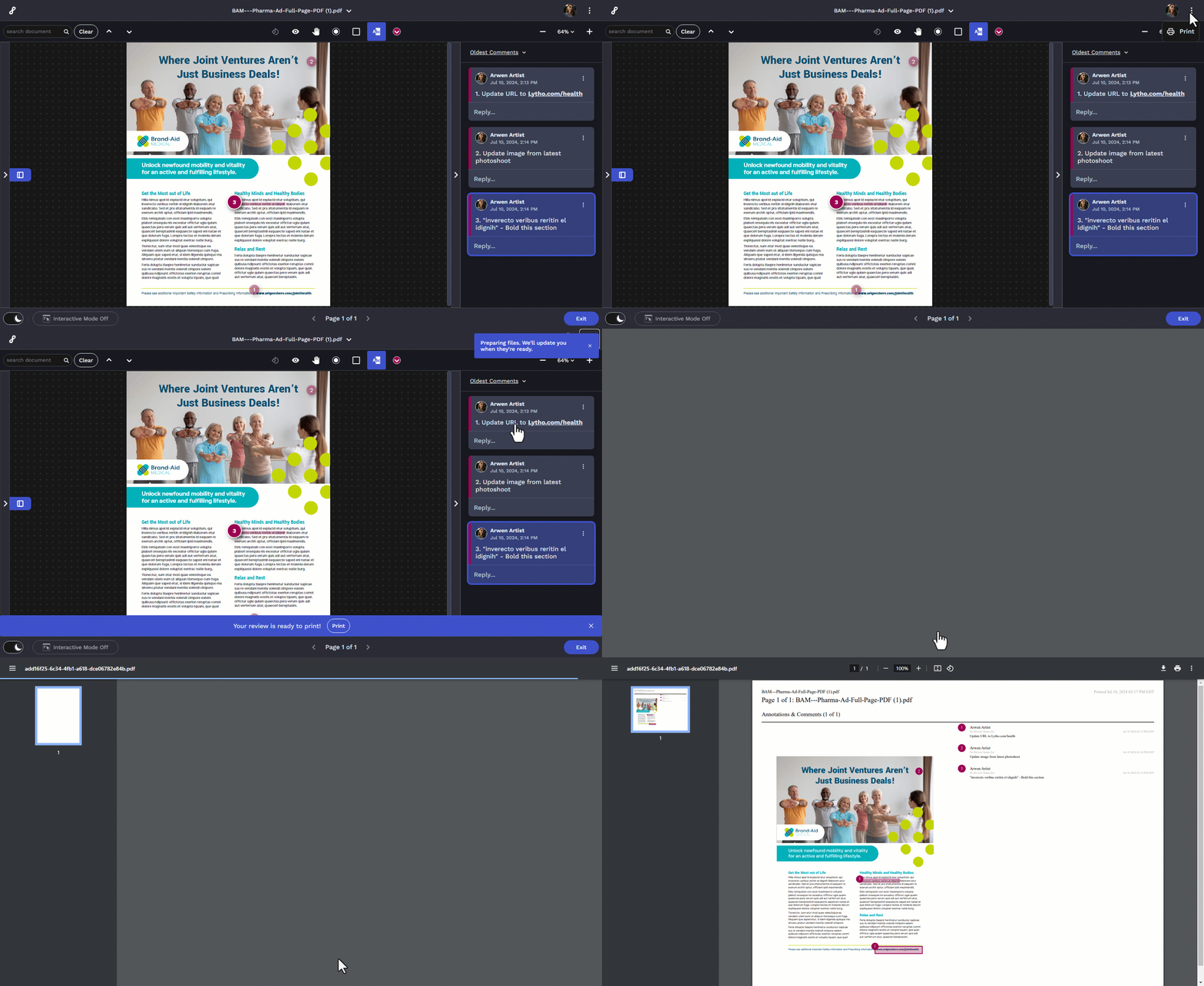
To print an annotated Request file, select the options menu in the top right corner, then Print. When the print file is ready for download, a banner will appear at the bottom of the screen. Select Print to download the annotated PDF. 

Printing Annotated Request Files


Supported File Types

PDF Documents: *.pdf
Image Files: *.jpg, *.jpeg, *.gif, *.png, *.eps, *epsx, *.tif, *.tiff, *.svg
Microsoft files: *.doc, *.docx, *.ppt, *.pptx, *.xls, *.xlsx

Multimedia: *.avi, *.mov, *.flv, *.mpg, *.mpeg *.wmv, *.mp4, *.mp3, *.wav, *.wma, *.aac, *.m4a, *.m4v