TABLE OF CONTENTS
• How Asset-Approval Notifications Route
• Messaging Within Notifications
Notifications Overview
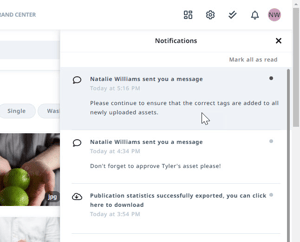
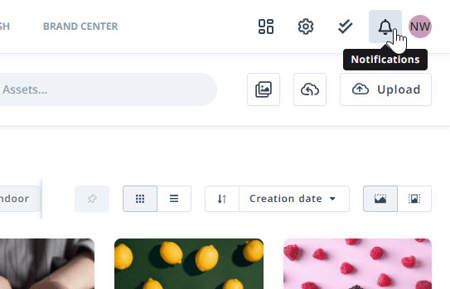
Certain events related to approvals, requests, imports, and downloads will trigger in-app notifications to keep your teams informed of important collaboration and activity. To view any new or past notifications within Lytho DAM, select the notification icon in the top right side of the navigation bar. This icon will display with a small badge when new notifications are available.
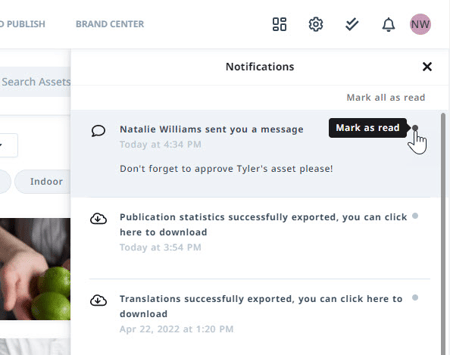
Once you open the menu, your notifications will be listed beginning with the most recent. Click the circle in the top right corner of a notification to mark as read. Quickly update all of your notifications by clicking Mark all as read. Clicking on a message will take you directly to that messages source.
User Notifications
The following actions trigger an in-app notification for users. If not viewed within the defined time frame, an email notification will go out to the user. The system default time frame is two hours. Manage these preferences within the Communications section of your Profile Details.
|
Notification |
When it fires |
Who receives it |
|
Approvals & asset requests |
||
|
Asset request has been approved (Single / Batch) |
An approver grants a download request |
The user who made the request |
|
Asset request has been denied (Single / Batch) |
An approver denies a download request |
The user who made the request |
|
Publications (Tempo) |
||
|
Requested Publication has been approved |
The reviewer approves the publication |
The user who requested the publication |
|
Requested Publication has been denied |
The reviewer denies the publication |
The user who requested the publication |
|
Imports, exports & downloads |
||
|
Import File has been Processed |
An import job finishes processing |
The user who initiated the import |
|
Batch Download is ready |
A batch download finishes preparing |
The user who requested the batch download |
|
Translations file is ready for download |
A requested translations export is ready |
The user who requested the export |
|
Users file is ready for download |
A requested users export is ready |
The user who requested the export (typically an admin) |
|
Publication stats are ready for download |
A requested publication-stats export is ready |
The user who requested the stats export |
|
Asset stats are ready for download |
A requested asset-stats export is ready |
The user who requested the stats export |
|
Account & sharing |
||
|
User has been added to a group |
An admin adds a user to a User Group |
The user who was added |
|
Shared asset has been downloaded |
A recipient downloads an externally shared asset |
The user who shared the asset |
|
Asset Expiration |
||
|
The following asset(s) publish date will expire on {date} |
The asset publish date is expiring |
All active users with the Edit copyright settings of assets rule |
|
The following asset(s) visibility date will expire on {date} |
The asset visibility date is expiring |
All active users with the Edit copyright settings of assets rule |
About asset expiration notifications: These notifications are sent once, 7 days before an asset’s Publish end date or Visible end date. Start dates don’t trigger a notification. Each notification lists every asset in your DAM that reaches its end date that day, including assets the recipient may not have permission to view. Assets in the Waiting Room and deleted assets are not included. If your team doesn’t receive these notifications, contact Lytho Support to have them enabled for your account.
How Asset-Approval Notifications Route
When assets are uploaded, who gets the “submitted for Approval” notification depends on the uploader’s permissions and User Group:
-
Uploader can approve their own assets: If the uploader has the “Approve assets” rule, their uploads go into their own private waiting room. No other approvers are notified or have access until the assets are approved into the Asset Library.
-
Uploader can’t approve, but their group has an approver: The approvers in the uploader’s User Group are notified that assets are waiting in the waiting room.
-
Uploader can’t approve and no one in their group can: The notification goes to all users in the DAM who are able to approve assets.
Messaging Within Notifications
Lytho DAM allows you to send and receive messages directly within the notifications area.
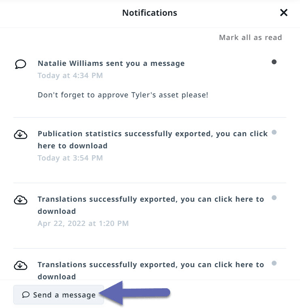
Click Send a message in the bottom left corner of your notifications window to begin sending a message.
Click the dropdown menu Choose who will receive this message. You have the option to send to one or more individuals, user groups, or roles.
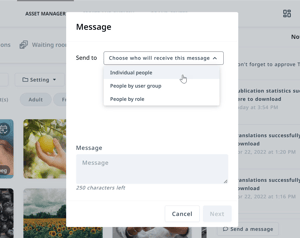
Check the box to the left of each user or group that you would like to send your message to. Type your message in the text box and click Next.
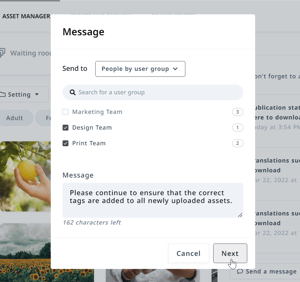
Review your message to ensure the appropriate users are added. From here you have the ability to de-select a user if needed. Click Send once your message is ready.
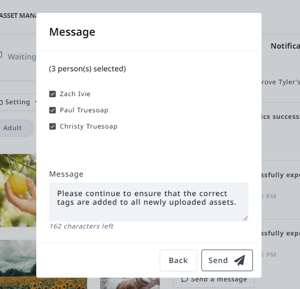
Messages will be received within notifications.