Upload and manage files within Tasks, Proofs, Campaigns, and Projects.
Features described in this article are not included in all subscription plans. Interested in expanding your feature set? Contact the Lytho Support Team for further assistance.
TABLE OF CONTENTS
• Previewing and Downloading Files
• Identifying a File as a Deliverable
• Sending Files from Workflow to DAM
Adding Files
Associate file(s) with each task, proof, project, or campaign for ease of use and team collaboration.
On the right-hand side of your project or campaign details panel, and at the top of your task or proof details panel, select the Files tab to upload or manage files.
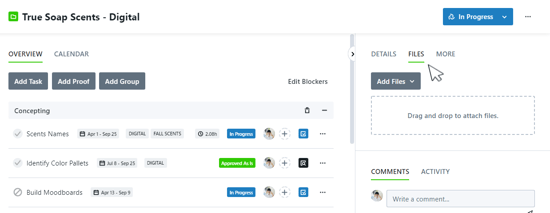
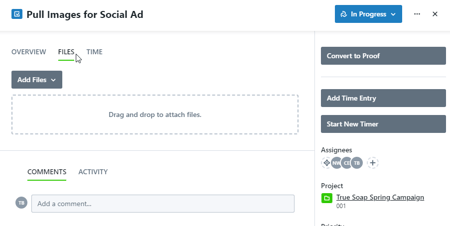
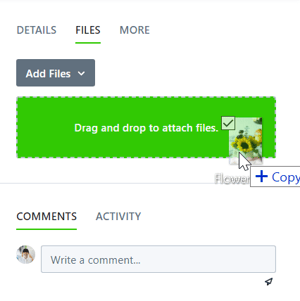
You can drag and drop files from your computer into the available field. If you would like to browse your computer file menu instead, start by clicking on the drag and drop field. You can also browse your computer by clicking Add Files > Browse Files.
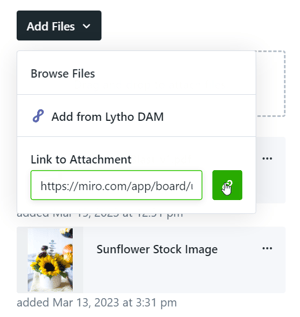
Workflow also gives you the ability to attach links as a method of uploading files. To include a link, click Add Files and paste the link in the box below Link to Attachment. Click the Link button to the right to save your attachment.
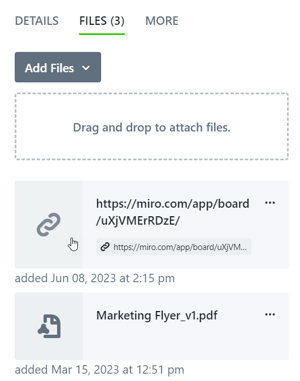
Once the file and/or link is added, it will display beneath the drag and drop field. The name assigned to the file will default to the original file name. Similar to other fields on the "Details" page, you can click the field to change the assigned name.
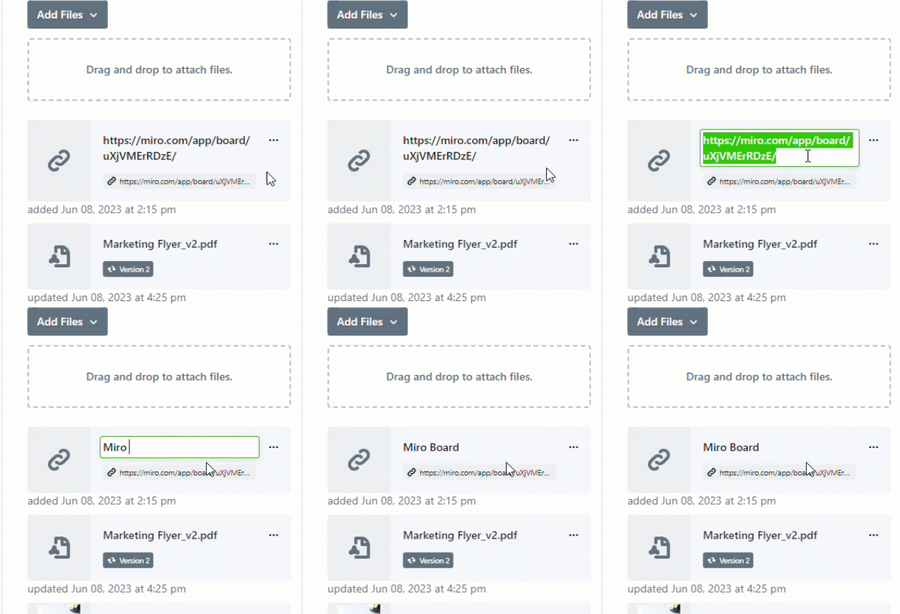
Once a file has been added to the files section, you can relabel it by clicking on the file name and typing in a new value. Press "Enter" on your keyboard or click out of the file label to save the new label.
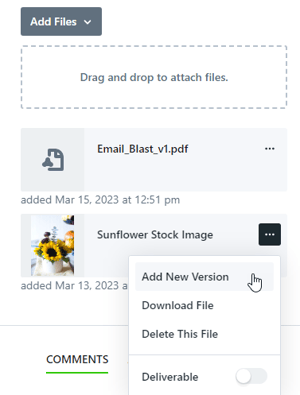
You can quickly download a file by clicking on the "More Options" or (...) button and selecting Download File.
Previewing and Downloading Files
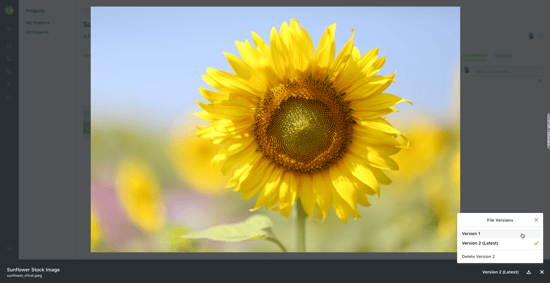
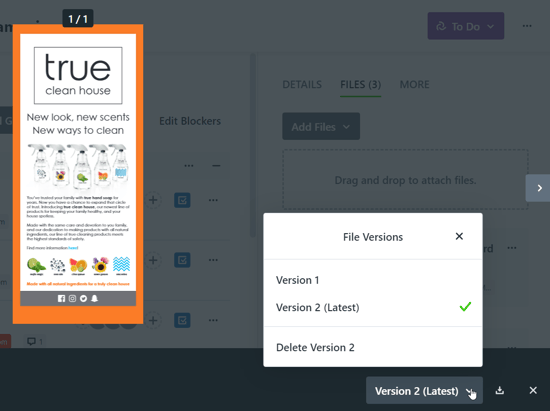
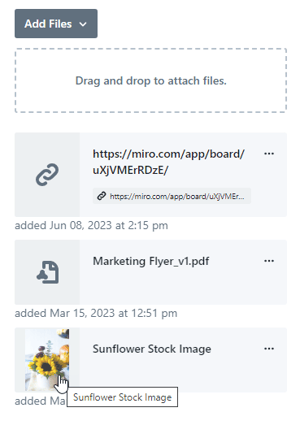
In order to preview a file before downloading, click on the thumbnail to the left of the file card to open a larger preview of the file. Most Image, PDF, and GIF files will display a preview of the uploaded file. All other file types will display a relevant icon.
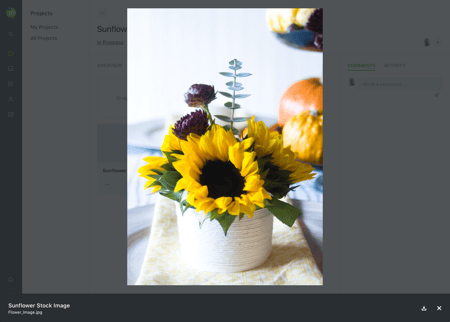
In the bottom left hand corner, the updated name and original file name will display. To download the file, click on the corresponding icon in the bottom righthand corner.
To close the file preview, click outside of the preview image, click the X in the bottom right-hand corner, or select ESC on your keyboard.
Identifying a File as a Deliverable
Files can also be marked as Deliverables. This makes it easy to identify which files were finalized and provided via your preferred delivery method.
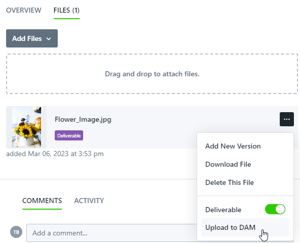
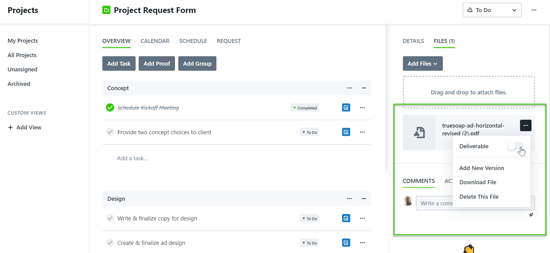
To mark a file as a deliverable, navigate to the Files tab, click the options icon next to your desired file, and toggle on Deliverable.
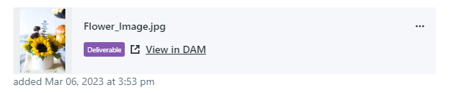
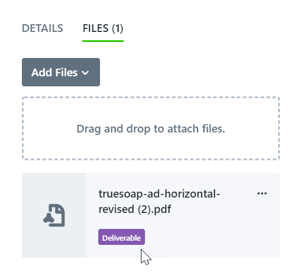
The file will then be labeled as a "Deliverable".
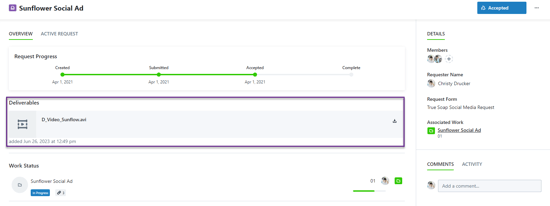
If files marked as deliverables are associated with a request, the file will immediately be made available via the Request Details page. The Members, shared users, and Requester will receive notifications if they have the "File is added" notification enabled. This keeps stakeholders updated and delivers final files more quickly, even if the entire requested item is not completed.