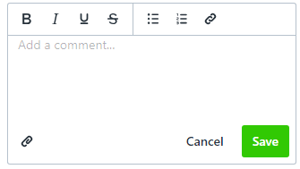
Throughout the system, you can collaborate with other users by commenting, replying and @mentioning on Requests, Campaigns, Projects, Tasks, and Proofs.
TABLE OF CONTENTS
• Replies
• Editing and Deleting Comments
Team Collaboration
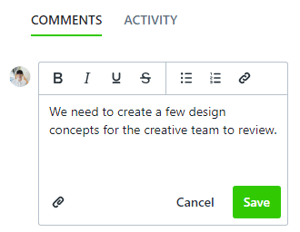
To begin, locate the Comments tab on the related Campaign, Project, Task, Proof or Request details page. Select the text area and begin typing to compose your message. Click on the Save button below the text area to post your comment.
@Mentioning
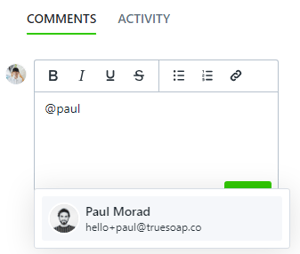
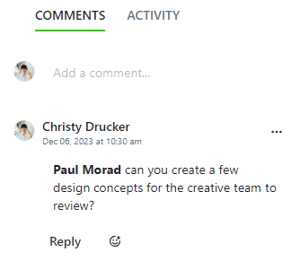
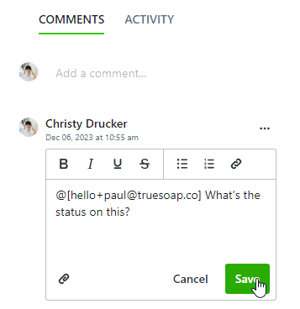
If you would like to @mention another user, begin by typing the "@" symbol and the first name of the person you would like to address. A user list will populate as you begin typing and you can click to select the appropriate user. The user's email address will display while composing the comment, and once posted, your comment will reflect their full name.
@Mention Project Team
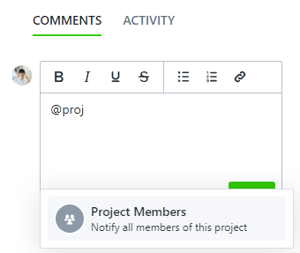
If you would like to notify all members of a Project, Task, or Proof, you can @mention the team from the comments section. Start by typing the "@" and then type "Project." This will send a notification of your comment to every member of the Project.
Replies
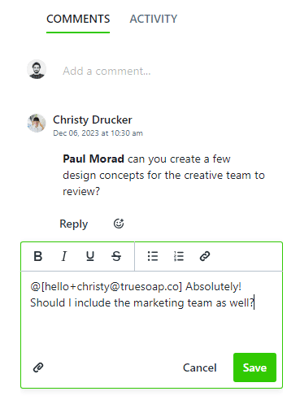
You can reply to any comment by clicking the Reply link below the posted message. This will automatically @mention the user who posted the original comment.
Attaching Files to Comments
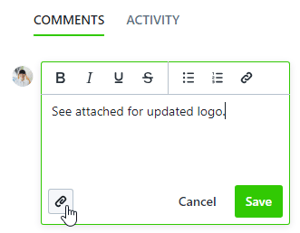
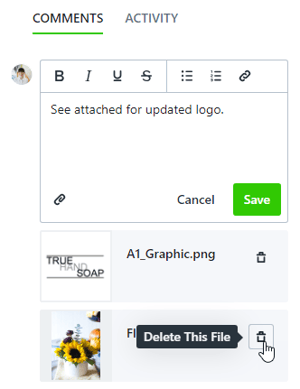
Files can be attached to any comment by clicking the attachment icon in the bottom right corner of the comment window.
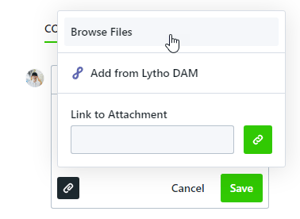
You can select to browse your local files or insert a link to attach. If you are using Lytho DAM, you can pull files from the DAM directly into Workflow. Multiple files can be added to a comment by selecting multiple files at once or clicking the attachments icon to continue adding.
Remove an attachment by selecting the trash icon to the right of the attachment.
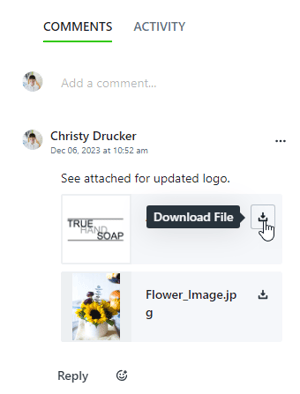
Clicking on the posted attachment will give a preview of the file and an option to download. Files can also be downloaded directly from the comment by clicking the download icon.
Emoji Reactions
Emojis are a great way to quickly indicate that important messages have been read or show excitement and support.
React to comments in Requests, Campaigns, Projects, Tasks, and Proofs by selecting the emoji icon and choosing from the available options.
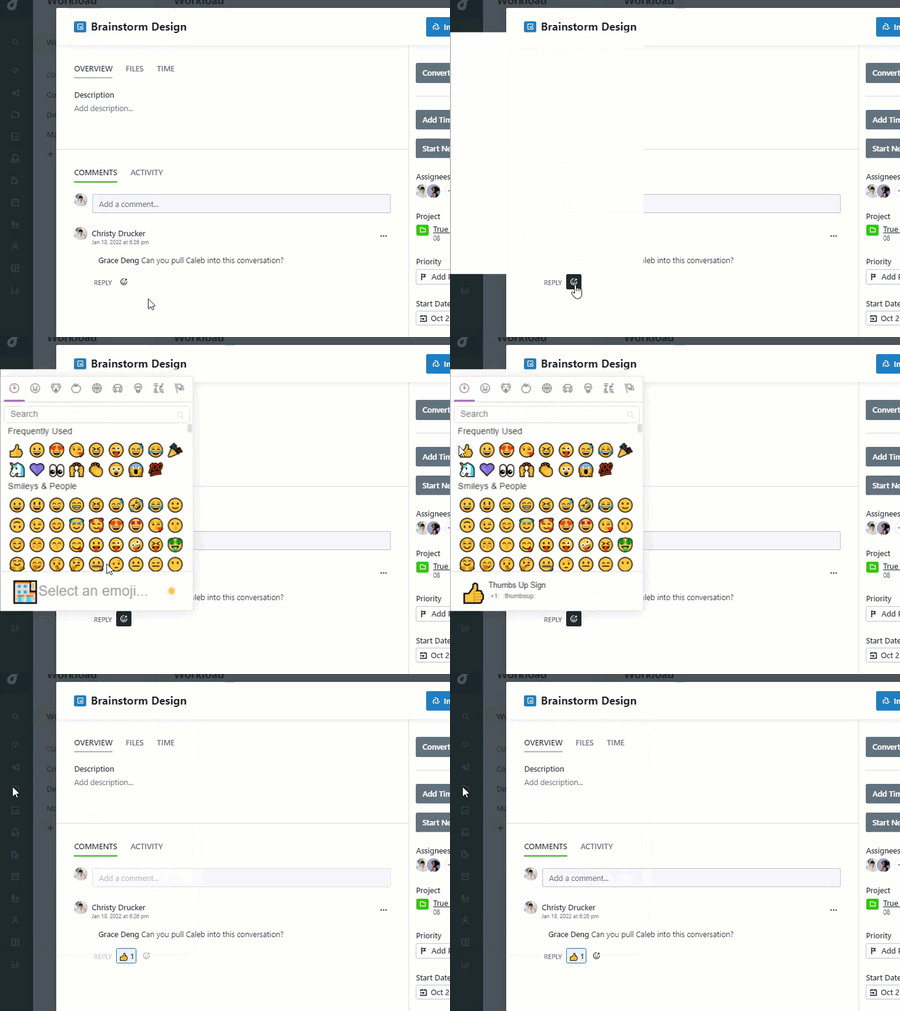
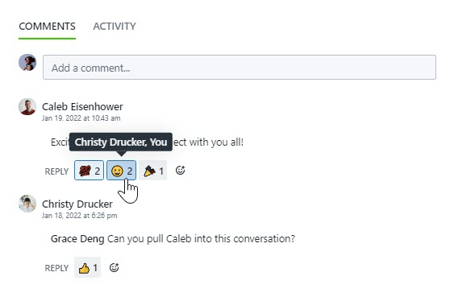
Clicking an emoji that has already been added to a comment will add you to that reaction. The number of reactions will show next to the emoji and you can view who reacted by hovering over the emoji. Your reactions will appear highlighted. Remove your reaction by clicking the emoji again.
Editing and Deleting Comments
Comments can be edited and deleted by selecting the actions menu in the top right corner of your comment.
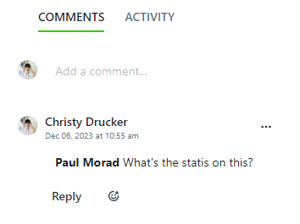
When selecting Edit, make your changes and click Save.
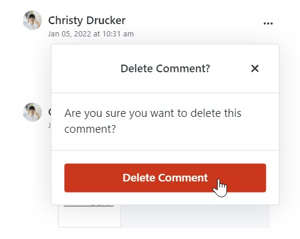
When deleting a comment, click Delete Comment to confirm. Deleting a comment will not undo any previous notification triggers.
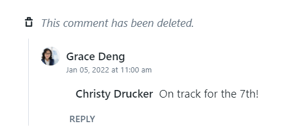
When a comment with replies has been deleted, the replies will remain under a message notifying that the parent comment has been deleted.
Notifications
Users will receive both in-app and email notifications when the following events occur:
• A user is @mentioned in a comment.
• Someone replies to a user's comment.
• Someone replies to a conversation you've participated in.
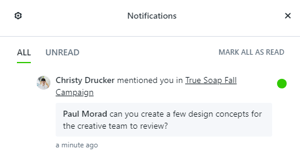
- If a user @mentions themselves, they will not receive the relevant notification(s).
Rich Text Editing
Use rich text tools to add emphasis to or better organize your words.
Using the options you can:
• Bold
• Italicize
• Underline
• Strikethrough
• Unordered List (bullet points)
• Ordered List (numbers)
• Hyperlink