TABLE OF CONTENTS
• Collaborating on a Returned Proof
Conversations
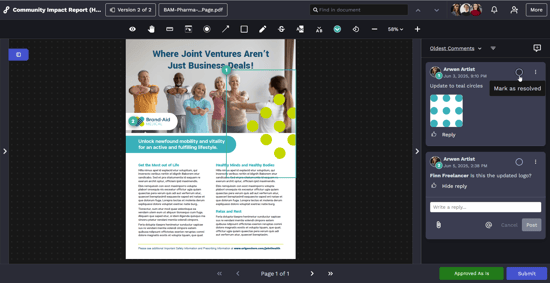
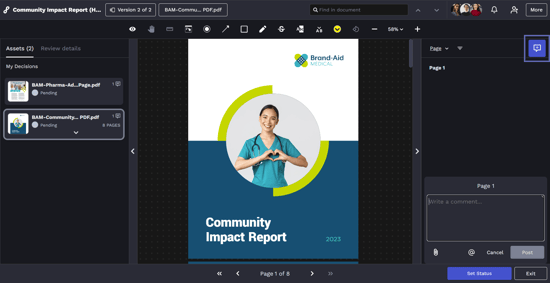
The collaboration panel organizes all Reviewer comments. Add general comments by selecting the General Comment button above the collaboration panel.
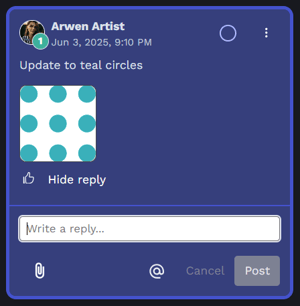
You can like and reply to other Reviewers’ comments. Hover over the thumbs up icon to see who has liked that comment.
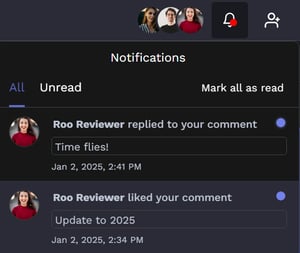
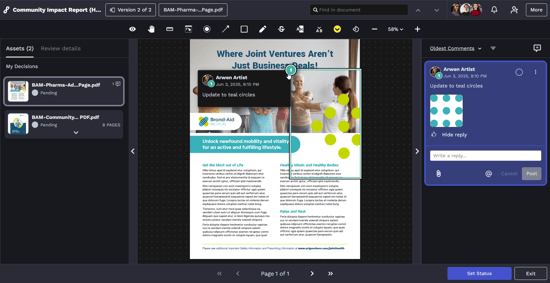
Reply to another Reviewer’s comment by clicking on that comment in the collaboration panel or on the annotation, adding your reply, and clicking to save. The Reviewer who authored the comment will receive an email and an in-app notification for the newly added reply. Comments and replies are grouped together in a conversation thread.
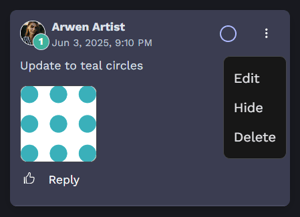
Select the three dots for additional annotation options. Depending on your user permissions, you may be able to edit, hide, or delete comments.
@Mentioning
You are able to draw another Reviewer’s attention to a particular comment by using @mentioning. When adding a comment, click the @ symbol within the message box and a list of invited Reviewers will populate.
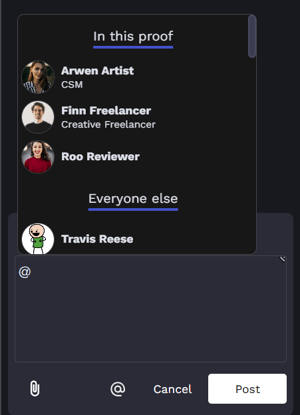
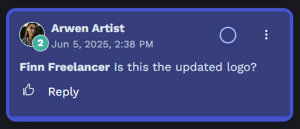
Select the Reviewer’s name to mention them in your comment.
If enabled in your account, you may also have the ability to invite Reviewers not included in the initial Review. Scroll to Everyone Else in the conversation modal to view a list of all other users within your account. As you type, the pre-populated list will automatically update to help you quickly @mention a new Reviewer.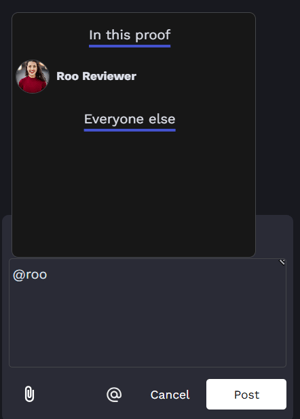
Collaborating on a Returned Proof
When enabled in your account, you can continue collaborating on Reviews even after they have been returned. You will not be able to change your approval status but can continue the conversation with existing Reviewers and Collaborators as needed.

Hiding Comments
Users with the Hide and Unhide Comments permission can hide and unhide other Reviewers' comments at any point during an active or completed Review, to ensure that only actionable feedback is visible to the person who uploaded the Proof.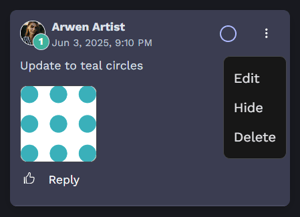
The commenter and any user with the Hide & Unhide Comments permission will see the hidden comment grayed out.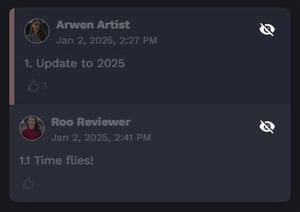
Everyone else in the review will see the hidden comment like this: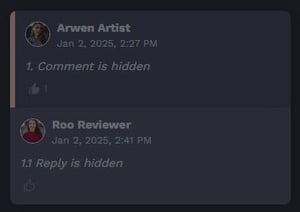
Review Sharing
When enabled, Reviewers can share the Review with additional account members by sending a custom, private message that does not appear in the collaboration panel.

If a Reviewer believes someone's approval is required, they can add them as an essential Reviewer on the Review route. Proof members will receive a notification any time a new essential Reviewer is added to the Review route so they can continue to manage the Review's progress.
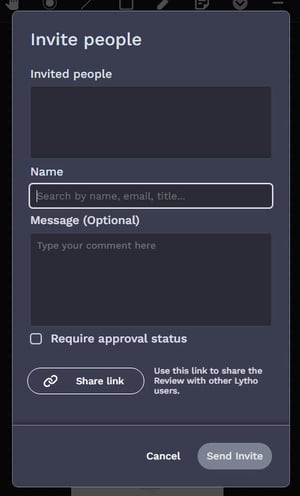
Reviewers can also share a direct link to the Review with other account members from the Share Review panel to collaborate on the Review.

Attaching Files
Reference files or other documents related to a comment or reply are attached by selecting the Paperclip icon within a comment, browsing for the file on your computer, and clicking Post.
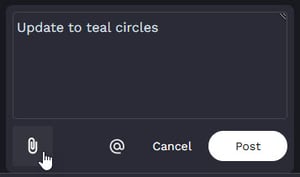
After saving your comment, the file will be available for download by other Reviewers.
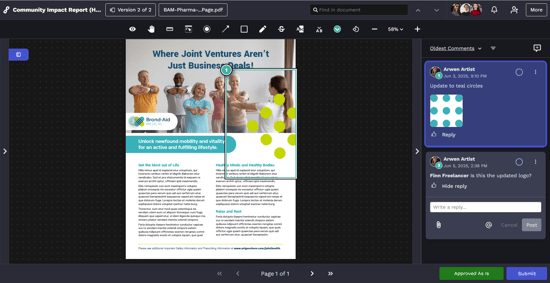
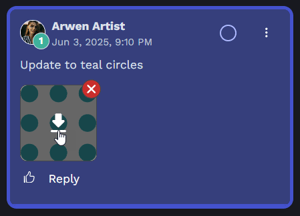
Hover over the attachment thumbnail then select the download icon.