When a deadline is on the horizon and your requesters have a sudden change, you want to know and respond quickly. Change Requests allow you to communicate changes between requesters and request accepters while maintaining a change history all in one location.
Features described in this article are not included in all subscription plans. Interested in expanding your feature set? Contact the Lytho Support Team for further assistance.
TABLE OF CONTENTS
• An Introduction to Change Requests in Lytho Workflow
• Accepting or Declining a Change Request
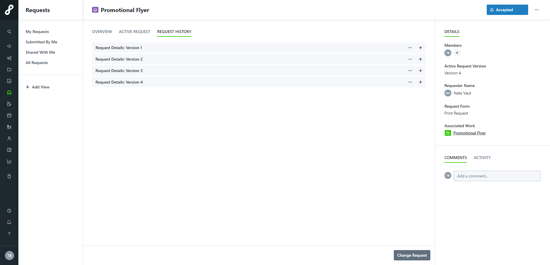
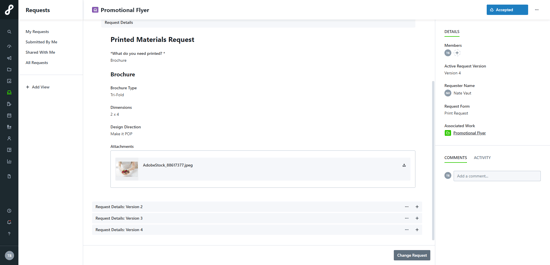
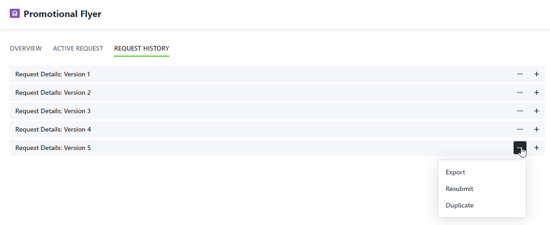
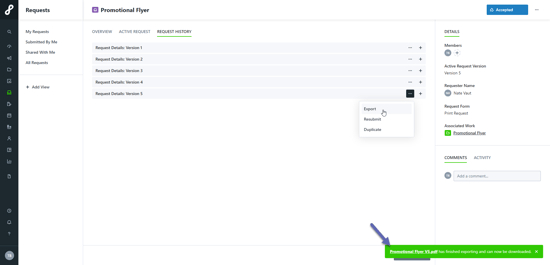
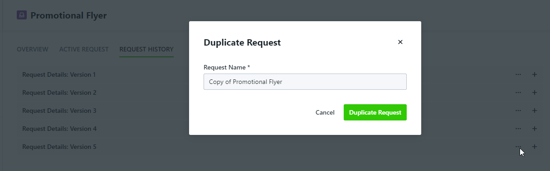
• Reviewing Previous Request Versions
• Keeping Track of Change Requests
An Introduction to Change Requests in Lytho Workflow
Discover Change Requests and their role in the request process. Watch to learn best practices and how to utilize Lytho Workflow's change request feature.
How to Enable
You can enable Change Requests by navigating to your Feature list and toggling on Change Request.
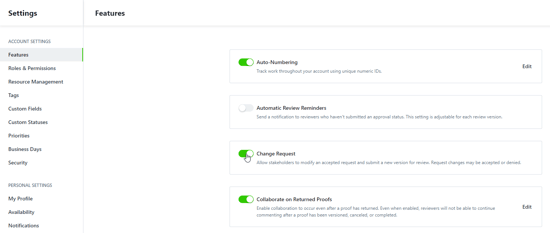
- Users with the Collaborate on Shared Requests permission can request changes for any request that has been shared with them.
- Users with the View All Request permission can request changes for any request that they can see.
Requesting a Change
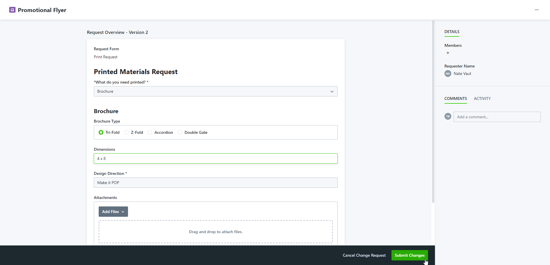
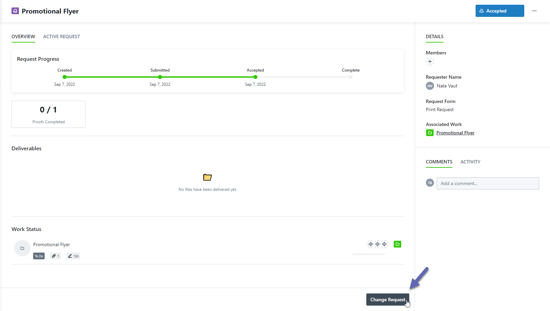
To submit a change request, the request must be in an "Accepted" status. Any user with access to the request can then select the Change Request button to submit a change.
On the new page, the user can make as many changes as they would like and select the Submit Changes button. The member(s) on the request will receive an email and in-app notification alerting them to the change request.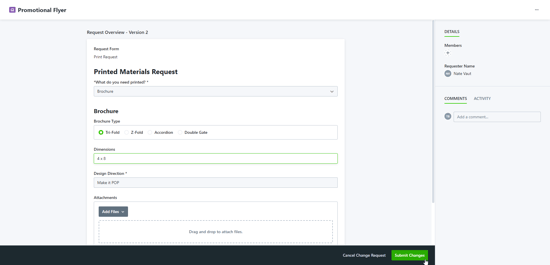
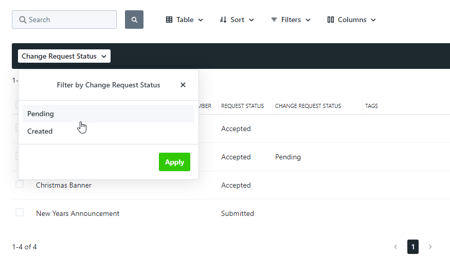
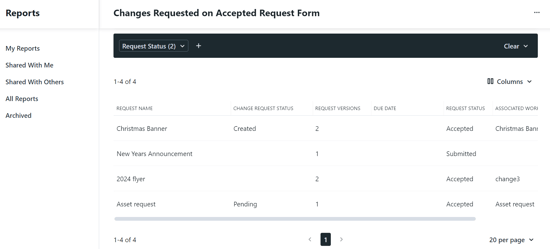
Along with the notifications, the request will show that a change request is pending via a notification banner near the top of the page. Changes requested will be highlighted in both the request Overview and Modify Change Request screens as well as in the work management page in both List and Table views.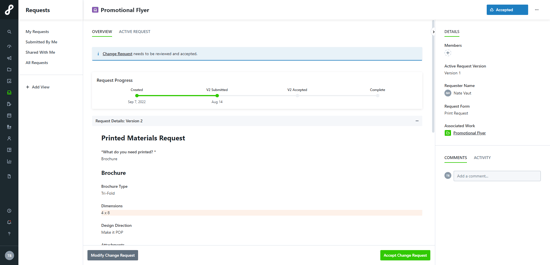
(Request Overview)
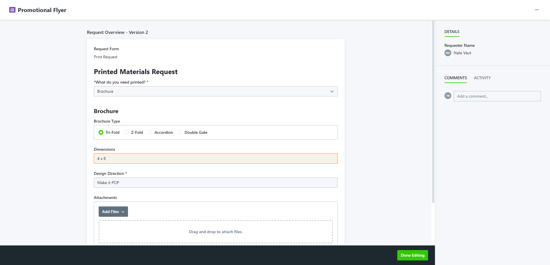
(Modify Request)
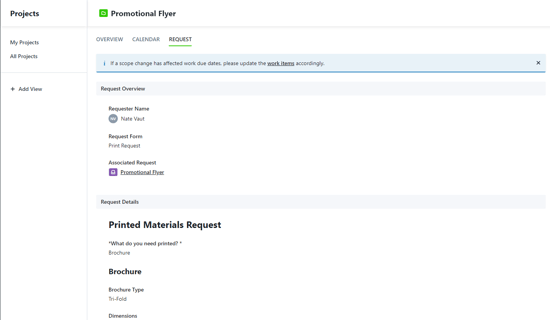
Members on the associated work item will receive an in-app notification and email notifying them that a change has been made. The team member who accepted the change request will see a blue banner reading "If a scope change has affected work due dates, please update the work items accordingly" if they access the Request tab.
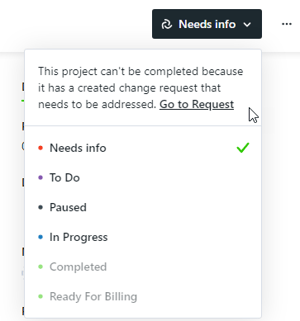
While a change request is pending, the associated work item cannot be changed to a "Completed" work status.
Accepting or Declining a Change Request
Once a change request has been made, you can either accept, modify, or decline the requested changes. To accept the changes, select the green Accept Change Request button at the bottom of the request.
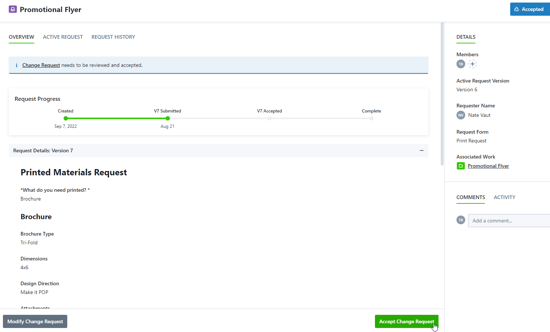
To modify the changes received, select the gray Modify Change Request at the bottom-left corner of the request.
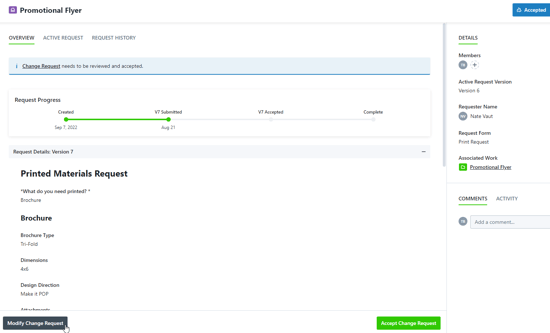
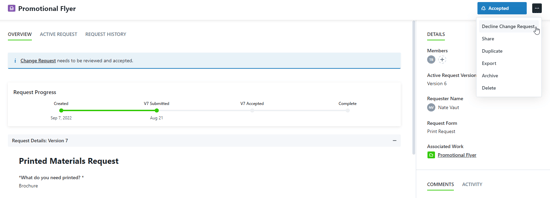
To decline the changes received, select the ellipses [...] in the top-right corner of the request and select Decline Change Request.
Notifications
A notification will be sent out to Acceptors when a Change Request has been submitted and to the person who submitted the Change Request when accepted or declined.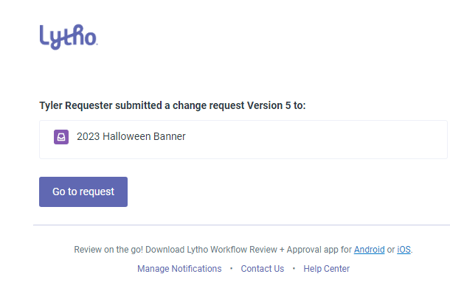
(Change Request - Submitted Notification)
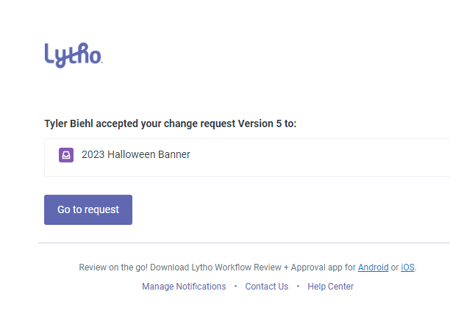
(Change Request - Accepted Notification)
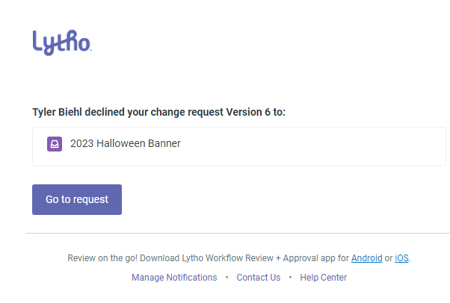
(Change Request - Declined Notification)