
Auto-naming helps creative and marketing teams ensure consistency in the naming structure of their Campaigns and Projects by automating the previously manual naming process. You can choose to create unique auto-naming formulas for Projects and/or Campaigns, each with a maximum limit of 255 characters.
Features described in this article are not included in all subscription plans. Interested in expanding your feature set? Contact the Lytho Support Team for further assistance.
TABLE OF CONTENTS
• Configuring Your Auto-Naming Formula
Auto Naming Overview
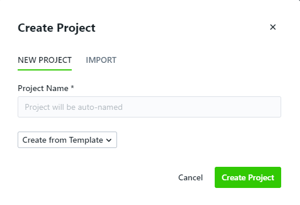
Once auto-naming is enabled in your account, users will not be able to manually update names of Projects and Campaigns. Instead, the name field will be pre-populated with default text, as seen below.
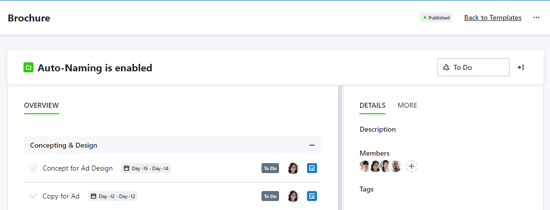
You will also see a reminder when creating and updating Project Templates.
When you create a Project or Campaign, it will be automatically named based on the specifications your defined formula! If the formula pulls in custom field values or dates, you'll want to ensure these are populated so the full name can display. The name of the Project or Campaign will dynamically update if the formula values change - so if you pull in a custom field value, and update the custom field selection, the name will automatically update as well.
Configuring Your Auto Naming Formula
In order to implement auto-naming in your account, we'll create a standardized formula to your specifications that automatically creates read-only names for all new Projects and/or Campaigns, with the exception of imported work items. This guide will walk you through what we can include in that formula, and what information we need from you. When you're ready to enable auto-naming, submit a ticket to the Lytho Support Team with an example of your requested formula, as detailed below.
Here are the sample values we'll use for those components:
- A Project creation date of December 31, 2019
- Auto-numbering starting at 101
- A Request named "Event Request"
- A dropdown custom field called "Department" with a value of "Marketing"
Using auto-naming, we could transform those values into a naming convention that would output “12/31/2019 101 - Event - Department: Marketing”. Throughout this guide we'll illustrate how we can use the auto-naming formula to achieve that result and show you what we can build for your team!