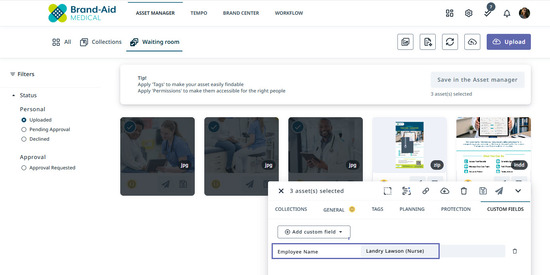
The Lytho Asana integration connects your Digital Asset Manager (DAM) with Asana, making it easy to associate approved Lytho assets with your Asana tasks. Add assets to tasks using their Lytho DAM asset ID, or upload files from Asana into your DAM to establish Lytho as your organization's source of truth for creative assets. Assets transferred between Lytho and Asana preserve supported metadata, helping your team maintain governance, version control, and asset context throughout the creative process.
Features described in this article are not included in all subscription plans. Interested in expanding your feature set? Contact the Lytho Support Team for further assistance.
Benefits
-
Access your Lytho DAM directly from Asana
-
Search and attach approved assets without leaving your workflow
-
Preserve asset metadata, including tags and custom fields
-
Upload files from Asana into Lytho DAM while retaining Asana task context
-
Reduce manual downloads and uploads between systems
-
Keep creative work connected to governed brand assets
TABLE OF CONTENTS
Prerequisites
Before installing the Lytho Asana Integration, ensure you have:
-
A Lytho account with access to Digital Asset Management (DAM)
-
An Asana account with permission to install apps
Installing the Lytho Asana Integration
Install the Lytho integration from the Asana Marketplace.
Select Install Lytho DAM for Asana, then Connect to Lytho DAM.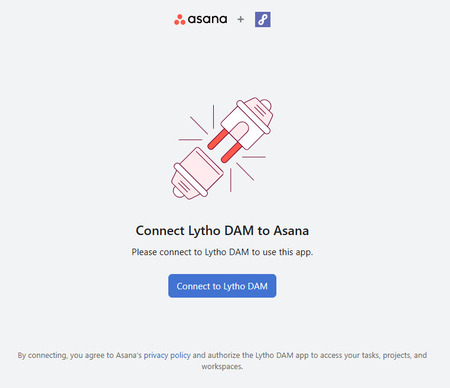
Select Allow on the confirmation screen.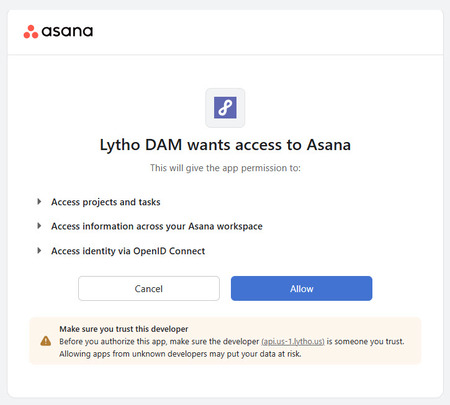
You’ll be prompted to enter your organization name, then select Continue to Login.
You can find the organization name in your Lytho URL. Enter the part between https:// and .us-1.lytho.com or .lytho.io. For example: https://[brandaidmedical].us-1.lytho.us/.
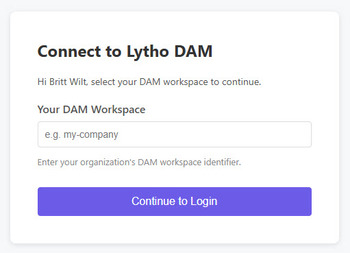
Enter your Lytho credentials, then select Log In.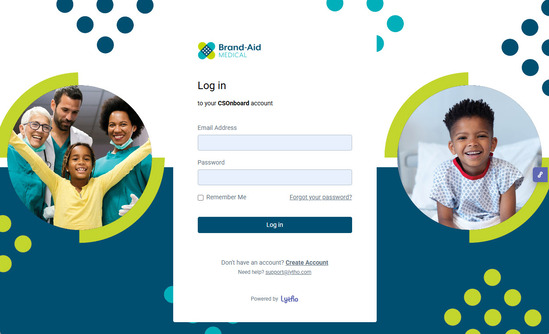
Select Yes to grant access to the integration.
Your authorization is now complete, the Lytho integration will be available within your Asana project.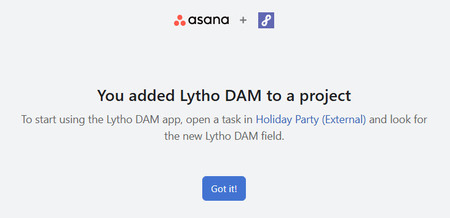
Using the Lytho Asana Integration
Once connected, you can use the integration directly from any supported Asana task.
The integration supports two primary workflows:
-
Attach assets from your Lytho DAM to an Asana task.
-
Upload assets from an Asana task into your Lytho DAM.
Note: Each Asana task supports only one Lytho integration workflow. Choose either to attach an existing Lytho DAM asset to the task or to upload an Asana task asset to the Lytho DAM. You cannot perform both actions on the same task.
Use Assets from Lytho in Asana
Open an Asana task and scroll to the Apps section in the right panel. Lytho DAM will be listed as an option along with any additional apps you have added to your Asana project.
Select the Lytho DAM dropdown, then choose Link DAM Asset. 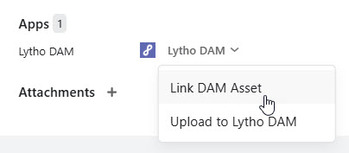
A field will appear to add the Lytho DAM asset URL.
Open the Lytho DAM. Search or browse for the asset you want to use. Open the asset and copy in the URL. Paste the URL into the Lytho DAM asset URL field in Asana, then select Add.
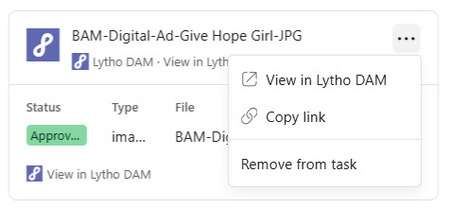
The selected asset is now attached to the Asana task and includes: the DAM status, file type, and file name. Click View in Lytho DAM to open the asset. 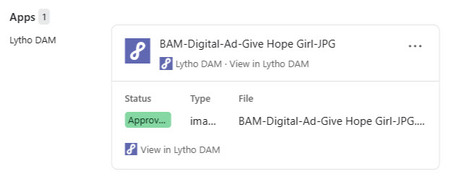
The asset ... overflow menu includes options to:
- View in Lytho DAM
- Copy link
- Remove from task
Add Asana Assets to Lytho
To store files from an Asana task in your Lytho DAM, open the Asana task containing the attachment(s) you want to upload. Scroll to the Apps section in the right panel. Lytho DAM will be listed as an option along with any additional apps you have added to your Asana project.
Select the Lytho DAM dropdown, then choose Upload to Lytho DAM. 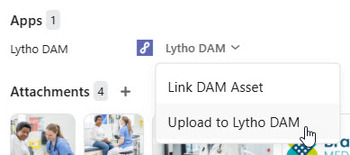
Note: You can upload a maximum of five attachments from a single Asana task to the Lytho DAM. All selected attachments must be uploaded at the same time.
A pop-up window appears displaying the assets attached to your Asana task. Select the assets you want to upload to the Lytho DAM, then choose any Asana custom fields and tags you want to transfer to the uploaded assets.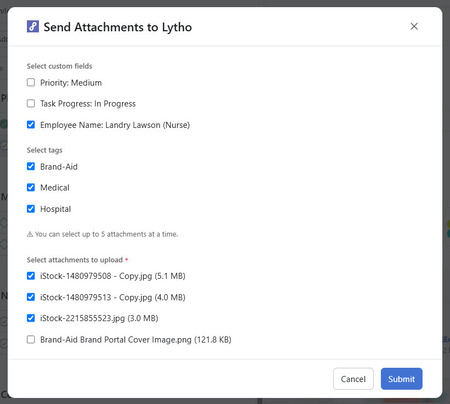
During the upload process, supported Asana metadata is transferred to Lytho to help maintain governance and improve asset discoverability. Supported metadata includes: Tags and Custom Fields.
Note: The Lytho DAM is the system of record for asset metadata. When uploading an Asana asset to Lytho, supported metadata is added to the asset only if it is available. Metadata fields that are not available are skipped.
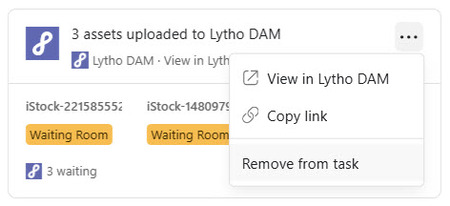
The uploaded attachment(s) are added as new assets in your Lytho DAM Waiting Room. In Asana, you can view the asset's DAM status and file name. To open the asset in Lytho, click View in Lytho DAM. 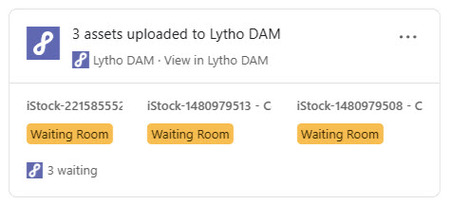
The asset ... overflow menu includes options to:
- View in Lytho DAM
- Copy link
- Remove from task
In the Lytho DAM, your uploaded Asana assets appear in your Personal Waiting Room. Any Tags and Custom fields assigned to the assets in Asana that have matching fields in Lytho are automatically applied to the uploaded assets. Add any remaining metadata as needed, then approve the assets into your DAM.