Requests are the basis of every successful Project. That's why we built the Form Template Builder to empower customers to create and edit Request Forms and manage elements of concierge forms on their own. Now, you can get hands-on with your forms to design and experiment with your own Request creations.
Features described in this article are not included in all subscription plans. Interested in expanding your feature set? Contact the Lytho Support Team for further assistance.
TABLE OF CONTENTS
• Creating a New Form Template
• Metadata
• Direct Link to Request Forms
• Video: Best Practices for the Form Template builder
Accessing Form Templates
To access the Form Template Builder, select Templates on your global navigation menu and then select Forms.
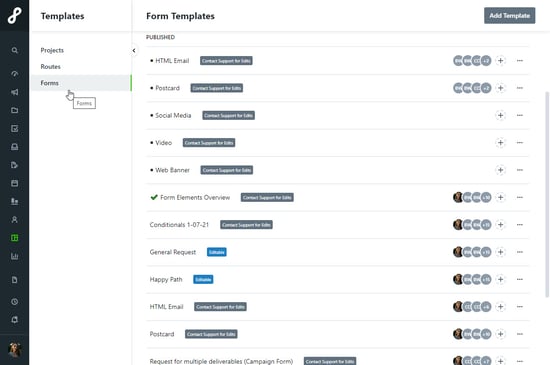
Forms built in the new form builder will have a blue badge that says Editable. Forms built with the legacy form builder will have a grey badge: Contact Support for Edits. Forms built with the legacy form builder contain advanced logic, such as dependent fields or tag calculations. Once logic is added to a form, it can only be edited by our Support team. For changes to these forms, please contact Lytho Support with your change request.
Creating a New Form Template
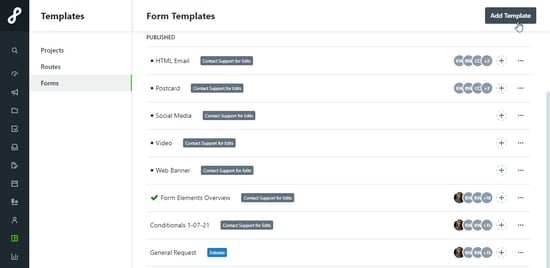
In the top right-hand corner of the Form Templates list, click Add Template.
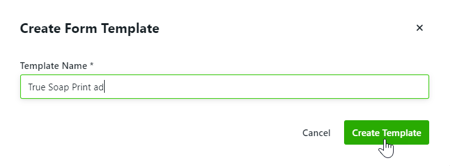
Create a name for your form and click Create Template. The name can be edited once inside the designer. Once published, this is the name your Requesters will see in their Request Form list.
Form Building Tools
Standard Fields
Standard Fields can be used multiple times while building a form and give you the ability to provide actionable options to be chosen by your requesters.
The Checkbox allows the requester to check a provided value.

The Dropdown allows the requester to select one value from a list of provided values.
The Multi-Select allows the requester to select multiple values from a list of provided values.
Radio Buttons allow the requester to select one value from a vertical display of provided values.
The Date field allows requesters to select a date from a calendar pop up.

Longform text allows requesters to provide longer text answers and utilize line breaks when needed.

The Text Box field allows the requester to provide short text answers.

The Number field inserts a text field that only allows requesters to enter a number.

Metadata
Metadata options can only be used once per form and provide contextual information for the request, associated work, and reporting
The Due Date field provides an area for the requester to select a due date for the associated work. The date selected will be automatically mapped once the request is accepted.

Campaigns* provide an area in which the requester can associated the request with any open Campaign. *Only available to Business and Enterprise Tiers.

The Project Template field allows you to assign a template to be used when creating the associated Project. This will be hidden from the requester.
The Attachments field provides an area for the requester to provide files via upload or through a direct link.

Acceptors are users who have the ability to accept or decline a request once it has been submitted. This field allows you to configure who the acceptor(s) of the Request will be. This will be hidden from the requester in the form.

The Tags field allow you to determine which tags will be added to the Request and associated work. This will be hidden from the requester in the form.

Static Elements
Static elements can be added multiple times in a form and provide form structure and additional information to the requesters.
Columns give you the ability to organize form elements so that they are side-by-side.

The Link field gives you the ability to provide a hyperlink for the requester.

The Section field gives you the ability to group fields for easier bulk movement. Sections are not visible to requesters in the published form.

Static Text gives you the ability to provide text instructions or a header

Custom Fields
If you have Custom Fields set up in your account these will automatically appear in your form tools as available fields, allowing you to collect valuable organization-specific information directly from your requesters.
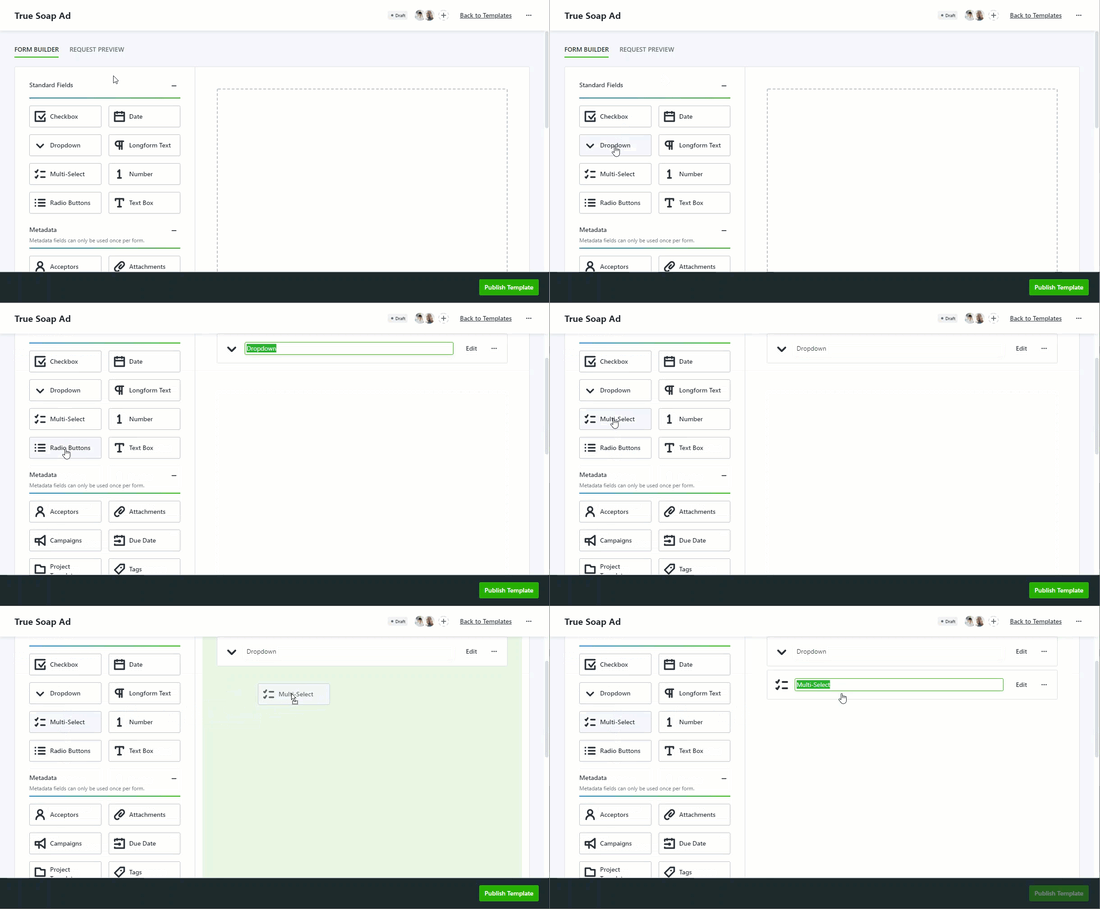
Add a field by clicking or clicking and dragging the field into the form creation area.
Field Navigation
The field name can be edited by clicking into the text box. This will be visible to your requesters.
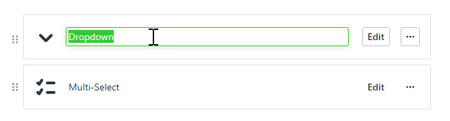
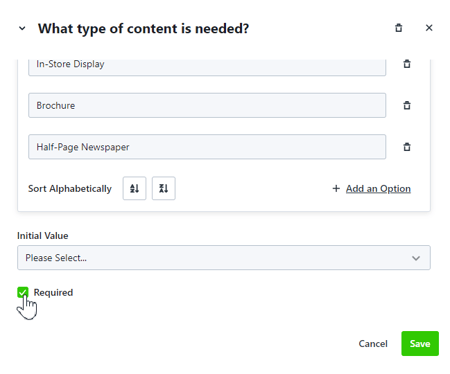
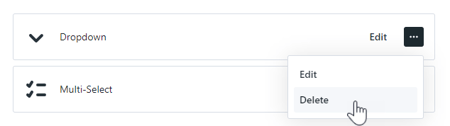
Click Edit to update the selected field. Editing will give you access to additional field customizations such as making a field required. You can also select the actions menu to Edit or Delete the field.
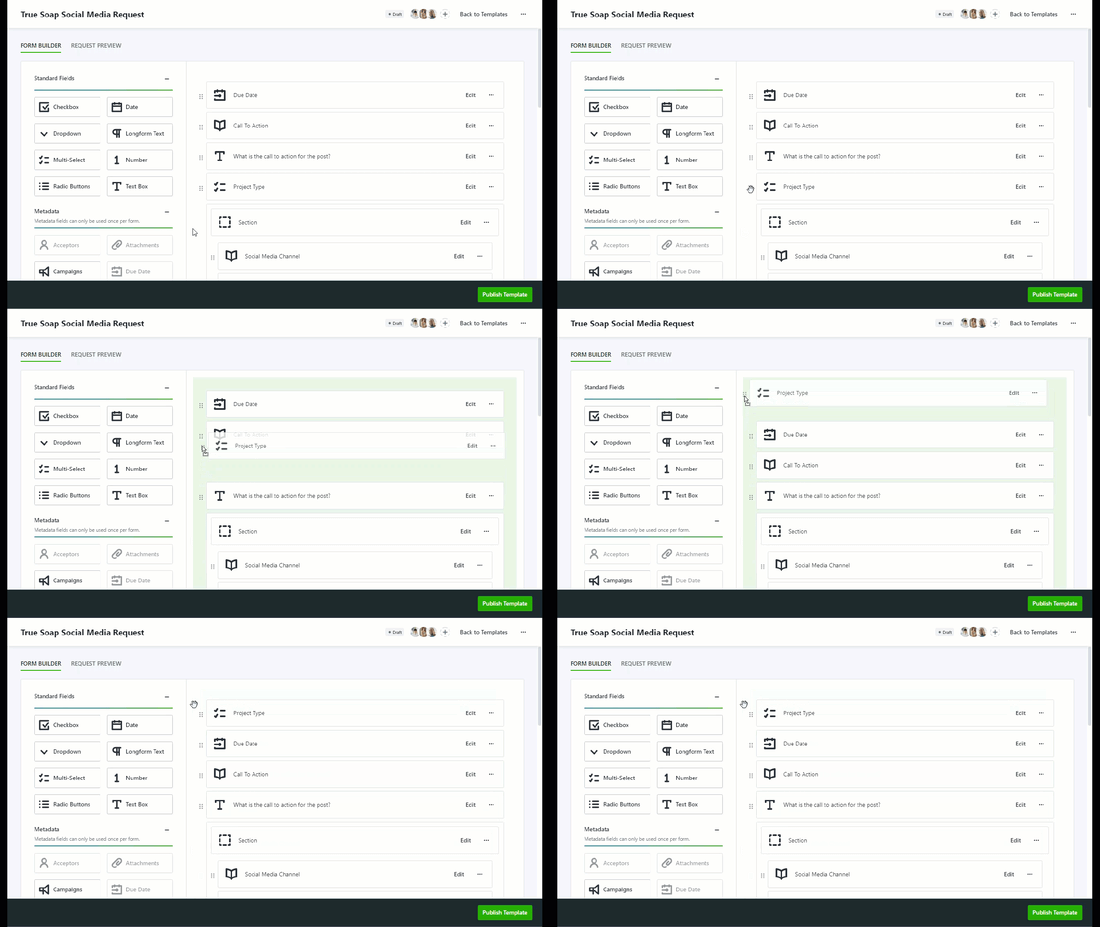
You can drag and drop fields, making it easy to update their placement at any point during the building process.