
The workload capacity and time off warning helps project and traffic managers assign work with confidence by alerting when a team member might be over capacity. Seeing assignees' availability in real time ensures balanced resource allocation, protects against burnout, and future-proofs your team from bottlenecks.
Workload warnings are triggered when a team member’s availability is less than the total effort assigned to them during a given time period. The calculation is based on a few factors:
How workload warnings are calculated
Availability and Time Off
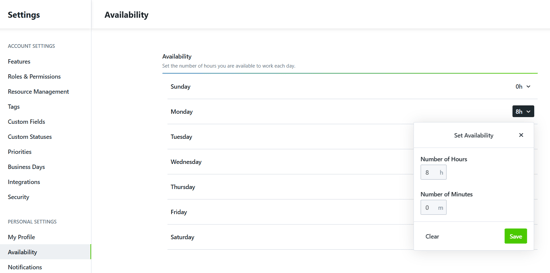
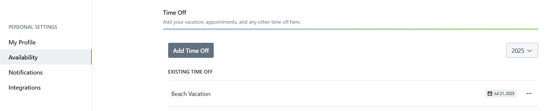
Within a Team Member's Personal Settings, they have the ability to set their daily Availability and Time Off.
Availability by day allows you to set a specific amount of time you're able to work each week.
Time Off gives you the ability to enter your vacation, appointments, and any other specific time off needed.
Level of Effort (LOE) and Dates
The LOE of an assigned Work item will subtract from a Team Member's workload capacity based on the dates of the Work item. If both Start and Due Dates are used, the LOE will be evenly split between the Business Days available.
Where workload warnings appear
Workload warnings appear in two areas of a Work Item — in the Members panel when assigning or reviewing contributors, and in the LOE panel.
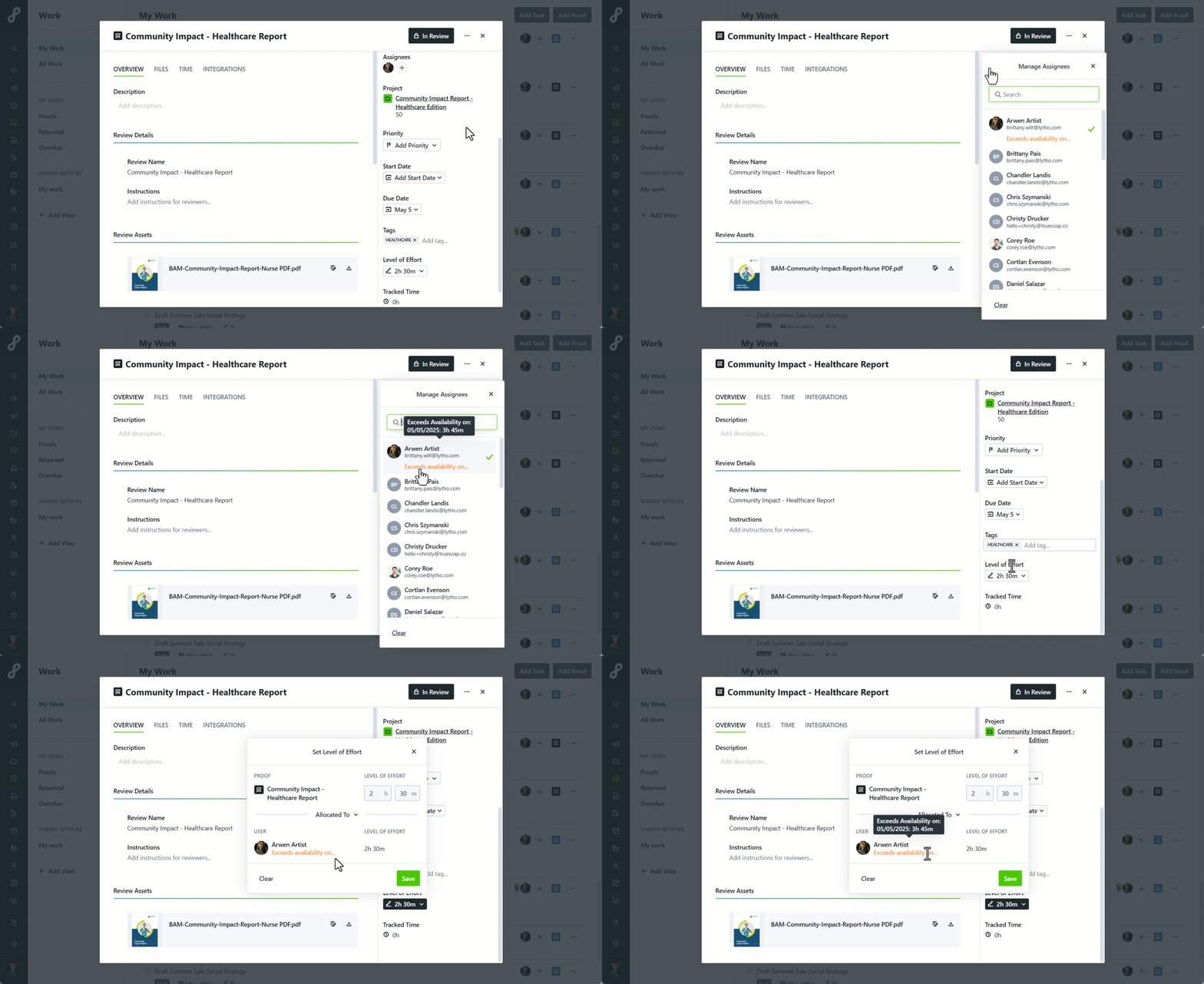
Team Members can hover over the warning to see which other assignments are contributing to the capacity issue.
The warnings do not block you from assigning the Work item to a Team Member over capacity.