Use the User Report to access a complete list of users in your account, along with their roles and status. From this Report, you can review, filter, and update user information.
TABLE OF CONTENTS
• Accessing Profiles from your Users Report
• Pulling a List of Active Users in Lytho
Available Columns & Filters
Role Type: System groupings of Roles based on certain permissions (Admin, Team Member, or Stakeholder).
Accessing Profiles from your Users Report
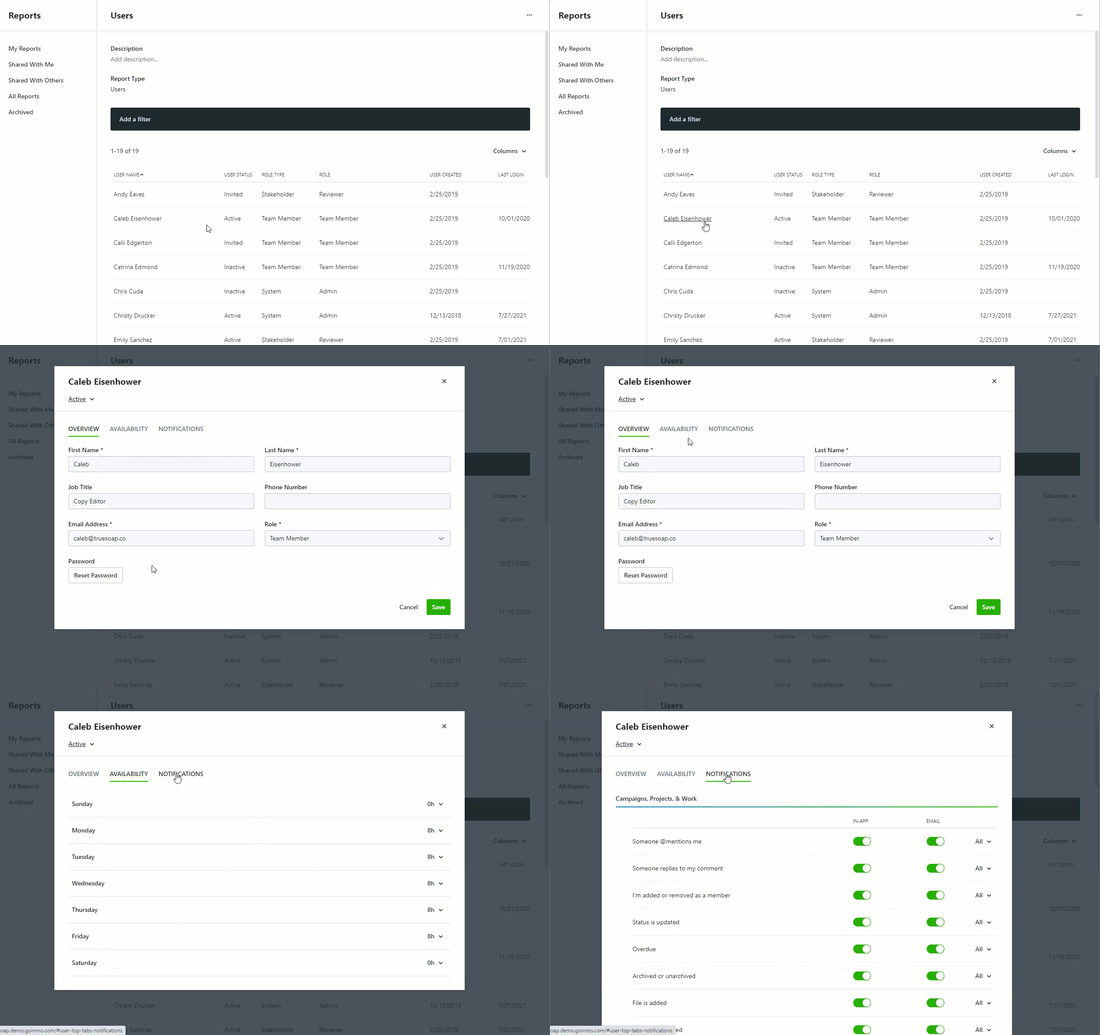
You can view and edit profiles by selecting the name of a user from any Users report you create. Select Save when your changes are complete.
Pulling a List of Active Users in Lytho
If you need to contact all users in your Lytho environment, for example to notify them about system updates, you can easily export a full list of active users.
To view and export your user list, go to the Reports panel and select Add Report.
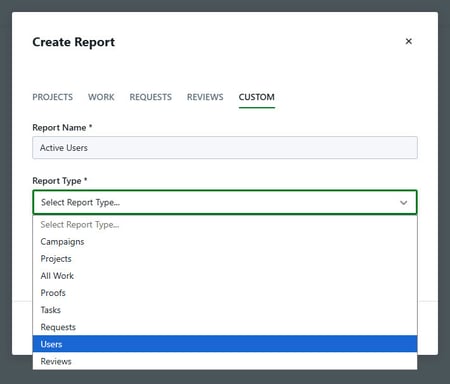
Select the CUSTOM tab, enter a Report Name, choose Users from the Report Type dropdown, and then click Create Report.
See above for a list of all available filters and columns.
To access all active users, add a Filter for User Status > Active. Recommended columns to include are User Name, Role Type, Role, and Email Address.
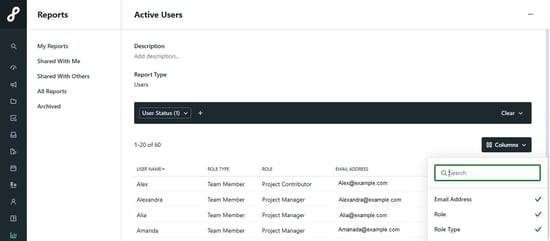
Once your Report is prepared, select Save to Report.
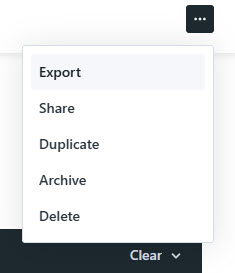
To export your Report to a CSV file, select the overflow menu in the top right corner, then select Export.