Features described in this article are not included in all subscription plans. Interested in expanding your feature set? Contact the Lytho Support Team for further assistance.
TABLE OF CONTENTS

Features described in this article are not included in all subscription plans. Interested in expanding your feature set? Contact the Lytho Support Team for further assistance.
TABLE OF CONTENTS
Adding New Time
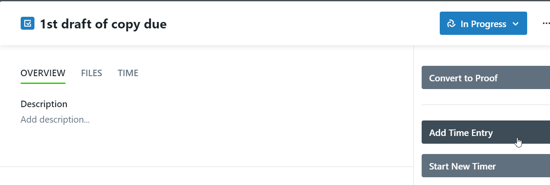
To add time to a task or proof, navigate to the relevant work item. On the right-hand side of the task or proof details modal, select the Add Time Entry button to add a new entry manually or the Start New Timer button to begin counting time with our Timers feature.
From the Add Time Entry option, select the relevant date, and enter the tracked time in hours and minutes. When available, choose a time type from the required Category menu and add any relevant notes as necessary. The default time category specified in each Team Member's personal settings will be pre-selected on all new time entries.
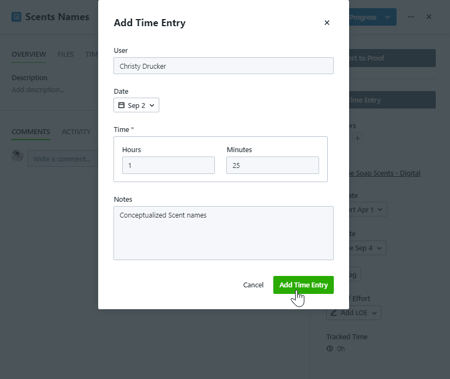
Click Add Time Entry to finalize your entry.
Managing Time Entries
To view or edit time on a task or proof, select the TIME tab from the work details modal. To manage an entry, select the action menu to the right of the individual time entry. Choose Edit to update the time entry or Delete to remove it from the work item.
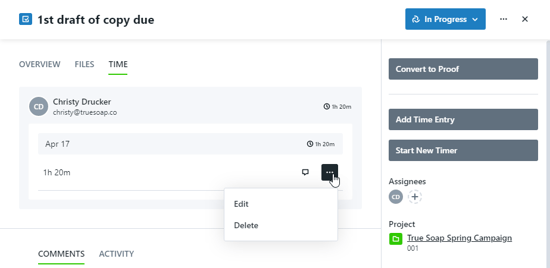
If you choose to edit the time entry, make any necessary changes in the Edit Time modal and click Save.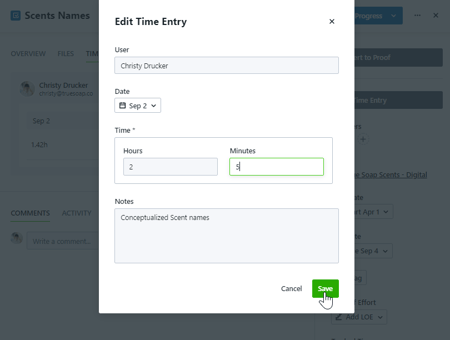
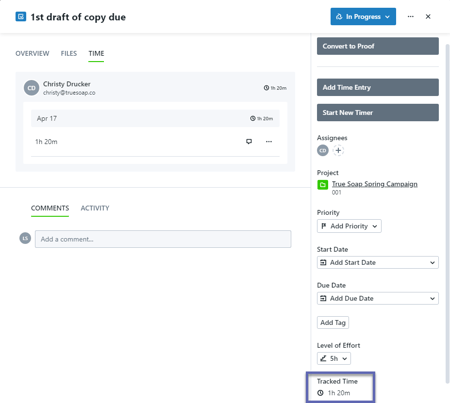
The total time recorded by all users on a task or proof will show beneath Tracked Time on the right-hand side of the modal. From the TIME tab, you can also view the total time tracked per user on that task or proof.