Skip to content
English - United States
  • There are no suggestions because the search field is empty.

The Stakeholder Experience

Welcome to your guide on navigating the end-user experience with a Tempo Smart Template in Lytho. This article will walk you through the steps to create and personalize your publication efficiently. Let’s get started!


TABLE OF CONTENTS

• Creating a Publication

• Updating your Publication

• The Fullscreen Editor

• Publishing your Publication


Creating a Publication

Begin by logging into your Lytho Digital Asset Management (DAM) and select the Tempo module to explore the available templates.
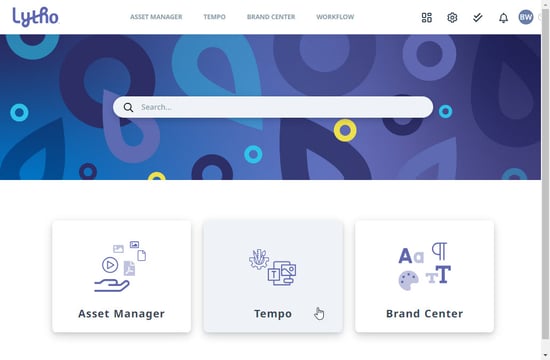
Tempo module


Once you’ve selected your template, you can start the self-service process to create your publication. Expand the options button in the bottom right corner of the template, then select Create publication.
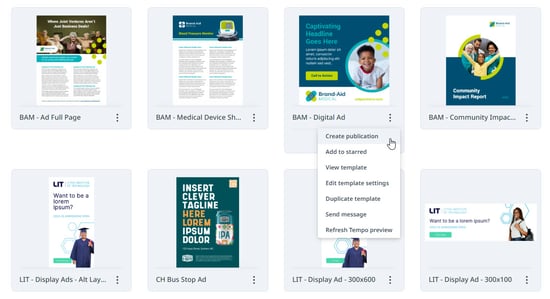
Create publication option


Updating your Publication

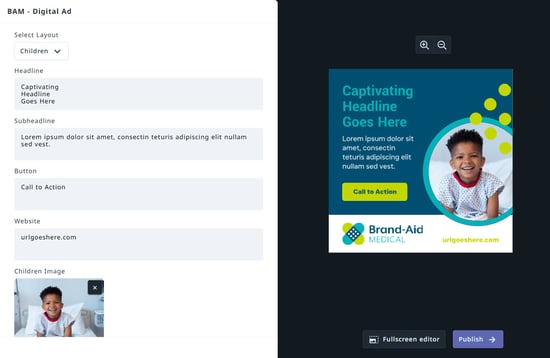
Once created, you will enter the template editor to customize your deliverable. The left panel is home to the editable fields established by the template creator. The contents of the panel will vary by template, but options could include:

• Updating text

• Changing images and colors

• Adding QR codes and barcodes

• Selecting an alternate layout

• And more!

Updating your Publication


The Fullscreen Editor

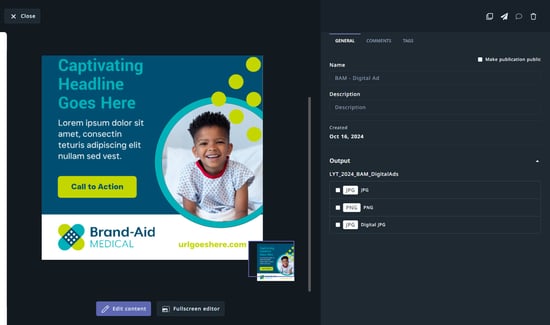
Depending on your template permissions, options for inlining editing may also be available. You can access this by entering the Fullscreen editor. Options could include:

• Inline text editing: Hover over any text element (like the subheadline) to see green and red boxes indicating you can edit in-line.

• Inserting new elements: Add items such as images, logos, and text boxes

• Reposition elements: Move text boxes and logos around to achieve the desired layout. 

The Fullscreen Editor button


Publishing your Publication

Once your desired edits have been made, it's time to Publish your publication for use. 

Publishing your Publication


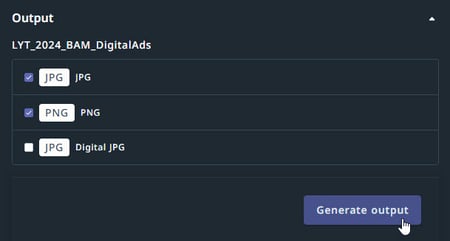
Pre-created Output options will be listed based on the end-uses for the publication. Select which outputs you need, then hit Generate output to render your unique and customized publication.

Generate output button


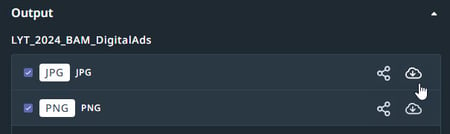
Once the output as generated, you will have the option to Share or Download the asset.

Download and share options


Need help building your Tempo templates?

Dream big. Let our experts bring it to life. Lytho's Professional Templating Services make it easy to scale high-quality, on-brand templates without burdening your internal design team. You provide the content, and we'll handle the complexity. Have a project in mind or want to learn more? Contact our team.