
Edits you save to a template in the CHILI BackOffice don't reach Tempo on their own. To pull the latest changes into Tempo, create a publication from the template. Creating the publication triggers a re-sync from CHILI. This article covers adding a CHILI template to Tempo, re-syncing it after changes, and what to do when a change still doesn't come through.
Add a CHILI template to Tempo
Once your template is built in the CHILI BackOffice, bring it into Tempo so users can create publications from it.
In Tempo, click Add Template.
Enter a name and description for the template.
Optionally, use the General tab to set permissions, tags and publish dates. These settings control how the template is organized in Tempo.
Open the Input tab, then select the Tempo sub-tab. This shows the folder structure of the templates from the CHILI Backoffice.
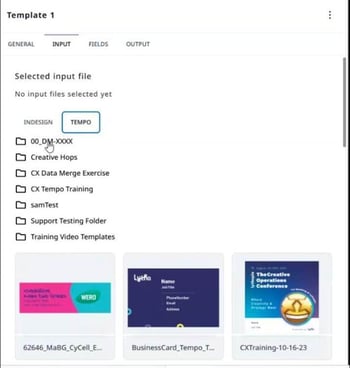
Browse to your template's folder and select the template. Tempo pulls in the CHILI file and adds each of its variables to the Fields tab.
Open the Output tab and add at least one output setting, for example PDF with crops and bleeds. The template stays in draft until it has an output setting.
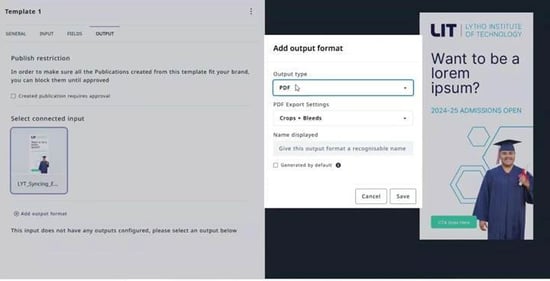
Click Publish. The template is now available to users in Tempo.
Re-sync changes from CHILI
After a template is in Tempo, changes you save in CHILI won't show up right away. For example, if you add an item to a list variable in CHILI, the list field in Tempo won't include the new item yet. Creating a publication tells Tempo to check CHILI for updates and apply them to the template.
Make your changes to the template in the CHILI BackOffice and save the document.
In Tempo, create a new publication from the template.
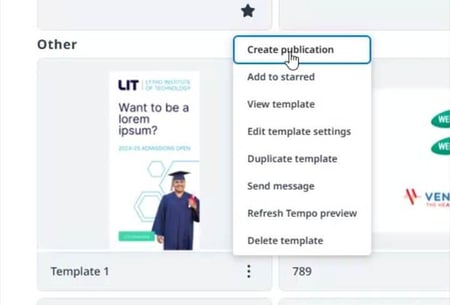
Check the publication. Your changes from CHILI should now appear, such as the new list item.
Close the publication and open the template's settings. On the Fields tab, the template now reflects the update as well.
This re-sync picks up changes such as renamed variables and updated list items. Some settings aren't included, so check the next section if a change still doesn't appear.
When changes don't sync
Creating a publication doesn't pick up every change. For example, turning off a variable's Visible checkbox in CHILI won't hide that field in Tempo. Prefix and suffix changes may not sync either.
Last resort: recreate the template. If a change still won't sync, or the template keeps breaking, add the template to Tempo again with Add Template. This copies the CHILI file exactly as it is now. Use this only as a last resort.
Before you delete the old template: Publications created from a deleted template can no longer be edited. Users can still download their outputs.
To keep those publications, hide the old template instead of deleting it. In its settings, set a permission your users don't have.
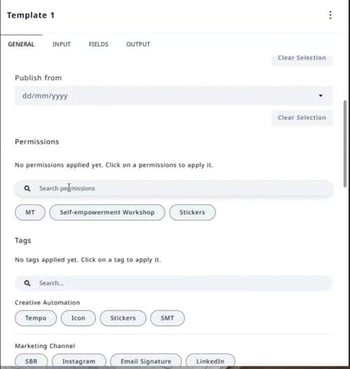
Hide the old template with a permission, or delete it if you don't need its publications.
Click Add Template and follow the steps in Add a CHILI template to Tempo.
Add an output setting and publish the new template.
Edge cases
These steps won't fix every sync issue. Edge cases come up, most often with older templates and with some kinds of variable edits in CHILI. If a template still isn't working, contact Lytho Support.
Need help building your Tempo templates?
Dream big. Let our experts bring it to life. Lytho's Professional Templating Services make it easy to scale high-quality, on-brand templates without burdening your internal design team. You provide the content, and we'll handle the complexity. Have a project in mind or want to learn more? Contact our team.