
Related Articles
• Sync your DivvyHQ Calendar to Google Calendar
• Sync your DivvyHQ Calendar to iCal
Have you ever wanted to sync your DivvyHQ content and task deadlines to your Microsoft Outlook calendar? Below is a step-by-step guide to setup the integration.
Features described in this article are not included in all subscription plans. Interested in expanding your feature set? Contact the Lytho Support Team for further assistance.
TABLE OF CONTENTS
• Remove Your DivvyHQ Calendar from Outlook Calendar
Outlook Sync Details
If you are currently managing your entire day through your Microsoft Outlook calendar, you will be relieved to know that you can sync your DivvyHQ content deadlines and tasks to ensure you never miss a deadline! Setting it up only takes a few minutes and the outcome is pretty impactful.
Set-up Guide
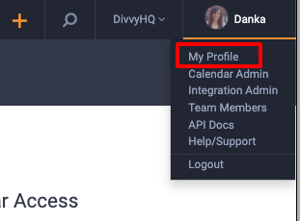
Step 1: Go into your My Profile interface by clicking your on your name/photo on the top right corner of Divvy and selecting My Profile.
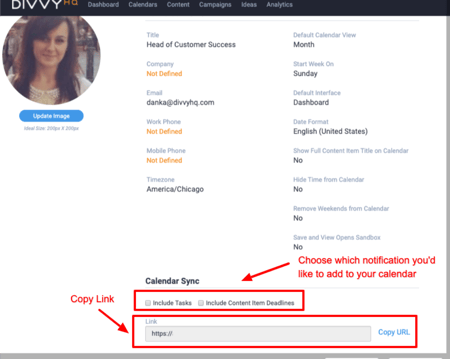
Step 2: Scroll down to the Calendar Sync section. From here you have two options with regard to which types of deadlines will be included in your Microsoft Outlook sync. You can choose to include tasks and/or content Item deadlines. Whichever option you choose, those deadlines will now be included in the data feed that Outlook will receive.
Quick note: If you don't select one of the options, your calendar sync will not include any data.
Step 3: With your desired date types selected, copy the URL to your clipboard.
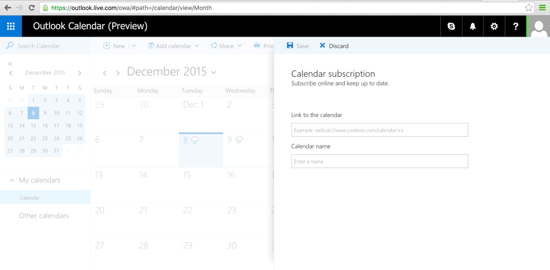
Step 4: Sign in to your Microsoft Outlook on the web and go to your Calendar. In the upper right, click the +Add button and then select "From Internet".
Step 5: Paste the DivvyHQ link that you've copied earlier into the field and complete the process. For a step-by-step video on this process, Microsoft has a video that may help.
That's it! You've added your Divvy content deadlines and/or task deadlines to your Microsoft Outlook calendar!
Remove Your DivvyHQ Calendar from Outlook Calendar
To delete your Divvy content and task deadlines from your Outlook calendar, simply go to your calendar and in the Folder Pane, right-click the name of the calendar that you want to delete. Click Delete, and confirm the deletion by selecting Yes.