Works with: Lytho DAM
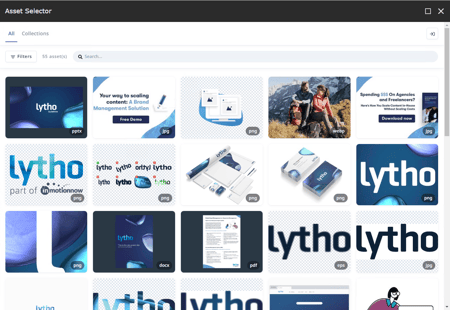
Using the Lytho Sitecore plugin, you are able to publish images, video’s, and other assets directly to your Sitecore website. The Lytho Sitecore plugin enables you to directly search and filter through all assets within your Lytho environment without leaving Sitecore.
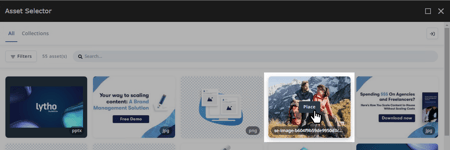
Once you select an asset, it will be imported in the Sitecore CMS and allows you to use it in your webpages.
Benefits
• Instantly use assets from your Lytho (Single Source of Truth) environment in your Sitecore platform
• Save time on selecting/uploading assets into your website
• Always using the latest version of your assets
TABLE OF CONTENTS
• Installing the Sitecore Plugin
• Sitecore Content Delivery Setup
• Content-Security-Policy configuration
Prerequisites
Please reach out to Lytho Support for the latest version of the Sitecore plugin.
Next, in order to use the Sitecore Plugin for Lytho DAM, you will need to have access to Lytho DAM's Asset Manager and a Sitecore XP or XM environment, version 9.3 or higher.
We recommend that you start by installing the connector in a (local) development environment using the Sitecore Installation Package before attempting to promote it to environments such as staging/acceptance or production.
Installing the Sitecore Plugin
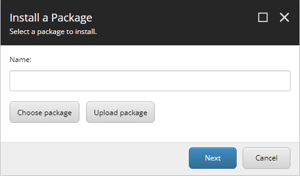
Open the Desktop of your Sitecore Client, usually located at https://[your-dev-domain]/sitecore/shell, and find the Installation Wizard in the menu.

Upload the installation package and then install it.
The installation will not override any standard files or items. It is safe to install this package without breaking existing behavior or features.
After installation, you must update your web.config file to correct the Content-Security-Policy header settings.
Sitecore Content Delivery Setup
If your Sitecore platform involves one or more Content Delivery servers, you will also need to publish some of the connector files to these servers.
You only need to publish the following files and folders to Content Delivery:
• App_Config\include\Hdis.Connectors\Dam.Lytho.config
• bin\Hdis.Connectors.Dam.Lytho.SitecoreXp.dll
All other files in the package are used only for the content authoring UI and serve no purpose on Content Delivery.
Content Security Policy configuration
By default, Sitecore XP/XM has a Content-Security-Policy (CSP) header configured in the web.config that is targeted at the /sitecore location. This CSP header prevents resources that live outside of your domain to be loaded in the Sitecore Content Editor. This applies to the Content Management instance(s) of your Sitecore platform.
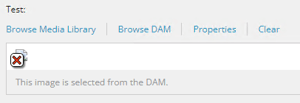
With this CSP header enabled, the Lytho Connector is unable to display selected assets in the Content Editor because they are served by the Lytho CDN and live outside of your own domain.
This will result in broken images as shown in this example:
To allow Lytho assets to be loaded in the Content Editor, you must update the CSP header so that it is allowed. Here is an example of the modified configuration that is applicable to the sitecore example configuration that ships with Sitecore:
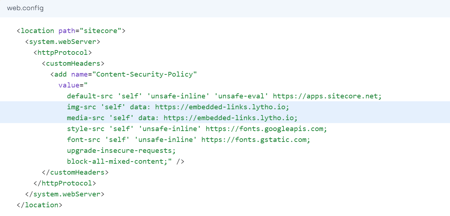
web.config may look a little different than the example. What is relevant is that the img-src and media-src setting must allow https://embedded-links.lytho.io.
The Content-Security-Policy header may be different or not present at all on your Sitecore Content Delivery instance.
• If it's not present, you do not need to add it for the connector to work.
• If it is present then you must review it and optionally update it to allow the Lytho CDN URL to be loaded on your web pages.
Read more: Content-Security-Policy on Mozilla.org
Developer Information
Custom Field Types
The connector provides Sitecore with additional field types that enables users to select assets directly from Lytho instead of the Sitecore Media Library. Use the Sitecore template manager to update your templates to use the new field types.
The custom field types are drop-in replacements for Sitecore standard field types, meaning that they are backwards compatible and you can safely switch to them while there is still existing data present in the field.
You can replace the following standard field types:
• Image may be replaced with Image (DAM, Single asset) or Image (DAM, Multi asset)
• General Link may be replaced with General Link (DAM)
• General Link with search may be replaced with General Link with Search (DAM)
All fields can be rendered with the standard Sitecore Field Renderer syntax.
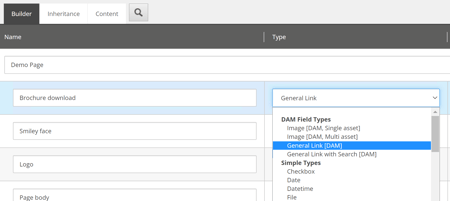
Image [Single asset]
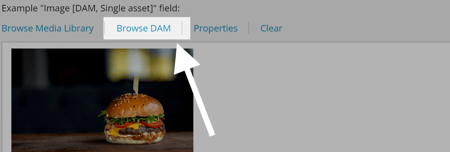
The Image (DAM, Single asset) field allows users to select a single image asset from Lytho.
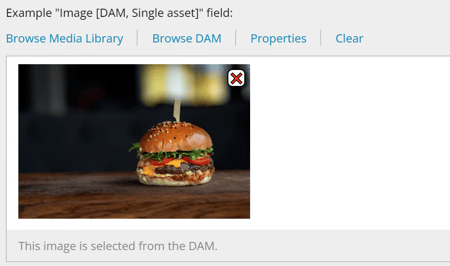
Image [Multi asset]
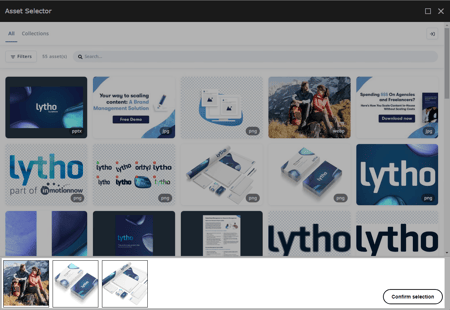
The Image (DAM, Multi asset) field allows users to select a multiple image asset from Lytho.
The selection is stored in one field value.

General Link
The General Link (DAM) field allows users to select a single asset of any type from Lytho. The variant "with search" is only there to replace the default "General Link with search" field and does not provide any additional DAM capabilities.


Field Renderers
The connector implements custom field renderers. By doing this we minimize the required effort when implementing the connector in existing solutions. There is no special syntax required. You can simply use the field renderer syntax.txt that is standard for Sitecore:

The field renderer for Image fields accepts parameters for resizing:
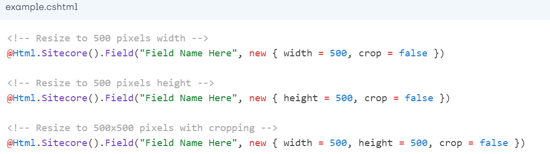
If your solution does not use field renderers or requires additional logic to retrieve field values, you may want to use the Extension Methods that the connector provides.
Extension Methods
The extension methods are part of the Hdis.Connectors.Dam.Lytho.SitecoreXp.Extensions namespace.
All these extension methods apply to the Sitecore.Data.Items.Item and Sitecore.Data.Fields.Field classes.
GetAssetSelection
Returns: AssetSelection object
IsAssetField
Returns: boolean
GetSingleAsset
Returns: Asset object
GetMultiAssets
Returns: IEnumerable
object
Important Classes
The following classes from the Hdis.Api.Dam.Lytho.Models.Assets namespace are relevant when working with the extension methods.
Asset Selection
Represents a selection of one asset with one selected asset file (optional) or a selection of multiple assets.

Asset
Represents one asset from Lytho
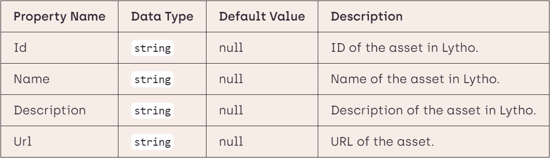
Use the GetResizedUrl() method on the Asset object to the asset URL while adding image resizing parameters.