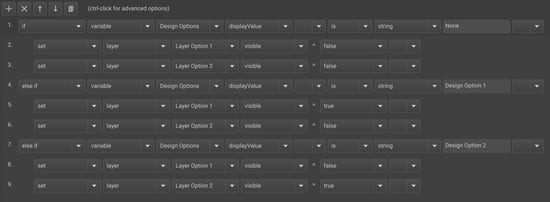
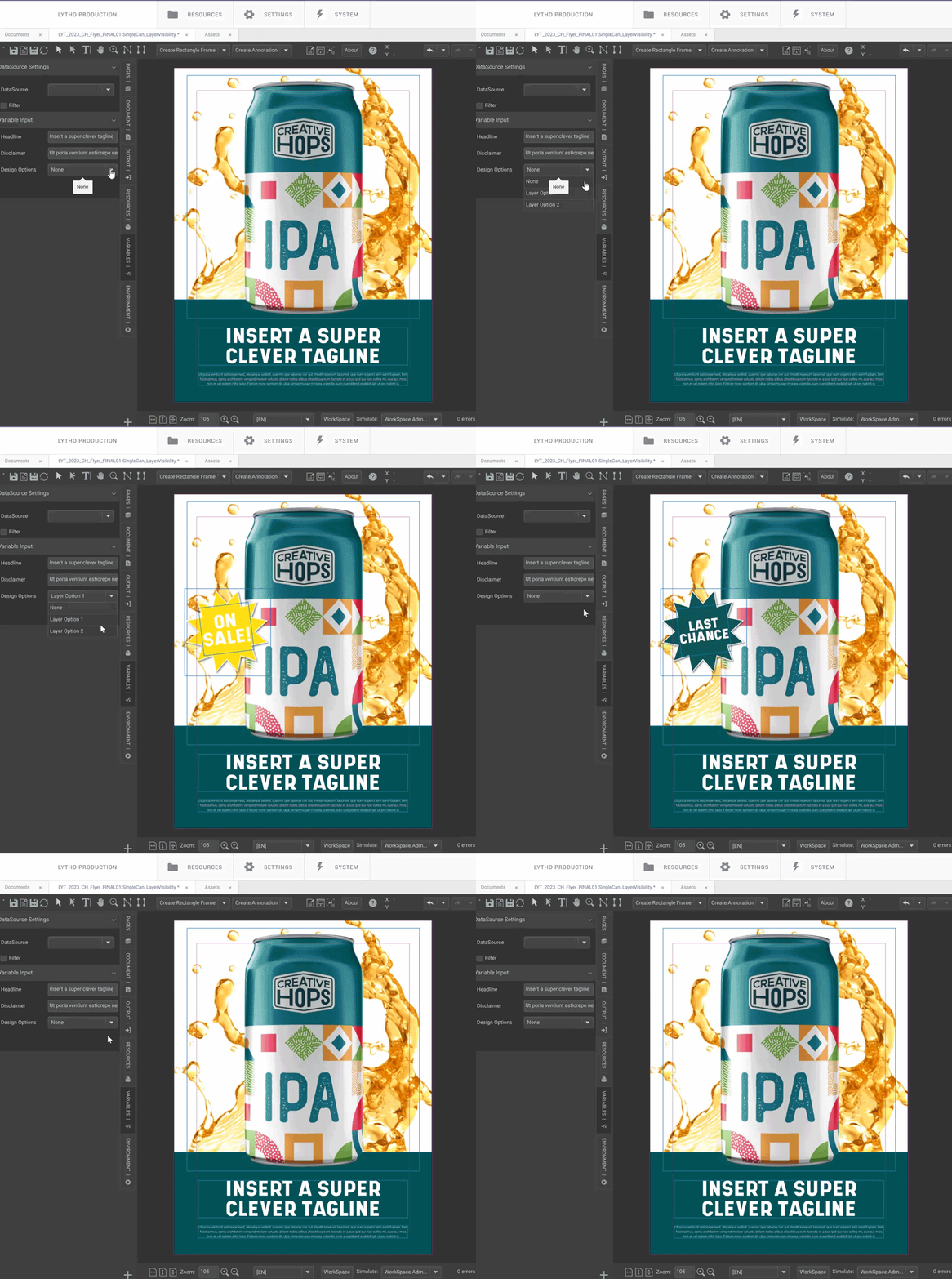
When creating a template, you may want to allow your end users the opportunity to choose different design elements or layouts. While this can be possible via image variables or Alternate Layouts, an easier option may be to set specific layer visibility. By separating your artwork elements into specific, individual layers you can then use a list variable with action logic to allow your end user to choose their design elements.
For example, your end user could decide which text they want on a sales starburst, determine if they need regular pricing versus member pricing, or change preset verbiage for disclosures or disclaimers.
TABLE OF CONTENTS
• Creating Your Layer Visibility Variable
Creating Artwork Layers
As the designer, you can create the layers you would like your end user to choose from in InDesign or in your CHILI Back Office.
If designing in InDesign, once you have converted your document, you can review or edit your layers by navigating to Document > Layer List.
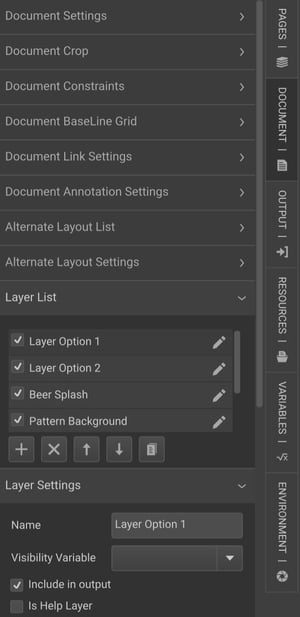
If designing in the CHILI Back Office, you can create a new layer by selecting the + sign in your layer list. When adding new design elements, be sure to keep the appropriate layer selected.
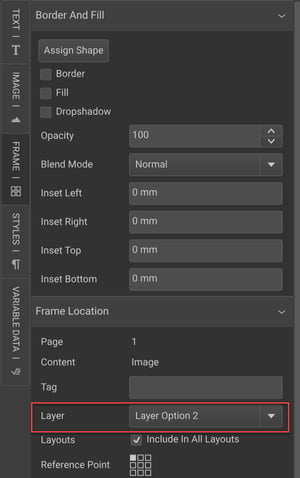
If you need to move a design element from one layer to another, select the frame for the element you need to move and navigate to the Frame panel on the right side of the Back Office. Under the Frame Location tab you will see a Layer dropdown. Simply open the dropdown and select the layer where you want to move your design element.