TABLE OF CONTENTS
Providing Feedback
When reviewing an asset, easily provide feedback by marking up the assets using the intuitive annotation tools in the toolbar. Each annotation will automatically be associated with a comment.
After using one of the annotation tools to create a markup, a comment box will automatically appear in the collaboration panel on the far right of the screen, allowing you to enter a comment related to your annotation on the asset. Annotations and comments will appear for all Reviewers in real time.
Click to save your markup.
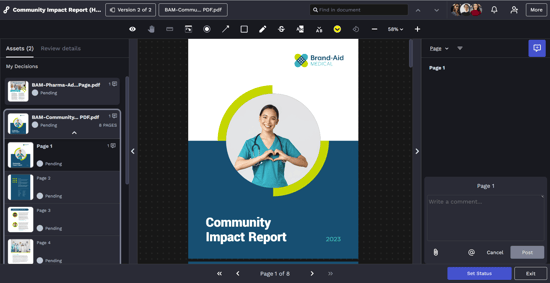

Every annotation and its related comment will be numbered.

You can attach files related to your comment.

You can mention someone in your Lytho account to notify them of a message.

The General Comment Tool adds comments without an annotation.

The Choose Annotation Color Tool allows you to select the color of your annotation.
Page Navigation
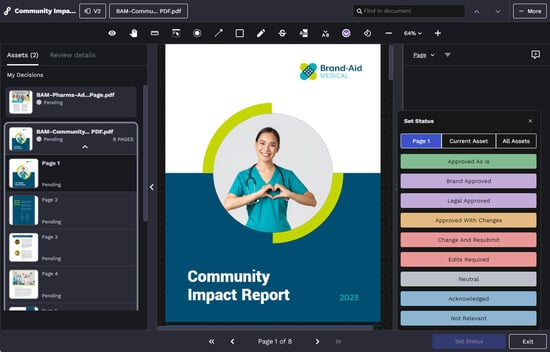
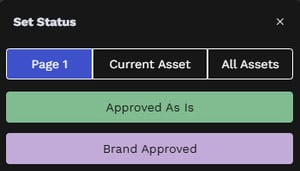
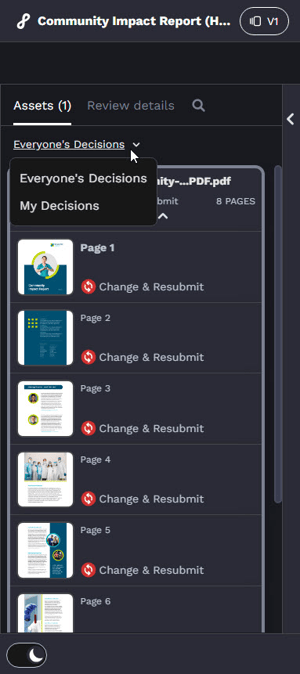
The expandable left panel Page Navigator shows all creative assets in the Proof and allows you to navigate to other pages by clicking on the corresponding thumbnail. If an asset has multiple pages, the thumbnail can be expanded to show all pages of the asset and their approval statuses. This is also a great place for an at-a-glance view of each page’s status based on the stage of the review. Before you submit your own approval statuses, it will show your selected page status. After your Review has been submitted, it will show the aggregate status of all Reviewers for each page.
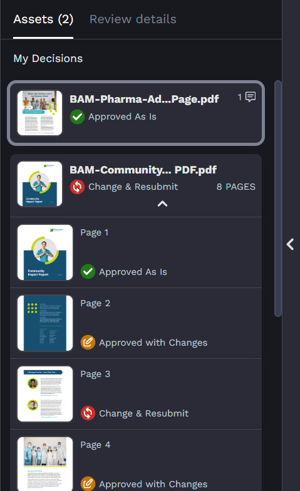

The Comment icon shows whether Reviewers have made comments on an asset and displays the total number of comments.
You can also navigate through the Proof by selecting the bottom navigation. The outer arrows will control moving from asset to asset. The inner arrows will control moving between pages within a multi-page asset. 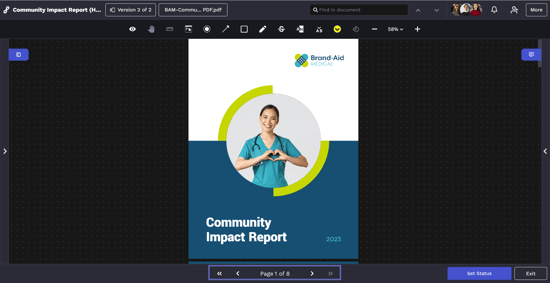
Proof Options
Select the More button in the top right corner of the Review environment to view available proof options.
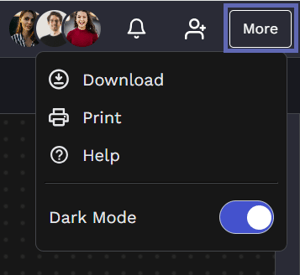
Download gives you the option to select the original asset file(s) you wish to download. If multiple files are selected, they will be bundled into a single zip file.
Print allows you to print the proof to PDF. Banners will appear at the bottom of the review environment indicating PDF preparation and readiness. The generated PDF file will include a cover page including grouped approval statuses, images of the assets with annotations alongside reviewer collaboration.
Help will take you to the Lytho Knowledge Base.
The Dark Mode toggle allows you to switch between light and dark themes to suit your visual comfort and lighting preferences. Once set, the system will remember your preference going forward.
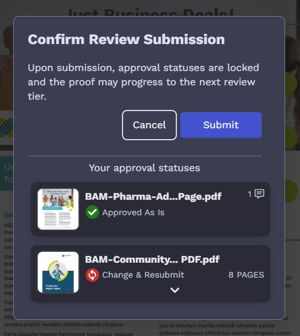
Submitting Reviews