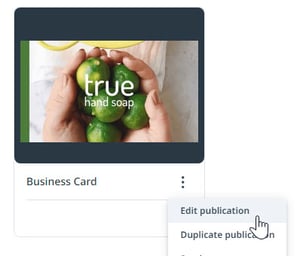
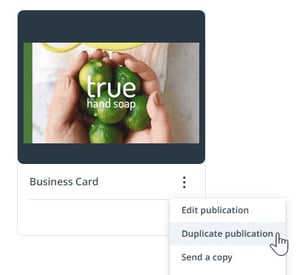
A publication is a version of a filled-in template. Templates can be used over and over again to create as many publications as you need.
TABLE OF CONTENTS
Getting Started
Within Create and Publish you'll find all of the templates that are available to you. You can use the search bar, filter panel, and tags to find the template you need.
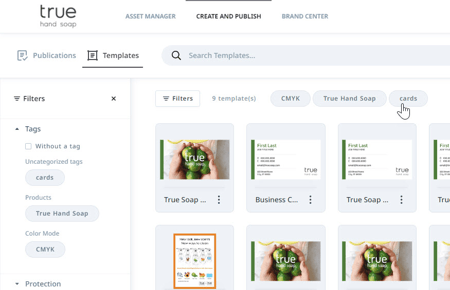
Select a template to view the details including name, description, tags, and available output types. Select Create publication to begin editing the template.

Creating Publications
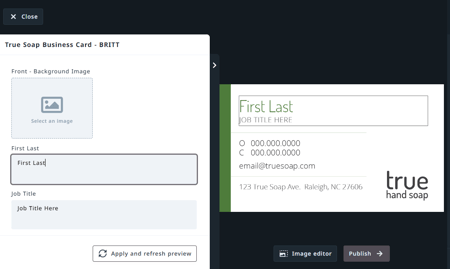
Once you select a template and click Create publication, an input screen will appear. The left side will show any text and/or image fields that you can adjust yourself.
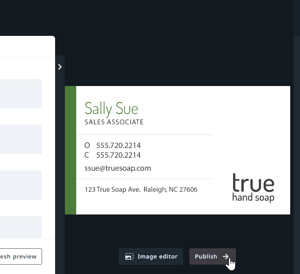
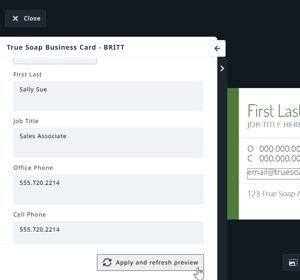
When you have filled in and adjusted all fields, you can view your creation by clicking Apply and refresh preview.
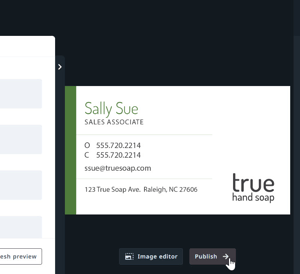
Once you are satisfied, click Publish.
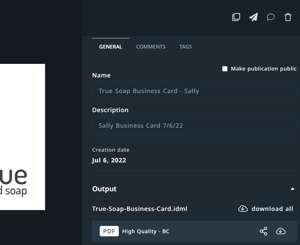
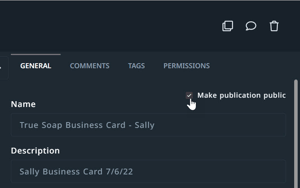
From the GENERAL tab, choose whether to make the publication public or private. Public publications can be seen and used by other DAM users while private publications can only be seen and used by the creator.
Then, give your output a name and description, and if applicable choose which format you want to generate. Select COMMENTS to add any additional comments to your publication. Select TAGS to add tags that will help you (and others!) locate your publication in the future.
When selecting Make publication public you'll be prompted to add tags. Tags are highly recommended to help locate your publication. You'll also see an new tab to add Permissions.
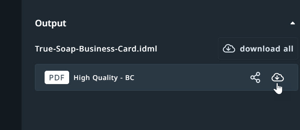
Your publication can now be used by yourself and others. Want to share it with colleagues? Click the share button. Use it yourself? Click download to save the publication on your device.