Skip to content
English - United States
  • There are no suggestions because the search field is empty.

Proof Versioning

TABLE OF CONTENTS

• What is Versioning?

• Side-by-Side Comparison

• Version Overlay Comparison

• Read-Only Mode


What is Versioning?

Lytho’s Proof Versioning allows uploaders to upload and manage sequential versions of a document, ensuring all feedback is documented, applied, and tracked in one place. All versions remain accessible in a centralized view, allowing reviewers to quickly compare changes, verify updates, and streamline approvals. With an automatic version history and audit trail, Lytho Proof Versioning ensures teams stay aligned, minimize rework, and always move forward with the most up-to-date file.


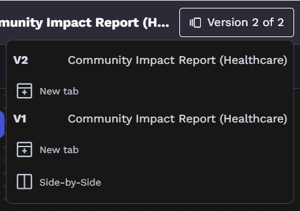
If the Review is versioned, you can access previous versions by selecting the View Version icon located to the right of the Review name. The Review’s version history will open. Select the version you’d like to reference. 
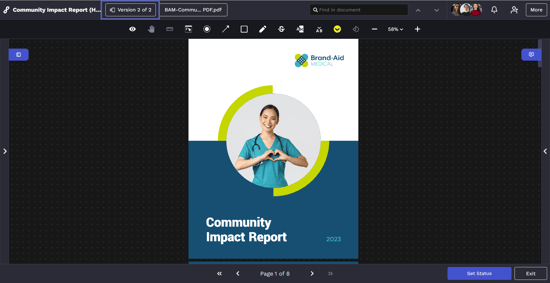
The current version indicator is shown to the right of the View Versions icon so that you can quickly view which version is active in your browser window.


Version option within Review


Version option within Review


Side by Side Comparison

To enter side-by-side comparison mode, select the View Versions icon then Side-by-Side under the past version you would like to compare. The past version will open to the left of the current version.
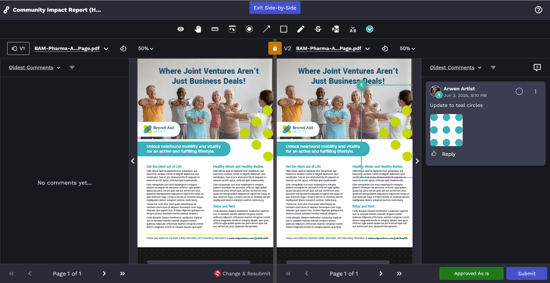
Side by Side Comparison


In side-by-side comparison mode, you will be able to annotate, comment, and take normal action on the currently active proof. You will not be able to annotate on older versions of the asset. Lock the versions together to enable synchronized zooming, page navigation using the footer, and asset rotation across versions.


At any point you can exit side-by-side comparison by selecting the Exit Side-by-Side at the top center of the page. This will return you to the active, normal review.

exit side by side button


Version Overlay Comparison

Version Overlay Comparison is currently available as a beta feature for Workflow customers. As a beta feature, functionality may change as we continue to improve the experience based on customer feedback.

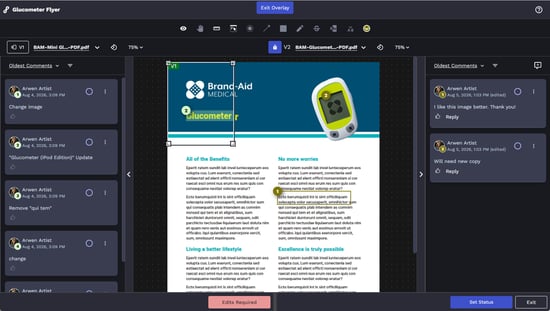
To enter Version Overlay Comparison mode, select the View Versions icon, then select Overlay beneath the previous version you would like to compare. An overlay window containing the selected version will appear on top of the current version of the asset.
Overlay in a review

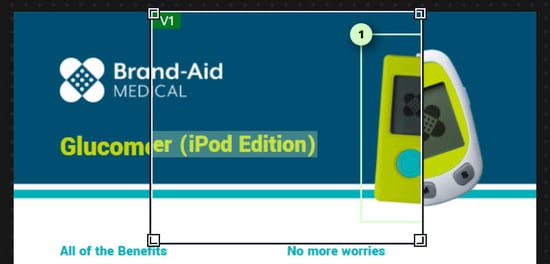
Within the overlay window, you'll see the selected previous version along with its annotations. Outside of the overlay window, you'll continue to see the current version and its annotations. This allows you to compare previous feedback directly against the current version without leaving the Review.

The overlay window displays the selected version number (for example, V1 or V3) in the upper-left corner so you can quickly identify which version is being viewed.
WF-Overlay-Compare-8-5-26

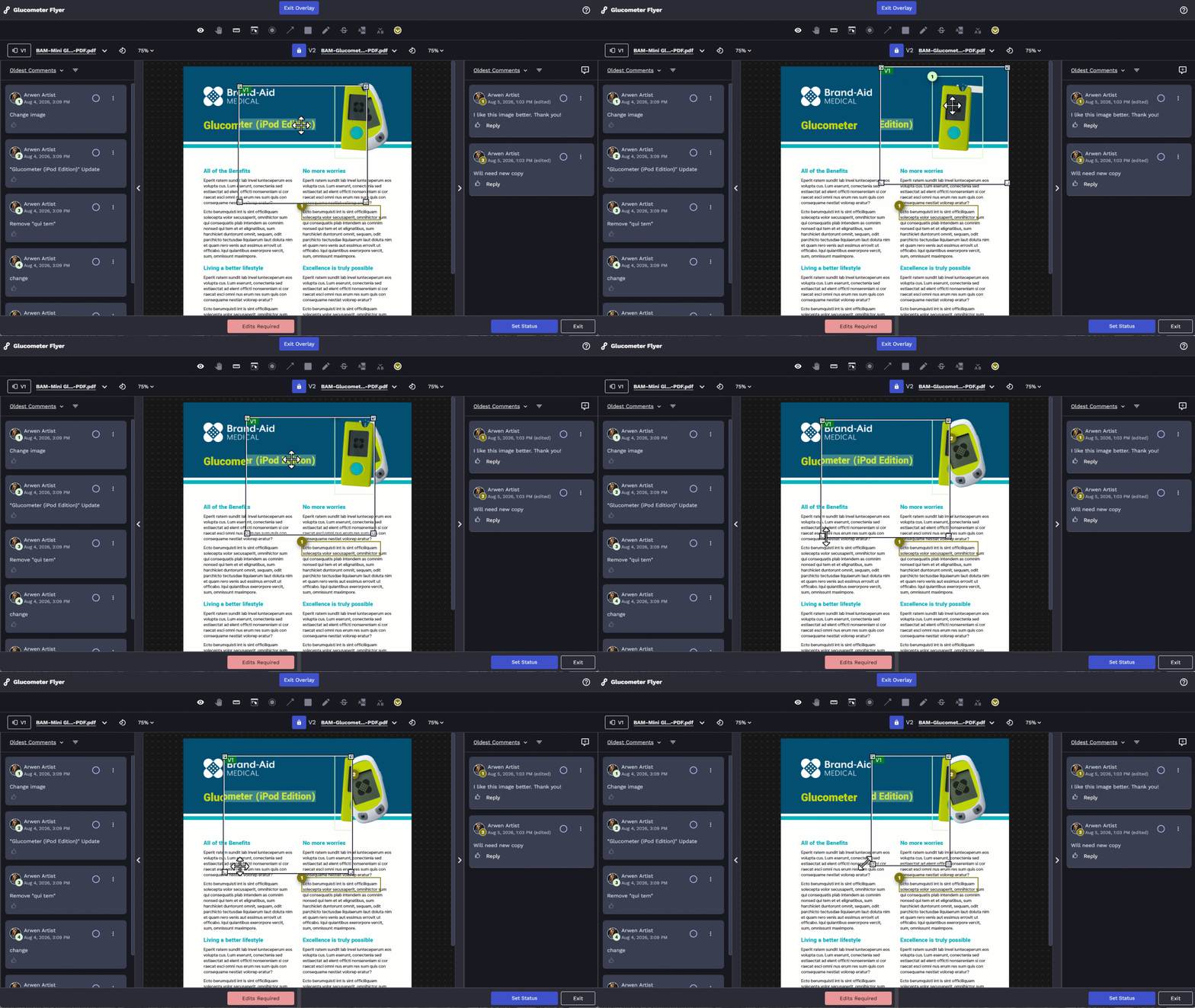
You can resize the overlay window by dragging any corner and reposition it anywhere on the asset by clicking and dragging the window.
Moving and resizing overlay

While Version Overlay Comparison is active, you can view comments and annotations, but you cannot create new annotations. To continue reviewing or annotating the current version, exit Overlay mode first.

At any time, you can exit Version Overlay Comparison by selecting Exit Overlay at the top center of the page. This returns you to the standard review experience.
Overlay exit


Read Only Mode

Previous versions will open in read-only mode. When a new version of a Proof has been uploaded, this will end all active reviews on all previous versions.