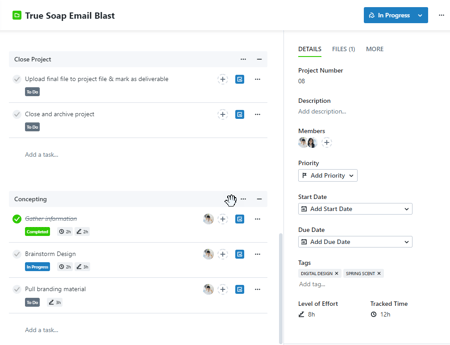
Work groups allow you to categorize your Project work in a way that is intuitive and easy to manage. With work groups, project managers can take the complexity out of project schedules by creating groups that represent Project phases, deliverables, teams, or whatever categories make sense for the project at hand.
TABLE OF CONTENTS
• Move Work Groups to Other Projects
Creating a Work Group
Navigate to the relevant Project details page. Under Overview, click Add Group. 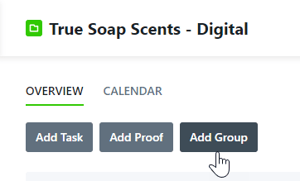
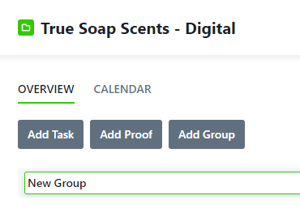
Edit the group name and click outside the field to save.
Directly beneath the group name, click 'Add a task...' and begin typing your Task name. Press return on the keyboard to save your Task.
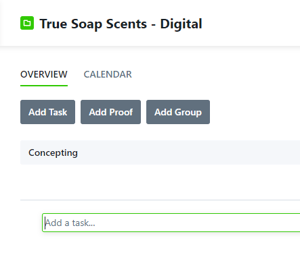
Repeat this step until any Tasks relevant to the group are added.
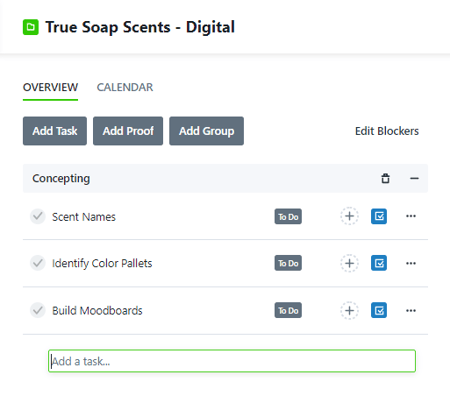
Add multiple groups and subsequent Tasks or Proofs to manage Projects with larger scopes.
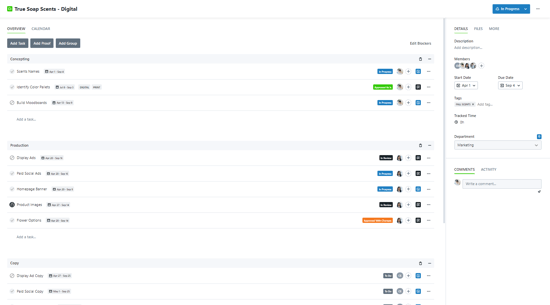
Organizing Work
You can reorder Tasks and Proofs as well as entire groups at a time by dragging the work group header or work item.
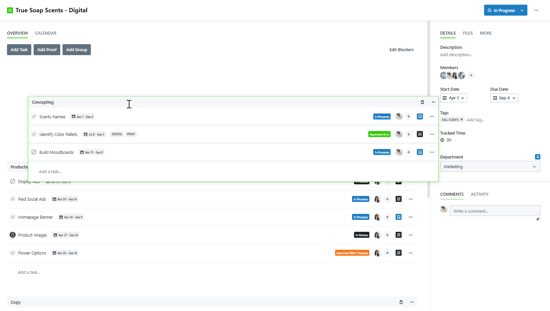
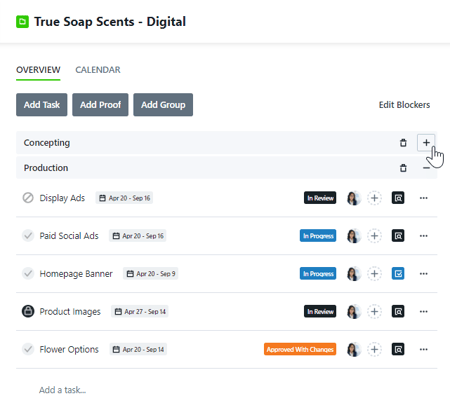
You can also collapse and expand work groups as necessary to view your Project work in whatever arrangement benefits you most at the time.
Duplicate Work Groups
Cut down on repetitive work when creating similar Work Groups by duplicating!
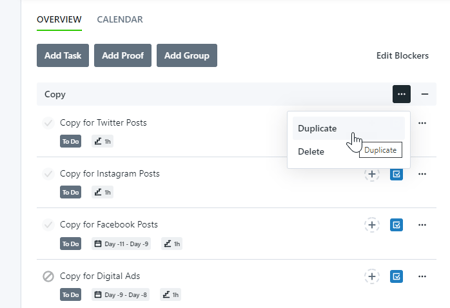
Click the actions menu to the right of the Work Group and select Duplicate.
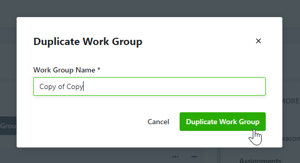
Create a name for the new work group and select Duplicate Work Group.
Move Work Groups to Other Projects
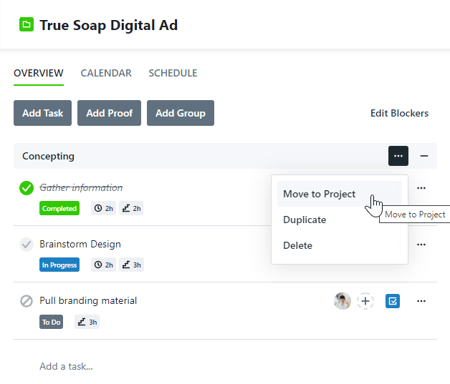
Work groups can be moved between Projects. To move a work group to another Project, click the actions menu to the right of the work group and select Move to Project.
Select from the existing Projects to move your work group to. The work group will then be removed from the current Project and relocate to the chosen Project.
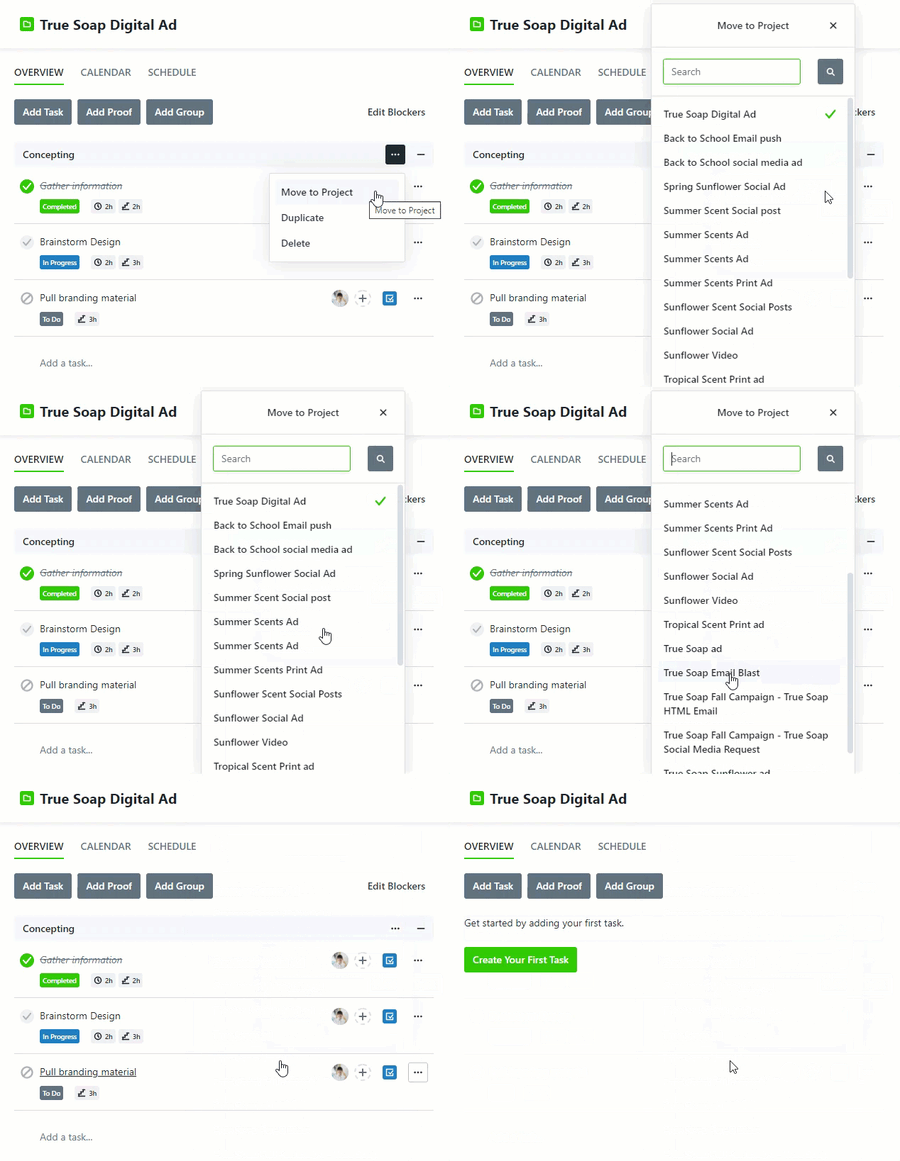
Inside the chosen Project, the work group will appear below existing work groups and maintain all of the previous information and statuses. Users will receive notification of their assignments to the new Project if they were not previously members.
Deleting a Work Group
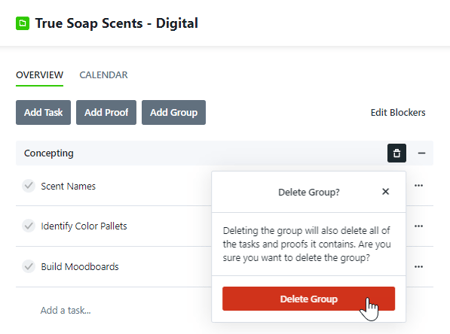
To remove a work group and all related Tasks or Proofs, click the Trash icon to the right of the group name. Click Delete Group to confirm your selection.