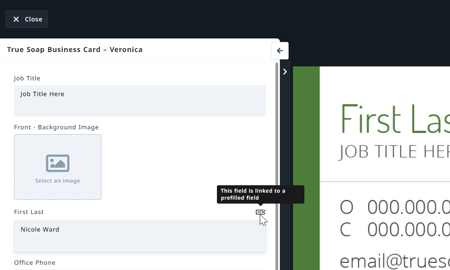
Prefilled Fields allow account admins to link text, image, and hyperlink value fields to fields within templates. Users are able to manage their values within personal account settings, cutting down on repetitive work and ensuring information is always correct. Create prefilled fields for names, addresses, and any other reusable values to be applied to as many templates as desired.
TABLE OF CONTENTS
• Managing Prefilled Field Values
Creating Prefilled Fields
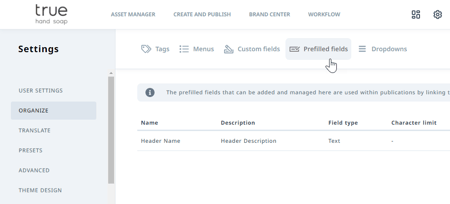
Navigate to ORGANIZE within the account settings and click on Prefilled fields to access and create fields available for use within Templates.
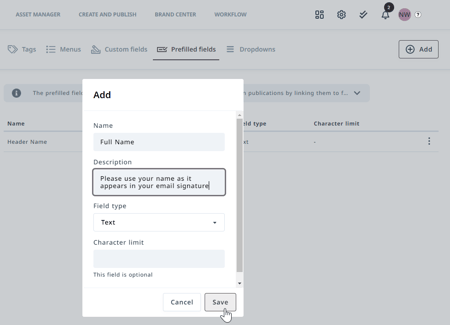
Click Add in the top right corner to create a new field. Add a name for the field that will be easily recognizable to your users and a description if desired. Select the field type from the dropdown list. When selecting Text, you have the additional option to add a character limit. Click Save when complete.
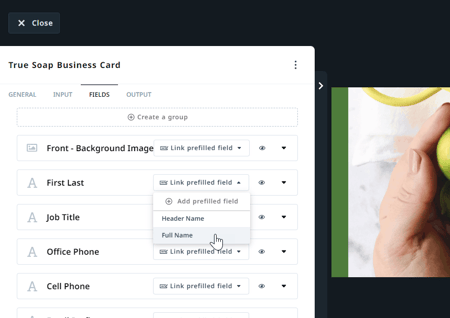
Now that your field has been created, you can apply it to as many templates as desired. Navigate to your template of choice and click FIELDS within the template settings.
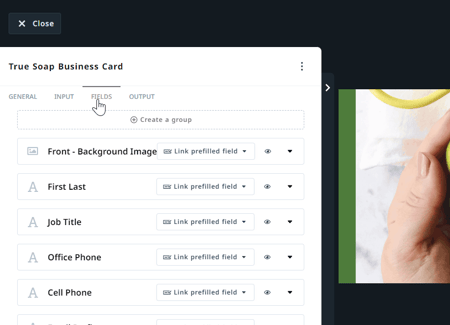
Select the Link prefilled field dropdown menu to the right of the field you would like to link and select from the available prefilled fields. You also have the option to add a new prefilled field on the fly by selecting + Add prefilled field.
Managing Prefilled Field Values
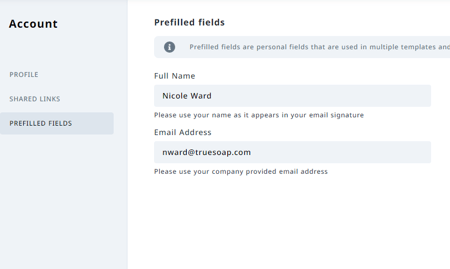
Users can manage their prefilled field values within their account settings in PREFILLED FIELDS.
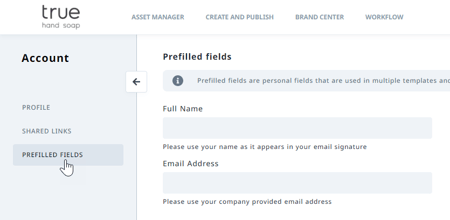
Values can easily be added and updated as desired for use within any linked template fields.
Now when creating a publication with linked prefilled fields, those values are automatically populated. Values can still be edited if needed.