Skip to content
English - United States
  • There are no suggestions because the search field is empty.

Password Management

With Password Management, admins can set requirements to ensure user passwords meet expected security thresholds.


TABLE OF CONTENTS

• Accessing Security Settings 

• Length and Character Requirements 

• Expire Passwords 


Accessing Security Settings

To update your security settings, navigate to Account Settings by clicking your avatar and select Security from the Settings sub-navigation. 
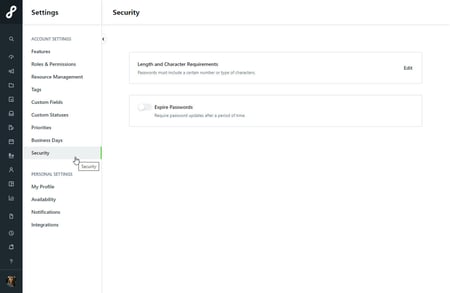
Security panel

By default, Expire Passwords will be toggled off and minimum length requirements are set to 8 characters.



Length and Character Requirements

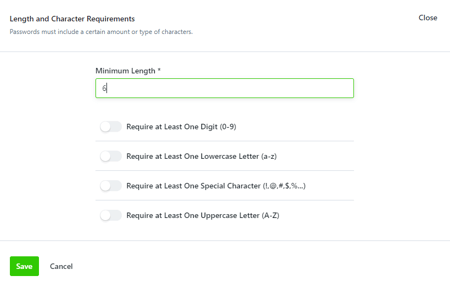
Select Edit to update your Length and Character Requirements.

Length and Character Requirements options


To update the minimum length of user passwords, click into the field and update to the desired number. A minimum length is required and cannot be less than 6 or more than 98 characters.

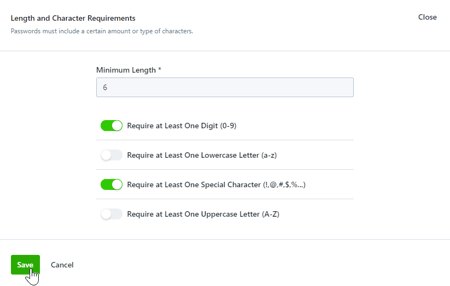
Length and Character Requirements


You can also enable additional requirements for users to include at least one number, lowercase letter, uppercase letter, and/or special character in their passwords going forward.  

Length and Character Requirements


When complete, click Save.

When password requirements are updated, these will go into effect for current users the next time they reset their password.


Expire Passwords

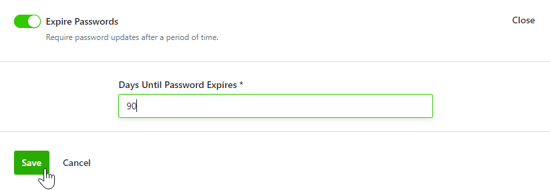
To require users to update their passwords after a period of time, enable Expire Passwords.

Expire Passwords toggle


Click into the field to update the amount of days until passwords expire. This number cannot be less than 30 days or more than 365 days. 

Expire Passwords date


When complete, click Save.

When an expiration date is set, this goes into effect from when the user last updated their password. For example, if a user last updated their password 60 days ago, and the admin updates passwords to expire every 30 days, then that user will be prompted to update their password the next time they log in.