Skip to content
English - United States
  • There are no suggestions because the search field is empty.

Managing User Accounts

Access your user settings by clicking the settings icon in the top right are of your screen. 
Settings icon


TABLE OF CONTENTS

• Adding New Users

• Importing Users

• Invitations

• Editing User Accounts

• Disabling Users

• User Statuses 


Adding New Users

Before adding a new user, make sure the Role that will be assigned to the new user has already been created. Note that roles are mandatory for every user.


From the User Settings sub navigation page in Settings, click the + Create Users button toward the top right of the screen.
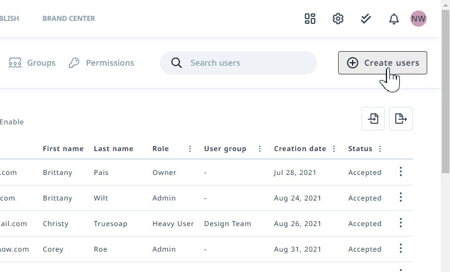
create users button

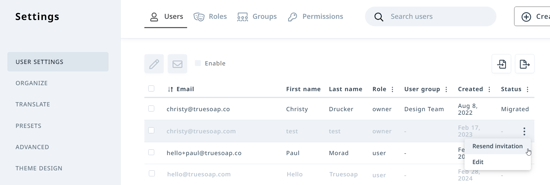
Lytho Pro Tip: Use the user search bar to check if a user has already been created. If the user has been created but they have not yet accepted the new user invitation, you can resend the invitation email by selecting the actions menu on the far right and selecting Resend Invitation.


When creating new users, you will be prompted to input the following:

• (Required) Email address

• (Required) Role

• (Optional) Group

• (Optional) Permissions


Begin adding new users by typing in their email address and clicking the plus icon or hitting the Enter key. 
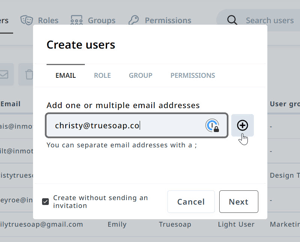
When adding multiple Users at once, ensure they have the same Role, Group, and Permissions as these selections will apply to each user added.


Adding user email address


Select ROLE or Next to assign your User(s) a role
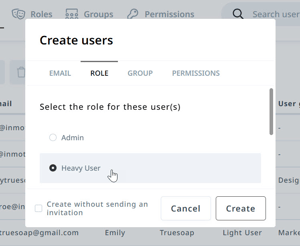
role tab


You can assign your User(s) a group and permissions in the additional menu options if applicable. Once the necessary information has been added, you'll see the option to click Create. proactively create new users without notifying them by clicking the checkbox for Create without sending an invitation.
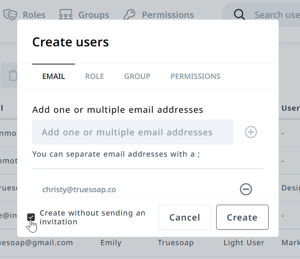
Create without sending an invitation checkbox


Importing Users

If you have many users that you would like to create or update all at once, you can use the Import button to upload a .xlsx file. 
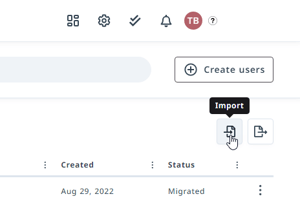
import button


Using the Import User Template an uploader would populate the following fields in order to create new users or update existing users:

• Email address - Required

• First Name

• Last Name

• Locale

• Role - Required, Validated

• Group - Validated

• Permissions - Validated

• Automatically applied permissions - Validated


For all items that are validated, the system will check the import value against what is already set up in your account. If an item fails validation, a message will be returned communicating the issue.
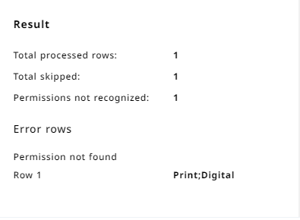
import results

The columns in this template are locked. Rather than deleting a column, please leave a value blank if you do not need it.


Invitations

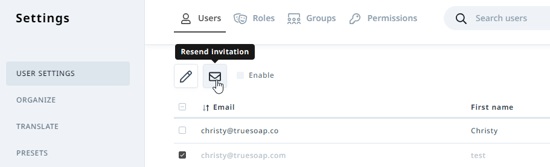
Users who have not accepted or not been sent an invite will appear at the top of your user list in gray when sorting by status. Use the check box to the right of the email to select one or more users. Once selected click the envelope icon at the top of your list to send invitations. 

resend initiation button


You can also send an invitation by clicking the actions menu to the right of a user and selecting Resend invitation. 

Resend invitation option


Editing User Accounts

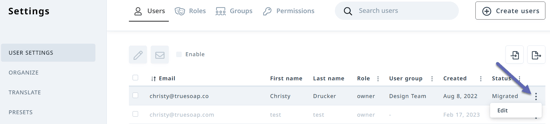
From the USER SETTINGS sub navigation in Settings you will see a list of all users and their information such as email, name, role, user group, and status. Click the three-dot icon to the far right of a name and select Edit to update. 

Edit menu

Multiple Users can be edited at once by selecting the checkbox next to each email and selecting the edit icon at the top of the user list.


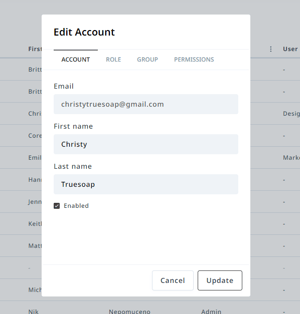
There are four sections in user accounts that can be edited from here:

1. Account – allows you to edit Email, First Name, Last Name, and if they are an ‘Enabled’ user.

2. Role - allows you to assign that user to a different role type (see Roles article to learn more).

3. Group - allows you to determine if that user should be included in a select group of other users, such as Marketing Team, Design Team, etc.

4. Permissions – allows you to alter the assets that can be accessed by this user based on permission tags.

edit account settings


Select Update to save your changed. 


Disabling Users

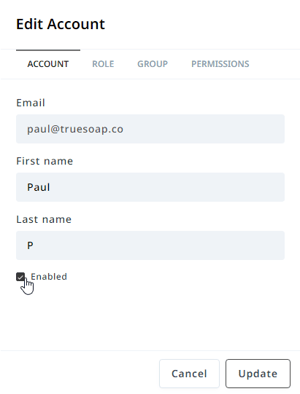
In Lytho, users cannot be deleted. Instead, users that should no longer have access to the DAM should be Deactivated. To deactivate a user, edit the user by clicking the three-dot icon to the far right of a name and selecting Edit. From the menu, uncheck the Enabled checkbox and select Update.

enable toggle


A deactivated user's information will appear gray on the user list.

deactivated user


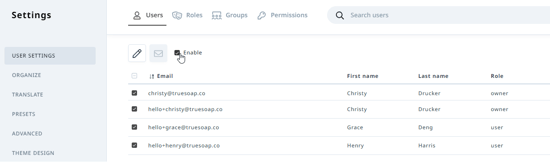
You can also deactivate a user or multiple users by selecting the box to the left of the appropriate user(s) and clicking the Enable checkbox towards the top of your list. 

Enable checkbox


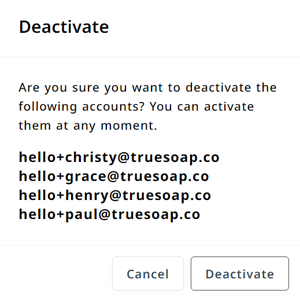
You will be asked to confirm the selected user's deactivation. Select Deactivate to confirm. 

deactivate confirmation


User Statuses

As users move through the user profile activation process, their Status may change. Below are the possible Statuses you may see:

• Created - A user with the created status is a user that only exists in the Lytho DAM. A brand new user is add to an account as either Invited or Not Invited once the user verifies their email then the user is in the Accepted status.

• Invited - Users in this status have been added to an account and can be re-invited. Users will not be sent password reset emails. This status also applies to users in Mixed Authentication.

• Not Invited - Users in this status have been added to an account but no invite email has been sent to the user. The user can be invited but will not be sent password reset emails. This status also applies to users in Mixed Authentication.

• Accepted - Users in this status have been added to an account, have accepted their invite, and have logged into the account. Users will be sent password reset emails when requested. Users in this status will not be sent re-invite emails. This status also applies to users in Mixed Authentication.

• Self Registered - Users in this status have completed the self-registration process and verified their email. Users cannot be re-invited prior to email verification but can request and be sent password reset emails.

• Provisioned - Users in this status have been added to an account through an SSO login. Users cannot be re-invited and will not be sent password reset emails.

• Migrated - Users in this status are users that already existed in an account at the time the account was migrated. These users in this status cannot be re-invited. User can request and will receive password reset emails.