Works with: Lytho Planner (Divvy)
DivvyHQ integrates with the Lytho Digital Asset Manager. With this integration, you can find and share approved assets from Lytho without leaving Divvy.
Features described in this article are not included in all subscription plans. Interested in expanding your feature set? Contact the Lytho Support Team for further assistance.
TABLE OF CONTENTS
How to Connect
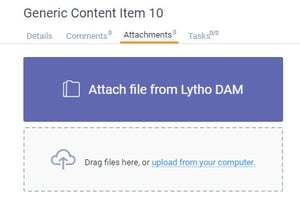
To connect your DivvyHQ account with the Lytho DAM, go to the Attachments tab of a content item or campaign you are working on and click Attach file from Lytho DAM.
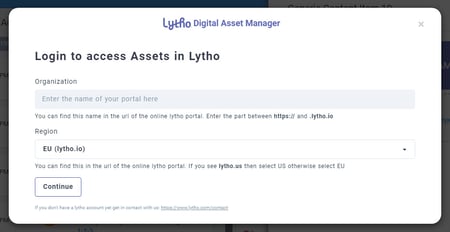
In the pop-up window, input your Lytho URL login details:
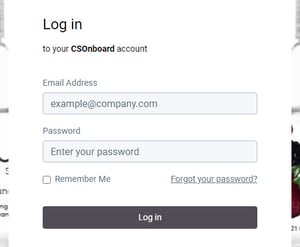
Next, provide your personal Lytho user login credentials:
Lastly, select Yes to grant DivvyHQ access to your Lytho DAM.
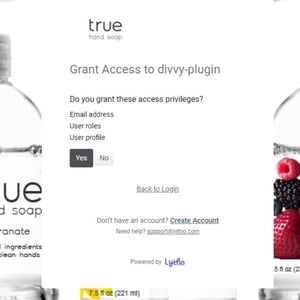
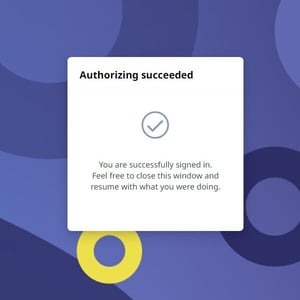
Once authorization is granted, you will see an additional message stating the authorization was successful. Close your browser tab and you are now connected!
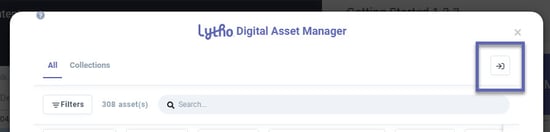
If you wish to log out of your Lytho account when you are done, click the Exit icon in the top right of the Lytho file browser interface.
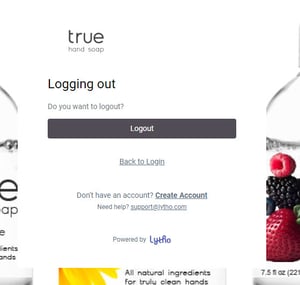
Then select Logout.
Browse Your Assets
From there, you will see your Lytho DAM file repository. You can browse for a file that you'd like to attach by scrolling, utilizing the Global Search to find a file by a specific tag, or take advantage of the Filters panel.
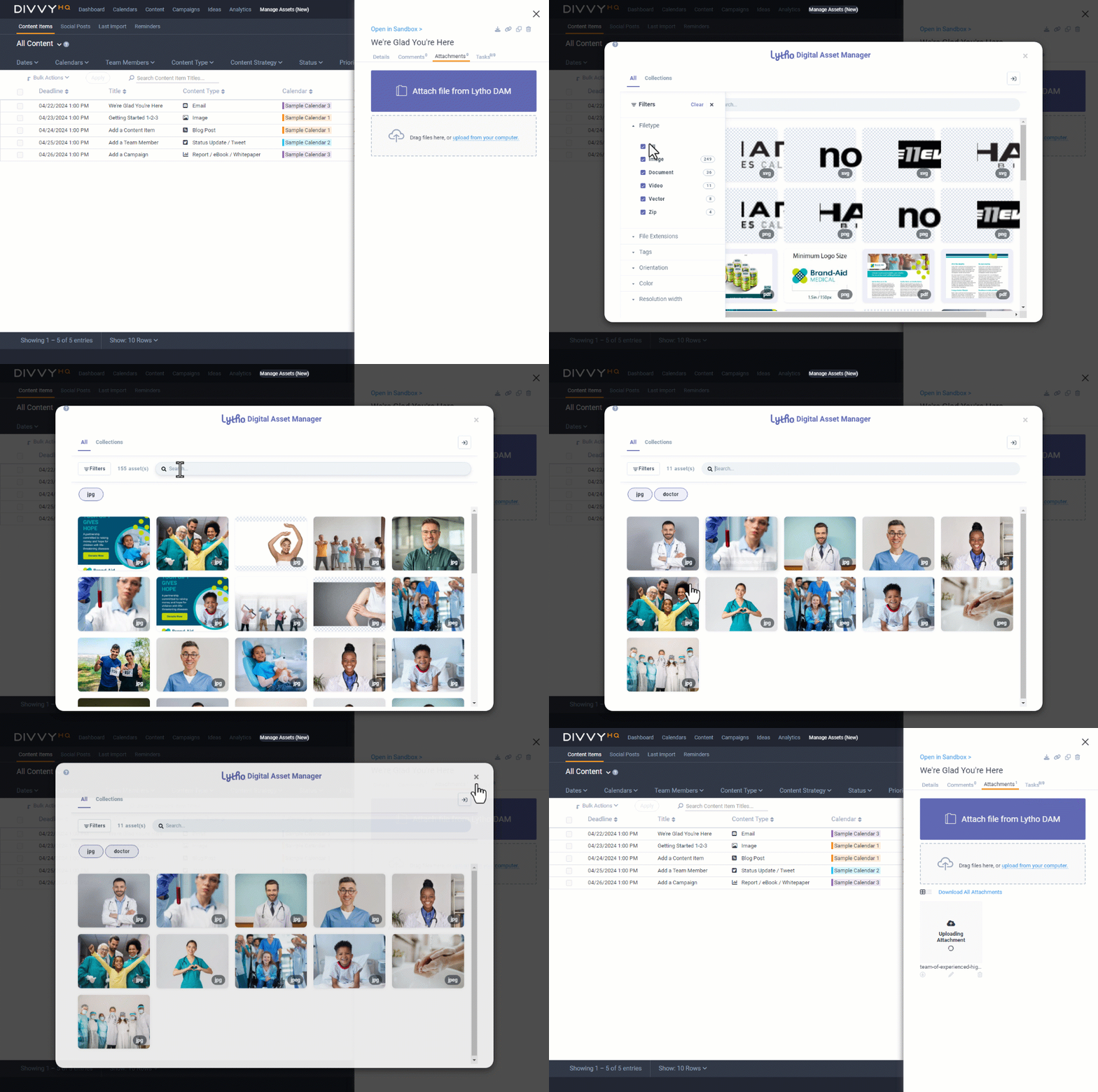
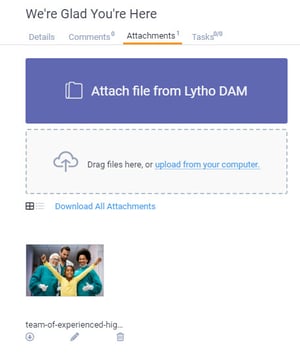
The assets will then populate into the Attachments tab.