Skip to content
English - United States
  • There are no suggestions because the search field is empty.

Lytho for Chrome & Microsoft Edge (Workflow)

Works with: Lytho Workflow

Lytho for Chrome and Microsoft Edge makes it easier to bring content from the tools your team already uses into Lytho. Whether you're working in Microsoft Word or PowerPoint, Figma, your CMS, social platforms, or other browser-based tools, you can capture web content and assets and submit them directly to Lytho for review. Existing Lytho permissions are respected, so users can only access and submit content based on the permissions they already have in Lytho.

Teams can also take advantage of the AI Reviewers configured in Lytho directly from the browser, helping them get feedback earlier and avoid unnecessary back and forth. AI Reviewers can check content against your organization’s standards, provide real-time feedback and suggested fixes, and help teams address brand and compliance issues before sending work through formal review. When human input or an audit trail is required, content can continue through your established Lytho review workflows.

Because the extension uses the same AI Reviewers and rules configured in Lytho, your organization’s standards stay consistent across tools and workflows while your team remains in control of final decisions.


Features described in this article are not included in all subscription plans. Interested in expanding your feature set? Contact the Lytho Support Team for further assistance.


TABLE OF CONTENTS

• Prerequisites 

• How to Install

• Logging In

• How To Use

• Review Content

• Submit a Proof

• Uploading Content

• Where Can I Use Lytho for Chrome and Microsoft Edge


Prerequisites

Before using Lytho for Chrome and Microsoft Edge, ensure the following is in place:

  • Your organization uses Lytho Workflow and you have an active user account. Each user connects their own Lytho account using their organization's Lytho subdomain and normal sign-in method, including Single Sign-On (SSO).

  • If you want to use AI Review, AI Reviewers must be configured in your Lytho account. Lytho for Chrome and Microsoft Edge use the same AI Reviewers and rules defined in Lytho. AI Reviewers are not required to capture and submit assets to Lytho from your browser. 


How to Install 

1. Visit Lytho for Chrome or Lytho for Microsoft Edge

2. Select the option to add or install the extension in your browser. 

3. Follow the prompt to confirm the installation. 

4. Once installed, click the Extensions icon in your browser toolbar

5. Pin Lytho for easy access


Logging In

Open the Lytho browser extension using either of these options: 

• Select the Extensions icon in your browser toolbar, then select Lytho

• Select the floating Lytho icon on the right side of your screen


The extension panel will open.
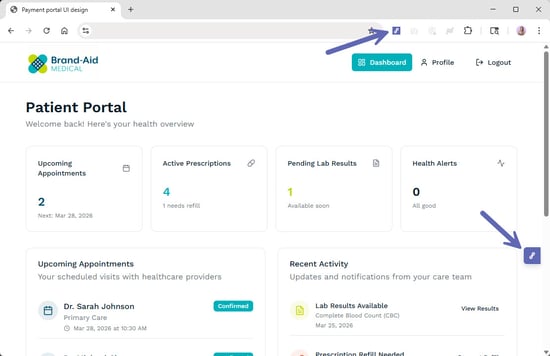
Lytho Chrome extension icon


In the extension login screen, enter the following:

• Account: Your Lytho subdomain

• Auth URL: This field is preconfigured — no changes needed


Select Sign In with Lytho.
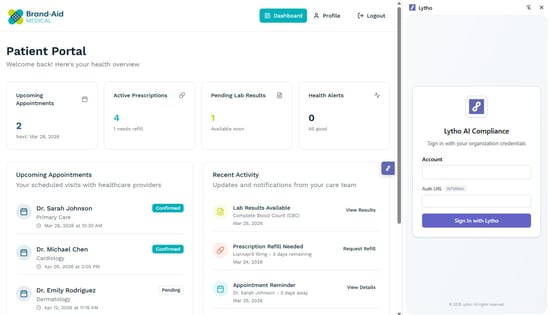
Lytho Chrome extension login


A new browser window will open. Log in using Single Sign-On (SSO), or enter your Lytho username or email and password.


Select Log in.
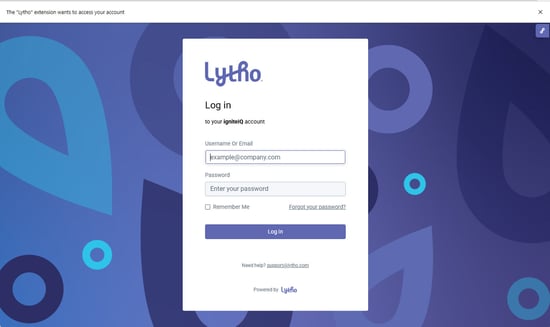
Lytho login screen


Once logged in, the extension will open to the home screen. You are now ready to begin using the Lytho for Chrome or Lytho for Microsoft Edge. 
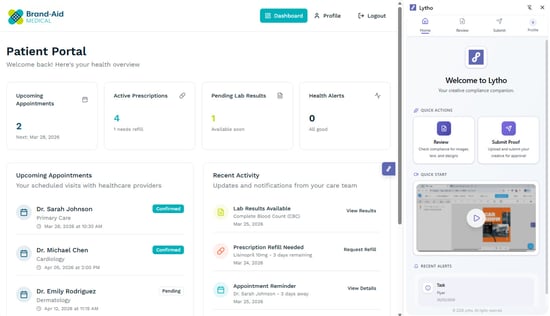
Lytho Chrome extension logged in


How To Use 

Lytho for Chrome and Microsoft Edge both supports two primary actions:

• Review: Check content for brand and regulatory compliance across images, text, and designs

• Submit Proof: Upload and submit assets to Lytho for formal review and approval

Permissions are respected within the extension. Only Lytho team members with appropriate access can submit Proofs. Only users with AI Reviewers will have access to review content. 


From the home screen, you can:

• Select a Quick Action button for Review or Submit Proof

• Or use the tabs at the top of the extension to navigate between Review and Submit
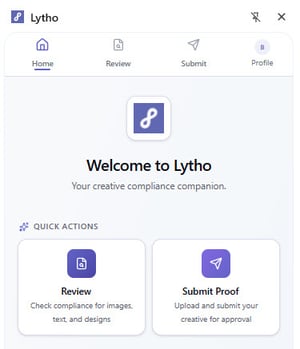
Lytho Chrome extension home tab


Review Content

From the home screen, select Review. 

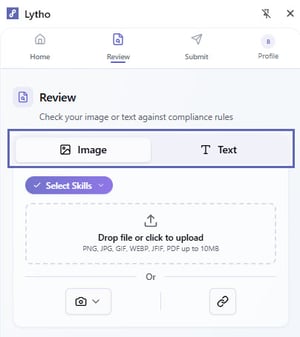
Choose the type of content you want to evaluate:

• Image: For designs, layouts, and visual assets

• Text: For written content and copy

Review content options


For Images, you'll upload an asset using one of the methods outlined in the Uploading Content section below.


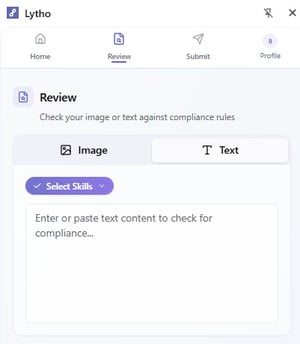
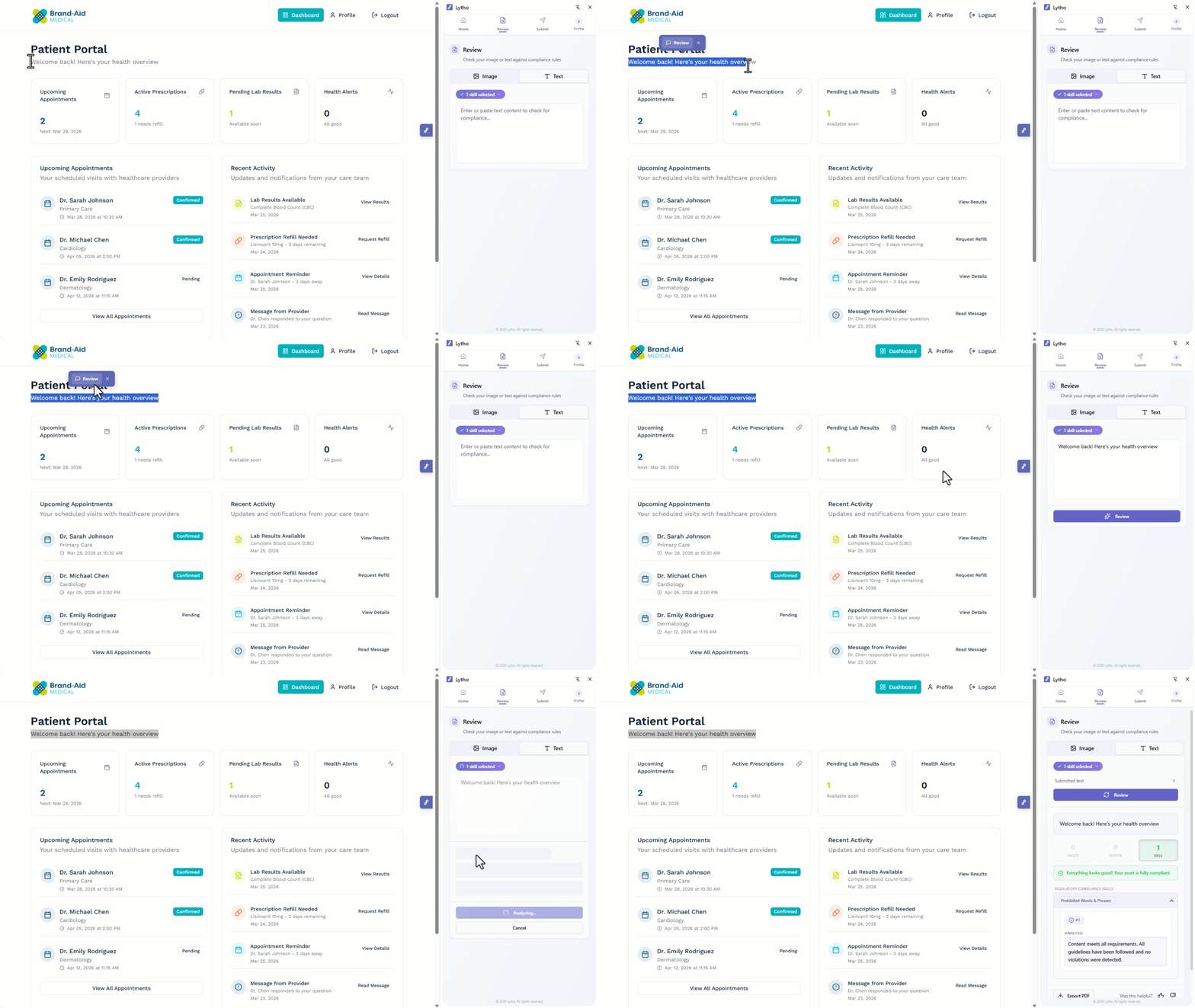
To review written content, first select the Text tab. 

Text review


Add content by highlighting text within your asset in the browser. Once highlighted, a tooltip will appear. Select Review, and the text will automatically populate in the extension.

text review


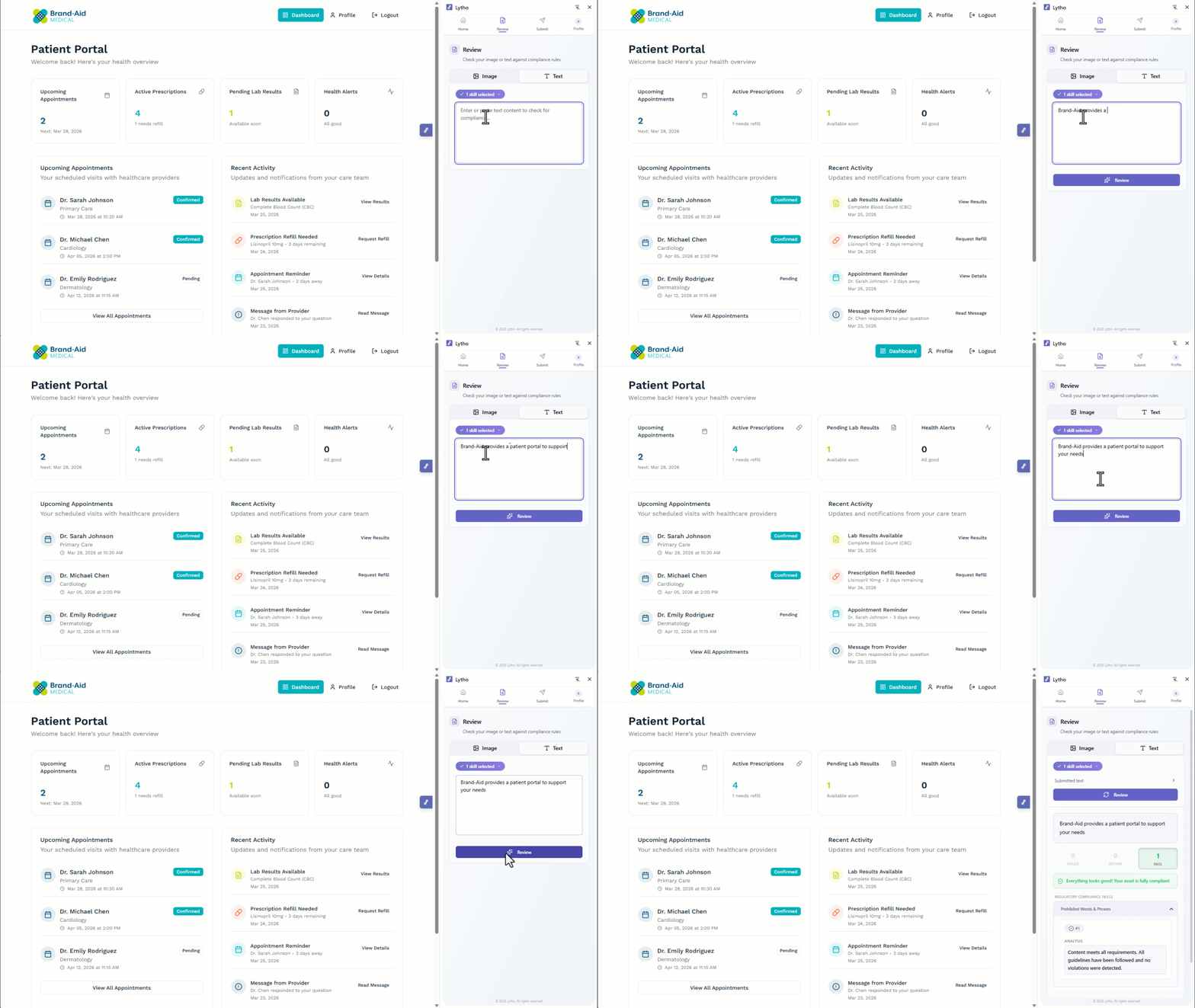
You can also copy and paste content or type directly into the extension text box.

text review


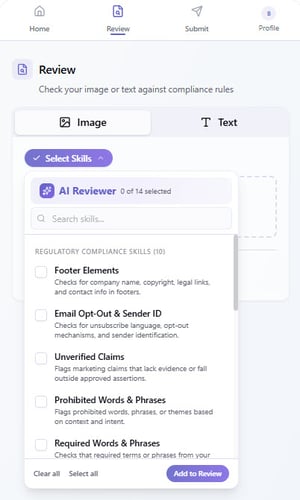
Once your content is added, select the type of compliance check you’d like to run using the Reviewer dropdown. These options are based on the AI Reviewers configured in Lytho.

applying skills


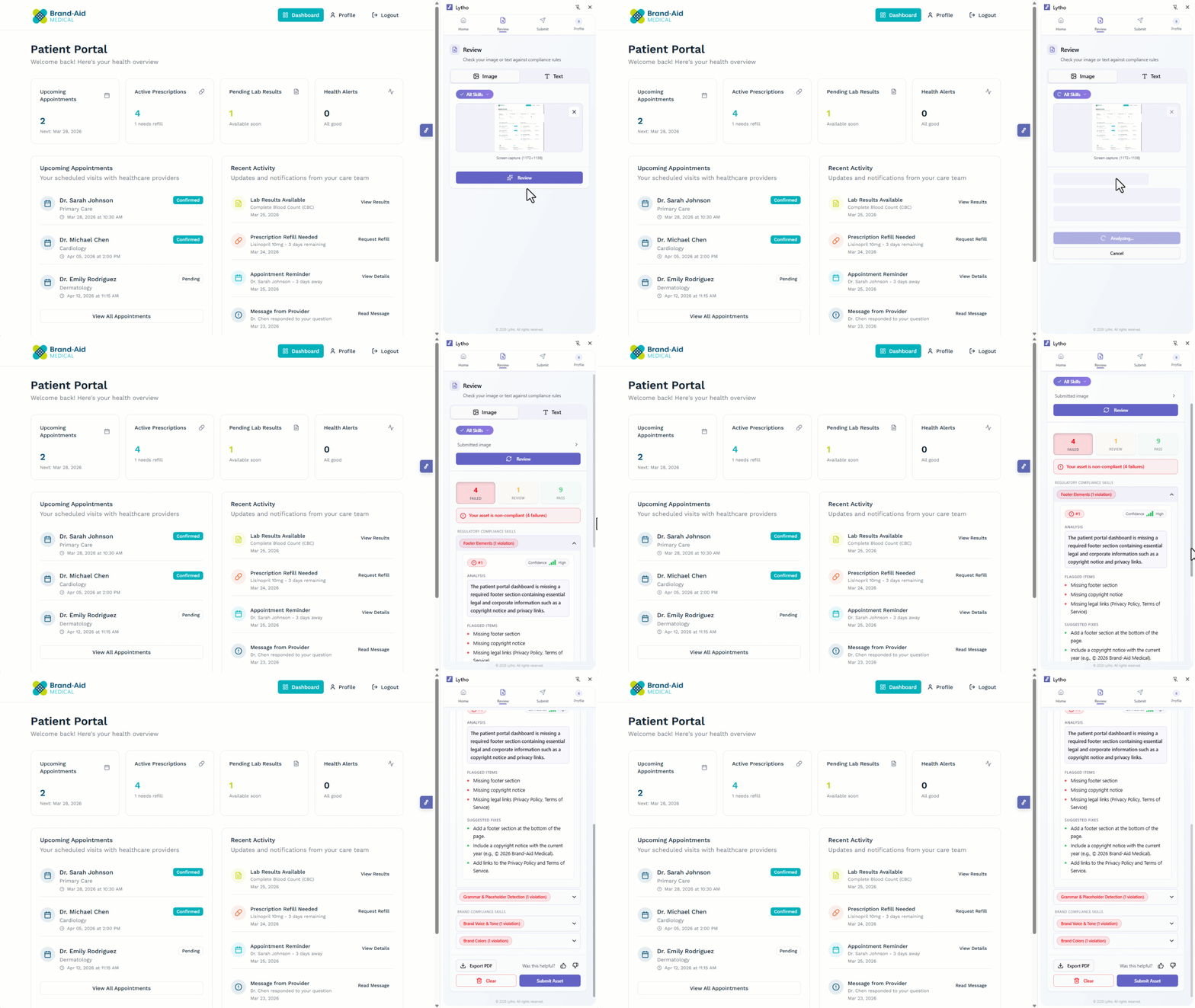
Finally, select Review to run the compliance check.

Review results


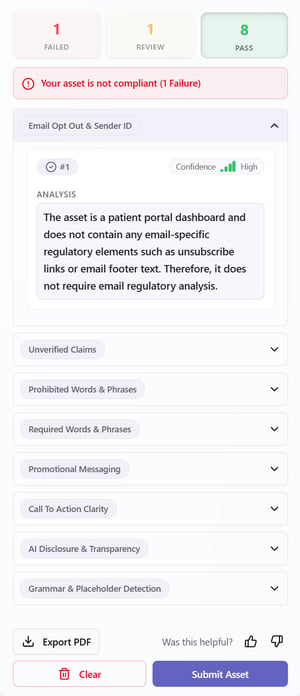
After running a compliance check, your results will be grouped into three finding states:

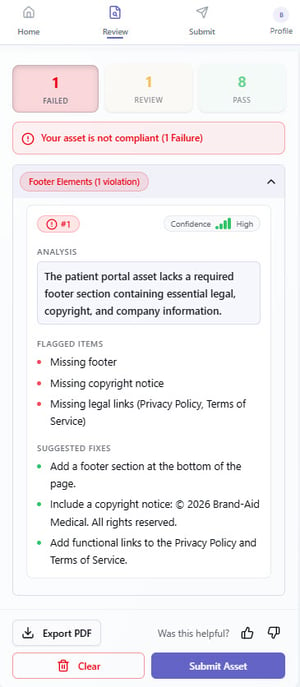
• Failed: The content does not meet compliance requirements and requires updates.

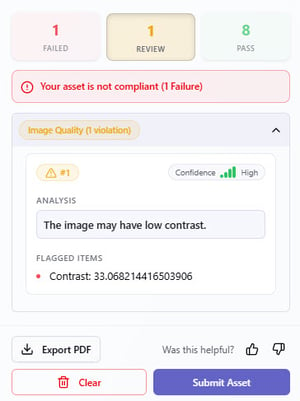
• Review (Warning): A potential issue was detected, but the AI Reviewer is not fully certain. These should be reviewed carefully, as they may still require updates.

• Pass: The content meets the selected compliance criteria and no issues were detected.


Failed Example

Failed Example


Review Example

Review Example


Pass Example

Pass Example

Lytho Pro Tip: Iterate based on compliance check results. Make updates and run your content through the extensions multiple times to ensure it meets brand and regulatory standards.


Depending on the finding state you select (Failed, Review, or Pass) additional insights will be available, including:

• Confidence Rating – How certain the AI is in its assessment

• Analysis – Explanation of why the content passed or was flagged

• Flagged Items – Specific sections of content that were identified

• Suggested Fix – Recommended updates to resolve issues


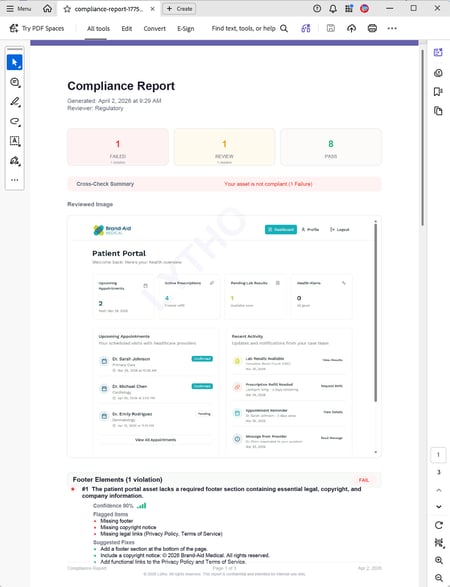
Within all finding states, you have the option to Export PDF, which downloads a version of the compliance report. This report includes the asset reviewed along with insights across each finding state.

Exported PDF example


Additionally, you can Clear the extension to review another asset, or select Submit Asset if you need additional support.


Submit a Proof

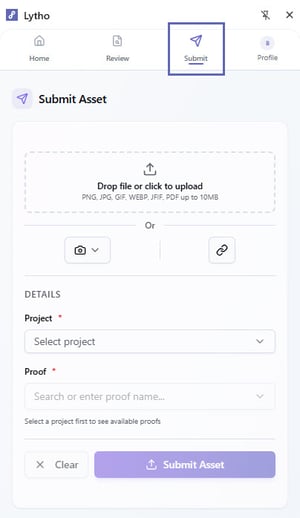
From the home screen, select Submit. 

Submit tab


Then upload the content you'd like to route through a formal review workflow using one of the methods outlined in the Uploading Content section below.


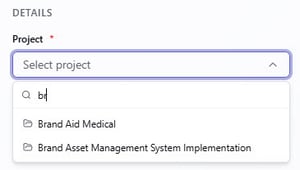
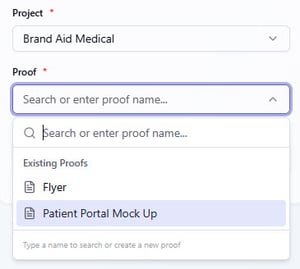
Once your asset is added, select the Lytho Project where the asset should be submitted using the Project dropdown. 

selecting project


After selecting a Project, available Proofs will be available under the Proof dropdown.


Choose an existing Proof from the list if one already exists.

selecting proof


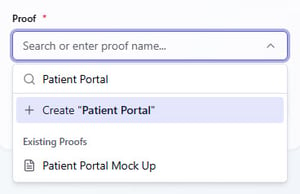
Or begin typing to create a new Proof. As you type, existing Proof names will be suggested for comparison.


Select + Create "Proof name" to create a new Proof if needed.

creating proof


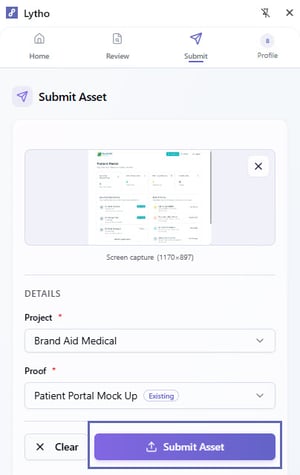
After all required information is entered, select Submit Asset to send the file into Lytho for review.

submit assets button


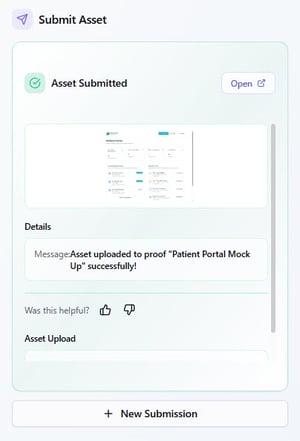
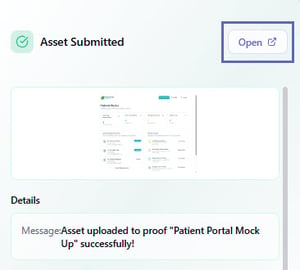
After selecting Submit Asset, you will see a confirmation that your asset has been successfully submitted.

proof submitted


You can select Open to view the associated Project in Lytho.

open button


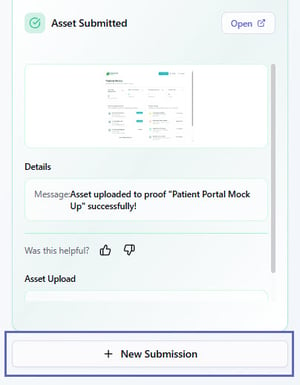
Or select + New Submission to return to the Submit panel and upload another asset.

new submission button

Submitting an asset does not send the Proof for review. This action only adds the asset to the proof. To route and send the Proof for approval, open the associated Proof in Lytho and follow your review workflow.
 

Uploading Content 

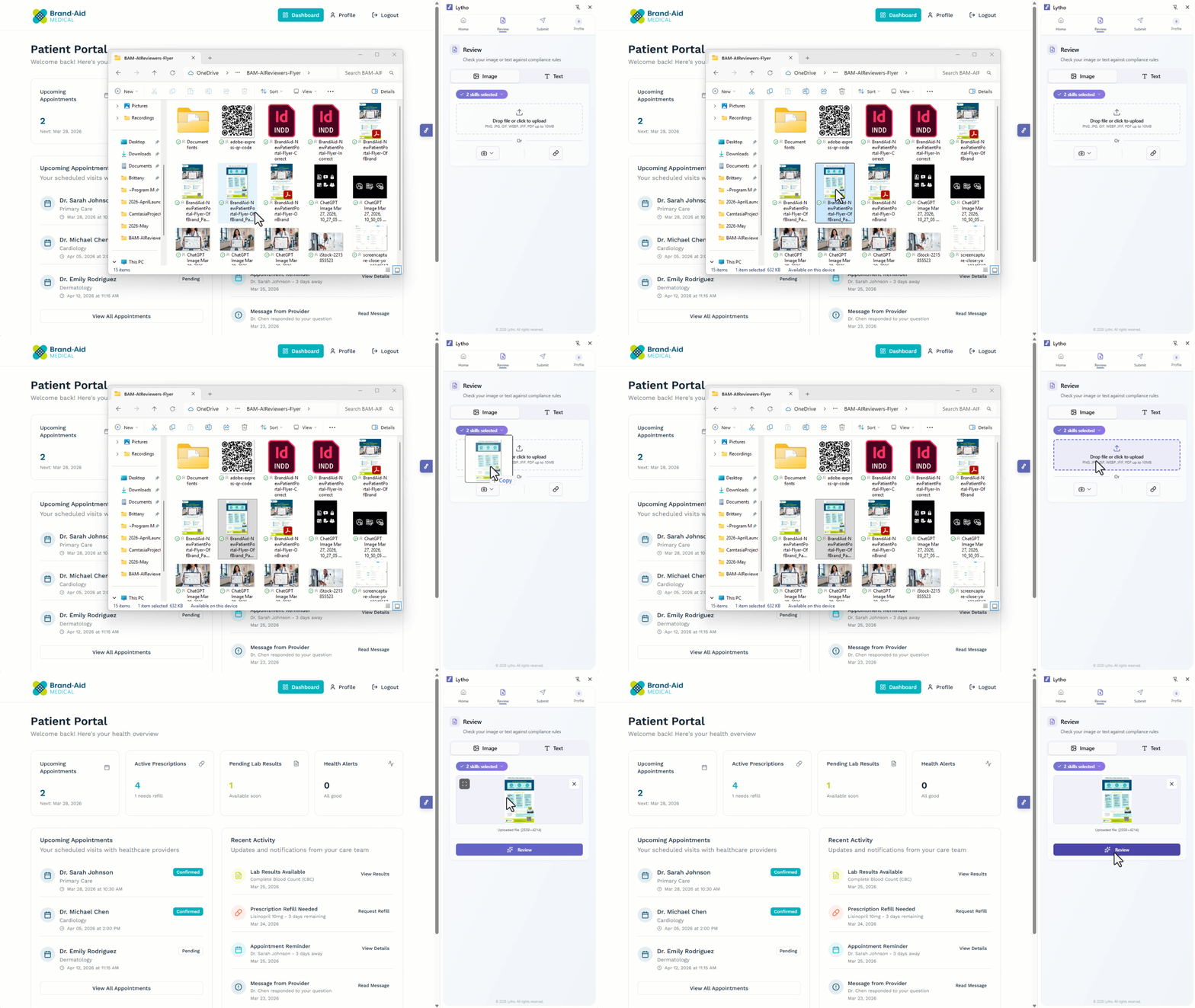
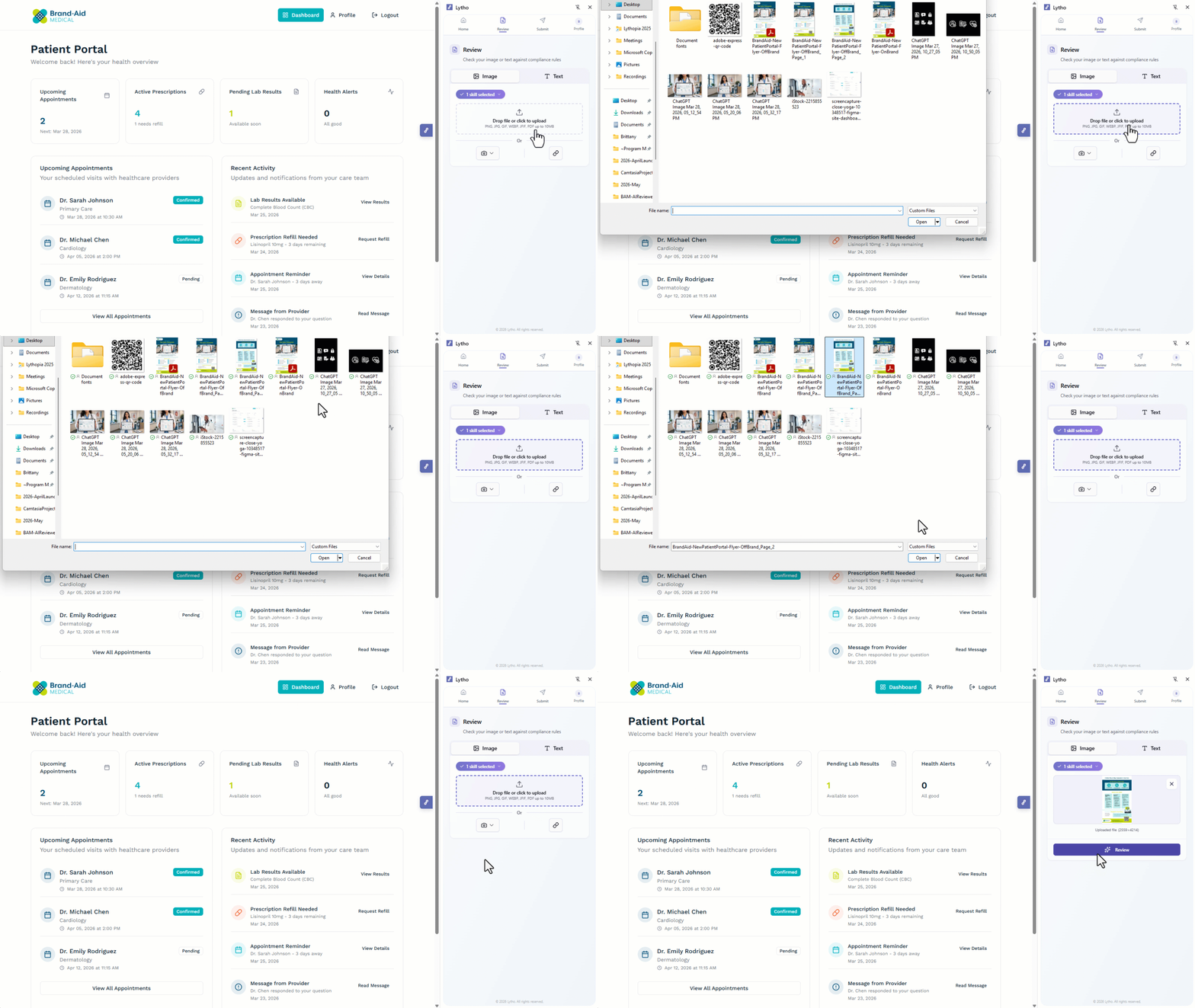
Whether you are reviewing content or submitting a Proof, the options for uploading content are the same. Use one of the following methods:

• Drag and drop a file into the upload area

• Select the upload area to choose a file from your device

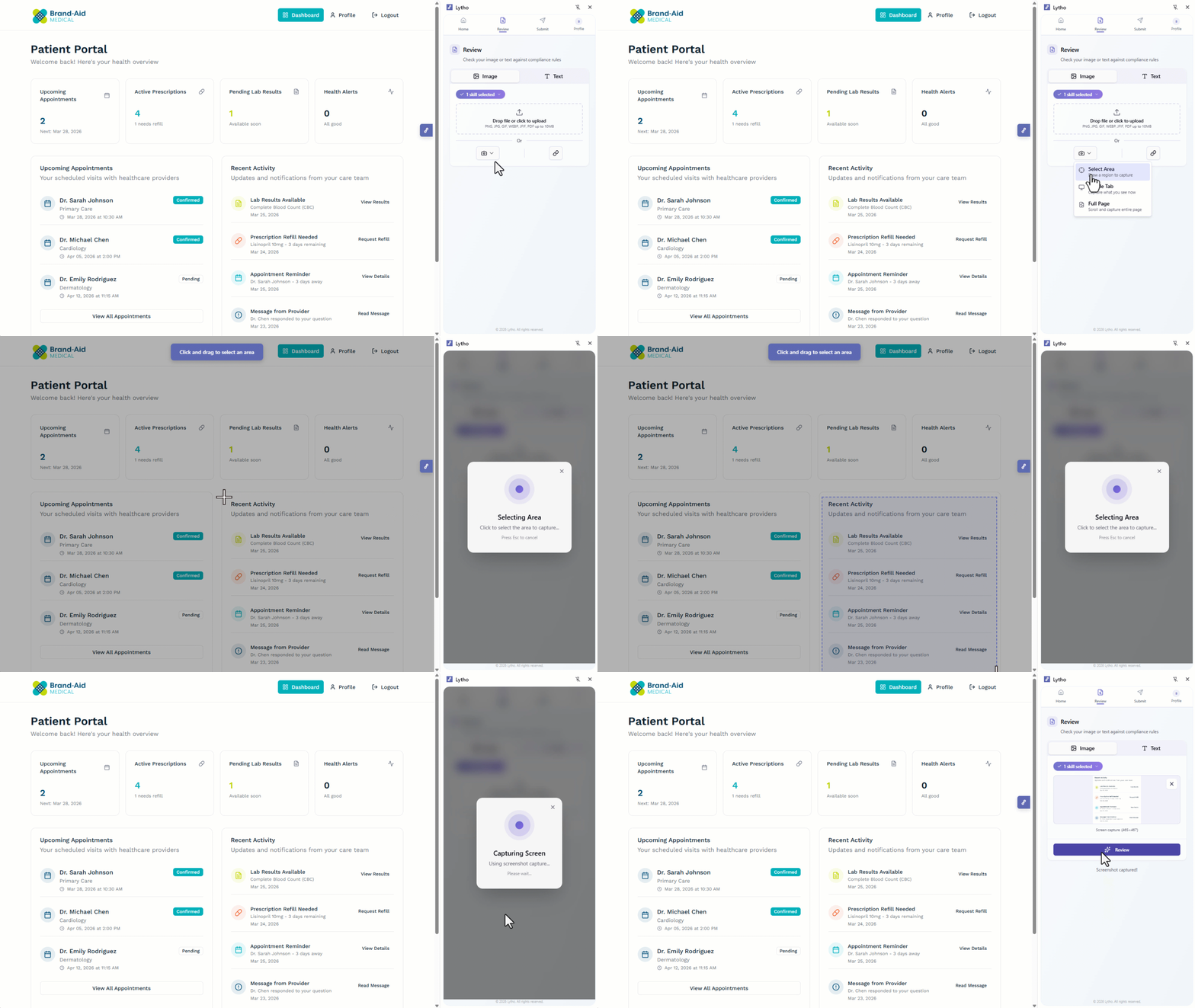
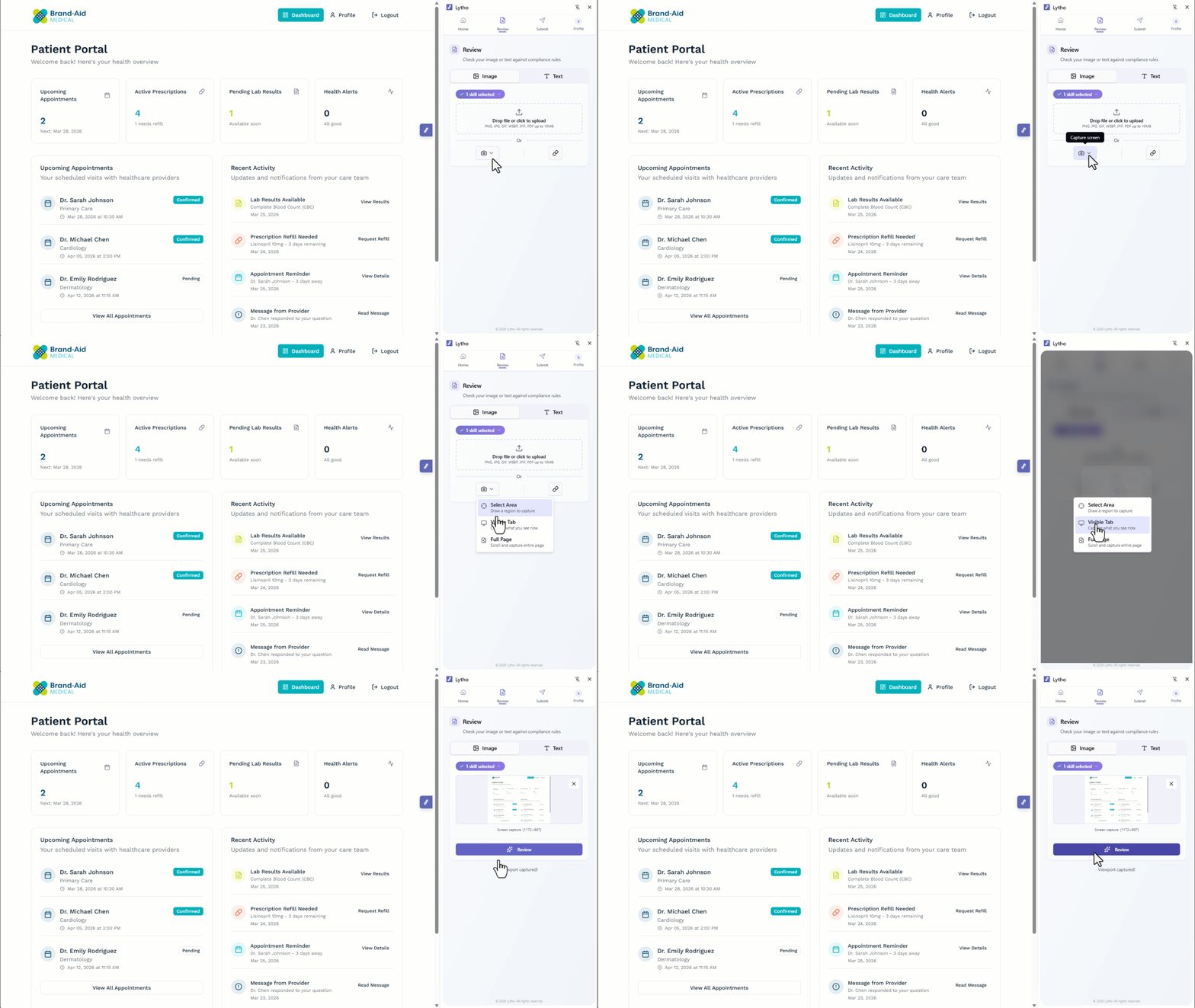
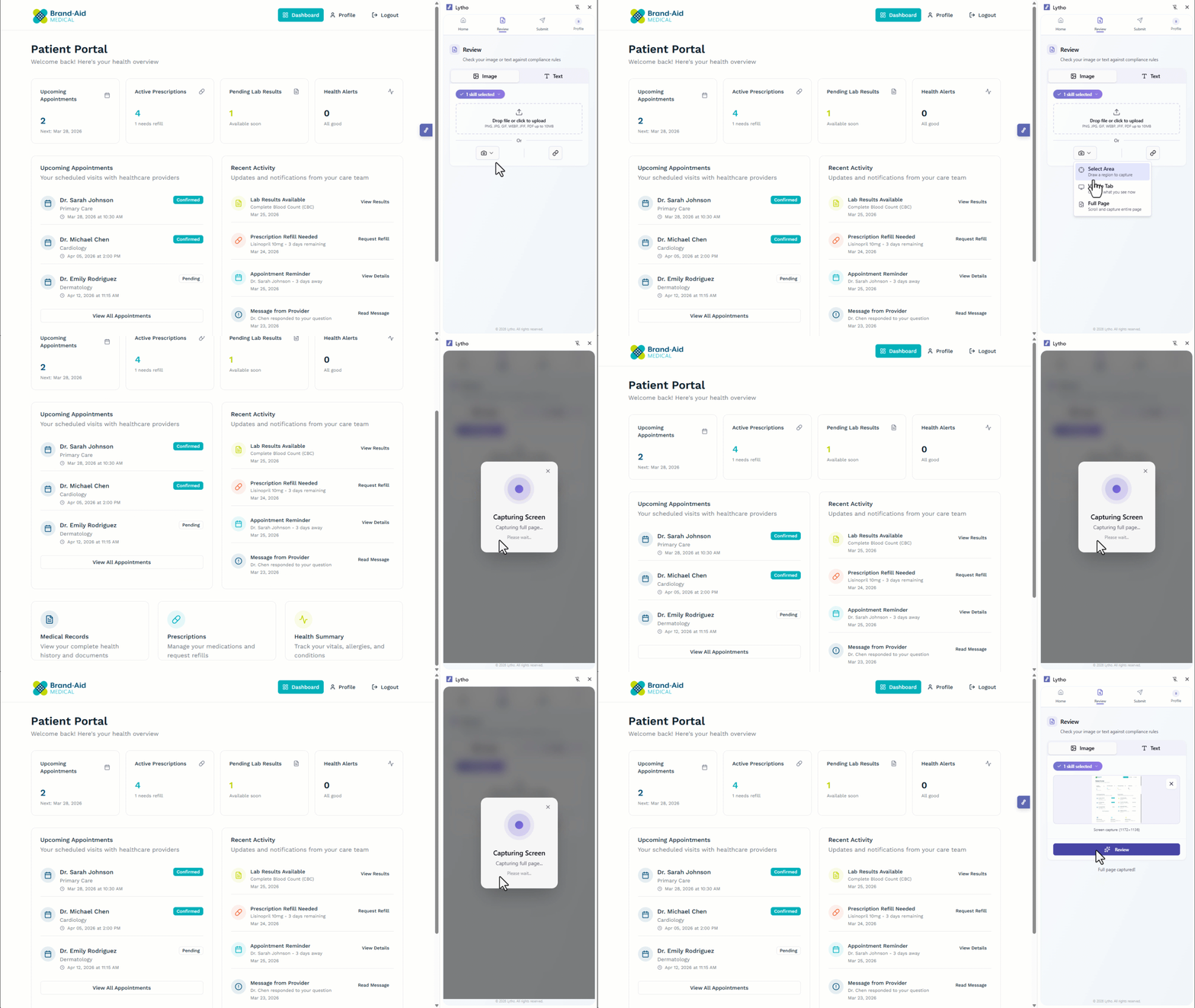
• Use the Screen capture icon:

• Select Area: Draw a region to capture a specific portion of the screen

• Visible Tab: Capture the content currently visible in your browser

• Full Page: Capture the entire scrollable page

• Select the Link icon to enter a URL

Lytho Pro Tip: While each submission includes one asset, you can continue adding to the same Proof by submitting additional assets separately.


Drag and drop

Drag and drop


Upload from device

Upload from device


Screen capture > Select area

Screen capture > Select area


Screen capture > Visible tab

Screen capture > Visible tab


Screen capture > Full page

Screen capture > Full page


Where Can I Use Lytho for Chrome and Microsoft Edge

Lytho for Chrome and Microsoft Edge works anywhere you can access content in your browser — so you can review or submit assets without disrupting your workflow.


Common use cases include:

• Office 365 (Web Apps) – Review Word documents, presentations, or shared files directly in your browser to catch issues before sharing

• Google Workspace – Validate content in Google Docs or Slides before publishing or stakeholder review

• Design Tools (Figma, Canva, etc.) – Capture mockups, layouts, and visual assets for compliance review without exporting files

• Canva users can also leverage direct integration to streamline review and submission workflows

• Email & Marketing Platforms – Review emails, landing pages, and campaign content before launch to avoid last-minute changes

• ChatGPT, Claude, or AI-generated content – Validate AI-generated copy to ensure it aligns with brand and regulatory standards

• Gated or internal websites – Capture and review content that isn’t easily downloadable or accessible outside your browser


Using the extensions directly within these tools helps you catch issues earlier, reduce rework, and move faster — without needing to switch platforms or restart the review process.