Works with: Lytho Workflow
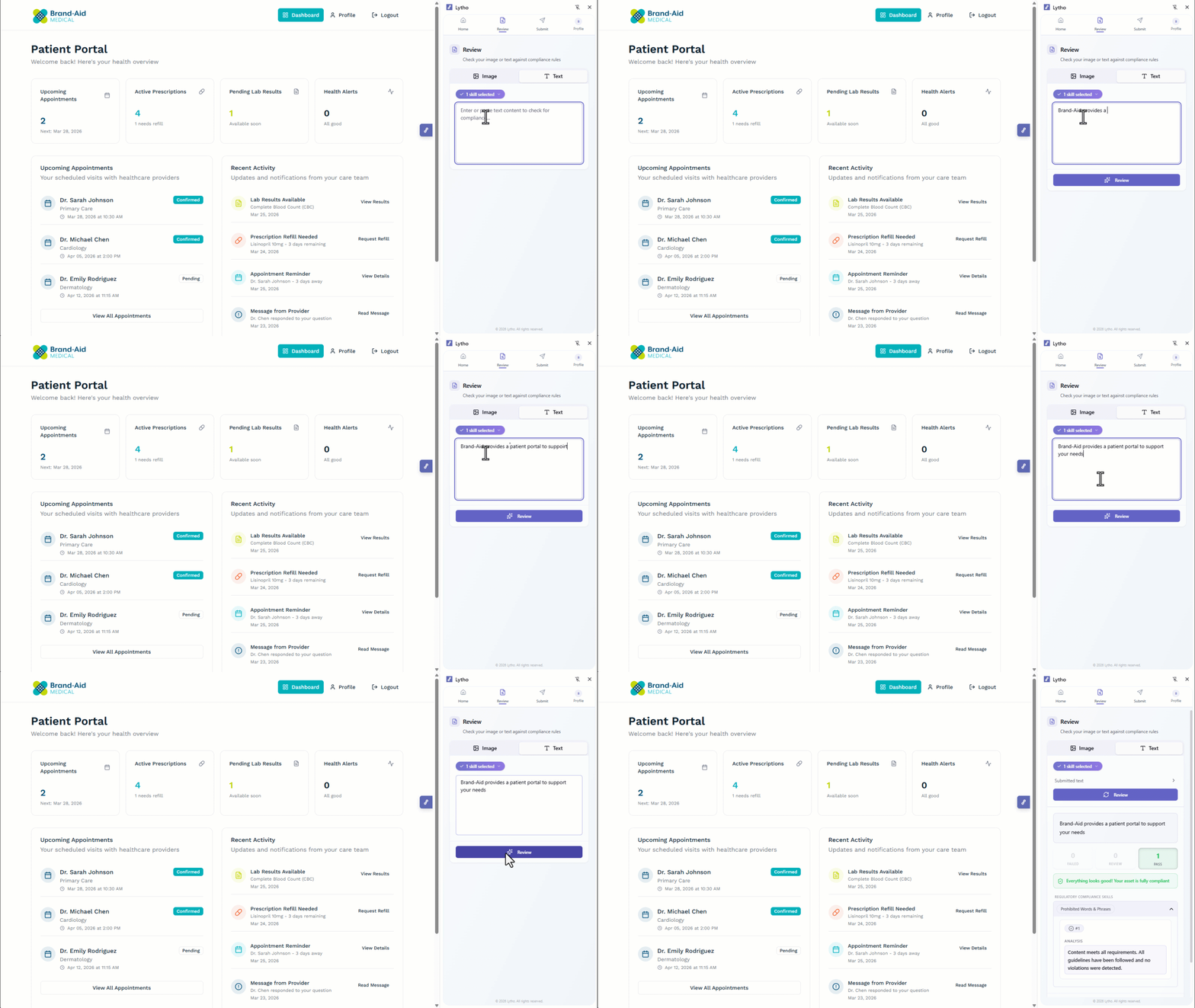
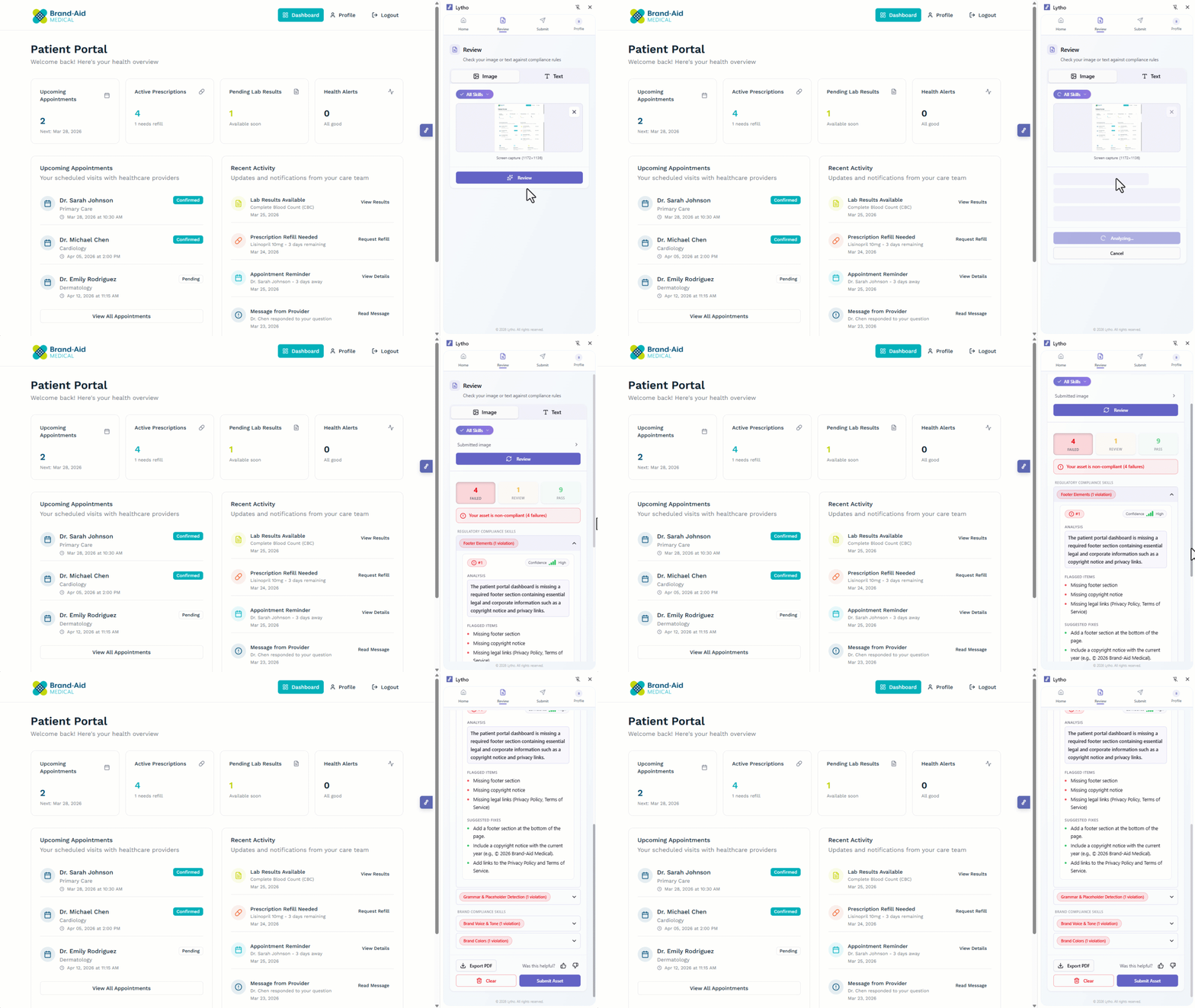
The Lytho Chrome Extension brings AI-powered compliance and brand governance directly into the tools your team already uses. Whether you're working in Microsoft Word or PowerPoint, Figma, your CMS, social platforms, or other browser-based tools, you can instantly check content against your organization’s standards before it goes live, or send it through more formal review workflows when human input or audit trails are required.
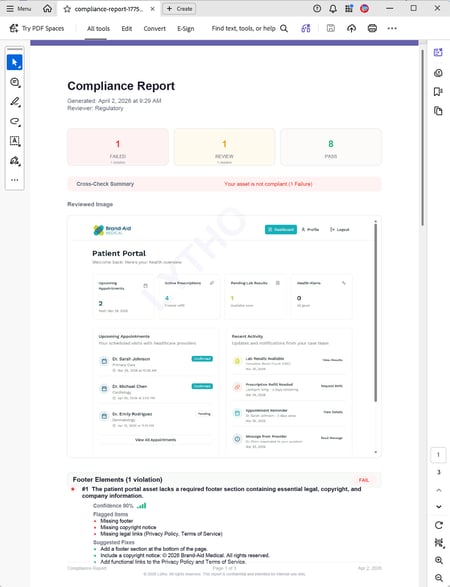
By enabling real-time feedback with suggested fixes, the Lytho Chrome Extension helps teams reduce rework, ensure brand consistency, and catch compliance issues earlier in the process. At the same time, it supports more structured review processes when needed, giving teams the flexibility to move quickly while still maintaining oversight. Because it uses the same AI Reviewers configured in Lytho, your standards stay consistent across every tool and workflow, while your team remains in control of final decisions.
Features described in this article are not included in all subscription plans. Interested in expanding your feature set? Contact the Lytho Support Team for further assistance.
TABLE OF CONTENTS
• How to Install the Lytho Chrome Extension
• Logging Into the Lytho Chrome Extension
• How To Use the Lytho Chrome Extension
• Uploading Content to the Lytho Chrome Extension
• Where Can I Use the Lytho Chrome Extension?
Prerequisites
Before using the Lytho Chrome Extension, ensure the following is in place:
• AI Reviewers are configured in your Lytho account. The Lytho Chrome Extension uses the same AI Reviewers and rules defined in Lytho. If AI Reviewers are not set up, the extension will not have the knowledge required to run checks.
• User has an active Lytho account. Users must be able to log in with their Lytho credentials to access reviewers and submit content to workflows.
How to Install the Lytho Chrome Extension
1. Visit the Lytho for Chrome extension page.
2. Click Add to Chrome
3. Confirm by clicking Add extension
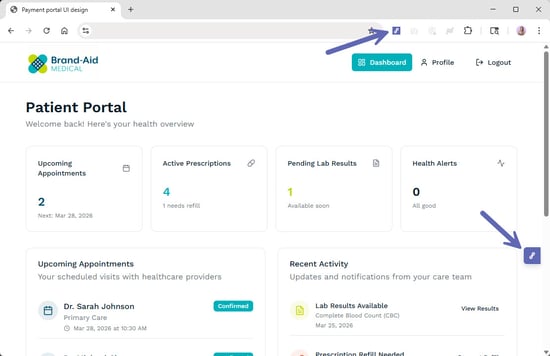
4. Once installed, click the Extensions icon in your browser toolbar
5. Pin the Lytho Chrome Extension for easy access
Logging Into the Lytho Chrome Extension
Start by opening the Lytho Chrome Extension using one of the following options:
• Select the Extensions icon in your browser toolbar and click the Lytho Chrome Extension
• Select the floating Lytho icon on the right side of your screen
The extension panel will open.
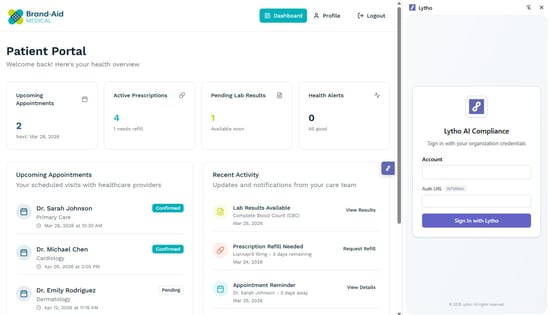
In the extension login screen, enter the following:
• Account: Your Lytho subdomain
• Auth URL: This field is preconfigured — no changes needed
Select Sign In with Lytho.
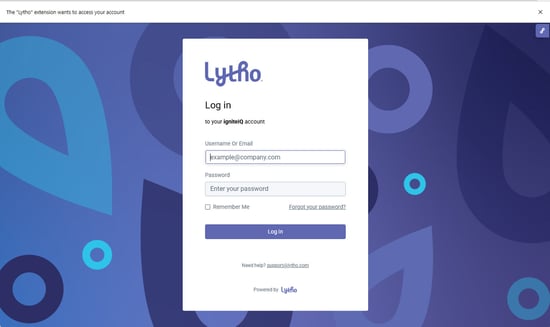
A new browser window will open. Log in using Single Sign-On (SSO), or enter your Lytho username or email and password.
Select Log in.
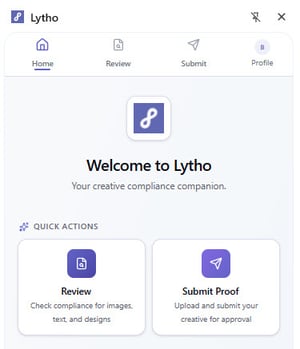
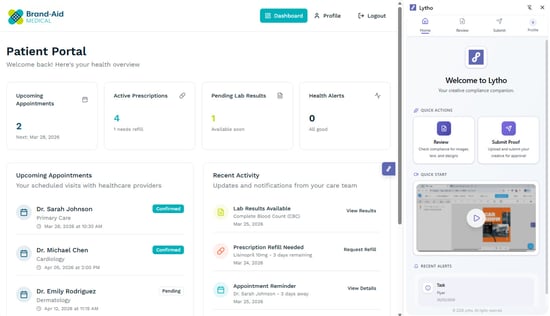
Once logged in, the extension will open to the home screen. You are now ready to begin using the Lytho Chrome Extension.
How To Use the Lytho Chrome Extension
The Lytho Chrome Extension supports two primary actions:
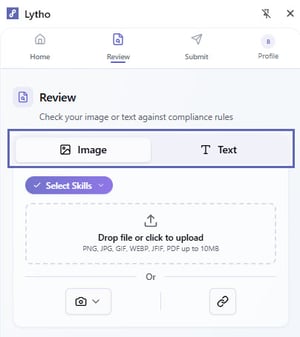
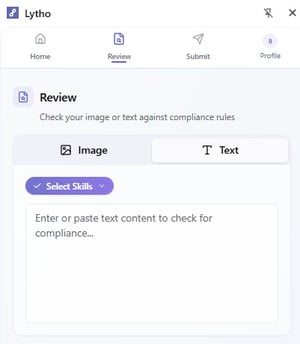
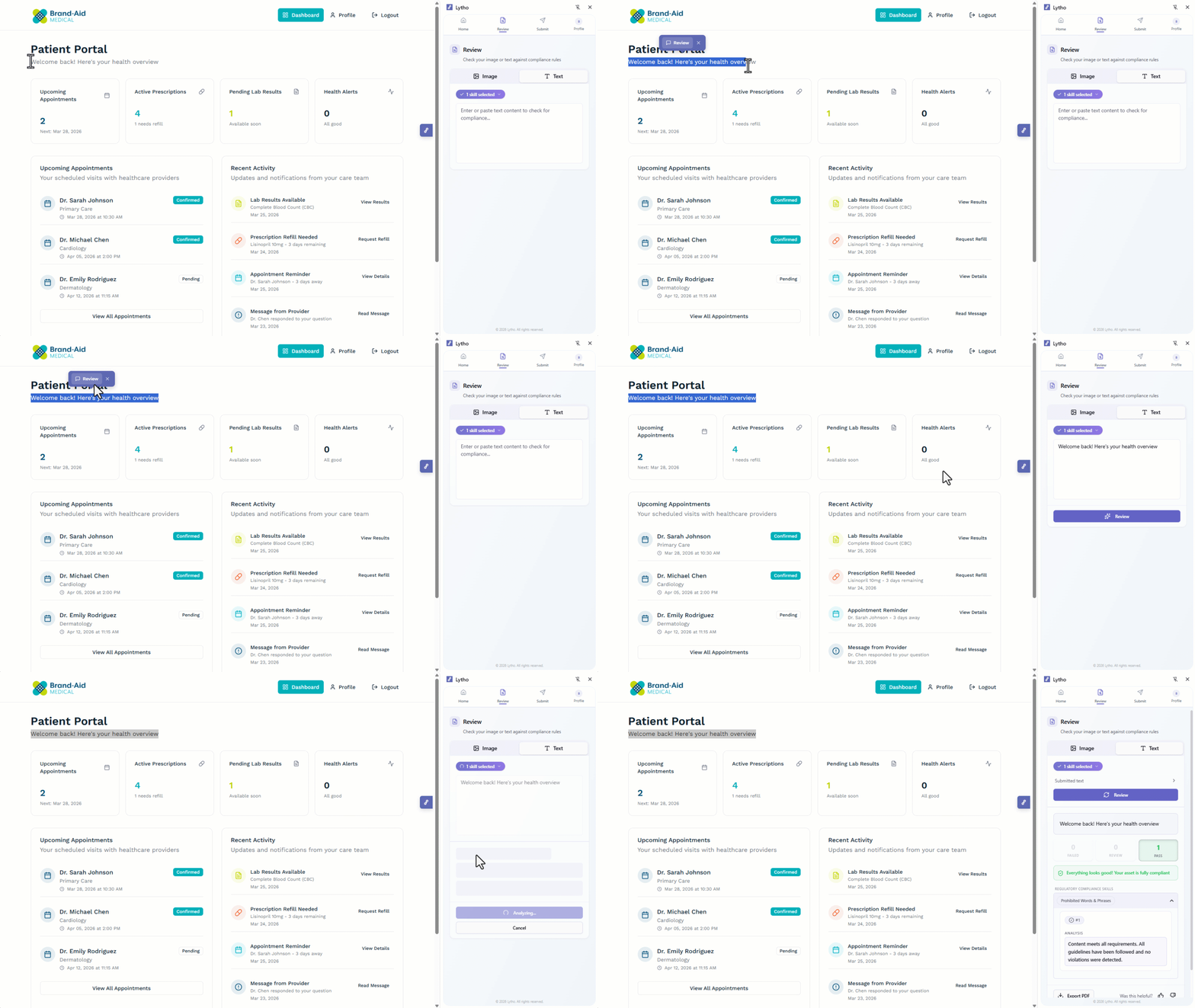
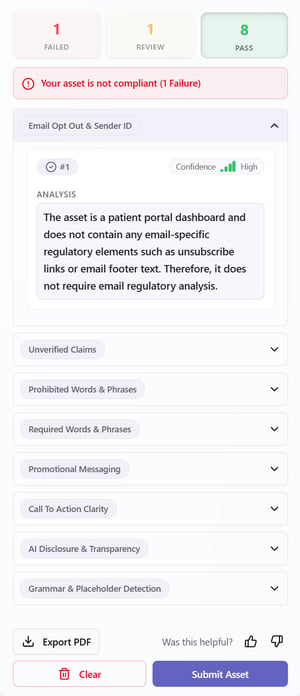
• Review: Check content for brand and regulatory compliance across images, text, and designs
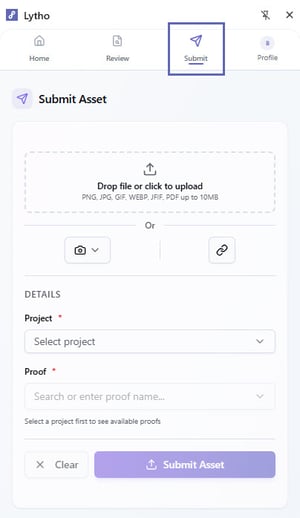
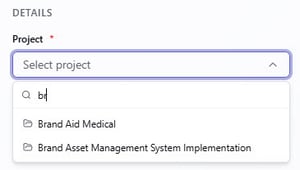
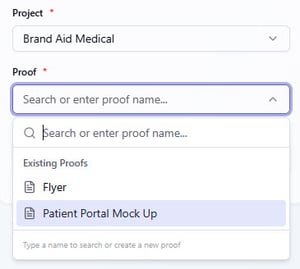
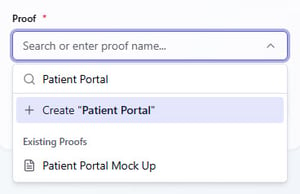
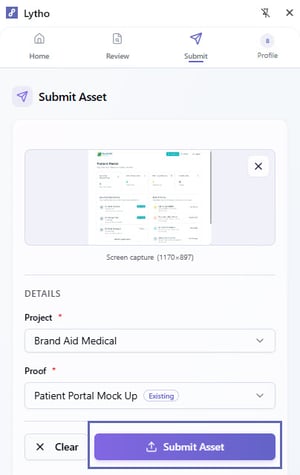
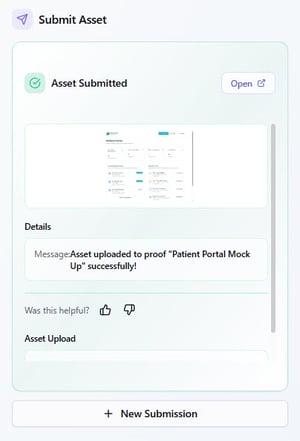
• Submit Proof: Upload and submit assets to Lytho for formal review and approval
From the extension home screen, you can:
• Select a Quick Action button for Review or Submit Proof
• Or use the tabs at the top of the extension to navigate between Review and Submit