List views in Lytho Workflow are a great way to view and take action on your Campaigns, Projects, Tasks, Proofs, and Requests.
TABLE OF CONTENTS
Viewing by List
Unless you have set up an alternative default view, your workspaces will show in List view by default.
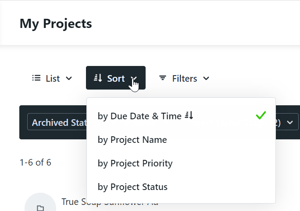
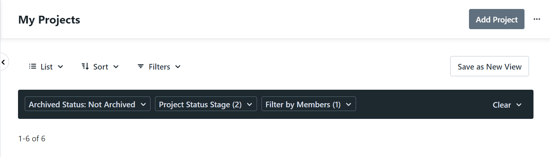
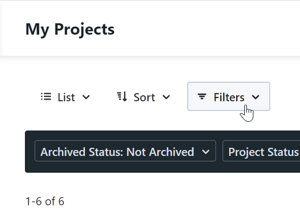
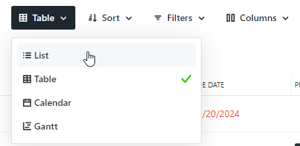
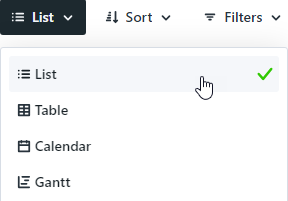
Update any Table or Kanban view to a List view by clicking the the dropdown menu next to Sort and select List.
List views show critical information at-a-glance related to each item. In the example below of a Task, a badge is displayed for the work status, start and due date, priority, tracked time, level of effort, and tags applied.

When applicable, the Project and/or Campaign name will show just above the badges and selecting these will take you directly to the Project or Campaign.

View assigned members in the right corner and click the plus icon to quickly assign or un-assign members and specialties.

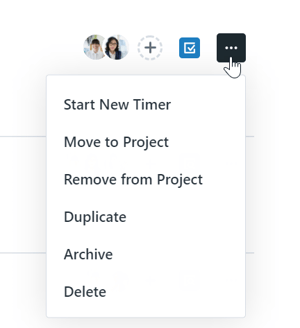
The actions menu to the far right enables you to perform actions applicable to the work space, user permissions. and account settings configured for the account.