Works with: Lytho Workflow
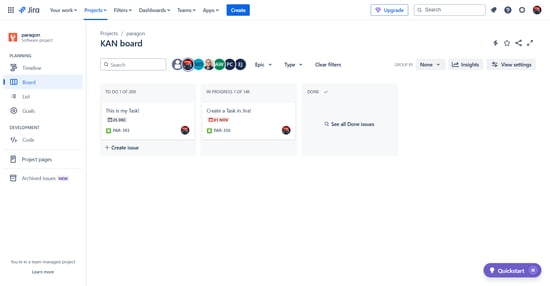
When departments house their work in different tools, there’s bound to be duplicate data entry to maintain visibility and alignment. With Lytho’s Jira integration, tasks from Lytho can be sent to Jira for automated, seamless collaboration between creative, marketing, content, and digital teams.
Features described in this article are not included in all subscription plans. Interested in expanding your feature set? Contact the Lytho Support Team for further assistance.
TABLE OF CONTENTS
• Turning a Lytho Task into a Jira Issue
Connecting Your Account
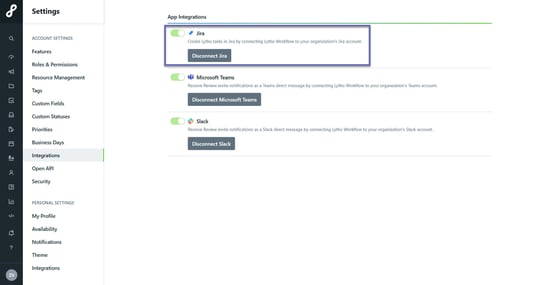
Within Lytho, navigate to Account Settings then Integrations. Toggle on the Jira integration and select Connect Jira.
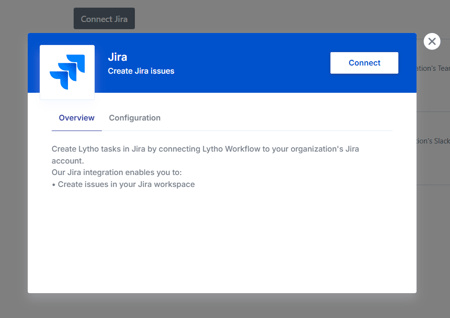
In the pop-up modal, select Connect.
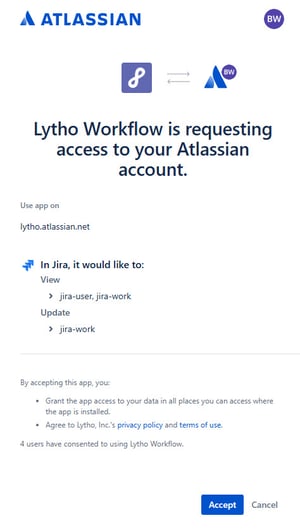
Another window will appear. From the Choose a site dropdown, select the Atlassian account you would like to connect Lytho to then hit Accept.
After a successful connection, you will be taken back to Lytho. From the Site dropdown, select the Jira site you would like to connect Lytho to then hit Finish.
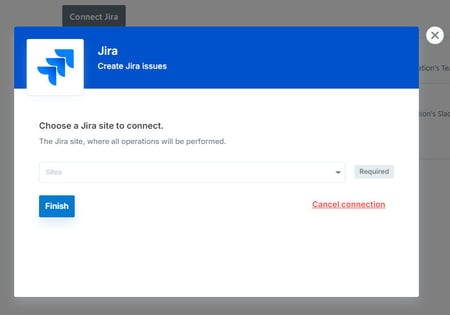
You can now create an issue in Jira from a Lytho Task.
Turning a Lytho Task into a Jira Issue
Create a Task in Lytho and fill in Task details.
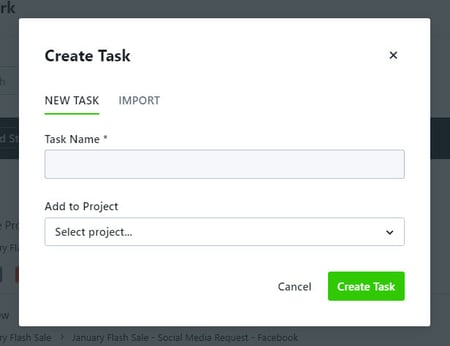
The following Task data points will carry over from Lytho to Jira:
• Name
• Status
• Due Date
• Description
• Attachments
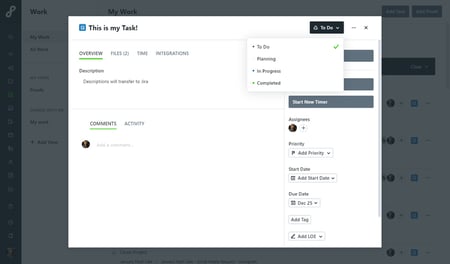
The first Team Member assigned to the Lytho Task will also transfer with the sync as the assignee on the Jira Story.

The Creator of the Jira Story will appear as the person who established the integration.
When ready to pass the Task over to Jira, navigate to the Integrations tab within the Task and select Create Story.
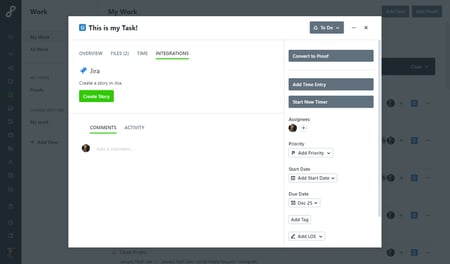
Your Lytho Task has now been turned into a Jira Story.